
When starting a service on the Embedded xUML Runtime, the Run View opens and shows the service starting up.
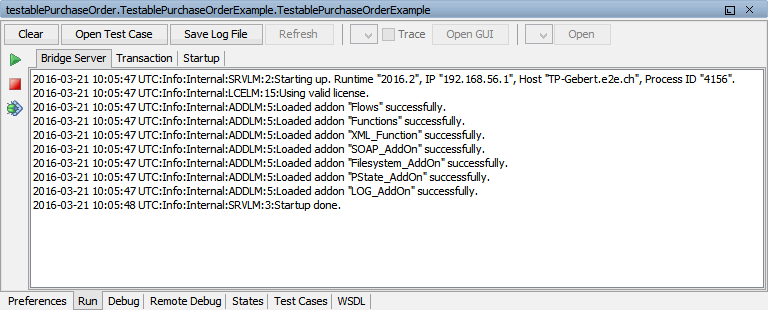
Alternatively, open the Run View by selecting Show Run View from the context menu of the service deployment.
The Run View is available for running and not-running services.
The Window Title

The Window title shows the name of the running service deployment, e.g. supportManager.REST_SupportManagerExample.REST_SupportManagerExample.
The button bar contains the following items:
|
Nr. |
Menue Item |
Description |
|---|---|---|
|
1 |
Clear |
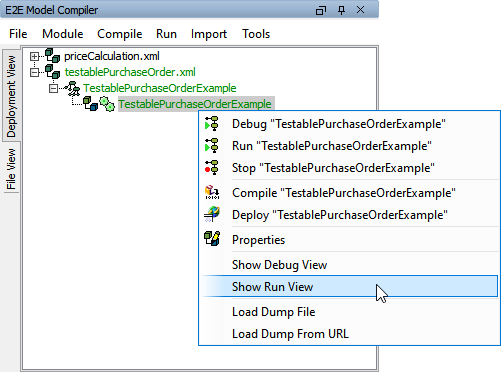
Click this button to clear the bridgeserver log shown in the content pane. |
|
2 |
Open Test Case |
Click this button to switch to the Test Cases tab. |
|
3 |
Save Log File |
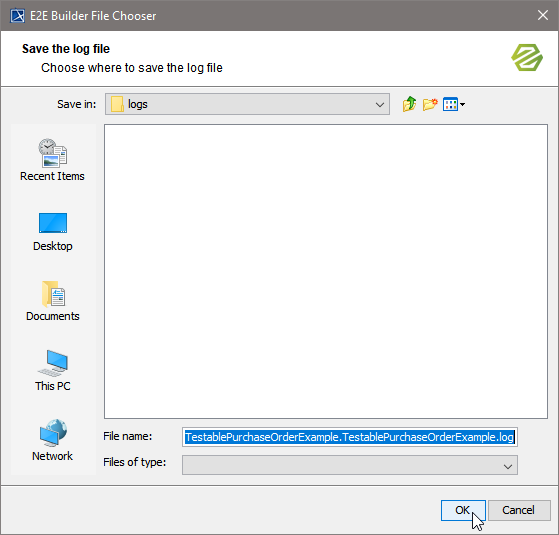
Click this button to save the bridgeserver log shown in the content pane to a file. A File Chooser dialog window will pop up for the user to select the saving location. Default location is a sub-directory logs of the current E2E Builder project. |
|
4
|
UI Controller list |
Having more than one UI controller, choose a controller from this drop-down list to open with Open GUI. This list will only be enabled when running a service containing a UI.
|
|
Trace |
Select this checkbox to activate UI trace.
|
|
|
Open GUI |
Click this button to open the UI of the selected UI controller in a browser window. This button will only be enabled when running a service containing a UI.
|
|
|
5 |
REST Service List and related Open button |
Select a REST service from the drop-down list and click Open to open the test UI in a browser window. These elements will only be enabled when running a REST service.
|

The Side Bar
|
|
The side bar of the Run View contains three buttons:
|



The Content Pane
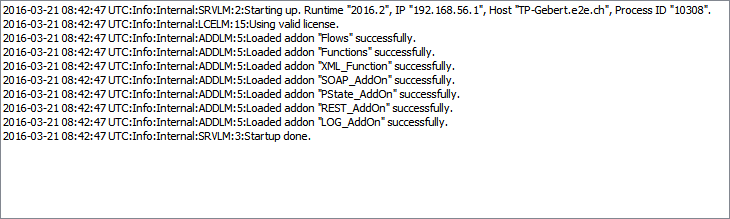
The Content Pane of the Run View shows the xUML service standard log (bridgeserver log) of the service running on this instance of the Embedded xUML Runtime. For more information on service logging and on the contents of the bridgeserver log refer to the Bridge User's Guide.