
When the FtpService example is deployed and running on your machine, you can try out the different commands. You can use any FTP client available. In a windows system, a transparent way to see the FtpService working is the ftp command line tool. The following steps will be described based on the windows command line.
|
|
<your example path>\Add-ons\JavaServices\uml\ftpService.xml |

Login
-
Open a command prompt window via the Windows start menu or using Start -> Run -> cmd.
-
The command to establish an ftp connection to the ApacheFtp Server integrated into the E2E Bridge is
ftp localhost. -
The connection will be established. When prompted for a user name, type
admin. -
As this user exists, you are prompted for a password. Password and username are identical: Type
adminagain. -
You should get a confirmation message about the successful login.
Upload a file
-
You can now try to transfer a file via ftp. Create two files to try this in a directory in your file system (e.g. C:\temp): one named upload.txt and one named upload.pdf.
-
Using the put command you can try to upload the first file you created. Type:
put c:\temp\upload.txt -
As files with the extension .exe are not allowed this did not work. This restriction is defined within the E2E Bridge UML model in the activity diagram onUploadStart shown below.
-
Try again using the second file you created: Type:
put c:\temp\upload.pdf -
You should get a confirmation message about the successful transfer.
Create a directory
-
The command
mkdircreates directories on the ftp server. Try this by typingmkdir newDirectory. -
As the command mkdir is not allowed this did not work. This restriction is defined within the E2E Bridge UML model in the activity diagram beforeCommand shown below.
Figure: Windows command line input and output to test the ftp server functionality
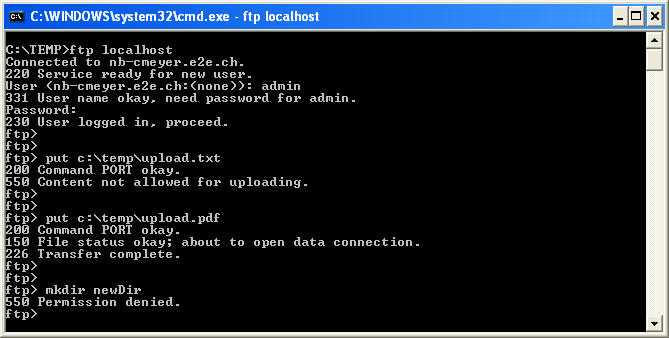
Figure: Activity diagram beforeCommand allows only certain ftp commands to be executed.
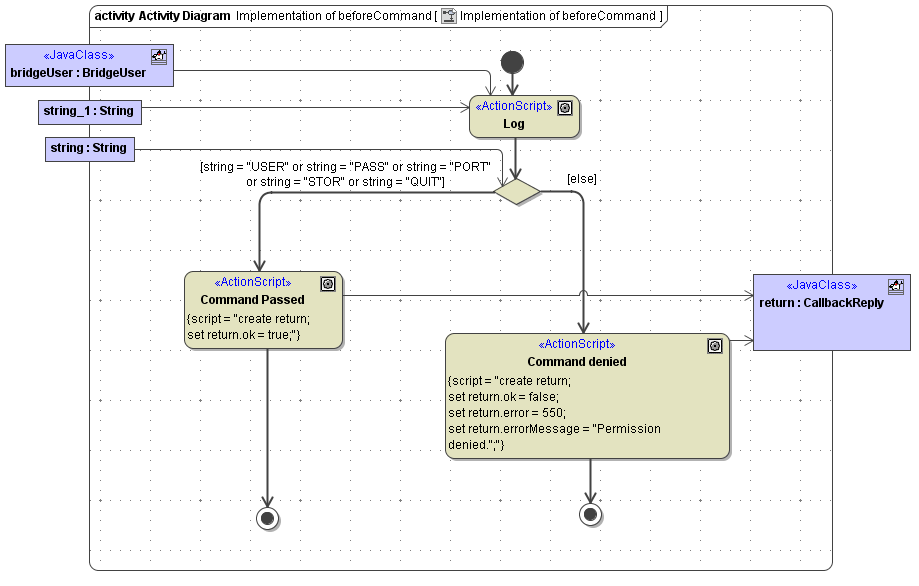
Figure: Activity diagram onUploadStart allows only uploads with extension .pdf
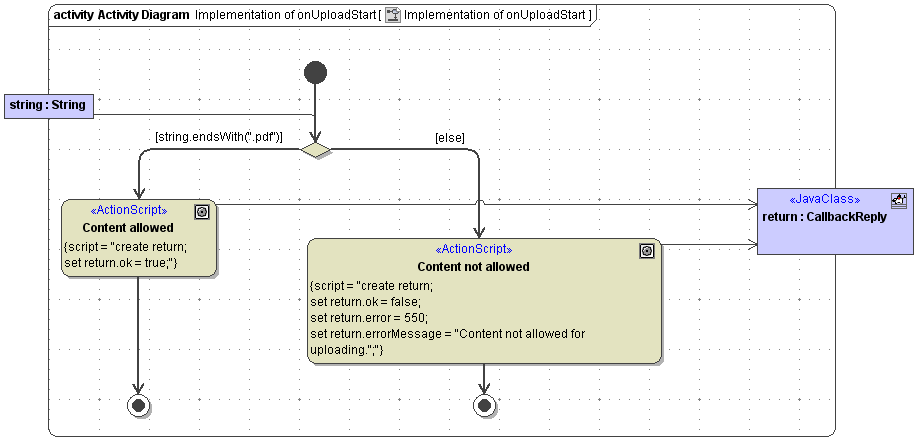
The FtpPortType offers many operations which resemble events passed from the ApacheFtp Server to the E2E Bridge. Within the presented example, only a few of these operations have been implemented in an assigned activity diagram as in the above figures.
In order to add a individual implementation for one of the operations offered, create an operation for this implementation and assign an activity diagram.