Creating a New Builder Project
A Builder project in the BUILDER is a collection of UML models in a logical context.
|
|
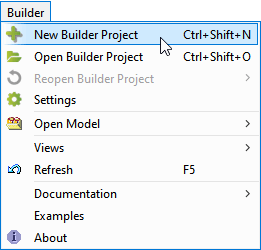
To create a new Builder project select Builder > New Builder Project or select |


|
|
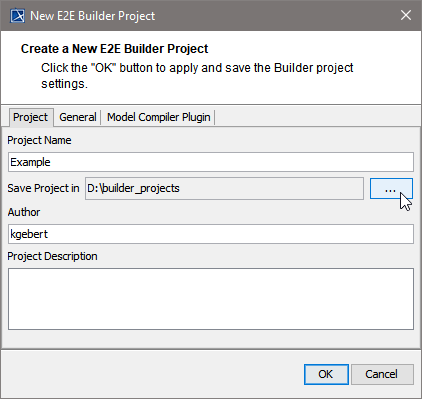
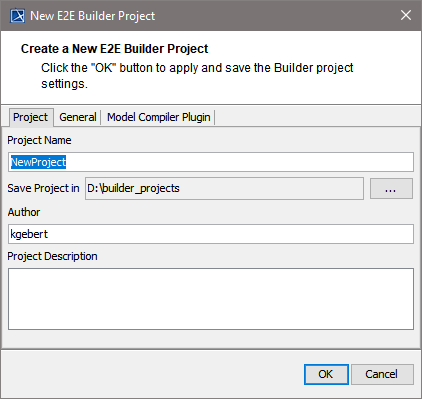
The project settings dialog opens. Enter Project Name (mandatory), Author (optional), and Project Description (optional). |
|
The default path of the whole project (Save Project in) is based on your installation directory. Builder projects may be stored in an arbitrary path - it does not need to be related to the location of your Builder installation.
|
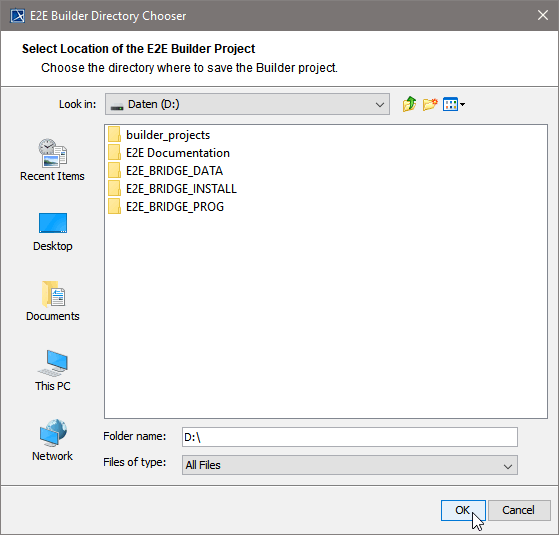
|
Select the folder of your choice or create one with 
and click OK. |
|
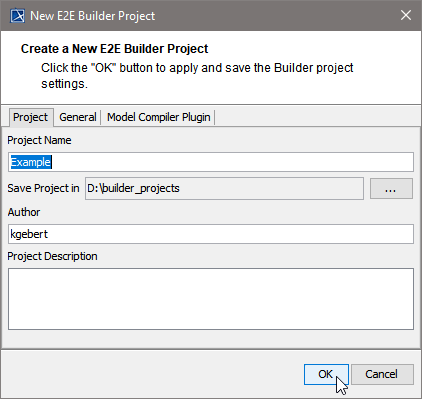
After clicking OK the new Builder project will be created. |
|
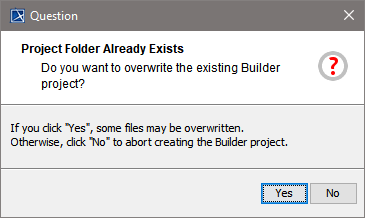
If a Builder project with this name already exists, the Builder warns, that some files will get overwritten. |
In a Builder project, all XMI files of the project are stored. A new Builder project is always empty (no XMI files existing).
|
|
To create a new UML model, the Builder offers two possibilities:
|
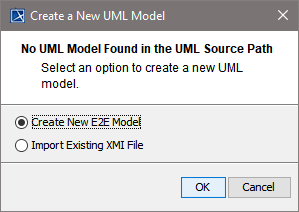
Regarding the Bridge template, refer to xUML Service Template. You can also start a UML model by importing WSDL/XSD files, IDocs, Java classes, or XSLT scripts/XSLT script archives.
UML models that are created by importing WSDL/XSD files, IDocs, Java classes, XSLT scripts/XSLT script archives, flat file definitions, or EDIFACT schemes are not based on the Bridge template. You may want to import such models into a UML model that is based on this template.
For detailed information regarding all import functions, refer to The Importers.
Changing the E2E Builder Project Settings
The settings of an existing Builder project can be edited.
|
|
Select Builder > Settings. |
|
|
The dialog that was already discussed in Working with Builder Projects | Creating a New E2E Builder Project will be opened. |
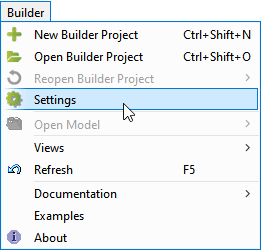

The other tabs General and Model Compiler will be explained in chapter Changing the Model Compiler Settings.
Opening an Existing Project
There are three different ways to open an existing Builder project.
|
|
Select Builder > Open Builder Project ... |
|
|
... or File > Model Execution & Integration > Open Builder Project. |
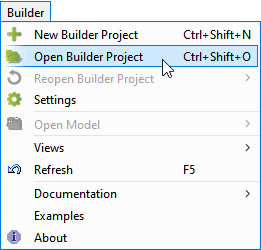
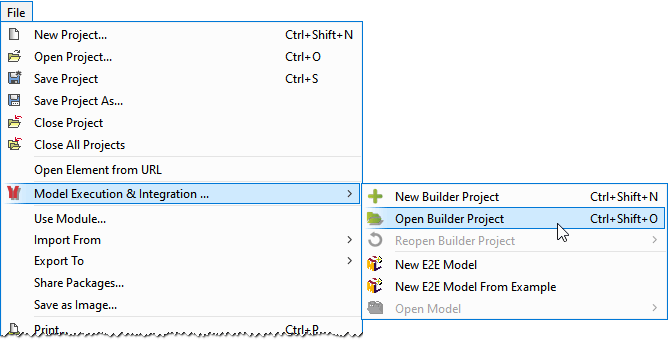
In both cases pressing Ctrl + Shift + O will accomplish the same.
|
|
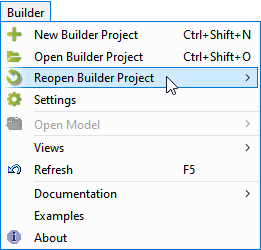
Alternatively, if you have already worked on a Builder project before, you may select Builder > Reopen Builder Project to continue your work. |
If you installed the Builder documentation as described on Unzipping the Builder Examples (default path C:\E2E Documentation 18), you will find there several sample projects that you can analyze to understand how the modeling approach works. Detailed information about the functions used in the examples is described in the xUML Services Reference Guide.
|
|
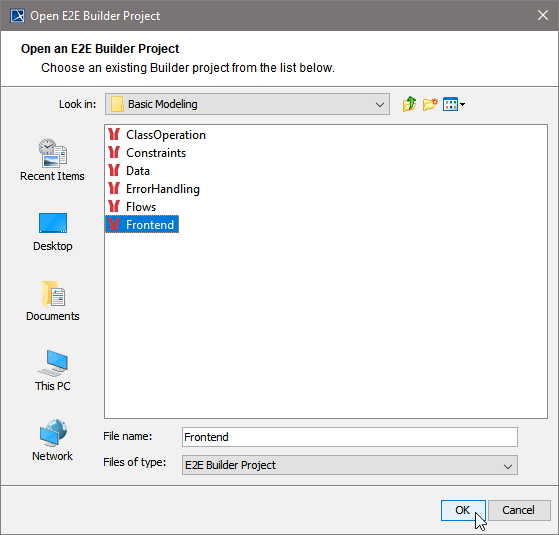
If you want to open a sample project, select Builder > Open Builder Project and navigate to the folder where the examples are located. The Builder recognizes Builder projects in the file system and substitutes the folder symbol in the file chooser by an E2E logo. |
|
|
If the Builder project is opened for the first time, you may select one of its contained UML models to open. Otherwise, the last XML file that was opened in the Builder project will directly be loaded in MagicDraw. |
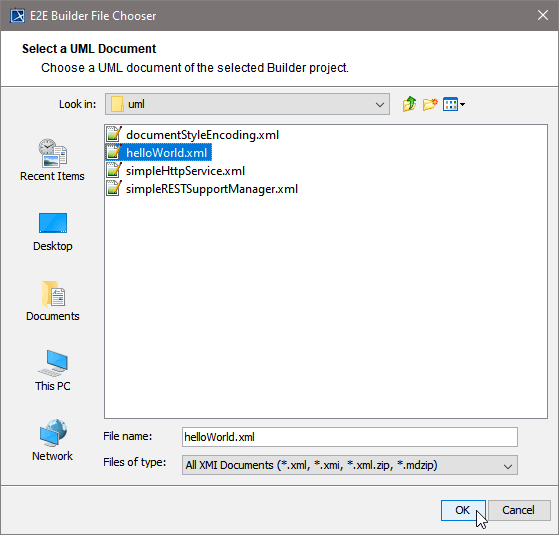
A Builder project can have one or more XMI files (UML models) that are related to each other in a logical context. However, a single XMI file in MagicDraw's terminology is also called a project. Do not be confused, a single UML model (XMI file) is the same as a MagicDraw project, whereas a Builder project is a collection of several UML models.
|
|
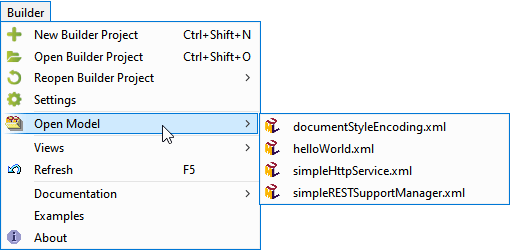
To open an additional XML model file select Builder > Open Model. All UML models of the currently open Builder project are listed. Select a UML from the list. |
|
|
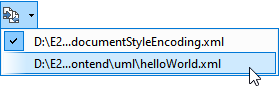
Switch between open projects using the Switch Projects toolbar from the MagicDraw main toolbar. |
|
|
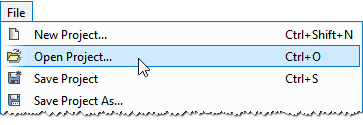
You may also open a UML model of a different Builder project using the MagicDraw function File > Open Project. However, keep in mind, that this model is not part of the currently open Builder project and can not be compiled and deployed. |