
Switch to the Preferences tab in the information/working area. Users who want to change the preferences need to be a member of a group, to which the role ADMIN has been assigned.
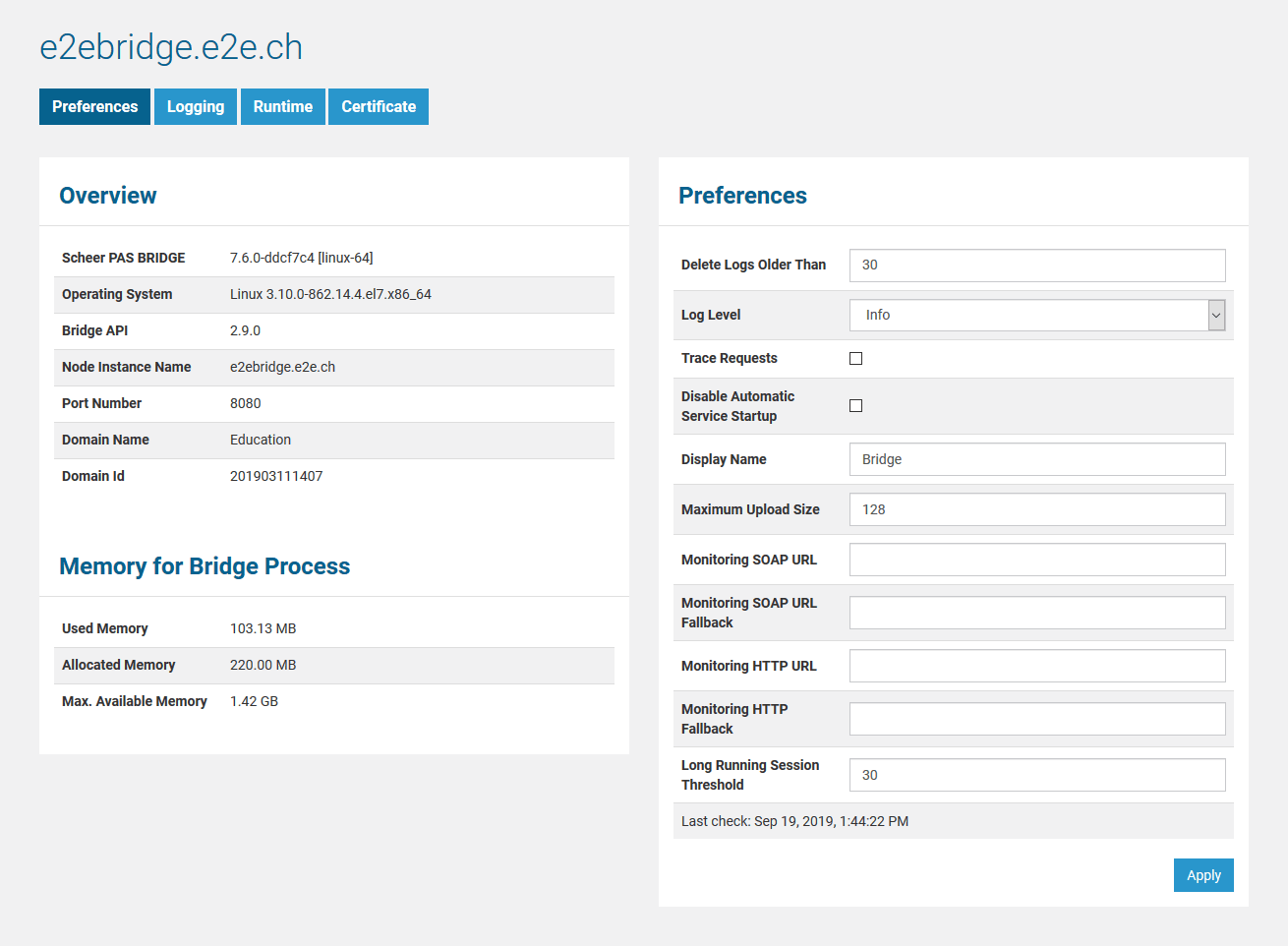
Figure: Node Instance Preferences
Overview
In the Overview section of this tab, the following information about the selected node instance is displayed:
|
Scheer PAS BRIDGE
|
Version number and operating system of the installer that has been used to install/update the Bridge. |
|
Operating System |
Operating System the Bridge is running on. |
|
Bridge API |
Version number of the Bridge API. |
|
Node Instance Name |
Host name of the selected node instance. |
|
Port Number |
The port number, to which the Bridge on the selected node instance is listening (defined during the installation of the Bridge). |
|
Domain Name |
Name of the domain, the node instance is part of. |
|
Domain ID |
Unique ID of the domain. |
Memory for Bridge Process
In the Memory section of this tab, the following information about the memory usage of the Bridge process (process E2E-Console-<name of the host>, not the running services):
|
Used Memory
|
Memory used by the Bridge process right now. |
|
Allocated Memory
|
Memory that has been allocated for the Bridge process. |
|
Max. Available Memory
|
Memory that is available for the Bridge process. |
Preferences
In the Preferences section of the information/working area, the following settings can be applied:.
|
Delete Logs Older Than |
Bridge 7.6.0 Specify the number of days that log files and service backup files should be kept. Each night at 00:00 pm (fix), older files will be deleted automatically. If you specify 0 days, the files will be kept forever, default value after installation of the Bridge is 30 days. If you update a Bridge from below version 7.6.0, this value will be set to 0 (in opposition to 30 days upon a fresh installation). In this case, set the number of days manually.
|
|
Log Level |
The software components of the Bridge log activities like deployments, import of node instances into a domain, firmware package uploads, etc. according the selected log level. The higher the log level the more information will be written to the log files. See
for more details on these log levels. |
|
Trace Requests |
Only used for troubleshooting and only works, if log level Trace has been chosen. Selecting this option will generate tracing files that can be examined by the E2E support. Use this option carefully, as it generates large amounts of data. |
|
Disable Automatic Service Startup |
Each deployed Bridge service has am Automatic Startup flag (see Preferences of an xUML Service, Node.js Service Detailsand Java Service Detailsfor more information on this flag). For e.g. server maintenance reasons, when you need to reboot the server several times, it can be useful to disable this flag for all services.
|
|
Display Name |
By setting Display Name, the name of the Bridge and of the browser tab can be changed, e.g. to the name of the server as shown below.
|
|
Maximum Upload Size |
Maximum size of files in MB that can be uploaded to the Bridge. This limit refers to repositories, resources and Runtime packages. |
|
Monitoring SOAP URL |
Optional monitoring of xUML services.
Monitoring . |
|
Monitoring SOAP URL Fallback |
Optional monitoring fallback. |
|
Monitoring HTTP URL |
As an alternative to a SOAP URL (see Monitoring SOAP URL), you can specify an URL to a monitoring REST service here. |
|
Monitoring HTTP URL Fallback |
Optional REST monitoring fallback. |
|
Long Running Session Threshold |
Monitoring threshold specified in minutes. If a service is occupied longer than the defined threshold, the monitoring service is called. Refer to Monitoring for more details. The check runs twice during the defined threshold time. To disable the threshold enter 0. |
Click Apply to save your adjustments.
Bridge Logging
xUML Service Logging
The software components of the Bridge log activities like deployments, import of node instances into a domain, firmware package uploads, etc. according the selected log level. The higher the log level the more information will be written to the log files.
The log levels in the table below are cumulative and are ordered from the lowest to the highest log level. For each log level, also the information of the lower levels is logged. When changing the log level, all future incidents will be logged according to the new settings.
|
Log Level
|
Description |
|---|---|
|
None |
No logging. |
|
Fatal |
Logs only fatal errors. The component cannot continue with normal execution. Fatal errors need the intervention of an administrator to solve the problem. |
|
Error |
Logs also non-fatal errors that occur during normal operation of the Bridge. |
|
Warning |
Logs warnings. Warnings indicate unexpected but non-critical situations that do not interrupt normal operation. |
|
Info |
Logs general information. This log level should be sufficient for normal use. |
|
Debug and Trace |
Both log levels are not intended for normal use but for troubleshooting. The log level Trace results in more detailed logging information than log level Debug. |
Logged data is stored in your Bridge DATA directory at E2E_BRIDGE_DATA/servlets/logs in several subfolders (before Bridge version 5.1.5: E2E_BRIDGE_PROG/servlets/logs). You can inspect the logged information on the Logging tab as described in Inspecting the Logging Information.
Bridge API Logging
The implementation of the Bridge API uses the Eclipse Jersey REST framework. This framework allows to configure Logging and Tracing. You can activate and configure Jersey logging and tracing via the console.properties file. This file resides in the Bridge program folder of your installation.
|
Console Property |
Description |
Allowed Values |
|
|---|---|---|---|
|
Logging |
|||
|
rest_api_log_level |
Set this property to activate Jersey logging for the Bridge API. If this property is not set, Jersey logging is switched off. The logging information is written to |
One of SEVERE, WARNING, INFO, CONFIG, FINE, FINER, FINEST, ALL.
Jersey documentation for more information. |
|
|
rest_api_log_verbosity
|
Configure the verbosity of the logger. |
HEADERS_ONLY |
Logs the content of the HTTP headers only. No message payload data is logged. |
|
PAYLOAD_TEXT |
Logs the content of the HTTP headers as well as entity content of textual media types (default). |
||
|
PAYLOAD_ANY |
Full verbose logging: Logs the content of HTTP headers as well as any message payload content. |
||
|
Tracing |
|||
|
rest_api_tracing_threshold
|
Set this property to activate Jersey tracing for the Bridge API.If this property is not set, Jersey tracing is switched off. The logging information is returned via the response headers. |
SUMMARY |
Logs very basic summary information about the main request processing stages. |
|
TRACE |
Logs detailed information about activities in all the main request processing stages. |
||
|
VERBOSE |
Most verbose mode that provides extended information similar to the TRACE level, however with details on entity providers (MBR/MBW) that were skipped during the provider selection phase for any reason (lower priority, pattern matching, etc). Additionally, in this mode all received request headers are echoed as part of the tracing information. |
||
|
rest_api_log_tracing_on_server
|
Set this property to additionally write the Jersey trace to the Bridge server logs. Please note that Jersey tracing may create a huge amount of data. Do only enable this for problem solving reasons.
|
true |
Writes the Jersey trace to |
|
false |
Do not write the logs to a file on the Bridge server (default). |
||