
Installing the Service
To install the Monitoring service on your system, follow these three steps:
-
Deploy the service repository on the Bridge you want to monitor.
The monitoring base service is an BRIDGE service that is deployed like any other BRIDGE xUML service. For further information, see Deployment of xUML Services. -
Deploy the needed resources.
Additionally to the xUML Service, databases errorList.sqlite and errorNotificationJournal.sqlite have to be deployed to the Bridge as a resource. Refer to Deploying and Managing Resources for more information on how to do that. -
Register the Monitoring Base Service to receive exceptions from the Bridge.
Go to the top level node of the Bridge. You will find the following preferences:
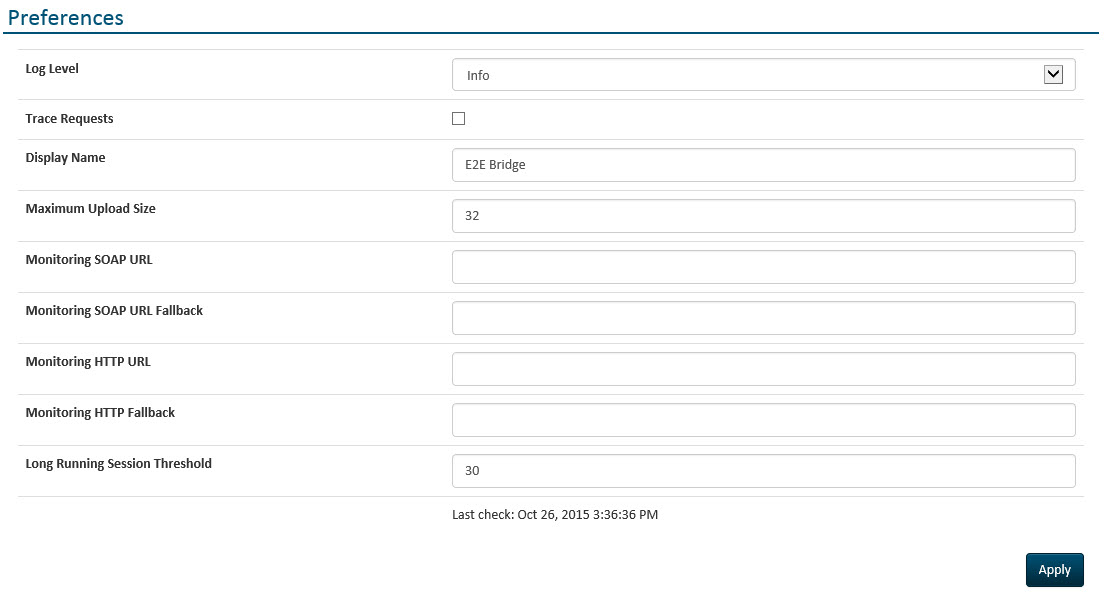
The service needs to be registered under Monitoring SOAP URL. If you have several BRIDGE instances, they can be configured as monitoring fallback, if there are problems with the main Bridge. Therefore, the Monitoring Service has to be deployed on the other instance(s), too.
As SOAP Monitoring URL, enter the following URL: http://<name of the server>:19000/Services/MonitoringService/MonitoringPortType/MonitoringPort
Replace <name of the server> with the server name of the BRIDGE instance where the Monitoring Service is deployed.
Changing the Service Settings
The Monitoring Service can be configured via its service settings. For more information on how to access the settings of a service, refer to xUML Service Settings.
|
Setting Name |
Description |
Values / Examples |
|
|---|---|---|---|
|
Basic Mail Settings
|
|||
|
email test mode (log only) |
If set to true, notifications will not be sent, but written to the services bridgeserver.log file only. |
true |
Test mode: do not send notifications. |
|
false |
No test mode: send notifications (default). |
||
|
eMailCCRecipients |
Specify the CC recipients that should receive the notification mail, separated by ";" (no blank). |
|
|
|
eMailSender |
Specify the sender that will appear in the notification mail. |
|
|
|
eMailToRecipients |
Specify the TO recipients that should receive the notification mail. |
|
|
|
mail send timeout (sec) |
Specify the number of seconds after which mail sending is considered failed if not completed. |
|
|
|
Template Settings
|
|||
|
custom html template file |
Specifies a custom HTML template for the exception mail.
). |
|
|
|
custom plain text template file |
Specifies a custom text template for the exception mail.
). |
|
|
|
custom jira template file |
Specifies a custom template for generated JIRA tickets "description" field. |
|
|
|
email subject template |
Specifies the template for generating the subject line of exception mail (may be overriden by notification rules) |
|
|
|
external template directory |
Specifies the location of custom template files. You can leave this blank when use embedded templates=false. But if present, this directory has to exist. |
|
|
|
first x chars of long messages to render anyway |
Specifies the number of characters of long error messages that are displayed in the summary table (see threshold for error message to be considered long further below). |
|
|
|
JIRA summary template |
Specifies the template for rendering the JIRA issue title upon creating new issues. |
|
|
|
link target host name |
Specifies the host part of links generated in notifications that point to the service page in the Bridge UI, i.e. the URL prefix before /admin/Console/... |
|
|
|
link target node name |
Node part of links, depends on whether you installed Bridge in workstation or server mode. For workstation mode, this is "localhost". |
|
|
|
target language [EN, DE] |
The language you want to have the templates rendered in (this affects only template content, not error message content). |
|
|
|
threshold for error message to be considered long |
Long error messages are rendered differently in templates. This setting controls what "long" means. The default is 150+ chars. |
|
|
|
time zone |
The time zone to render for (this affects date/time values rendered in templates only). Refer to Time Zonesfor a list of valid time zones. |
|
|
|
use embedded templates
|
Specifies whether custom templates shall be used for exception mails.
|
true |
Use internal templates (default). |
|
false |
Use custom templates. |
||
|
Notification Limit Settings
|
Configuring errors to always notify with a threshold of 1 occurrence can lead to a massive burst of notifications. Some email servers may interpret this as a DoS attack if it happens. Hence you can limit the actual notifications being sent out by specifying a maximum amount per time. A limit of 10 notifications per minute is effectively the same as 600 notifications per hour, but the latter will allow for small bursts of say 50 mails.
|
||
|
apply notification limit |
Specifies whether notification limits are active. |
true |
Notification limits are active. |
|
false |
Notification limits are inactive (default). |
||
|
apply notification limit only to guaranteed notifications |
Specifies whether all error notifications are subject to limitation, or only those that are configured as always notify with threshold of one occurrence |
true |
Only always=true and threshold=1 are limited (default). |
|
false |
All notifications are limited. |
||
|
Notification limit (max notifications per period) |
Specifies the upper limit of notifications allowed to be sent during the configured time window (see Notification limit time window below). |
any positive integer |
Defaults to 1000 notifications max. |
|
Notification limit time window [sec] |
Specifies the time window in seconds for which to apply the maximum number of notifications (see Notification limit (max notifications per period above) |
any positive integer |
Defaults to 3600 (one hour) |
|
Threshold in pending notifications to issue an error |
If your services generate error notifications at a high rate, effectively exceeding your sendout limits, notifications start to pile up in a pending state. This setting allows for specifying the tolerated amount of pending notifications. If this limit is exceeded, an according notification will be sent. |
any positive integer |
Defaults to 500 pending notifications |
|
JIRA Settings
|
|||
|
Issue Assignee
|
Optional: specify the JIRA Assignee for the created ticket by using the JIRA account name (e.g. "userj" for "Joe User").
|
|
|
|
Issue Component
|
Optional: specify a JIRA Component to be set on the created ticket.
|
|
|
|
Issue Priority
|
Optional: specify the priority for the ticket to be created.
|
|
|
|
Issue Project Key |
Specify the JIRA project key |
|
|
|
Issue Reporter
|
Optional: specify the reporter to set on the created ticket (instead of the account used to connect to JIRA).
|
|
|
|
Issue Type |
Specify the JIRA issue type. |
|
|
|
JIRA test mode (log only) |
If set to true, notifications will not be sent, but written to the services bridgeserver log only. |
true |
Test mode: do not send notifications. |
|
false |
No test mode: send notifications (default). |
||
|
connection settings
|
For setting up the JIRA connection, refer to the REST Adapter settings at the end of this table. |
|
|
|
Mail Server Settings
|
|||
|
debug output for SMTP Session |
Specify whether the SMTP part should be logged for debug purposes. |
true |
Write SMTP debug data. |
|
false (default) |
Do not write SMTP debug data. |
||
|
Exchange Server version (if applicable) |
Specify the Exchange Server version, if protocol is set to |
2007_SP1 |
Exchange 2007, ServicePack 1 |
|
2010 |
Exchange 2010 |
||
|
2010_SP1 |
Exchange 2010, ServicePack 1 |
||
|
2010_SP2 |
Exchange 2010, ServicePack 2 or higher (default). |
||
|
key store file |
Specify a path to a valid key store file. This file will be used for SMTPS, IMAPS and HTTPS (Exchange) mail sending. |
|
|
|
key store password |
Provide the password for the key store access specified above. |
|
|
|
Mail Server Hostname |
Specify the host name of the mail server.
|
|
|
|
Mail Server Password |
Provide the password of the mail server. |
|
|
|
Mail Server Port |
Provide the port the mail server is listening to. Leave this blank if protocol is ' exchange' |
|
|
|
Mail Server Protocol |
Provide the protocol of the mail server. |
smtp (default) |
Use SMTP for mail server communication. |
|
smtps |
Use SMTPS for mail server communication. |
||
|
imap |
Use IMAP for mail server communication |
||
|
imaps |
Use IMAPS for mail server communication |
||
|
exchange |
Use MS Exchange for mail server communication |
||
|
office365 |
Use MS Office365 for mail server communication |
||
|
Mail Server Security |
Specify the encryption method to be used with SMTPS and IMAPS (see Mail Server Protocol). If Exchange is used, leave it |
none (default) |
No encryption. |
|
ssl |
Use SSL encryption. |
||
|
starttls |
Use STARTTLS encryption. |
||
|
Mail Server User Name |
Provide the username of the mail server. |
|
|
|
Proxy host |
Specify an optional HTTP proxy. The use of a proxy is optional and applies for exchange/office365 mail server protocols only.
|
void/empty |
No proxy is used (default). |
|
a valid proxy host |
|||
|
Proxy password |
Specify the proxy user's password. |
void/empty |
No proxy is used (default). |
|
a valid password |
|||
|
Proxy port |
Specify the proxy server port. |
-1 |
No proxy is used (default). |
|
a valid proxy port |
|||
|
Proxy user domain |
Specify the proxy user's NT domain. |
void/empty |
No proxy is used (default). |
|
a valid NT domain |
|||
|
Proxy user |
Specify the proxy user's name. |
void/empty |
No proxy is used (default). |
|
a valid proxy user |
|||
|
JIRA Connection Parameters
|
|||
|
Authentication: password |
Specify the password used for connecting with JIRA. |
|
|
|
Authentication: user |
Specify the JIRA account used for connecting with JIRA. |
|
|
|
FollowRedirects: value |
Specify the number of redirects to follow (see also REST Adapter reference). |
|
|
|
Location: basePath |
Specify the base path for your JIRA server's REST API (leave the default unless you have to use a proxy). |
|
|
|
Location: host |
Specify the host name of your JIRA server. |
|
|
|
Location: port |
Specify the port to use for connecting with JIRA (leave empty unless you have reasons for not doing so). |
|
|
|
Location: protocol |
Specify the protocol to use for connecting with JIRA. |
|
|
|
Proxy: Authentication: password |
Specify the password used to connect to the proxy server (set to blank if you connect directly). |
|
|
|
Proxy: Authentication: use |
Specify the user used to connect to the proxy server (leave blank if you connect directly). |
|
|
|
Proxy: type |
Specify the type of the proxy (leave blank if you connect directly). |
|
|
Customizing Message Templates
The service uses the Apache Freemarker template engine to render notifications. The templates are therefore written in FTL (Freemarker Template Language).
If you know what you are doing, you can tweak these templates, but be aware that errors in the template will mean that you will not receive any notifications, as this is the very notification mechanism you are tweaking.
The below class diagram shows the information available to templates (i.e. "the model"). An instance of each class is passed to the engine, prefixed with the lowercase class name and a dot. So e.g. in order to access the message of an error from within a template, you refer to event.message, and in freemarker notation this reads ${event.message}.
|
|
|
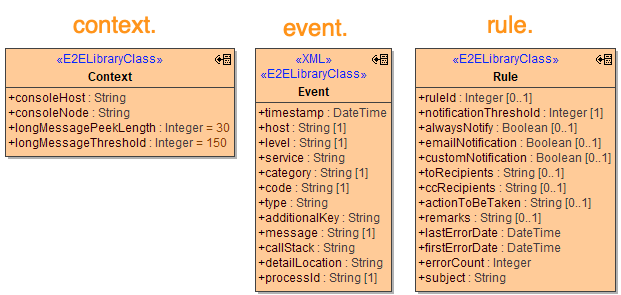
The default templates also refer to internationalized labels and text snippets, which are provided as .properties files and can of cause be adapted or extended to your needs. Be aware that changes to templates require a restart of the monitoring service to take effect. This is due to the service caching the parsed templates for performance reasons.