
The Element Process Navigation
|
Element Icon in Sidebar |

|
|
Form Field |

|
|
Function |
The process navigation (breadcrumb navigation) shows the user which process step he is currently in and how he got there. The element is mostly used in a form's header. The name of the corresponding function from the EPC is displayed in the arrows. |
|
Default |
A newly created process navigation element contains the arrows Step 1, Step with Form 1, Step 2, Step with Form 2. During configuration of the element, you are also able to define that only steps with a form are displayed (see below). |
|
Example |
The example shows the process navigation in the ACME Customer Database app in which customer address data is managed. The input of data takes place in three steps: Entering personal data, Entering address details and Showing summary. The process navigation is configured to show only process steps with forms.

|
Configuration Options
The form element may be edited via the Edit Sidebar.

|
Name Field name shown in the form. |

|
ID The read-only field contains the model ID of the element. Designers can use the ID for example in the search to link the element in other models. |
|
Description When a user hovers over a form element during execution, the content of the commentary field is shown as a quick info: 
|

|
Hashtags Possibility to insert your own key terms . The leading hashtag sign # (hash) will be inserted automatically. Use the spacebar to insert multiple hashtags: 
One hashtag may be issued for multiple elements: 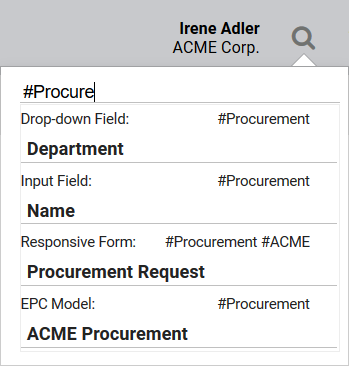
|

|
Additional CSS Classes Enables a field-acurate layout customization. |

|
Show Label If this option is activated, the name of the element will appear in the top row. |

|
Show Only Steps with Form If this option is activated, the process navigation only displays process steps for which a form has been defined. |

|
Number of Shown Steps The process navigation shows the complete path a user has taken in the process, so this can lead to long paths. The option Number of Shown Steps allows you to define a maximum number of steps the process navigation should display at the same time. The default value is -1 (all steps are displayed). |