
The Element Mobile Form
Please note that since PAS 23.2 the Scheer PAS Mobile App is no longer available in the app stores.
|
Element |

|
|
Function |
You can open the EPC element Mobile Form to design a form that is optimized forexecution on mobile devices. A separate editor is available for this. A Mobile Form is attached to a Function. If the Function is reached during process execution, the designed Mobile Form opens. Mobile elements can only be executed in the Scheer PAS Mobile App. |
|
Connection |
Predecessor: None
|
|
Example |
When creating a new app project, you can choose between a standard form or a mobile form in the App Wizard (see page Creating an App Project). If your decision falls on creation with a Mobile Form, then your Reference model in the new app project will look like this: 
|
Configuration Options
Edit the element via the Edit Sidebar.
|

|
Name Name of the element within modeling. |

|
ID The read-only field contains the model ID of the element. Designers can use the ID for example in the search to link the element in other models. |
|
Description A commentary field for the modeler. Its content is invisible to users and its sole purpose is internal documentation. |

|
Hashtags Possibility to insert your own key terms . The leading hashtag sign # (hash) will be inserted automatically. Use the spacebar to insert multiple hashtags: 
One hashtag may be issued for multiple elements: 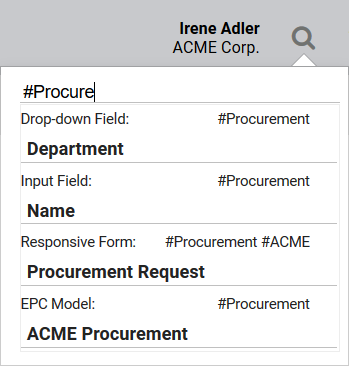
|