
The Element Files Upload
|
Element Icon in Sidebar |

|
|
Form Field |
|
|
Function |
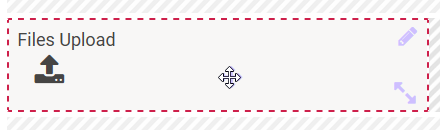
Form field where images and documents can be uploaded. If the user clicks on the upload button, he can select a file in the opening window. For each additional file, click the button again. All selected files are uploaded when the form is saved. Uploads are stored on the server and referenced in the container. |
|
Default |
Empty by default. If a file has been selected for upload, it is displayed below the upload button. You can remove the file by clicking on the trash icon. The edit mode you can prefill the field with a file. Preset files can be directly downloaded by the user during form execution via the corresponding icon. After the preassignment, terminate the edit mode via the Check option. |
|
Example |
In a form the user can upload images via the Upload your pictures field: 
After photo selection: 
After selection of multiple photos: 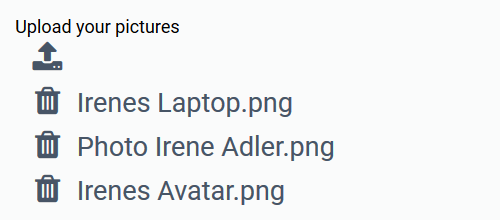
|
Configuration Options
The form element may be edited via the Edit Sidebar.

|
Name Field name shown in the form. |

|
ID The read-only field contains the model ID of the element. Designers can use the ID for example in the search to link the element in other models. |
|
Description When a user hovers over a form element during execution, the content of the commentary field is shown as a quick info: 
|

|
Hashtags Possibility to insert your own key terms . The leading hashtag sign # (hash) will be inserted automatically. Use the spacebar to insert multiple hashtags: 
One hashtag may be issued for multiple elements: 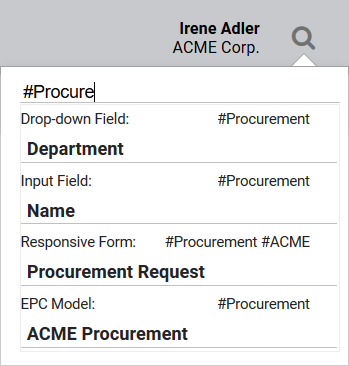
|

|
Additional CSS Classes Enables a field-acurate layout customization. |

|
Allowed File Types If you want to allow certain file types only, specify the allowed file types in this field. Separate multiple file types by comma. Example: Word and JPG files are allowed 
|

|
Maximum File Size (in MB) In this field you can limit the size of a file. Each file is checked individually against the restriction. The unit of measurement is megabyte; decimal numbers with a period or comma may also be used as separators. |

|
Mandatory The marked element must be filled or used. |

|
Read Only This field is write-protected. |

|
Field Name in Container Defines the name under which the form element will be saved in the data container. If the Field Name in Container remains empty, then the field identifier (name) will be used. If two form elements share the same Field Name in Container, then both will access the same value. The Field Name in Container is a technical identifier. It is often used for extended coding. Therefore the Field Name in Container should not contain any spaces, special characters or umlaut. For further information please visit page The Container Principle. |

|
Save Value in Instance If this checkbox is marked, the value entered in this field will be saved to the database during form execution. |