
To create an OpenAPI connector, create a new connector from the service panel, and select OpenAPI from the drop down list of available connector types. Configure OpenAPI connectors by simply importing a JSON or YAML descriptor file. Select a file via the Browse button. You can also drag & drop a file or you can paste an URL directly into the input field.
OpenApi version 3.1 is not supported at the moment. Supported OpenAPI versions are 2.0, 3.0.0, 3.0.1, 3.0.2, and 3.0.3.
When you have selected an appropriate file, click Next to load the selected file:
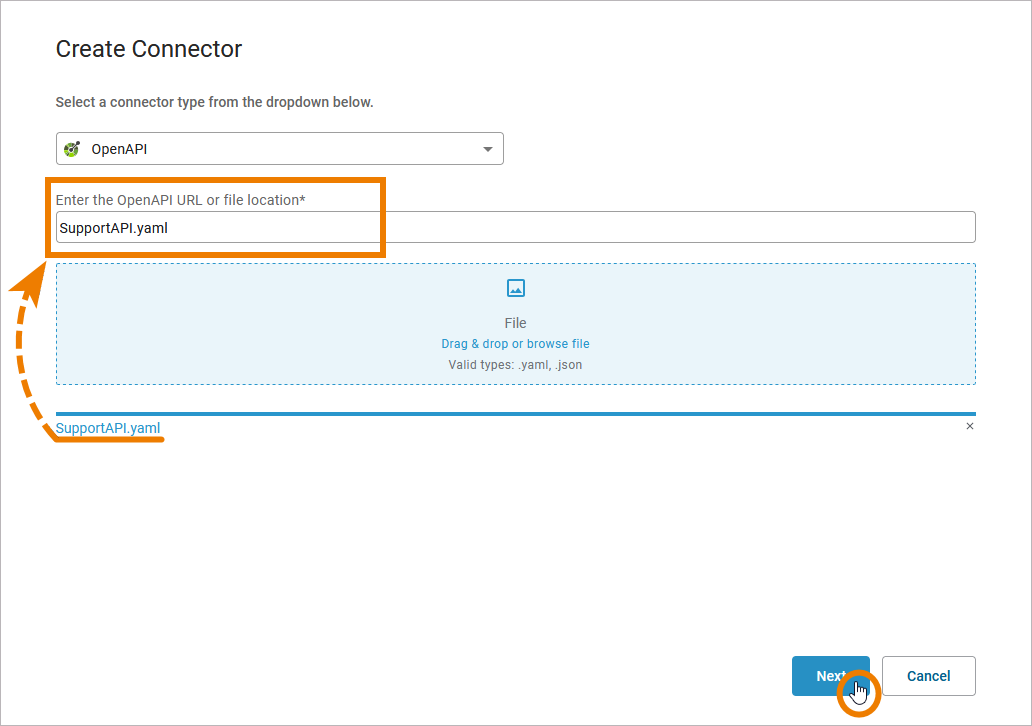
The Next button is only enabled if you have provided a valid descriptor.
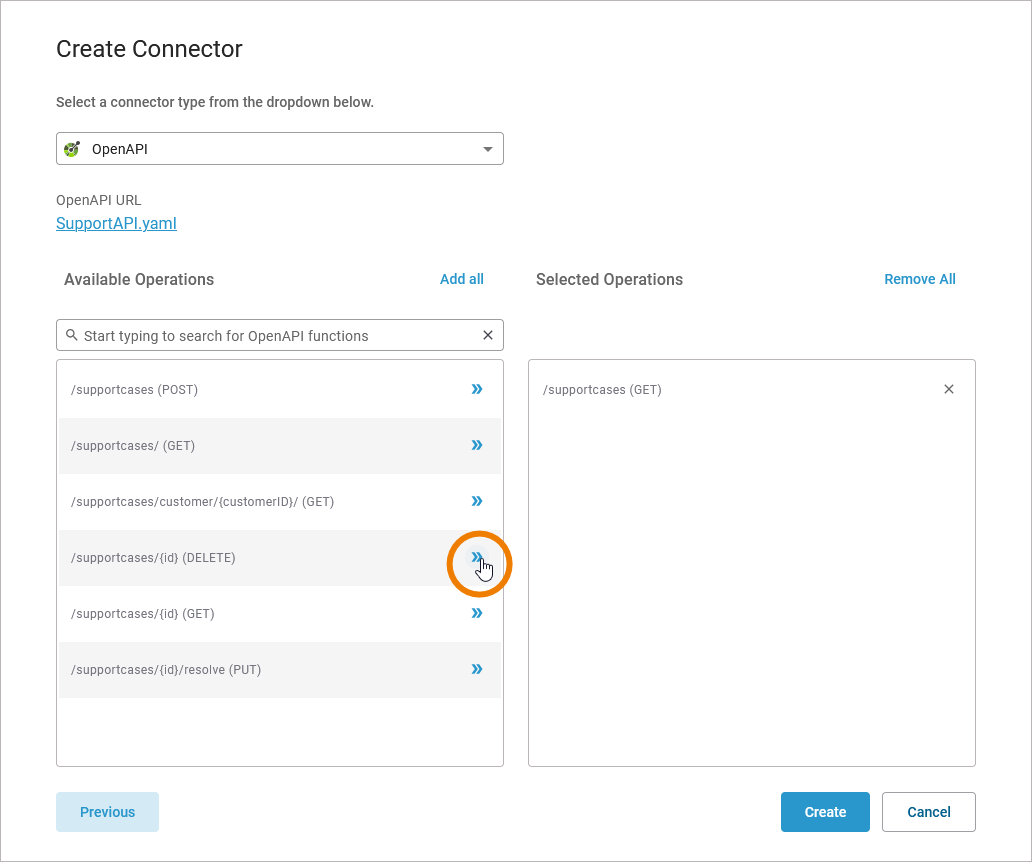
After the selected file has been successfully loaded, you can start the actual configuration of the connector. Column Available Operations lists all available REST operations provided by the REST service. From this list you can select the operations you want to use in your connector:
-
Click the arrow of an operation to add it to the list of Selected Operations.
-
Click X on a selected operation to remove it from that list and send it back to Available Operations.
When everything is configured to your needs, click Create to save the connector.
Button Create is only enabled if at least one operation has been added to column Selected Operations.
The OpenAPI connector, its types, interfaces and the selected operations, have been imported to your service with the given configuration. The connector is ready to use:
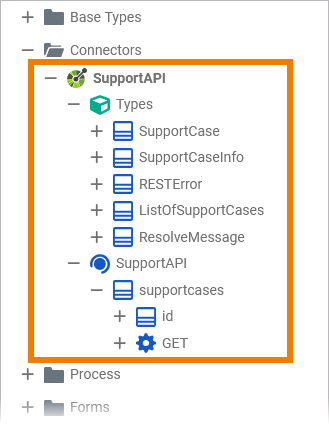
The name of the connector is taken from the info/title element of the respective file:
info:
  description: |-
    # Manage support cases

    This REST service provides...
  title: SupportAPI
  version: '1.0'
You can use the imported connector with the REST Adapter.
To change a connector, you need to configure the connector from scratch and apply your changes. The old connector will be replaced by the new configuration.