
Prerequisites
The AI agent feature is only available in a Kubernetes setup. To use PAS AI agents, you need an account with an AI service provider that is not provided by Scheer PAS.
Currently, the following providers are supported:
-
Google
-
Mistral
-
OpenAI
-
LLMs hosted by Microsoft Foundry
The configuration of an AI agent normally takes place in the Designer, where the agent is also created, tested, and optimized. However, it is also possible to change some configuration settings of an AI agent in the PAS Administration. This option was designed specifically for one use case: When an agent is deployed on a production system that does not run PAS Designer.
In this case, open the details page of a workload of type ai-agent and scroll down to section Configuration:
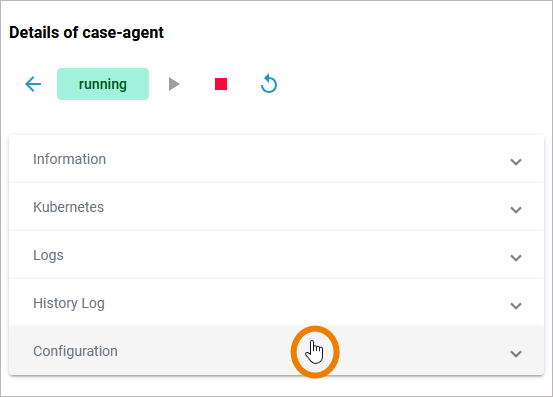
Adapting AI Agent Workload Settings
In the Configuration section of an AI agent workload, you can inspect the configuration settings of the agent. On top of the section you can see in which service the agent has been created. Click on the service name to open its details page:
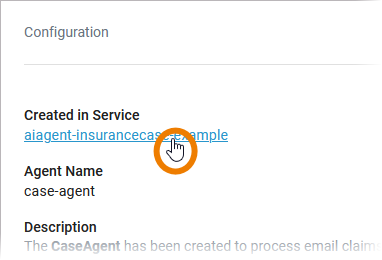
Most of the AI agent configuration settings are displayed in read-only mode. But you can change the main settings.
Agents Created with AI Service Provider
If you created your AI agent using an AI service provider (currently, OpenAI and Mistral are supported, refer to AI Service Provider Reference in the Designer Guide), you can edit the following:
(1) the API Key
(2) the MCP server
Changes are possible after the first deployment of the AI agent.
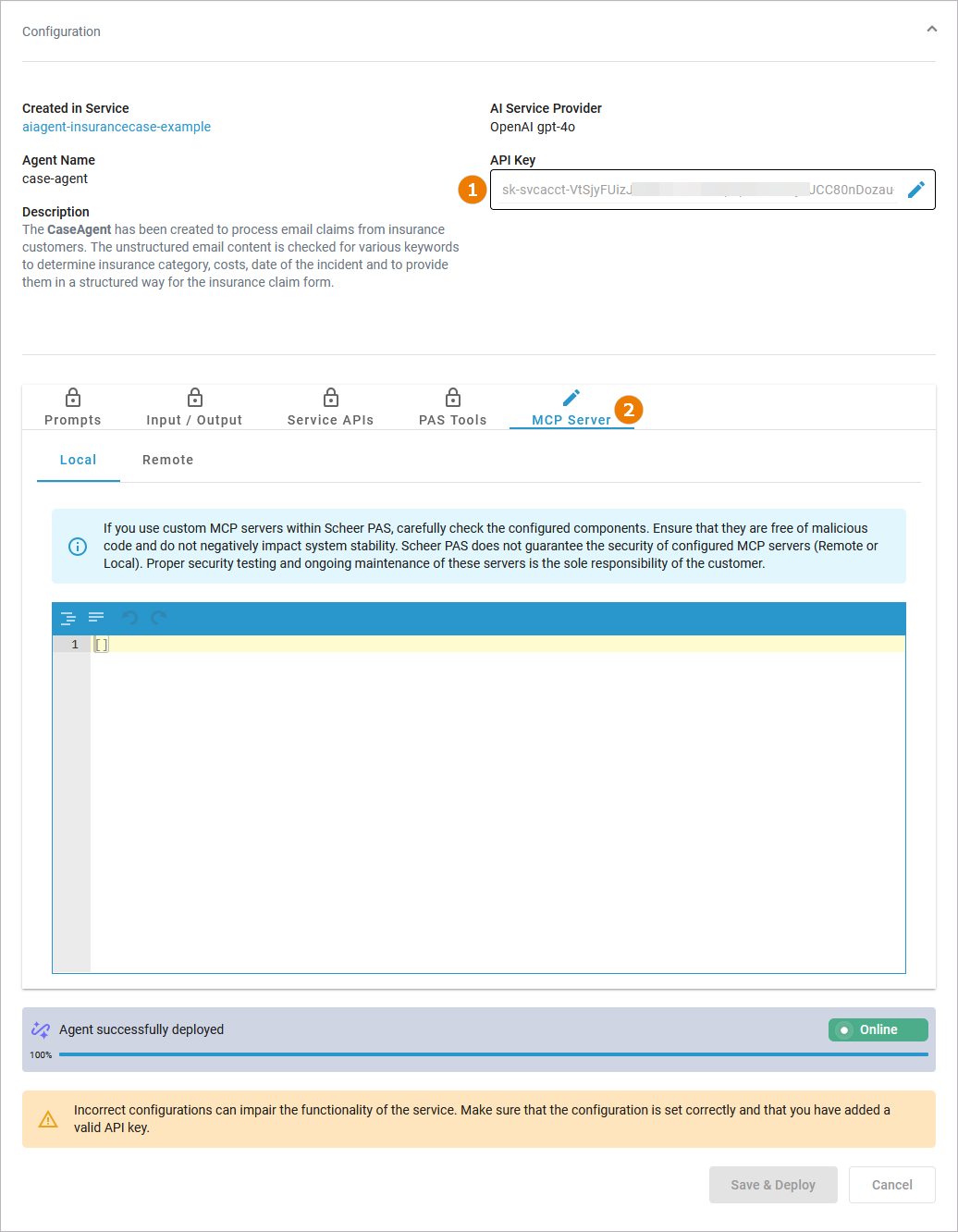
Changing the API Key
To use PAS AI agent, you need your own AI service provider account with OpenAI or Mistral. If you need to change the API key that is provided by your AI service provider, you can do that in field API Key. Enable Edit mode to enter new content in this field:

When you have made changes to the API key field, the button Save & Deploy at the bottom of section Configuration will be enabled. Use it to save your changes.
You can also change the API key in the Designer. Refer to AI Service Provider Reference in the Designer Guide for more information.
Agents Created with Microsoft Foundry Model
If you created your AI agent using an LLM hosted by Microsoft Foundry (refer to Microsoft Foundry AI Service Provider Reference in the Designer Guide), you can edit the following:
(1) API Key
(2) API Version
(3) Endpoint
(4) the MCP server
Changes are possible after the first deployment of the AI agent.
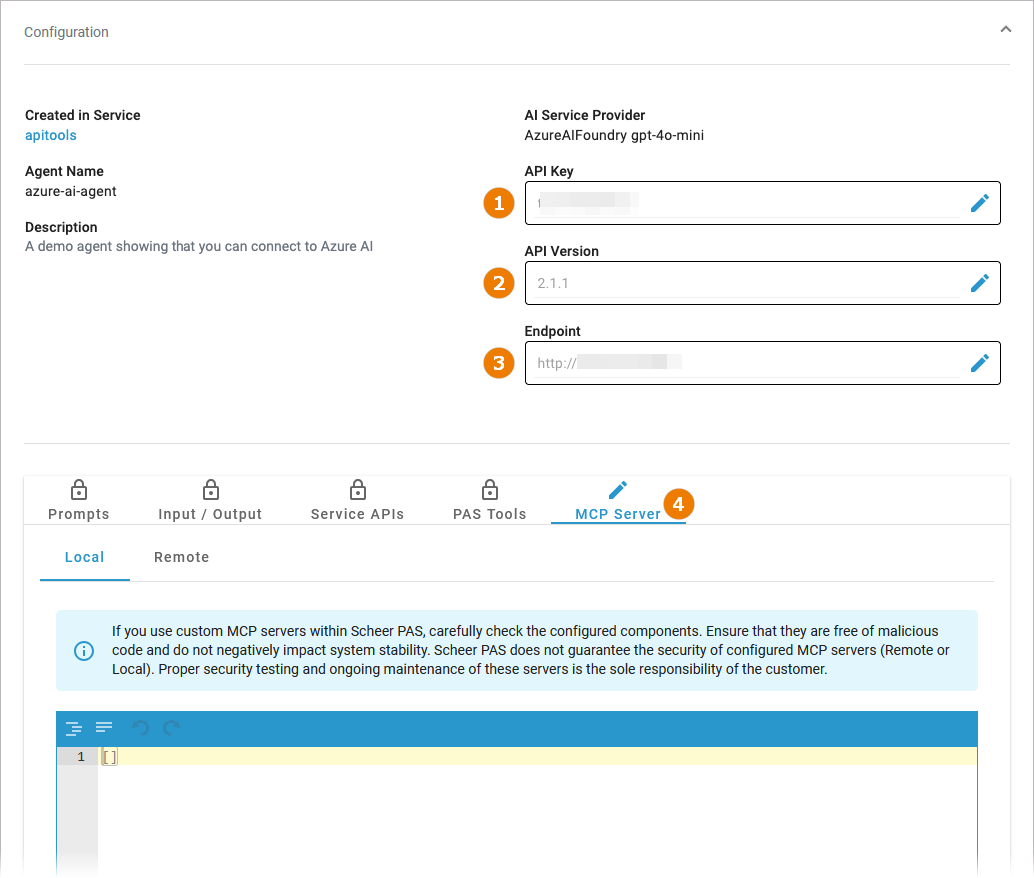
Changing API Key, API Version, and Endpoint
To use PAS AI agent, you need some the LLM model settings provided by Microsoft Foundry: The API key, the API version and the endpoint. If you need to change the settings, you can do that in the correxponding fields. Enable Edit mode to enter new content:
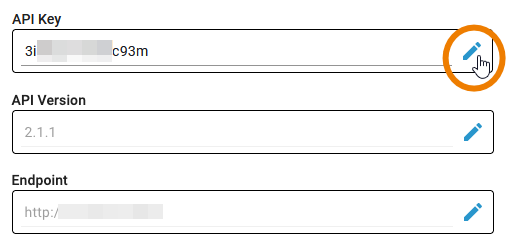
When you have made changes to the API key, API version, or endpoint fields, the button Save & Deploy at the bottom of section Configuration will be enabled. Use it to save your changes.
You can also change the settings in the Designer. Refer to Microsoft Foundry AI Service Provider Reference in the Designer Guide for more information.
Changing the MCP Server
MCP servers provide tools that the AI agent can use.
If you use custom MCP servers within Scheer PAS, carefully check the configured components. Ensure that they are free of malicious code and do not negatively impact system stability. Scheer PAS does not guarantee the security of configured MCP servers (remote or local). Proper security testing and ongoing maintenance of these servers is the sole responsibility of the customer.
You can configure access to the desired MCP server in the MCP Server tab, where you can choose between a local server and a remote server:
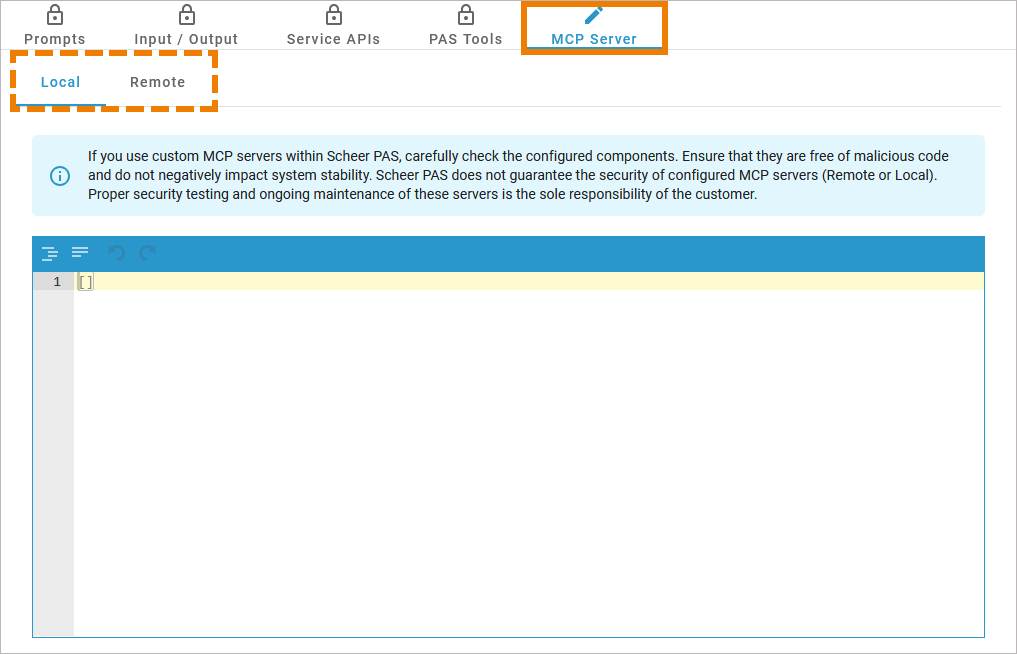
To connect to an MCP server, go to the page of the MCP server provider and follow the developer instructions. Enter the necessary JSON object into the provided editor. Refer to Creating an AI Agent in the Designer Guide for more details.
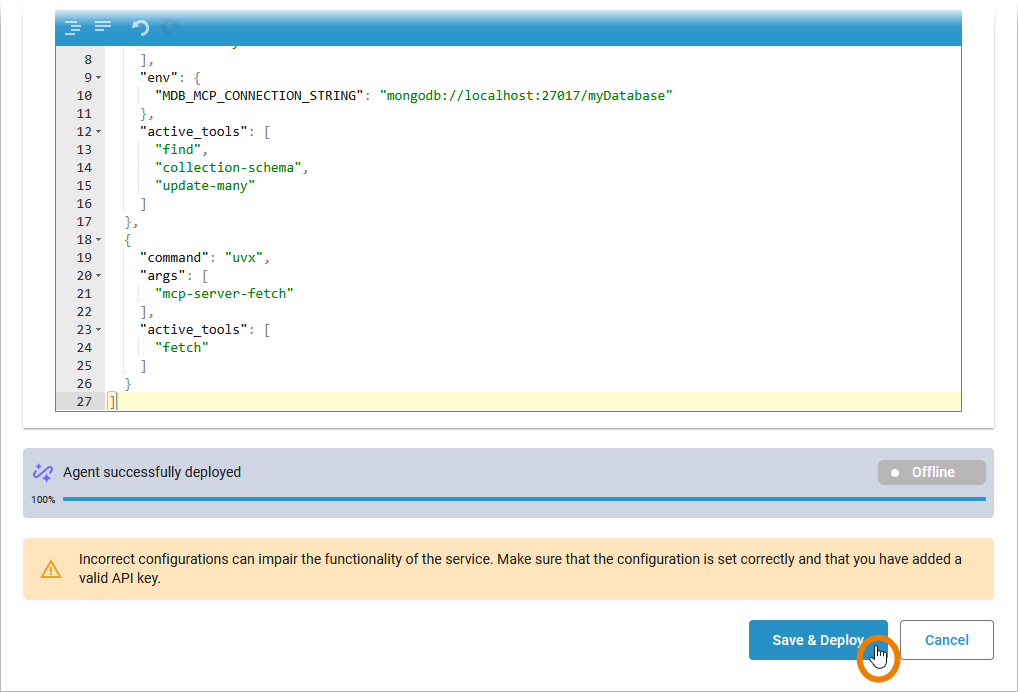
Incorrect configurations can impair the functionality of the service. Make sure that the configuration is set correctly and that you have added a valid API key. When you have made changes to the MCP server, the button Save & Deploy at the bottom of section Configuration will be enabled. Use it to save your changes.
Inspecting AI Agent Workload Settings
Other AI agent settings are displayed in read-only mode. You can inspect them in the PAS administration, but changes are only possible in the Designer.
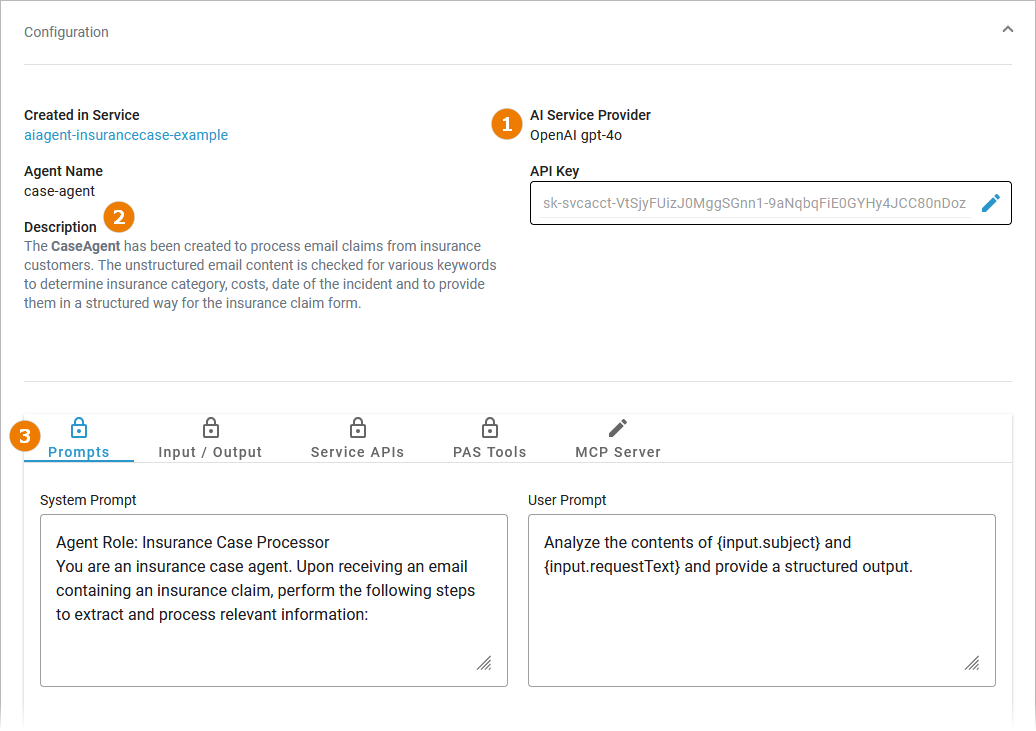
This applies to the following settings:
(1) AI Service Provider: Shows the used AI service provider and the selected model. Can be changed in the AI Service Provider alias in the Designer.
(2) Description: Shows the description of the AI agent. Can be changed in the Description attribute of the agent in the Designer.
(3.1) Prompts: Shows the system and user prompts of the agent. Both can be changed in the Designer > AI agent > Prompt tab.
(3.2) Input / Output: Shows the test input for and the test output of the agent. Can be changed in the Designer > AI agent > Testing tab.
(3.3) Service APIs: Shows the service APIs the agent is able to use. Can be changed in the Designer > AI agent > Tool Selection tab.
(3.4) PAS Tools: Shows the selected tools the agent is able to use. Can be changed in the Designer > AI agent > Tool Selection tab.
Related Content
Related Documentation: