
On this page, we have compiled some helpful tips & tricks that may help you when working with the Scheer PAS Log Analyzer.
The retention time for logs in the Log Analyzer is 30 days.
Tips for Filtering
To create your own filters, click + Add filter on top of the Discover page. In Field enter the name of the field you want to filter for. Field is supported by autocomplete:
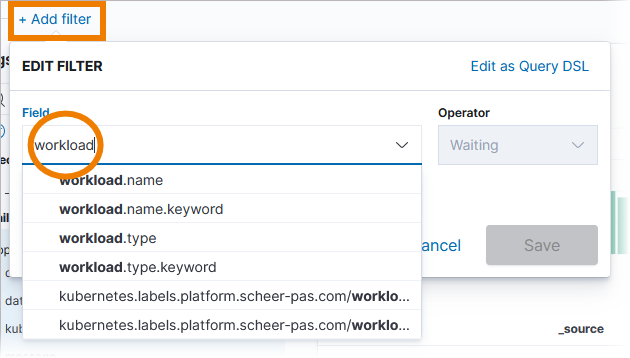
You need then to select an Operator and enter the filter Value:
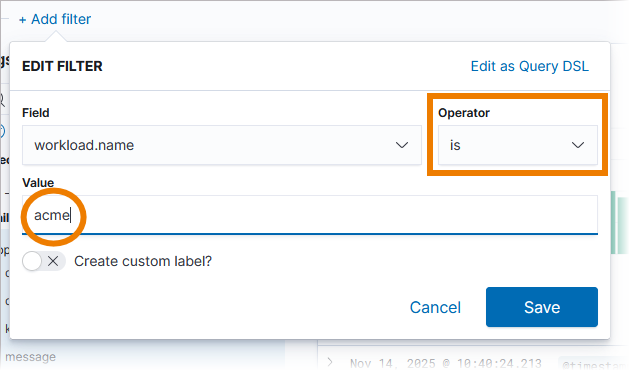
Here is a helpful trick: Instead of using workload.name (Kubernetes) or service.name (Docker) use the options workload.name.keyword (Kubernetes) or service.name.keyword (Docker) because these options are also supported by autocomplete:
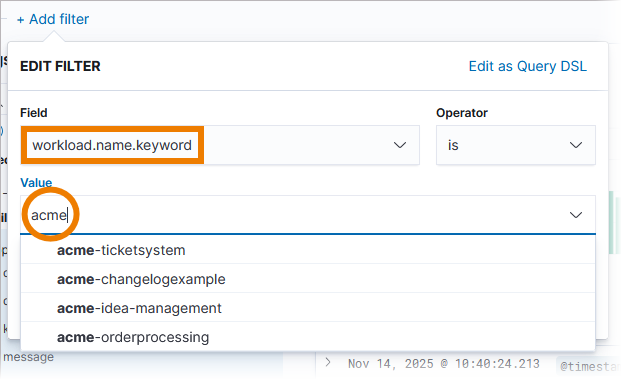
Instead of using the option Add filter and going through all configuration options in the corresponding pop-up, there is a faster way to filter for valules.
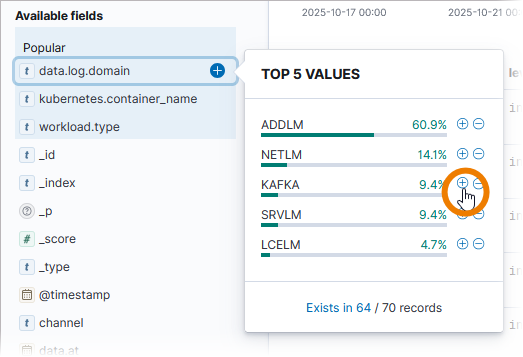
In the list of Available fields click on the name of the field you want to filter. This opens a pop-up showing the Top 5 Values:
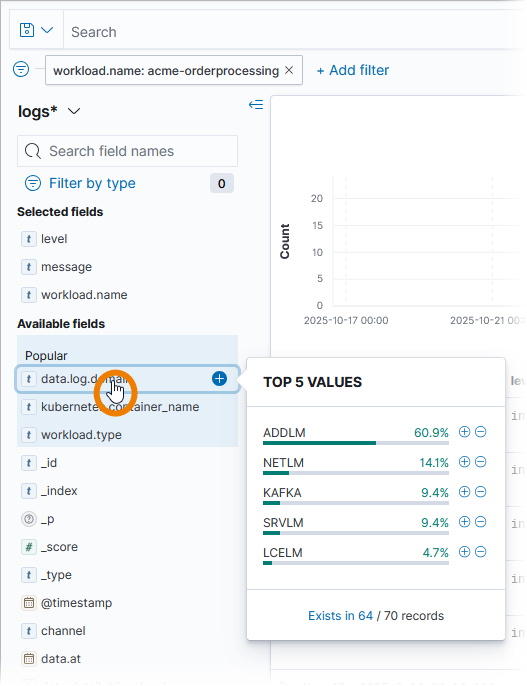
Here you can add a filter value by simply clicking on +:
Tips for Search Queries
Searching for Terms
To search for a phrase (an ordered sequence of words), surround your text with quotation marks:
"dev stack timeout reached"
If you only want to find log entries if all search terms match, place an AND between the terms:
Ticketcreation AND calling AND onUnhandledError
Searching in Fields
You can search for text in a particular field. Specify the field name before the colon to do so:
log.domain: RESTLM
Also possible:
log.domain:RESTLM
DQL ignores white space characters. Use wildcards (DQL only supports *) to refer to field names containing spaces.
The field prefix refers only to the term that follows the colon:
message:Ticketcreation OR OrderApproval
This query returns results where the content in field message contains the term Ticketcreation and results where the content in any field contains the term OrderApproval.
If you want to get results in which one field contains either one search term or the other, group the terms in parentheses:
message:(Ticketcreation OR OrderApproval)
This query returns results where the content in field message contains the term Ticketcreation or the term OrderApproval. You can also write:
message:Ticketcreation OR message:OrderApproval
Boolean Operators
The Boolean operators and, or and not are supported by DQL:
error OR onUnhandledError
DQL is not case sensitive, e.g. OR and or are the same.
Multiple grouping levels are possible:
message:((error OR onUnhandledError) AND NOT arrow_Relation)
You can search for “not equal” by using not and the field name:
not service:ticketsystem
This query returns results where the content in field service is not ticketsystem, but also results where field service is empty or not present.
service:* and not service:ticketsystem
This query returns results where the content in field service does not contain the term ticketsystem.
Wildcards
DQL supports wildcards (only * is supported) in search terms and field names:
message:create*
m*ss*:cre*
Search Languages: DQL vs. Lucene
By default, the Dashboard Query Language (DQL), a text-based query language is used to search for log documents. Expand below for how to switch to Lucene.
How to use Lucene instead of DQL (show | hide)
By default, the Dashboard Query Language (DQL) is used:

Reserved Characters in DQL
The following characters are reserved in DQL:
\ ( ) : < > “ *
To escape reserved characters, use a backslash: \
DQL searches the field(s) set as the default field(s) on the index. If no default field is set, DQL searches all fields.
Refer to Working With the Log Analyzer for details on how to change the default fields.
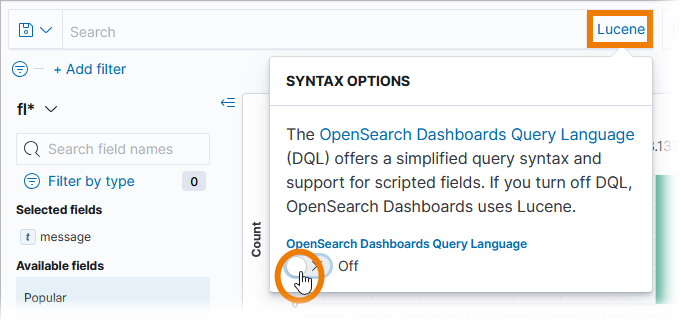
There is a second language available. When you click DQL and disable option OpenSearch Dashboards Query Language, you can switch to Lucene:
Reserved Characters in Lucene
In Lucene, hyphens are reserved characters.
If your search term contains hyphens, DQL prompts you to switch to Lucene syntax. To avoid this, surround your search term with quotation marks in a phrase search or omit the hyphen in a regular search.
The following table illustrates the differences between DQL and Lucene:
|
DQL and Lucene |
DQL |
Lucene |
|---|---|---|
|
|
|
For detailed information on OpenSearch, its features and how to use them, refer to the Official OpenSearch Documentation.
Related Content
Related Documentation: