
Follow Our Example User Story
David has tested his AI agent. He is satisfied with the results the agent delivers. Now he wants to integrate it into the existing xUML service.
You are going to help him with that task.
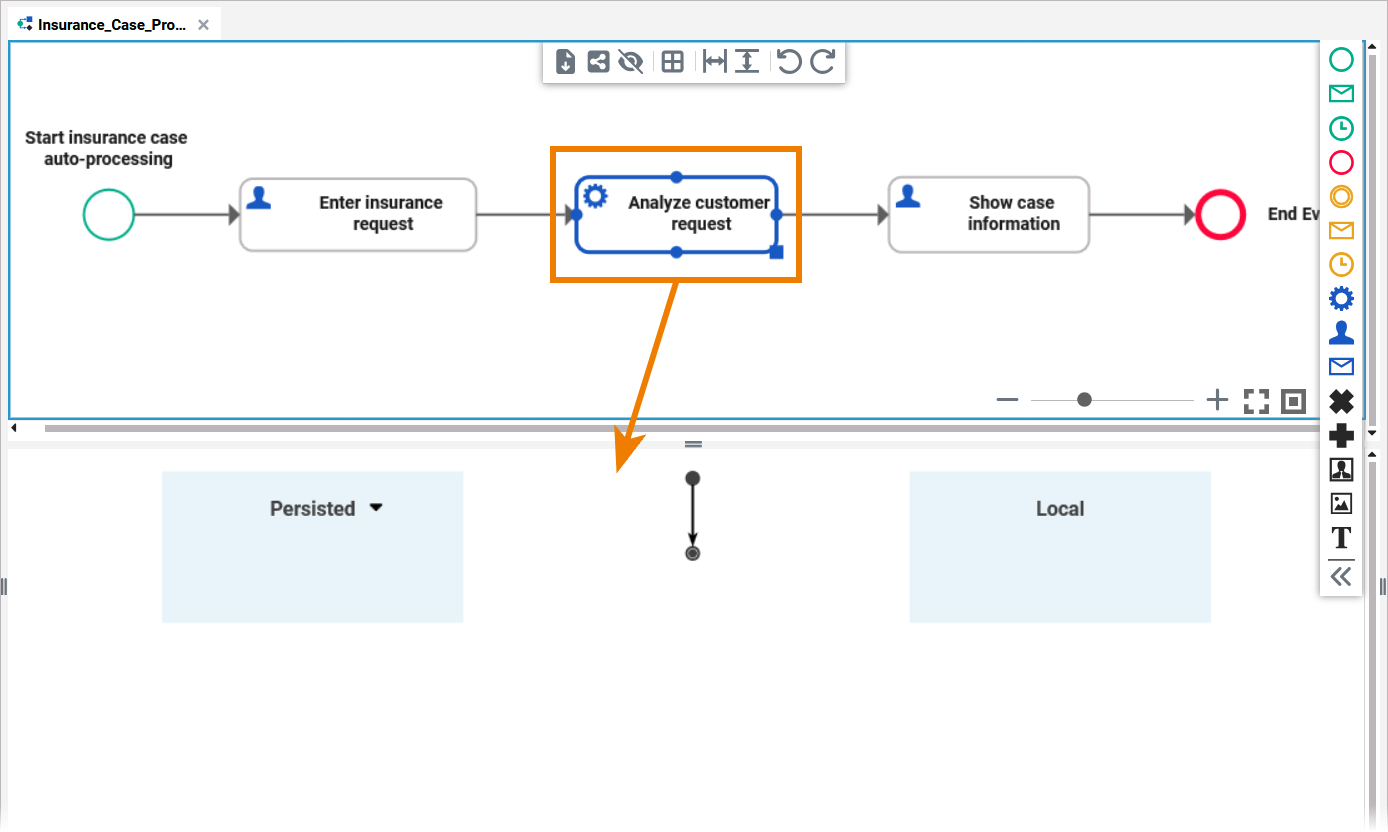
Open the Insurance_Case_Process. You created the CaseAgent to execute process step Analyze customer request. Therefore, you will now add the agent in this step of the process.
Click Analyze customer request to open its execution model:
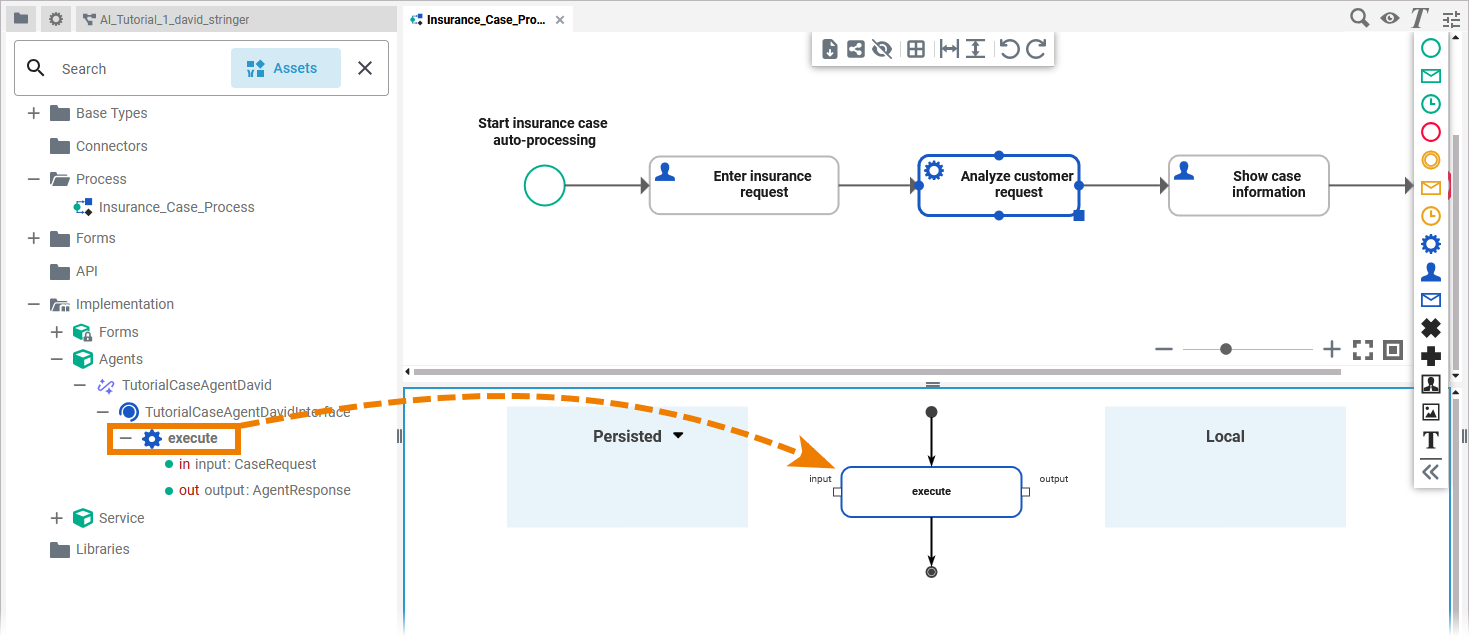
You want to execute the AI agent during this process step, so drag & drop the agent’s execute operation to the execution model:
Apply the REST Extension
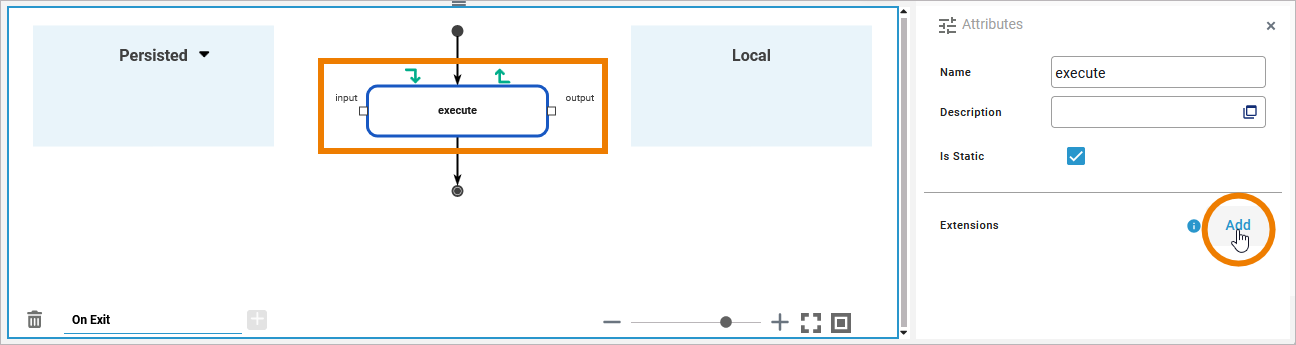
Since the AI agent’s execute operation is a REST call, you need to apply the REST extension to the operation. Go to the operations’s attributes Extensions > Add:
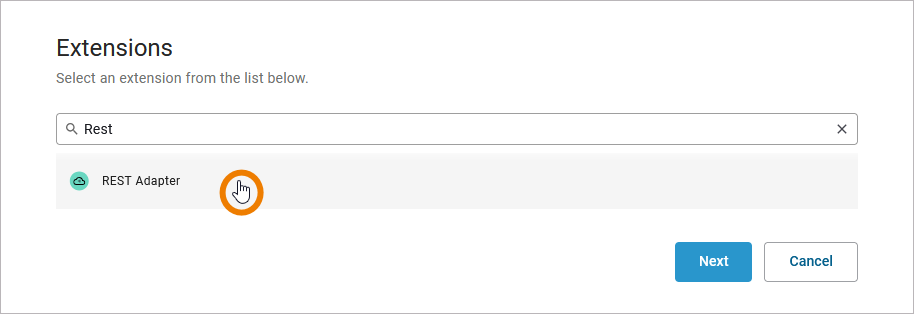
Select the REST Adapter extension and click Next:
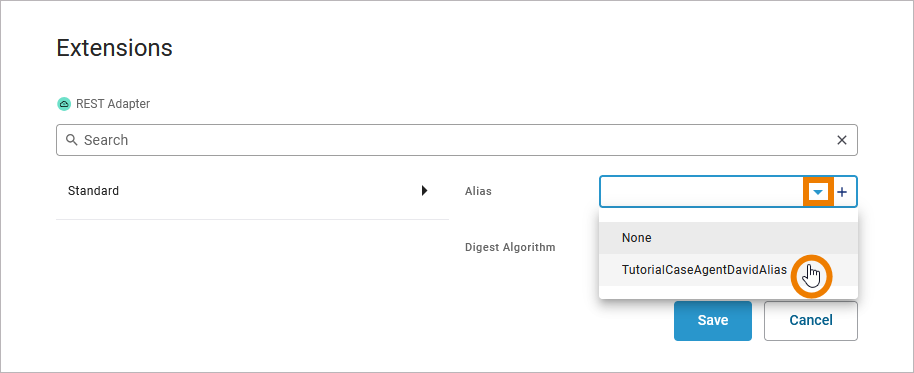
In the second pop-up, select your AI agent alias:
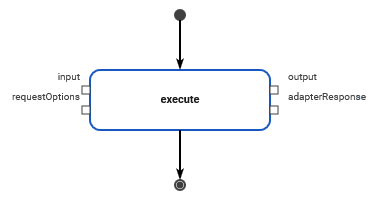
You may have to reload the page to see the new pins related to the REST Adapter extension:
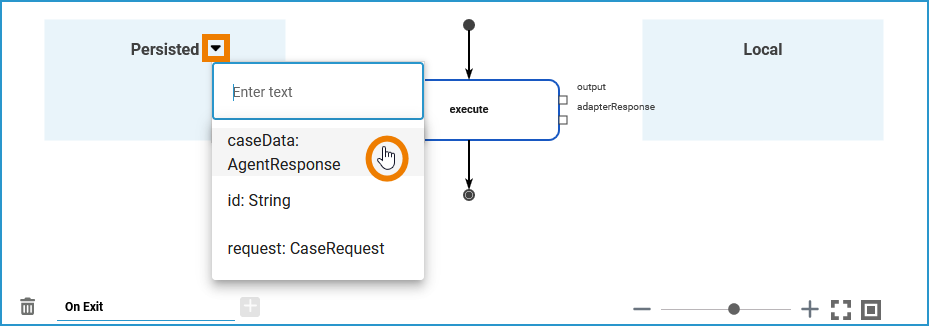
The persisted variables required at this stage have already been created and are part of the service template that you imported at the beginning of this tutorial. Open the selection list in section Persisted and add the two necessary variables for the input (request: CaseRequest) and the output (caseData: AgentResponse) of the AI agent:
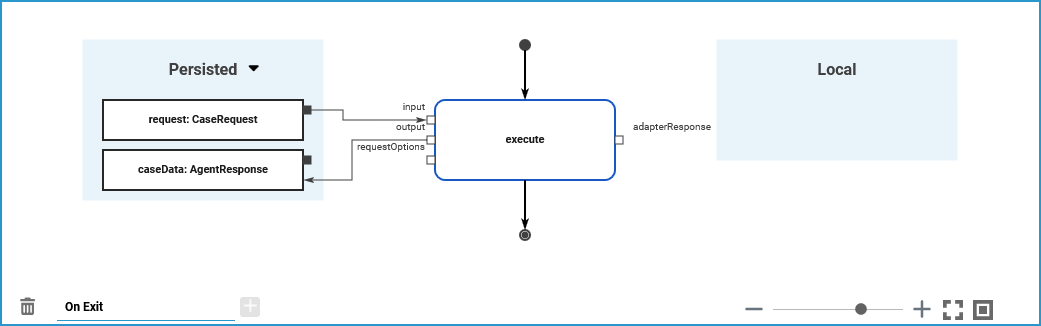
Connect the persisted variables to the input and output pins of the operation:
Mandatory Authentication with the PAS Platform
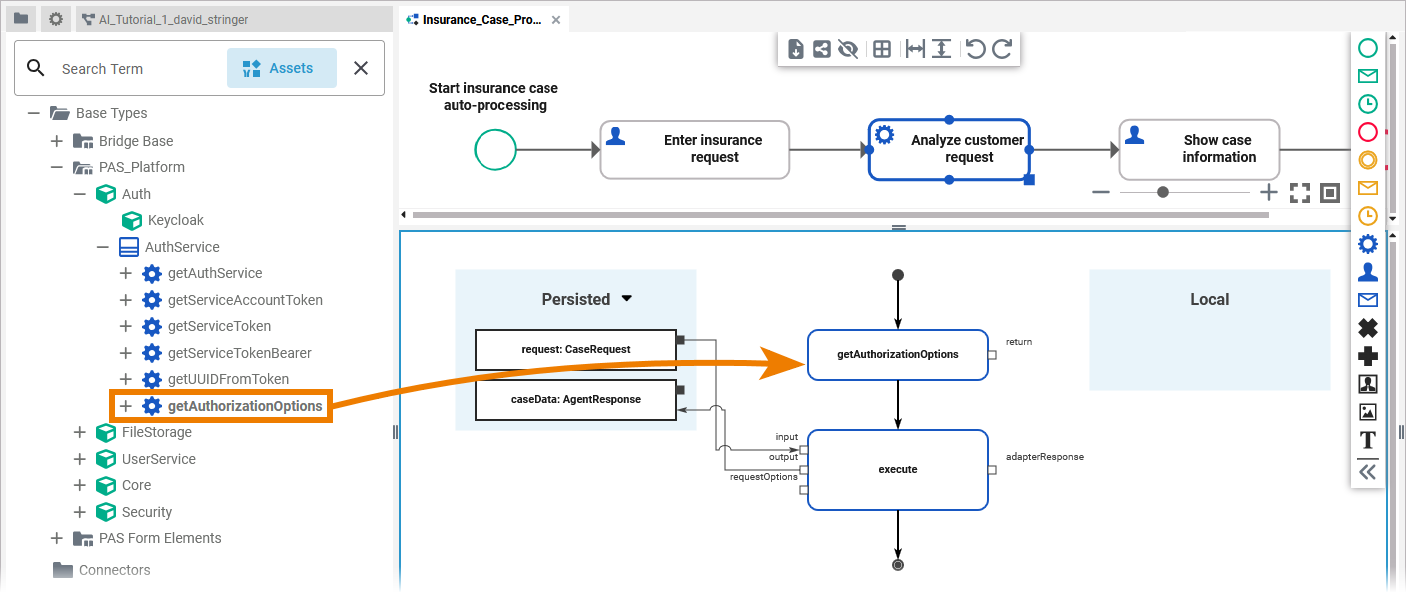
When using an AI agent operation in a model, you need to authenticate with the PAS platform. To do so, you need to set the necessary request options to the execute REST call (refer to Setting REST Request Options in the Designer Guide for details). You can do that by using the PAS platform standard operation getAuthorizationOptions that provides the necessary authentication headers.
You can find the operation in Base Types > PAS_Platform > Auth > AuthService. Drag & drop the operation to the first position in the operations flow:
Expert Advice
You can also use operation getAuthorizationOptions in other contexts where you need to authenticate with the platform.
The operation returns an instance of the RequestOptions class, with authentication header already set (contains a valid service account token). You can use the result directly as input for REST adapter calls to authenticate at the internal PAS platform services.
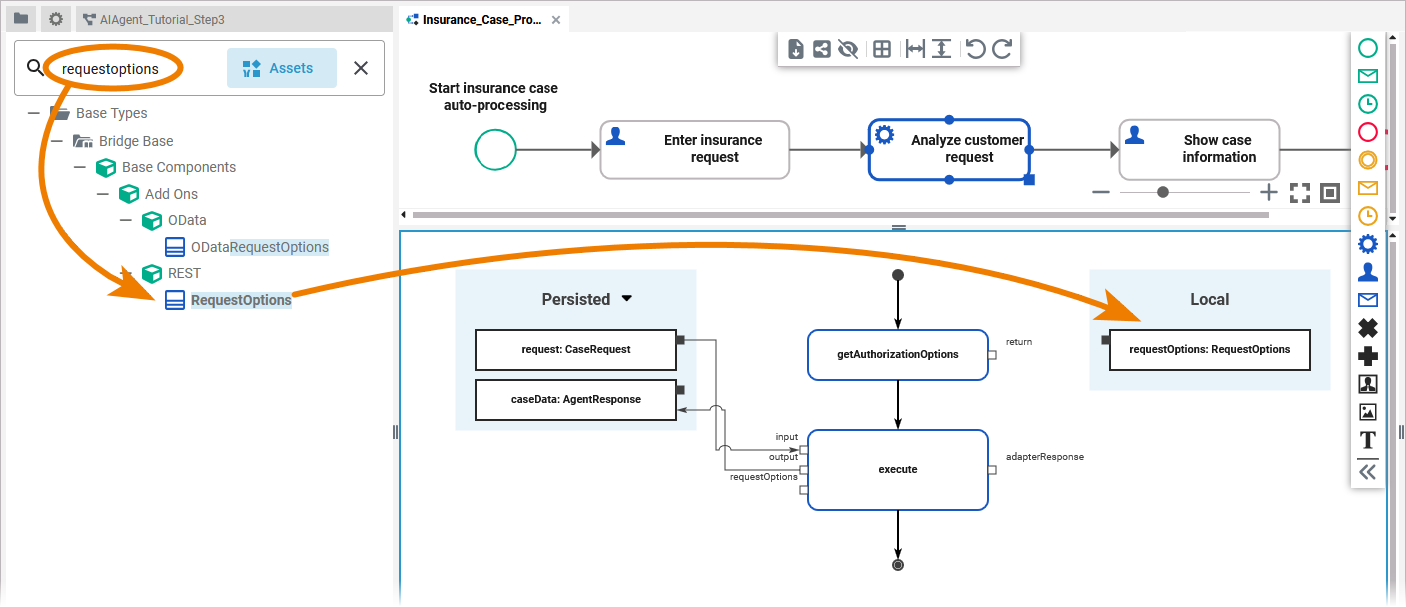
Use the service panel search to find class RequestOptions. Drag & drop it to section Local:
Now connect the return pin from operation getAuthorizationOptions with the local variable requestOptions. Draw another connection from the local variable requestOptions to the pin requestOptions of operation execute:
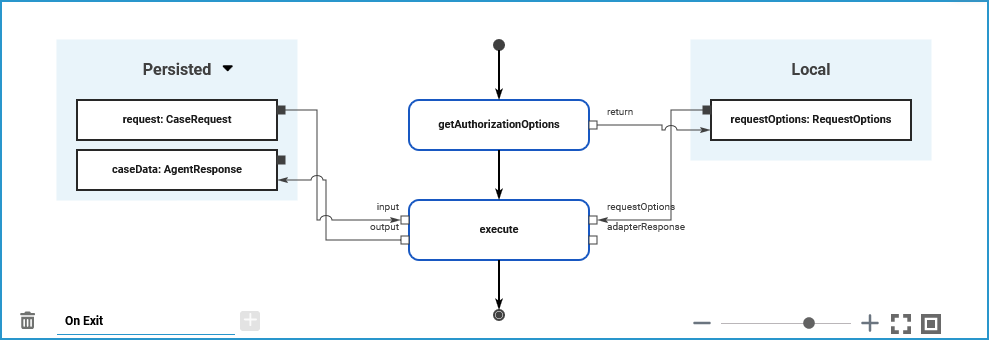
You have finished the AI agent integration and can now test your process.
Curious about more details?
In this step you learned how to integrate an AI agents in a Designer process.
-
For more information on AI agent usage in Designer processes, refer to Using an AI Agent in an xUML Service in the Designer Guide.
-
Visit the chapters Modeling BPMN and Implementing Your Process in the Designer Guide for detailed information on how to bring business processes to life in the Designer.
-
For detailed information about the REST request options, refer to Setting REST Request Options in the Designer Guide.