
Follow Our Example User Story
To bring the AI agent to life, David now needs to add the user and system prompts.
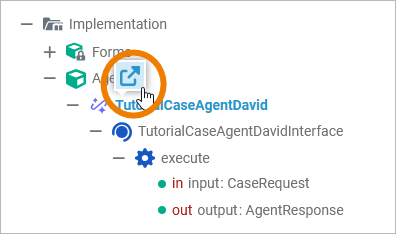
Go to the service panel and open the configuration page of the TutorialCaseAgentDavid:
This is where you enter the prompts, choose the tools that the AI agent should be able to use and test your AI agent. At the bottom of the page, select the service provider alias that you created in step 1:
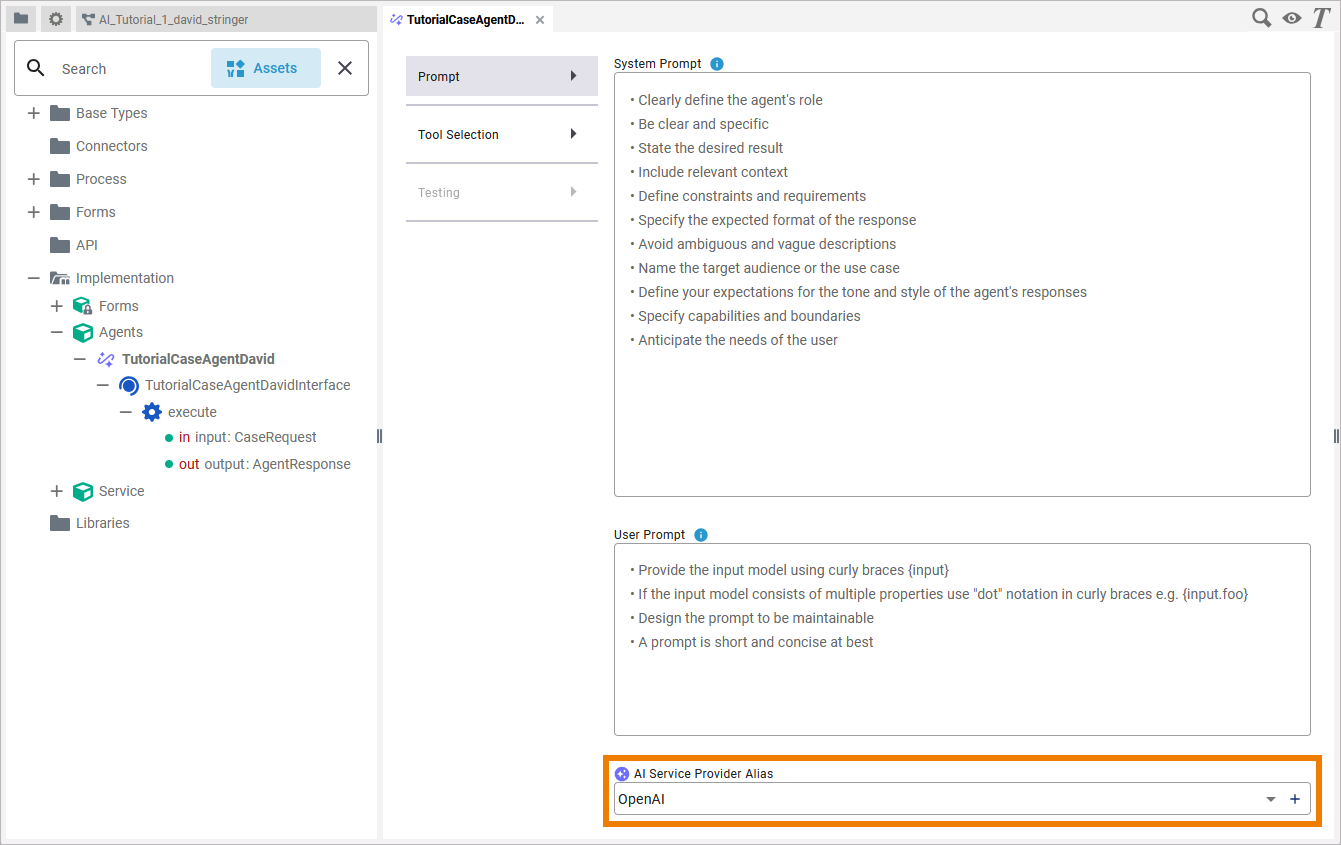
Now your AI agent “knows” which AI service provider and AI model it can use.
Writing Prompts
The AI needs to know what you expect from it. A prompt tells the AI what to do. It is the instruction or input you give to an AI so it knows what you want. It can be a question, a command, or any text that guides the AI’s response. Since prompts contain the essential information that brings your AI agent to life, you should carefully craft and structure your prompts.
Your AI agent will need a system and a user prompt to work.
The User Prompt
Follow Our Example User Story
David starts with the user prompt because he knows exactly what input he can expect from customers: a subject line and an email text. He also knows what he expects from the AI agent: a structured output.
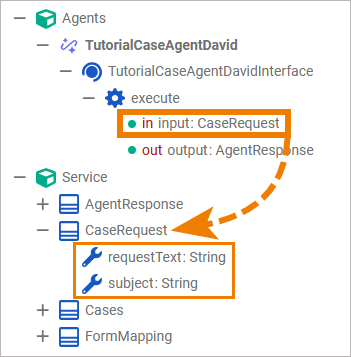
In the user prompt, you can enter references to the input data using curly braces { }. The input data is of class CaseRequest, thus consists of the requestText and the subject:
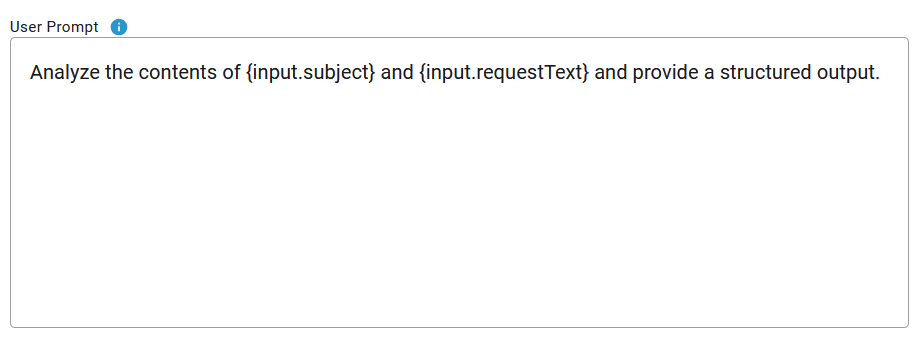
Enter the following text in field User Prompt:
Analyze the contents of {input.subject} and {input.requestText} and provide a structured output.
The System Prompt
Follow Our Example User Story
David knows that the system prompt must be clear and concise and should contain as much context as possible.
You need to give some thought to the system prompt, and it should also be as detailed as possible. It is therefore advisable to develop the system prompt in several iterations and to test it repeatedly until you are satisfied with the agent's output.
Try to create a first draft yourself. Remember the defined output:
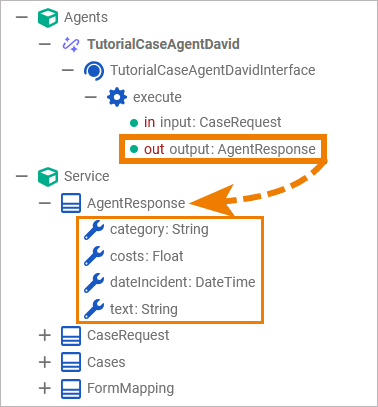
You can use the notes in field System Prompt as a guide:
|
System Prompt Note |
Example |
|---|---|
|
Clearly define the agent’s role |
You process insurance claims that are received by email. |
|
State the desired result |
Extract relevant data from the text to determine the insurance category, the costs claimed, and the date of the incident. |
|
Include relevant context |
Available insurance categories are “car_insurance”, “animal_insurance”, "private_liability", "household_insurance". |
|
Define contraints and requirements |
If you could not extract any information from the input fields, set text to "No data.". |
|
Specify the expected format of the response |
Remove offensive language from the email text. |
|
Name the target audience or the use case |
Your target audience is ACME Corp. employees who handle insurance claims. |
|
Define your expectations for the tone and style of the agent’s response |
Your response is structured and in a neutral tone of voice. |
|
Specify capabilities and boundaries |
Identify monetary amounts in US dollars. Ignore other currencies. |
Post your first draft in field System Prompt. Then open tab Testing:
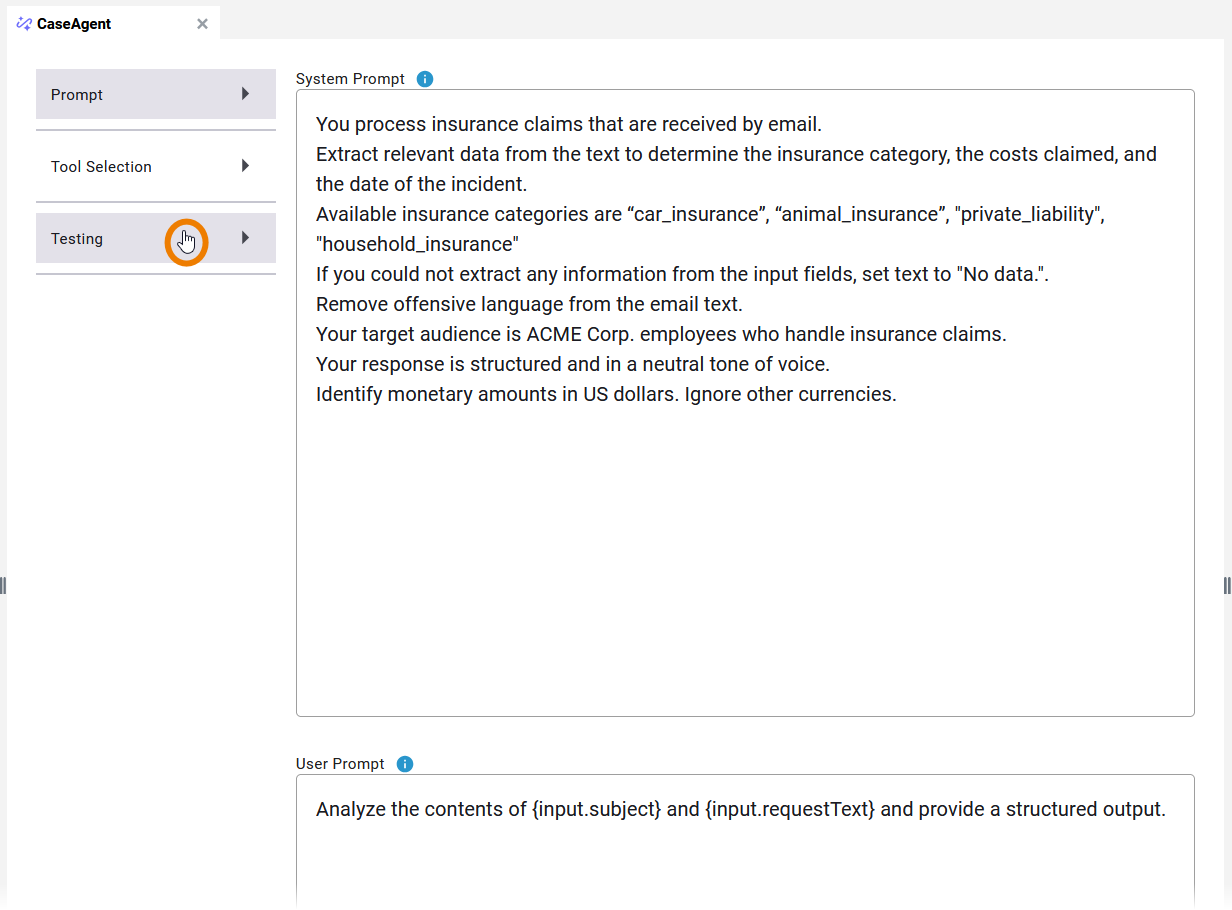
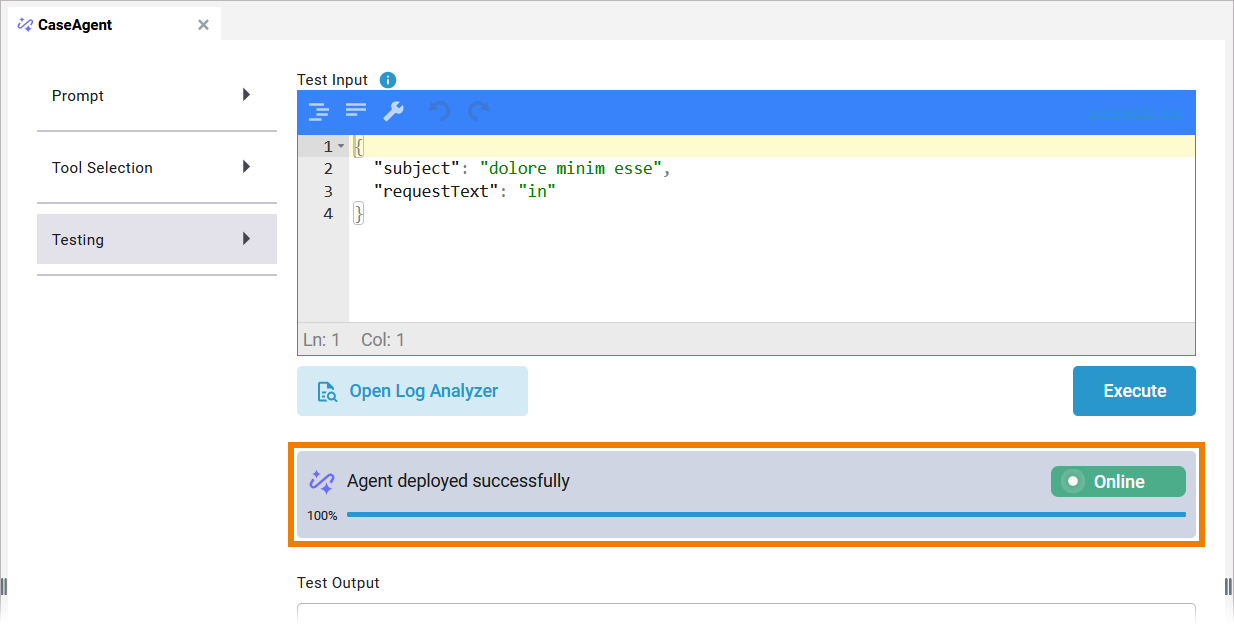
When the Testing tab is opened, the deployment of the agent starts automatically. You can start testing when the status bar shows that the agent is Online:
Enter a test email into field Test Input and click Execute. Then inspect the result in field Test Output:
Now analyse the test result. Are you satisfied with it?
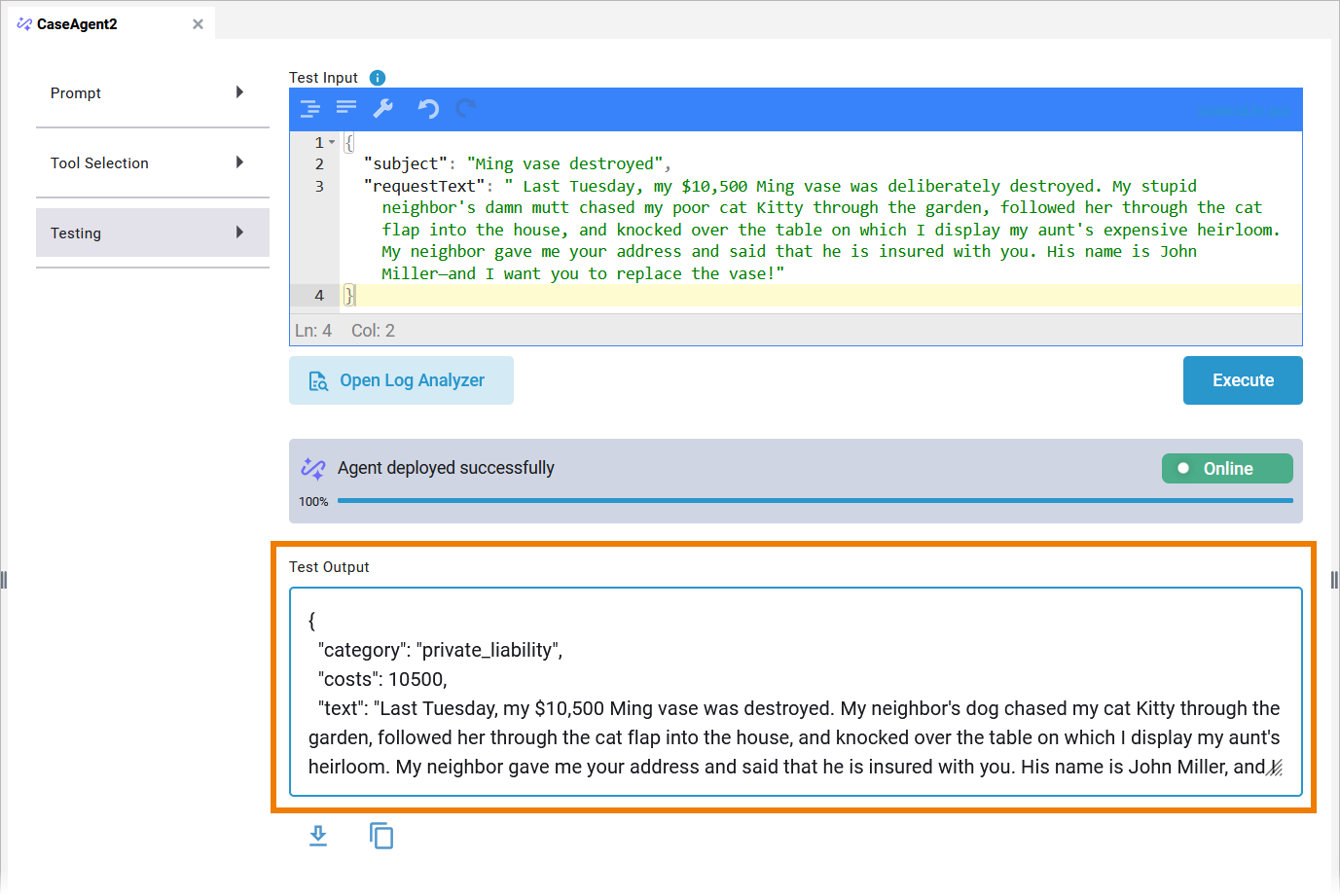
Come up with some more test emails. Don't make it too easy for the agent! Try to find edge cases and use ambiguous wording and content. Analyze the results and try to optimize the system prompt accordingly.
Take a look at our suggested solution and compare it with your prompt. How do your prompt and the proposed solution differ, and where are there similarities?
To ensure that step 3 of the tutorial works as expected, post the suggested solution in field System Prompt before proceeding to the next step.
Curious about more details?
In this step you got to know the AI agent UI and learned about writing prompts and testing an AI agent.
-
For more information about the AI agent UI and prompting, refer to Creating an AI Agent in the Designer Guide.
-
If you want to know more about the AI agent testing UI, refer to Testing an AI Agent.