
Follow Our Example User Story
David now wants to test whether his service runs with the integrated AI agent, and whether the agent delivers the expected results for display in the process step Show case information.
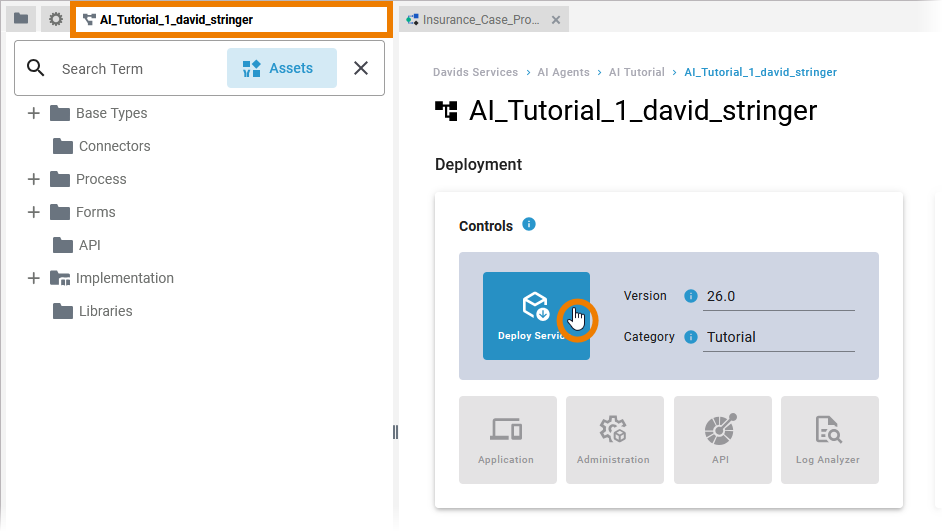
Reopen the service details and deploy your service:
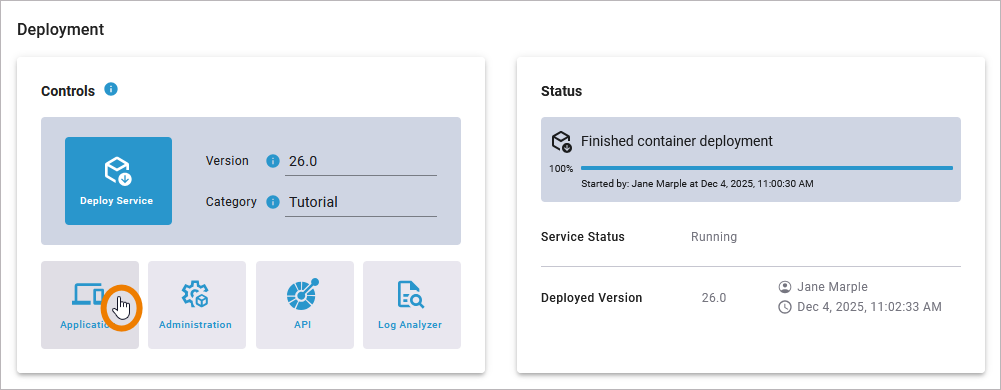
After a successful deployment, the Application button is enabled. Use it to open the application:
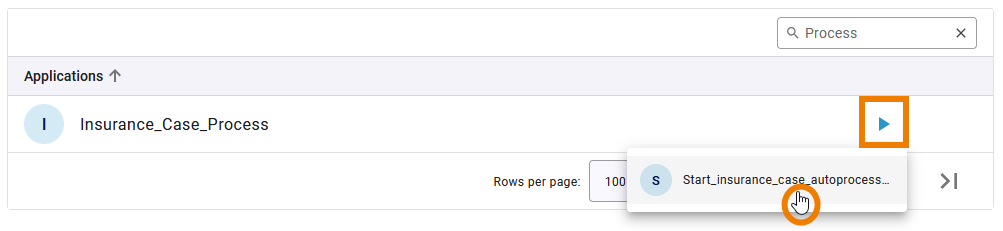
Click the Start button to run the process:
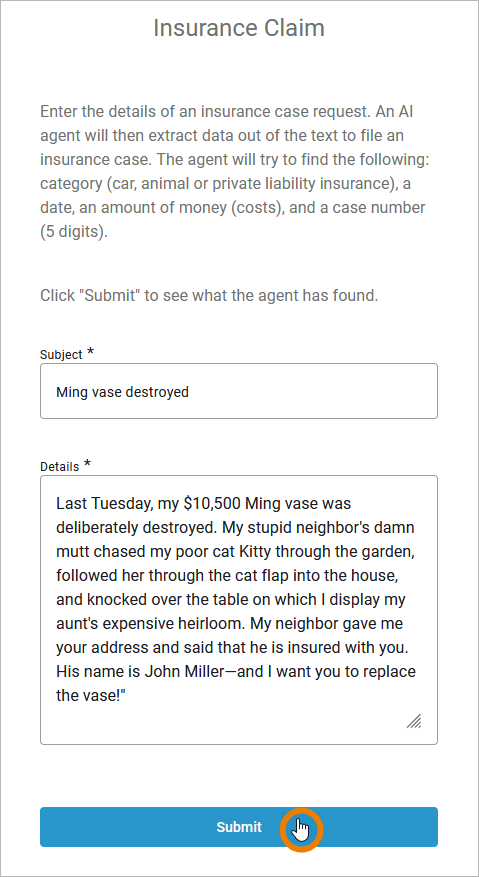
In the first form, enter a subject and the details of an insurance case request. Click Submit to check the agent’s response:
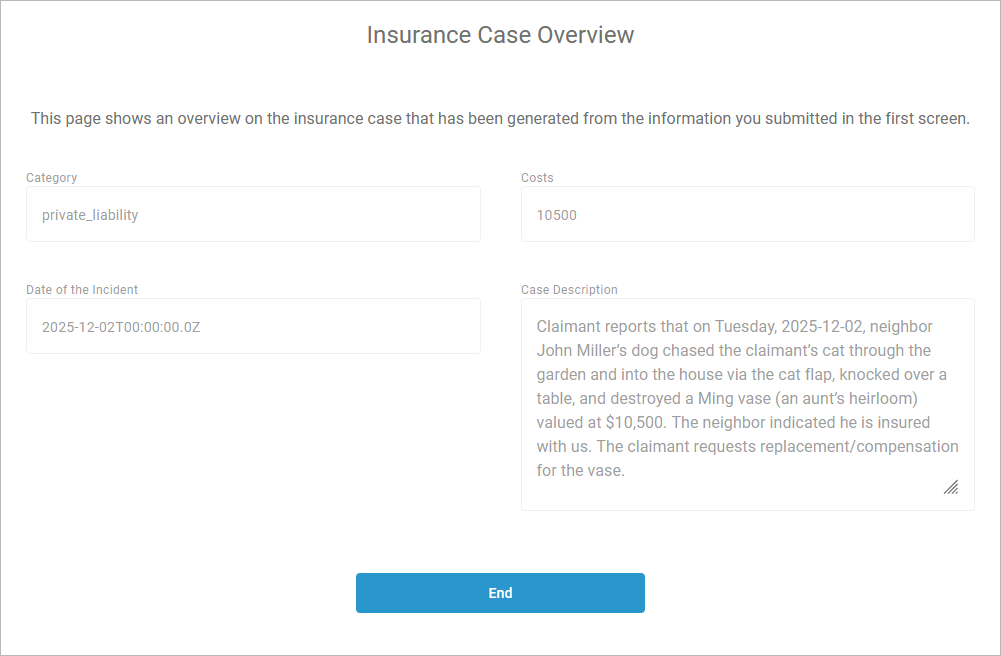
Wait until the agent has processed the data. The results will then be displayed in the next form:

Congratulations - you have done it!
You have created your first AI agent, integrated it in a process and tested its execution.
Next Level
If you want to put the AI agent through its paces, you can now start additional test runs. Challenge the AI agent by combining as much different or even contradictory information as possible to see if the agent can handle it.
Curious about more details?
In this step you tested the execution of a business process that contains an AI agent.
-
For more information on service deployment, refer to Deploying a Service in the Designer Guide.
-
Visit chapter Running Designer Applications for detailed information about the execution of Designer applications.