
You can enhance the instance list with custom data from your process, e.g. user data from a form or data from a backend system. To do this, perform the following two steps:
-
Save the data you want to use in the instance list to a persisted variable.
-
Configure the instance list to display the persisted variable.
Step 1: Save Data to Persisted Variable
Custom data to be displayed as a column in the instance list must first be defined as persisted variables.
Example:
-
customer: String
-
productName: String
-
complainDetails: String
-
status: String
-
formTimeout: Integer
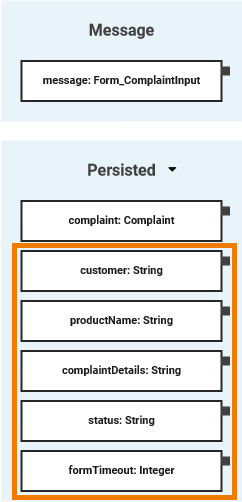
For further information on how to add variables to the execution pane and persist data, see Adding Variables and Persisting Data.
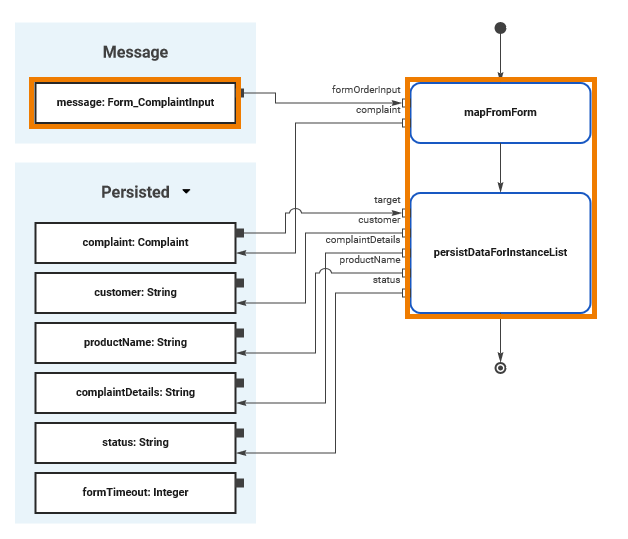
In the Instance_List_Example, the entered data is transferred from Form_ComplaintInput via the mapping operations mapFromForm and persistDataForInstanceList to the persisted variables:
Step 2: Configure Columns to Display Persisted Variables
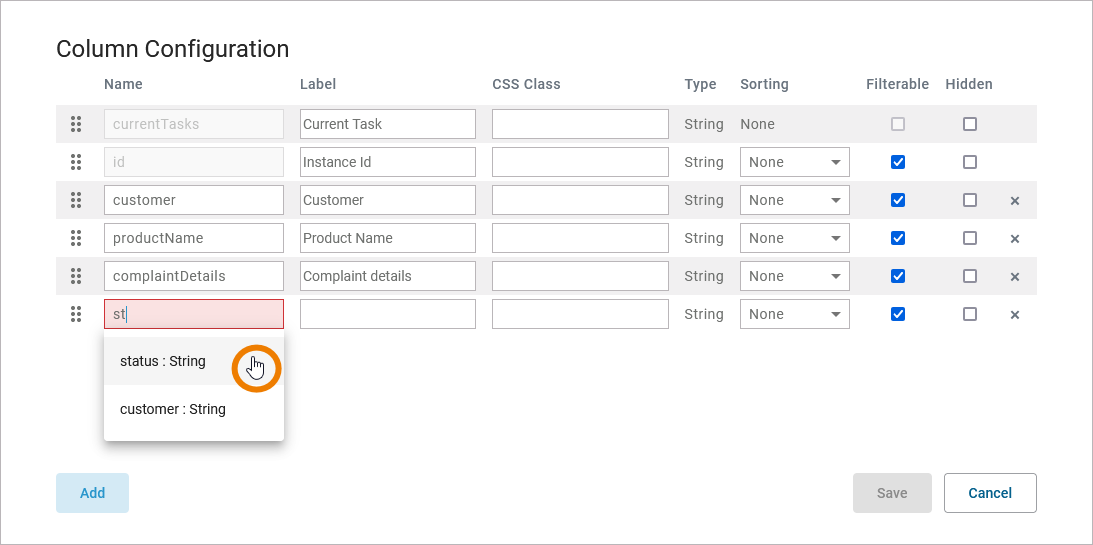
Persisted variables are available in the column configuration of the instance list.
-
Click Add to add a new column. A new empty line will be added at the bottom of the column configuration.
-
Click field Name. A drop-down menu opens with all persisted variables that have been created.
-
Select the variable whose values you want to display. Fill field Label, choose any other desired options, and click Save.
For further information refer to Configuring the Instance List.
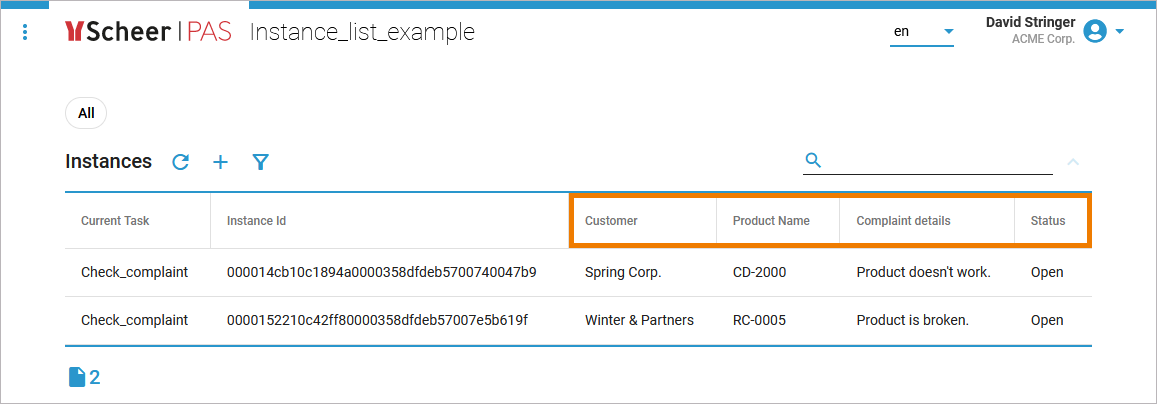
In the executed application, the values of the selected persisted variables are each displayed in a separate column of the instance list:
For general information on how to create a process instance, refer to Creating a Process Instance.
For further information on how to display the instance list of the executed application, refer to Showing the Instance List.
Instance_List_Example
Click here to download a simple example model that shows the usage of the instance list in Scheer PAS Designer.