
|
Element |
|
|---|---|
|
Description |
A Timer Start Event allows you to start a BPMN model after a defined cycle or at a defined time. Every time the timer is triggered, the model will be started. |
|
Attributes
|
|
|
Particularity |
A start event can only be created via the elements toolbar. Another particularity of the Timer Start Event is the attribute Timer which is available in the Attributes Panel: 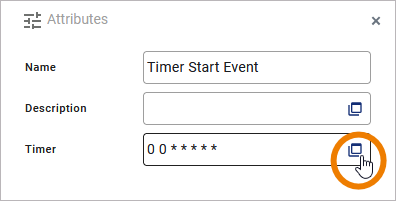
To define the timer settings, click Open Timer to open the timer editor. For detailed explanations see How to Use the Scheduler/Timer. |
|
Execution |
On Event: Without input or output parameters. |
|
Editing and Styling |
|
How to Use the Scheduler/Timer
If you use option Open Timer in the attribute panel, a separate editor will open where you can define the settings of your Timer Start Event. You have two options with different settings:
-
Scheduler (see below)
-
Timer (see below)

Scheduler
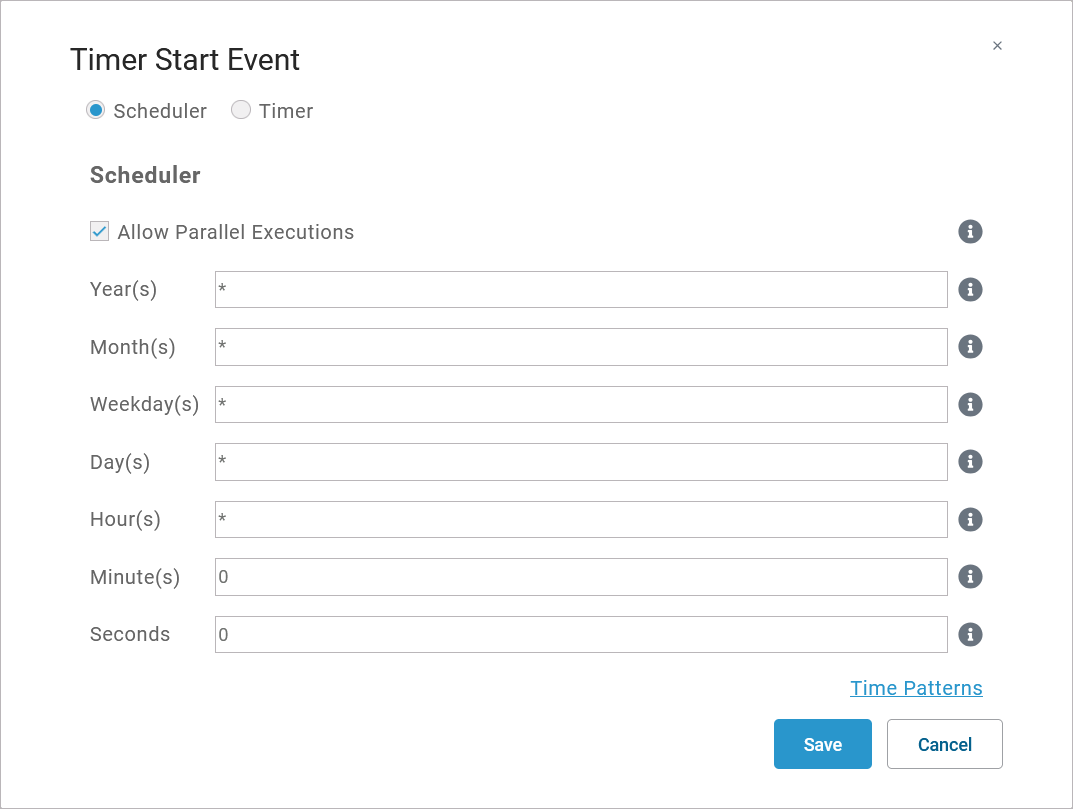
Use the scheduler if you want to define a pattern for your Timer Start Event, for example to start the model every monday, every hour etc.
|
Setting |
Description |
Default |
|---|---|---|
|
Allow Parallel Executions |
If checked, each time a scheduler pattern matches, the scheduler activity diagram is executed - even if another execution is already running.
|
Checked |
|
Year(s) |
Insert a positive integer or a pattern. |
* |
|
Month(s) |
Use numbers 1 to 12 or a pattern. |
* |
|
Weekdays(s) |
Valid input:
|
* |
|
Day(s) |
Depending on the month, valid input are numbers from 1 to 31 or a pattern. |
* |
|
Hours(s) |
Use 0 to 23 or a pattern. |
* |
|
Minute(s) |
Use 0 to 59 or a pattern. |
0 |
|
Seconds |
Use 0 to 59 or a pattern. |
0 |
Timer
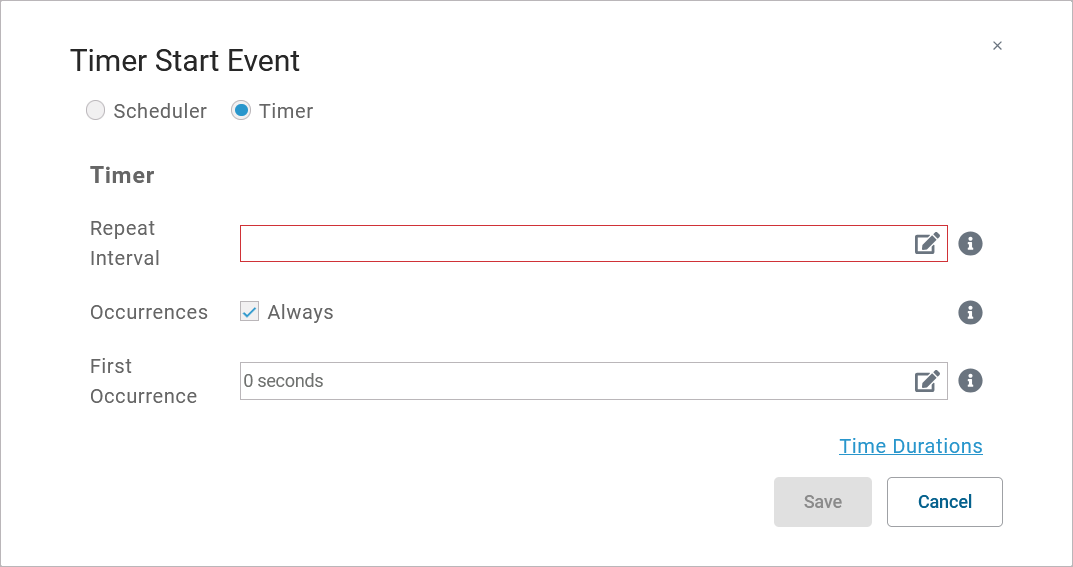
Select the timer if you want to define a cycle for example to start the model after one week, after two hours etc.
|
Setting |
Description |
Default |
|---|---|---|
|
Repeat Interval |
Enter a valid time duration expression (see below). Refer to Time Durations for detailed information.
|
- |
|
Occurences |
Insert a positive integer to define the count of repetitions. If you want the timer to be endless, check Always (default). |
Always |
|
First Occurence |
Enter a valid time duration expression (see below). Refer to Time Durations for detailed information.
|
0 seconds |
Duration Expression Wizard
The settings Repeat Interval and First Occurrence contain option Edit. Click this option to open a wizard that supports you to define the necessary duration expression:
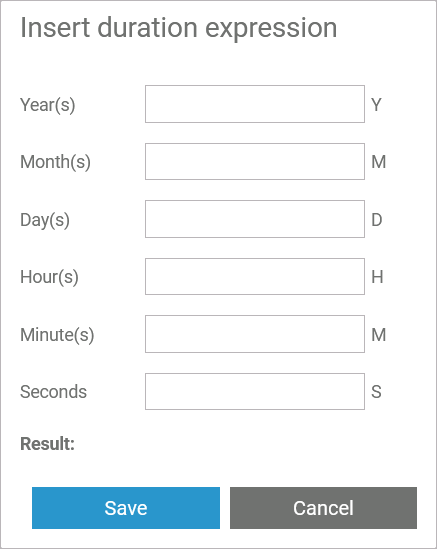
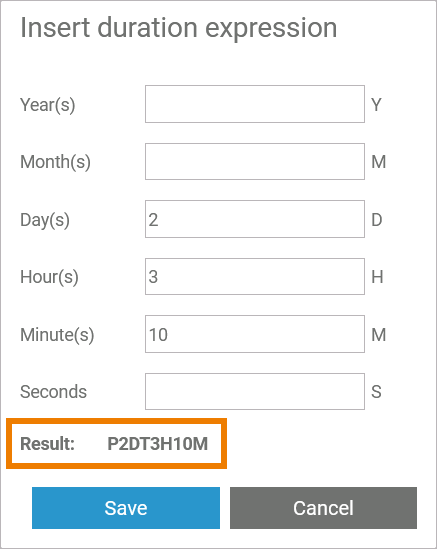
Insert positive integers in the desired fields. The result is shown below. Click Save to close the wizard:
The duration expression is displayed in the corresponding field:
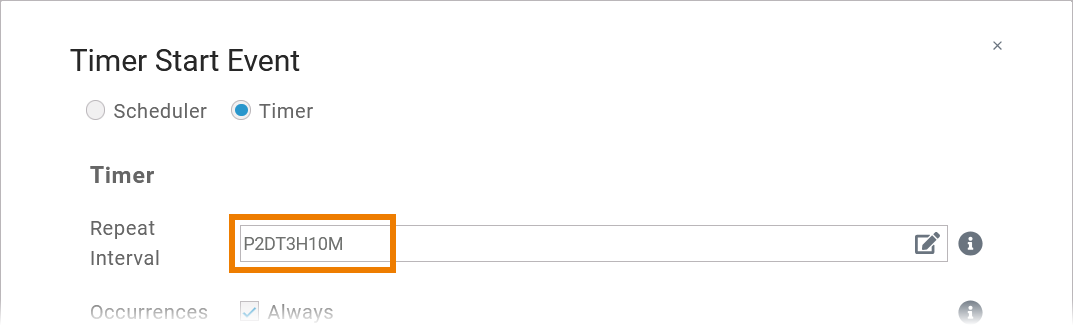
Once you are familiar with the notation of the duration expression, you can also insert it directly in the field.
BPMN_Start_Event_Example
Click here to download a simple example model that shows what you can do with Start Events in Scheer PAS Designer.