
You can add parameters to operations directly in the Activity Editor.
You can add parameters only to custom operations, not to operations of Connectors and Libraries.
Alternatively, you can add parameters via the Service Panel.
When you hover over a custom operation, options for creating an input parameter and for creating an output parameter appear above the element:
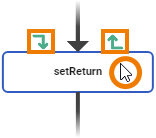
Click the corresponding option of the parameter direction you want to create:
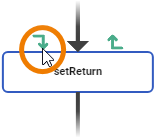
An object flow is automatically dragged out. Connect the object flow to an element that defines the parameter type:
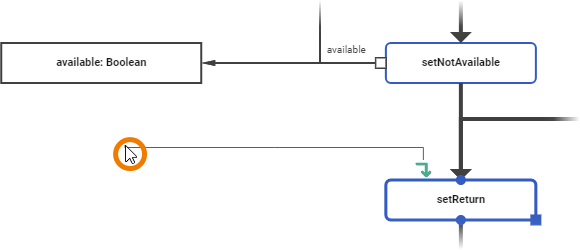
Compatible elements are
-
local variables
-
pins
-
parameters
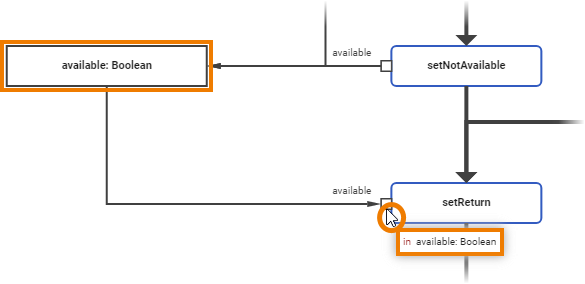
Click on a connection point or pin of the selected element. The parameter is created and the corresponding object flow is connected:
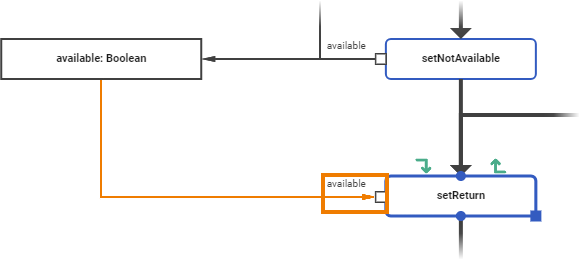
You can also start the object flow by clicking on a connection point or pin of an element you want to use as a parameter template. Drag it to the corresponding icon of the parameter direction you want to create and click it.
The newly created parameter automatically gets the same name and type as the element it is connected to. They are displayed when hovering over the parameter pin:
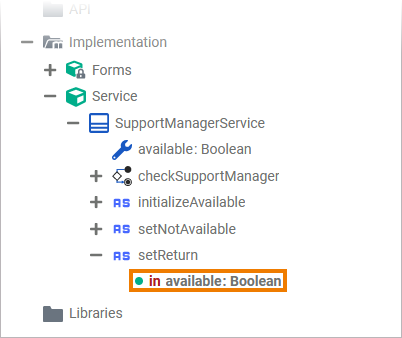
The new parameter is also visible below the related operation in your data model:
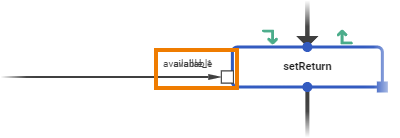
If you want to create more than one input or output parameter, note that the newly created parameters of the same direction are each placed in the same position so that they overlap. This leads to the problem that the names of the individual parameters can no longer be read properly and their parameter pins can no longer be distinguished:
To avoid this, before creating more parameters, you can either move the pin of the first created parameter...
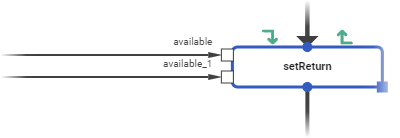
... or you can resize the activity node:

This is the recommended option if you want to create more than two parameters of the same direction.
Deleting Parameters
If you want to delete a parameter of an activity operation you have the following options:
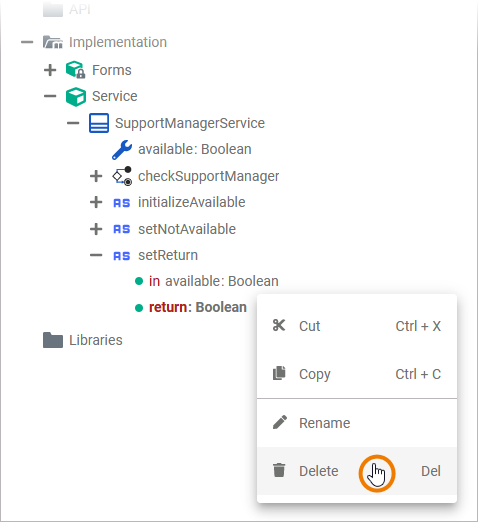
You can delete a parameter in the implementation folder of the service panel using the Delete option of the context menu or the Del key:
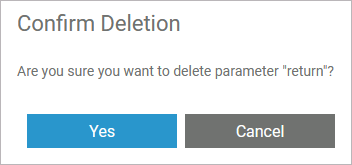
Confirm the security prompt in the pop-up window with Yes to delete the selected parameter from the operation:
Alternatively, you can delete a parameter via the context menu of the corresponding parameter pin in the activity editor. Use option Delete from the context menu or the Del key on your keyboard:
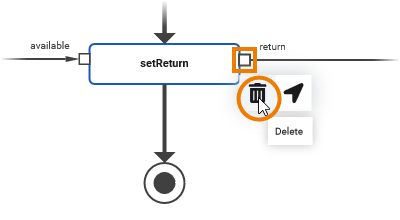
The parameter will be deleted without further confirmation.
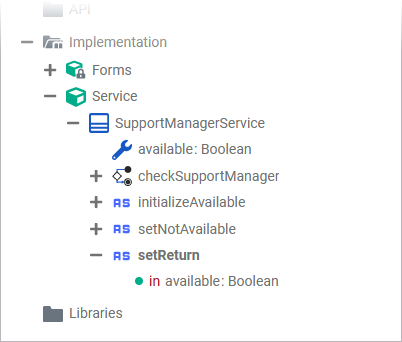
The parameter is deleted from the operation:
Related Content
Related Pages: