
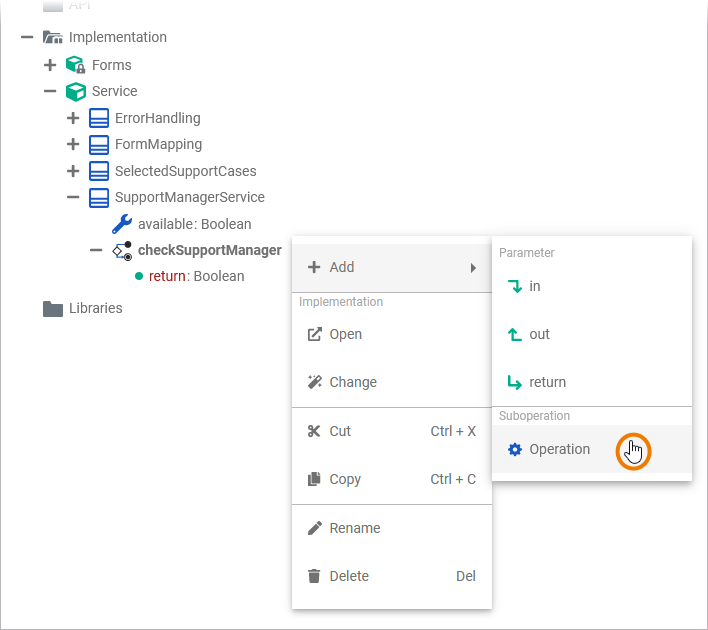
Via the context menu of an operation, you can add suboperations to it. Right-click on the operation to which you want to add a suboperation to, to open its context menu. Select Add Operation from section Suboperation.
Example: A suboperation is created to the Activity operation checkSupportManager:
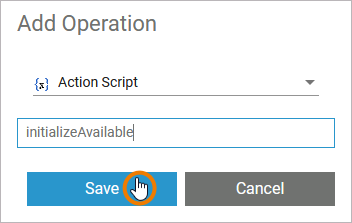
The Add Operation dialog opens. Use the drop-down menu to select the desired type of operation and enter the name of the suboperation in the corresponding field. Click Save to add it.
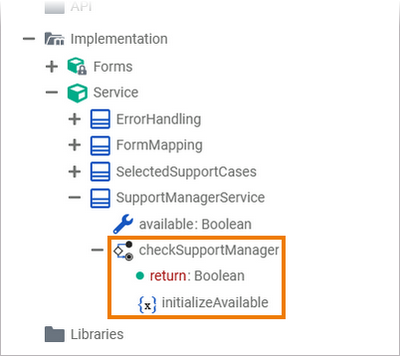
Example: The Action Script initializeAvailable is created as a suboperation to checkSupportManager:
The newly created suboperation is displayed in the implementation folder of the service tree. As soon as you have added the required parameters to the suboperation (if needed), you can use it in any implementation:
For more information on how to add a parameter, refer to Adding Parameters to Operations.
Deleting Suboperations
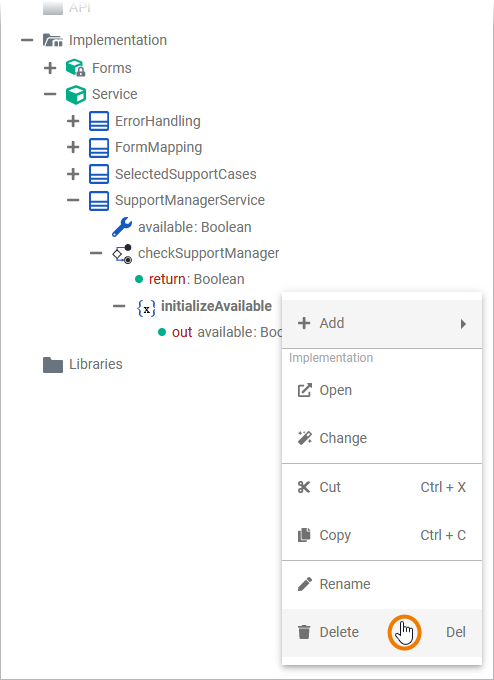
To delete an operation, open its context menu and select Delete:
A confirmation dialog opens. Click Yes to delete the selected operation or cancel to abort:
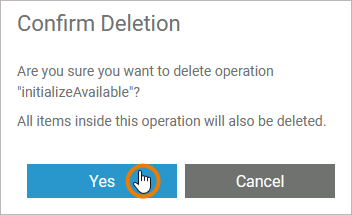
Please note that all items within the suboperation will also be deleted!
The operation is deleted from the implementation folder of the service tree:
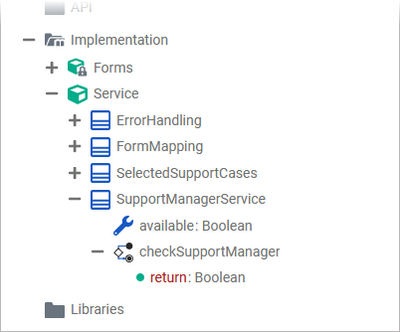
If the deleted operation is still used in a diagram, the corresponding element is marked as Unknown Operation:
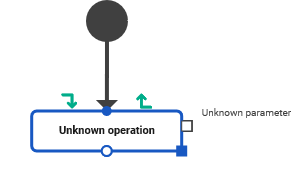
You need to delete this element manually from the diagram. To do this, right-click on the element to open its context menu and select Delete. You can also select the element and use the Del key on your keyboard.