
We will use the Receive Task element to showcase how an element's dimensions can be adjusted. The display of the User Task element is used for size comparison only.
Click on the element to be adjusted in order to display its connection points:
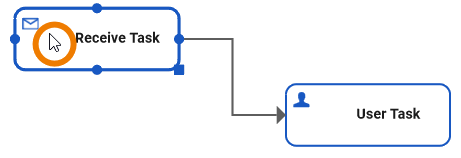
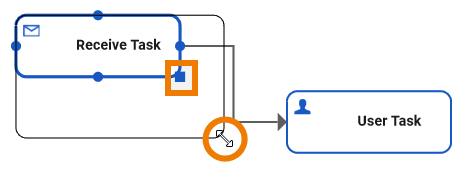
Click on the indicator in the bottom right corner of the element and drag it to the desired location. During the dragging process a line indicates the element's circumference after adjustment:
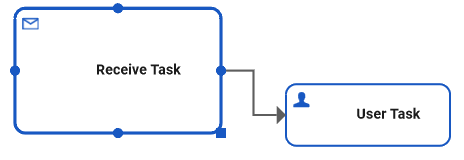
Release the mouse key. The element size is enlarged to fit its bottom right corner to the indicated new position:
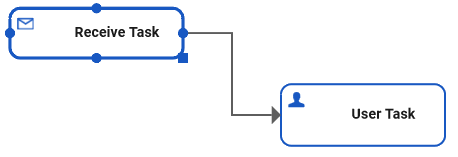
You may also decrease an element's size accordingly:
For more information on how to create attributes on the diagram pane refer to Changing BPMN Element Attributes.