Creating a Link Attribute
The Link attribute allows users to reference external resources or files. Links can point to web pages, documents, images, or uploaded files.
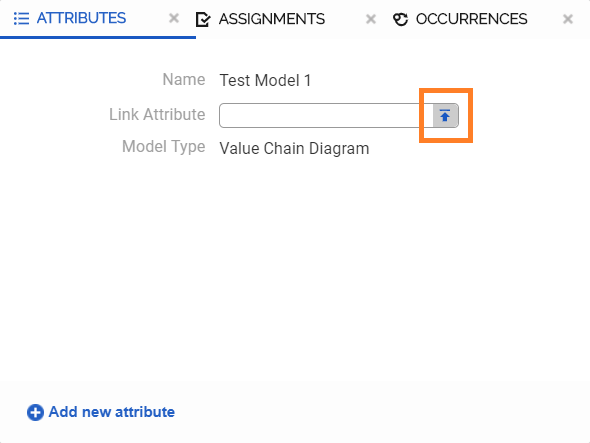
To add a link, click the link icon on the right side of the input field. You can either upload a file from your local computer or enter (paste) a web address into the field.
Local File Link Attributes
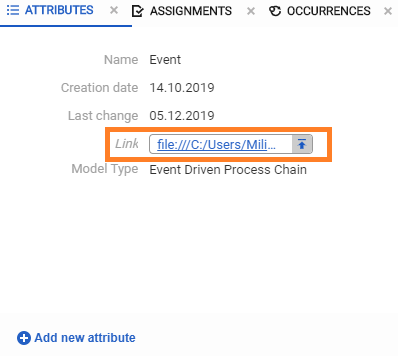
Most modern web browsers, such as Google Chrome, do not allow direct access to local file links that start with file:/// for security reasons. Allowing such links could pose a security risk to the application.
To open a local file link, copy the link from the attribute field, paste it into a new browser tab, and press Enter. The browser will then open the local file.
Customizing the Attribute
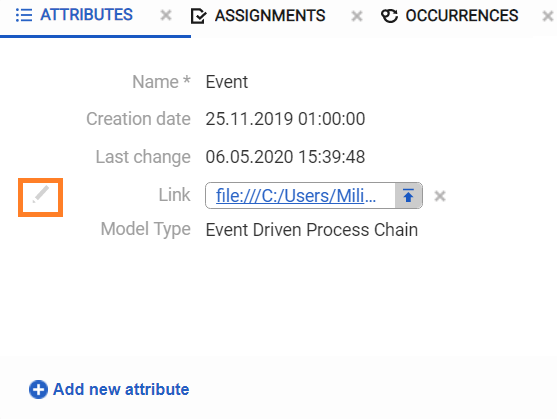
To customize a Link attribute, right-click the attribute name in the Attributes panel to open the context menu.
-
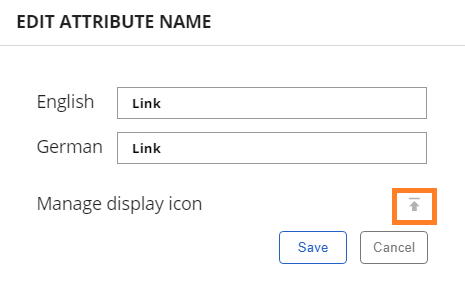
In this section, you can add/edit English and German translation of the attribute name.
-
Also, by clicking on Manage display icon, you can upload an icon you can use to show link as symbol.
-
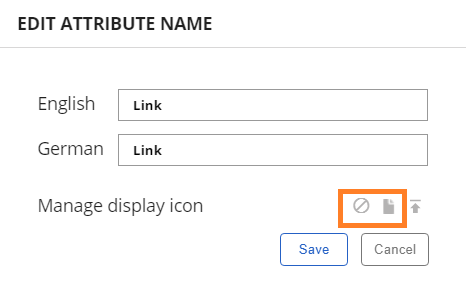
Once you have uploaded an icon, options Remove icon and Download icon will appear.
-
If you want to remove the icon you uploaded, click on Remove icon.
-
By clicking Download icon, you can download the previously uploaded icon.
Displaying a Link Attribute on the Canvas
Link attributes can be displayed visually on the Canvas as a symbol.
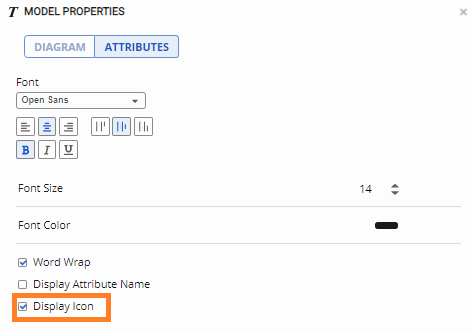
To do this, drag and drop the Link attribute onto the Canvas and enable the Display icon checkbox in the Model-Object Properties – Attributes section.
-
If a custom icon has been uploaded, the link is displayed using that icon.
-
If no custom icon is available, the link is displayed using the default link symbol.