
Occurrence Assignments Panel
The Occurrence Assignments panel is used to create and manage assignments between object occurrences and models. In contrast to regular Assignments, occurrence assignments link an occurrence to an occurrence-based model rather than to a model with its own definition.
Occurrence assignments are typically used to represent specific realizations or variants of a model. The assigned models are occurrence copies, meaning they originate from an existing model but are maintained independently as a concrete instance.
For detailed information about working with definitions and occurrence-based copies, refer to the Reusing Objects section of the documentation.
By default, the Occurrence Assignments panel is located in the lower-left area of the Canvas, positioned next to the Assignments pane
The panel displays the model that is currently assigned to the selected object occurrence.
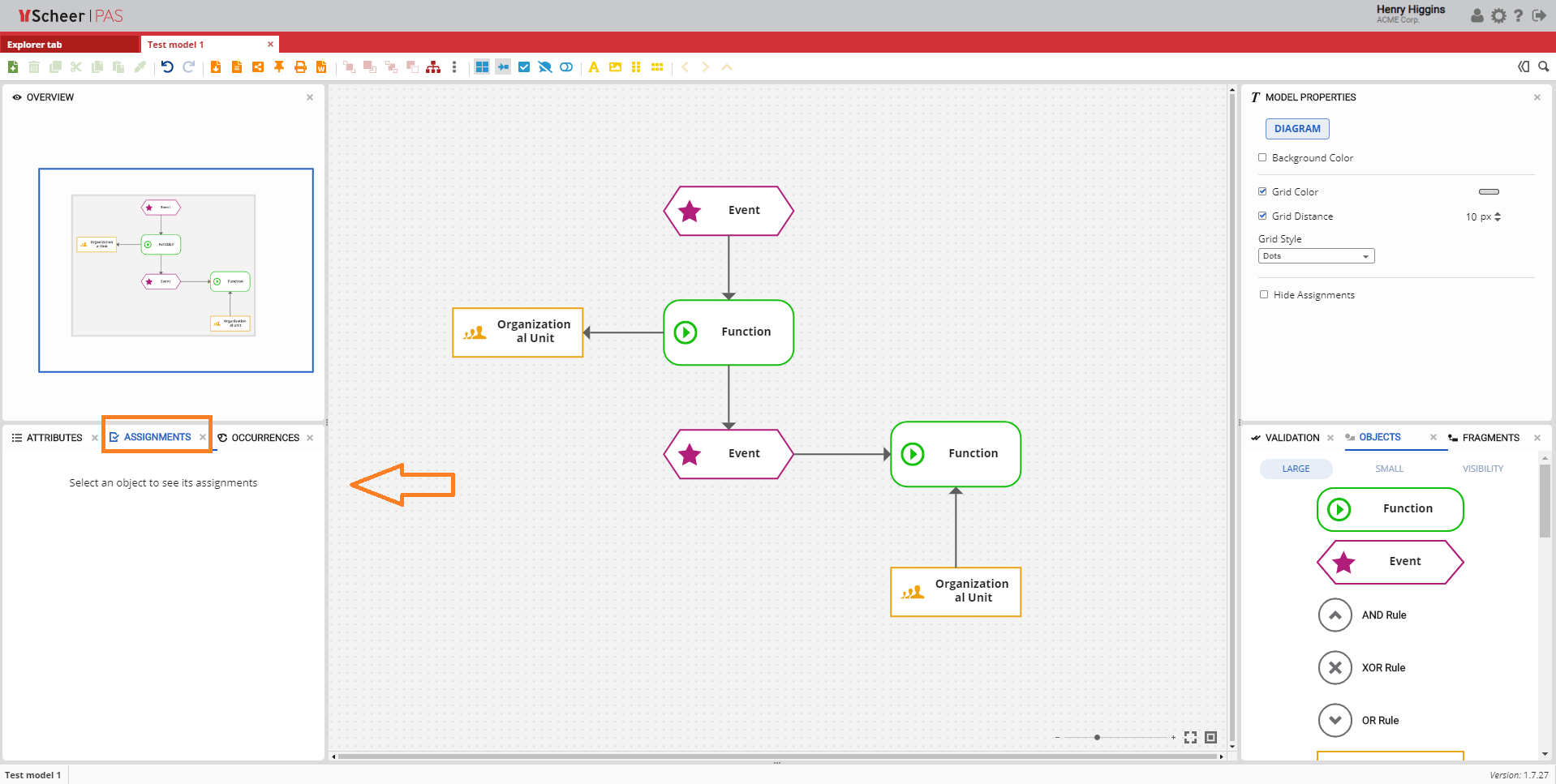
Creating Occurrence Assignments
At the bottom of the Occurrence Assignments panel, two options are available for linking a model to the selected object occurrence:
-
Link new occurrence model
-
Link existing occurrence model
These options become active only after an object is selected on the Canvas. They allow users to either create a new occurrence-based model or link an already existing occurrence model.
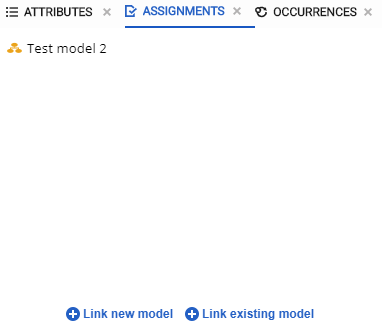
Linking a New Occurrence Model
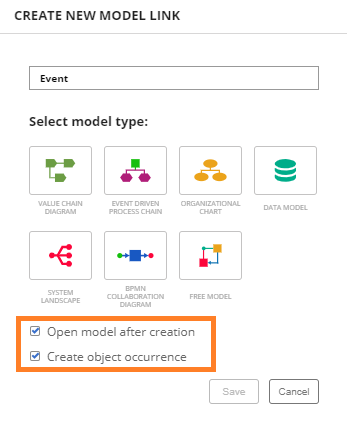
When selecting Link new occurrence model, a dialog opens for creating a new occurrence-based model.
In the dialog, enter a model name and select a model type. The new model is created as an occurrence copy of the source model and does not have its own definition.
The following additional options are available:
-
Open model after creation
Opens the newly created occurrence model immediately after it is created. -
Create object occurrence
Creates an occurrence of the object that is linked to the occurrence model within the newly created model.
After confirming the settings, click Save to create the occurrence model in the selected folder and establish the assignment.
For more details on occurrences visit page Reusing Objects and Occurrences.
Linking an Existing Model
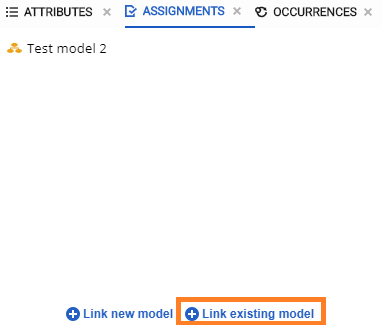
When selecting Link existing occurrence model, a dialog opens displaying all available occurrence-based models.
Select the occurrence model to which the currently selected object occurrence should be linked. After confirmation, the assignment is created and displayed in the Occurrence Assignments panel.
Additional Assignment Options
In addition to assigning occurrence models to objects, the current model itself can also be linked to other models, either newly created or existing ones. This enables the creation of hierarchical model structures and supports navigation across different modeling levels.
Occurrence Assignments between models are commonly used in combination with navigation symbols. Navigation symbols are dedicated objects that represent navigation paths and allow users to move between hierarchically linked models directly from the Canvas.
Besides navigation symbols, navigation buttons in the Model Toolbar can also be used to move through the model hierarchy. These buttons allow users to navigate:
-
to the previous model (one level up), or
-
to a linked model on a lower level
Navigation via the Model Toolbar is only possible within established assignments. This means that navigation is available only if models are hierarchically linked through assignments.
For more information about navigation symbols, see the Navigation Symbol section in the Objects documentation. For details about navigation using the Model Toolbar, refer to the Model Toolbar section.
Assigned model preview
If an object has an assigned model, an Assignments icon is displayed next to the object on the Canvas.
The Assignments icon is only visible if the Hide Assignments option in the Model Properties panel is disabled.
When hovering over the Assignments icon, a preview of the linked occurrence model is displayed.
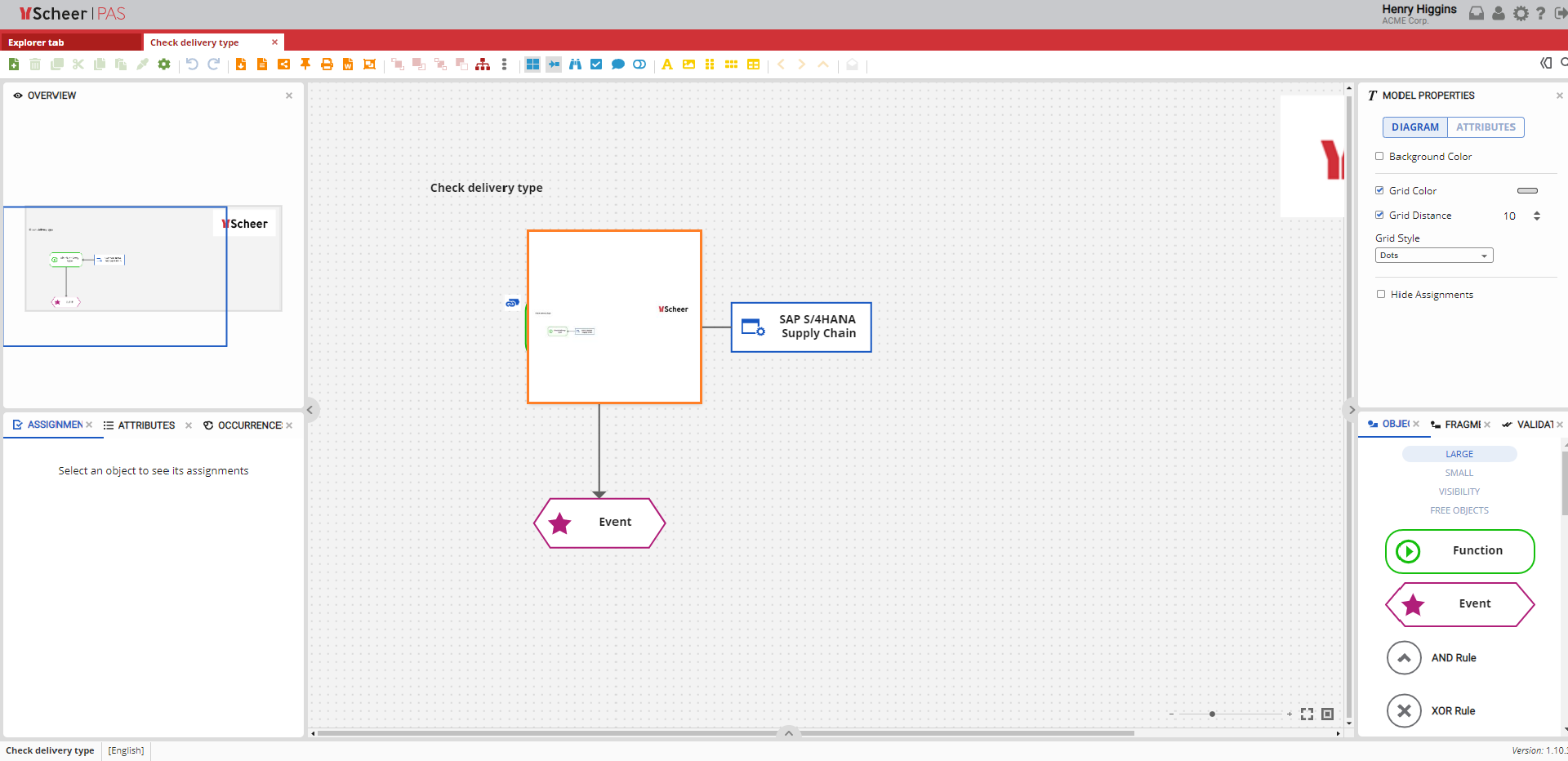
The model preview is shown only if the the Show on Assignments option is activated in the User Preferences menu.
Clicking the Assignments icon opens the linked model in the current tab. To open the linked model in a new tab, hold down the Ctrl key while clicking the Assignments icon.