
Panels Overview
Panels are an integral part of the Scheer PAS Business Modeler and provide access to tools, information, and actions that support modeling on the Canvas. They are organized into logical units and work in close coordination with the Canvas to enable efficient and interactive modeling.
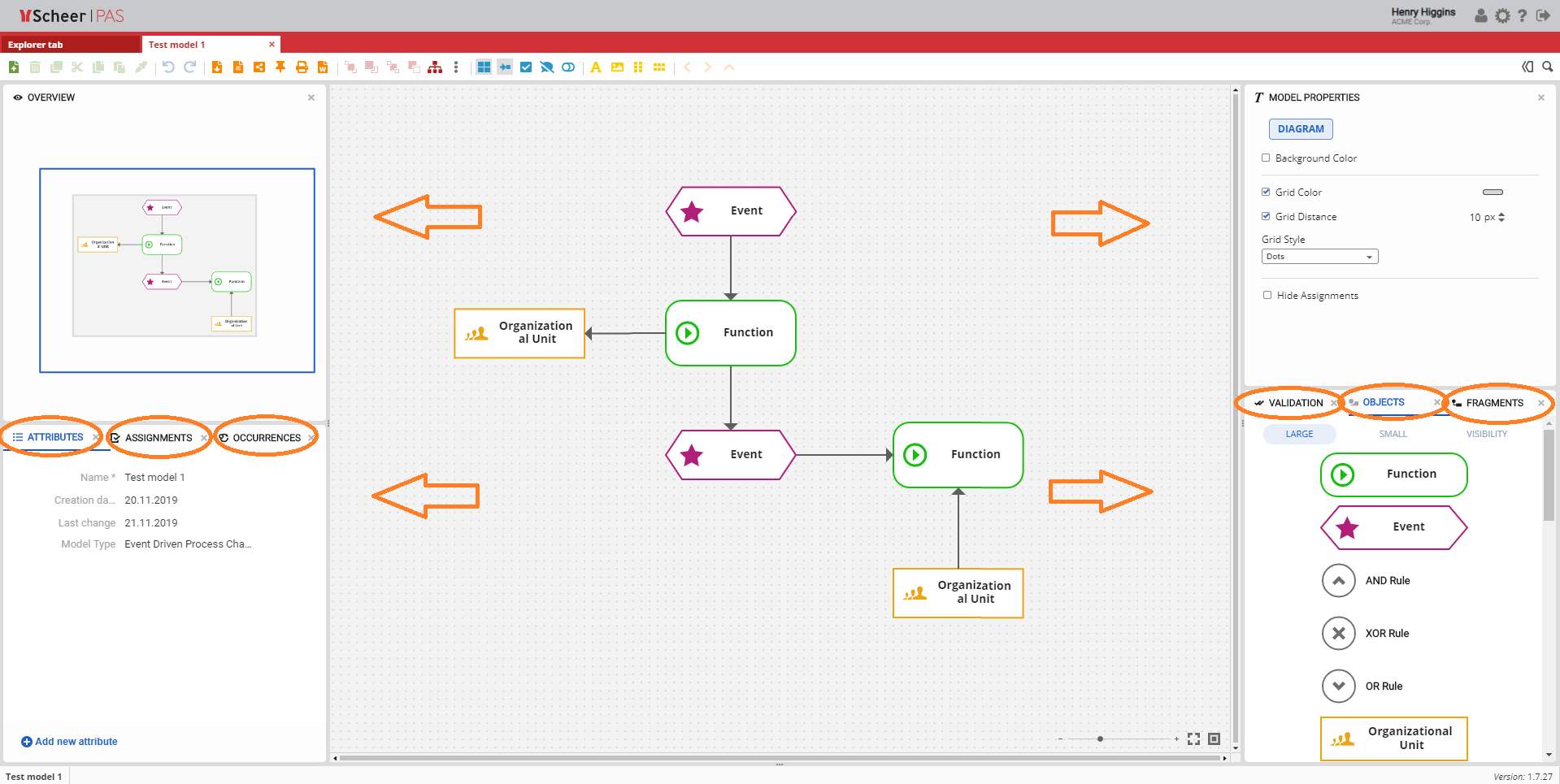
By default, panels are positioned on the left, right, and bottom of the Canvas. The available panels and their default locations are described below.
Default Panel Layout
Left side of the Canvas
The following panels are displayed on the left side by default:
-
Overview – Provides a high-level overview of the current model
-
Attributes – Displays and allows maintenance of object and model attributes
-
Assignments – Shows assignments related to the selected element
-
Occurrences – Displays occurrences of the selected object across models
Right side of the Canvas
The following panels are displayed on the right side by default:
-
Model-Object Properties – Displays properties of the selected model object
-
Objects – Provides access to available object types for modeling
-
Fragments – Displays reusable fragments
-
Validation – Shows validation results and messages
-
Compare Model – Supports comparison between models
Bottom of the Canvas
-
Language Panel – Allows switching and managing model languages
Moving Panels
Panels can be repositioned to better fit individual workflows. To move a panel, click and hold the panel header and drag it to the desired position on the Canvas. Panels can be docked on different sides of the Canvas or grouped with other panels.
Closing Panels
Panels can be closed at any time to reduce visual clutter or focus on modeling. Each panel can be closed individually by clicking the X icon in the top-right corner of the panel.
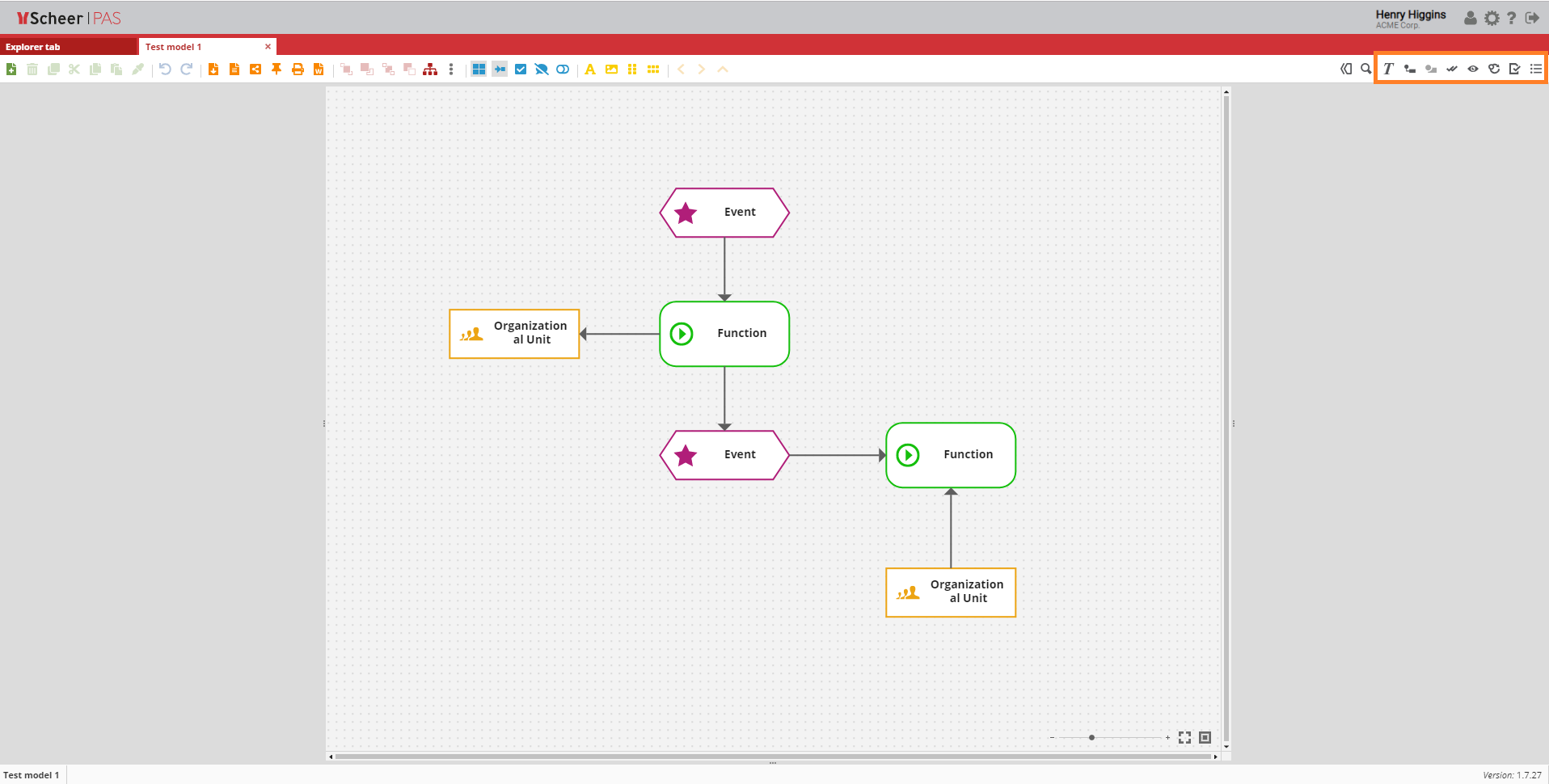
When a panel is closed, its corresponding icon remains available on the right side of the Toolbar. Clicking the icon reopens the panel.
Hiding Panels
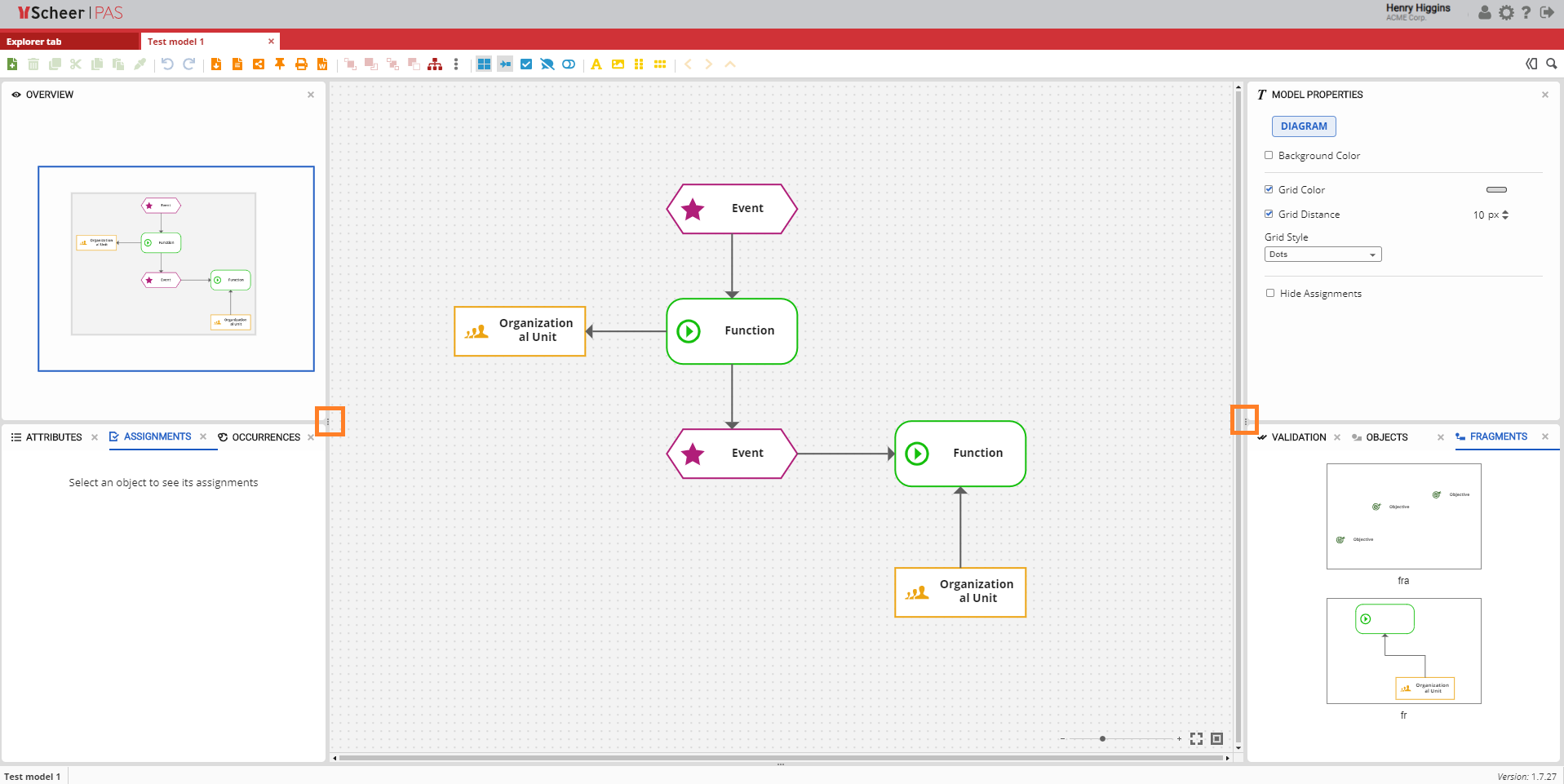
Panels located on the same side of the Canvas can be temporarily hidden using the arrow icon on the inner edge of the panel area. Clicking the arrow hides all panels on that side of the screen, providing more space for the Canvas. Clicking the arrow again restores the panels.
Reset Panels to Default
Panels can be reset to their default layout and positions at any time. This is useful if panels have been rearranged or hidden and the original configuration should be restored.
To reset the panels to their default settings, open the User Preferences menu and select the option to reset the panel layout. After resetting, all panels are displayed again in their default positions.