
If you click on a process name in the Persistent States tab, an overview table with all persistent state objects is displayed.
Working With the Persistent State Objects Table
The table displays all available persistent state objects. On top of the page you can find a breadcrumb navigation that allows you to to switch back to the Persistent States tab in the service details:
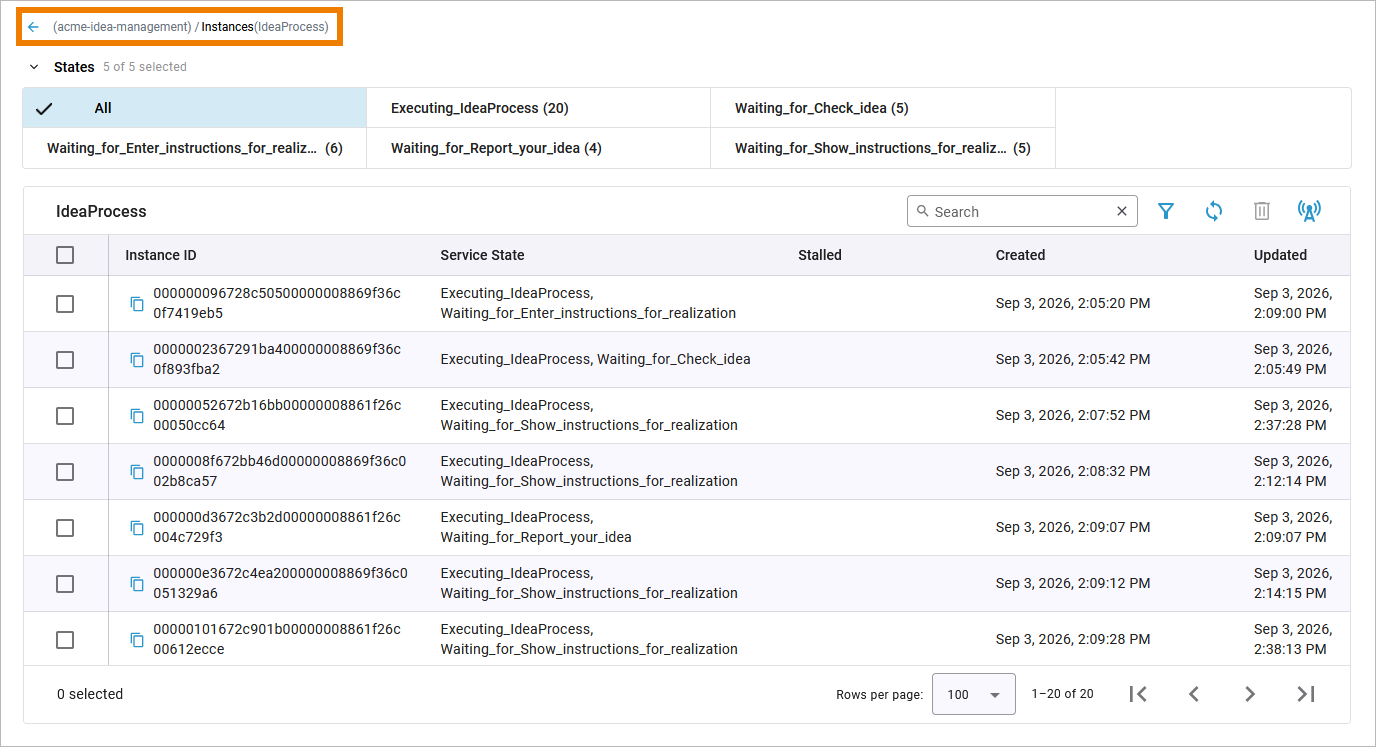
For each persistent state object, the following information is shown:
|
Instance ID |
Unique primary key that identifies an instance. |
|---|---|
|
Service State |
Name of the state(s) in which this object currently resides. The names of all persistent state elements are displayed in normalized UML: all white spaces are replaced by underscores ('_'). A single persistent state object can be in various states at once. The name of the final state will never be seen because by entering the final state the object ceases to exist. However, while destroying the object, the state machine is in the state --8<--. Think of --8<-- as an internal state name for the final state. So every object will reach this state before it gets deleted from the database. The state name --8<-- is strange by design to prevent a clash with other state names. If the state engine has a low load you will perhaps never see objects in this state. If the state engine is very busy you can see a lot of such objects - but this is no problem. |
|
Stalled |
Shows if the object is stalled. Field is empty, if this is not the case. In addition, stalled persistent state objects are displayed in red. Refer to Stalled Persistent State Objects for more information. |
|
Created |
Creation date and time of the persistent state object. |
|
Updated |
Date and time when the object was last updated. |
General Note on the Persistent State Object Table
Some functionality of the persistent state object table is limited, if your service uses a Runtime version older than 2026.2 or a Compiler version older than 8.12.0. In these cases:
-
Send Signal to all objects is not possible and the corresponding icon is not displayed. You can still send signals to single objects via the object details view.
-
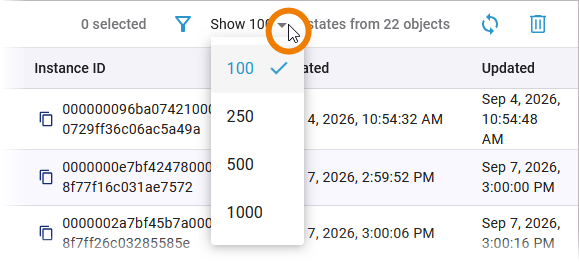
The table pagination in the footer is not working. In the table header, you get a selection list instead of the full-text filter:
-
Additional information is displayed if you hover over the displayed text:
-
-
Show 100 (…): The Runtime/Compiler version of this service does not support full pagination. Only the first selected number of states is loaded. Fewer instances may be displayed because an instance can have multiple states.
-
(…) states from XX objects: Total number of instances found. This number can be less than the number of selected states, since an instance can be in multiple states at the same time.
-
The filtering is a two-step process:
-
Step 1: Creation date, update date, and attribute filters, along with the sort order, are sent to the Runtime, and a page containing a maximum of rows per page is loaded into the browser.
-
Step 2: A full-text search is applied to these results.
If the search term is not found in step 1, it will not be found in step 2 either.
Filtering the Persistent State Objects Table
The persistent state objects table may contain a large amount of data. You have several options to reduce the list.
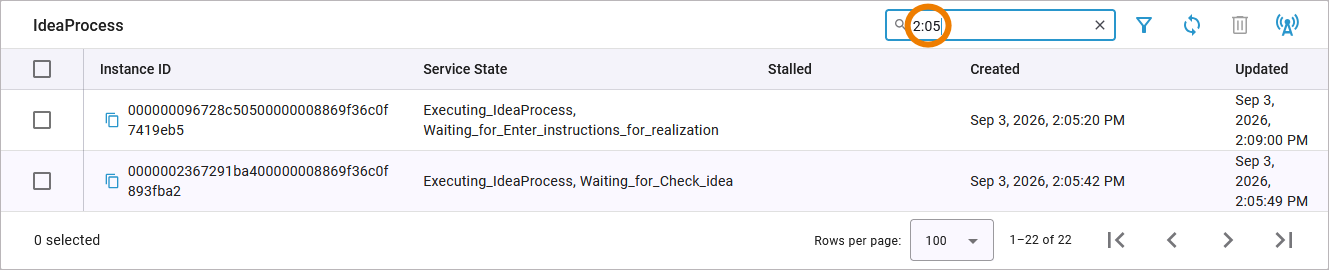
Full-text Filter
Use the full-text filter on top right to search the table content. It is applied to the whole table content:
States Filter
Use the States on top of the table to see only instances in a specific state. Each status filter also displays its current count. Selected states are highlighted so that you can see which filters are active at any time:
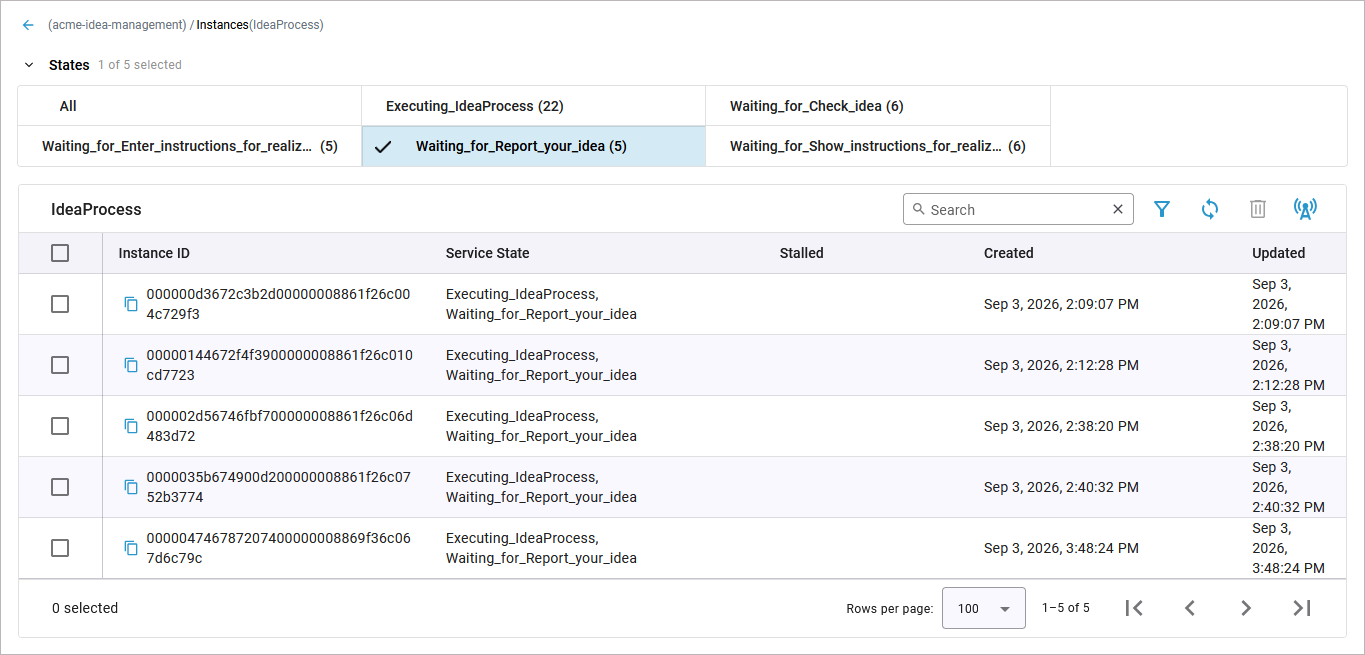
A single persistent state object can be in various states at once.
Attributes Filter
The Attributes filter allows you to filter instances in even greater detail. Open it with the Extended filter option on top right:

The filter opens in a separate pop-up:
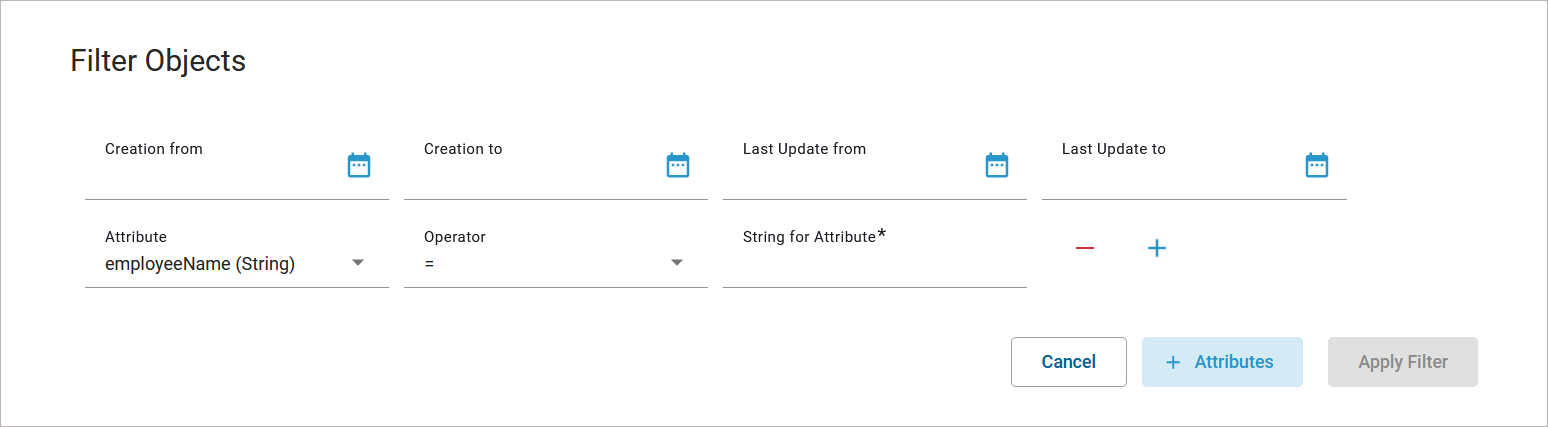
The following options are available:
|
Filter Field |
Usage |
Default |
Possible Options |
|---|---|---|---|
|
Creation from... |
Enter a date/time range to filter by the creation date of the instance. Use the calender to enter the date and time. |
- |
any datetime |
|
Creation to... |
|||
|
Last Update from... |
Enter a date/time range to filter by the date the instance was last updated. Use the calendar to enter the date and time. |
- |
any datetime |
|
Last Update to... |
|||
|
Attribute |
Select one of the available attributes from the list. |
first available attribute |
all custom attributes from your service |
|
Operator |
Select the operator you want to use. |
= |
= != > >= < <= like unlike |
|
String for Attribute |
Enter your search term for this attribute. Your entries in the attributes filter result in an SQL query. For the like operator, you can therefore use the wildcard characters % (zero, one, or multiple characters) and _ (a single character). |
- |
any string |
|
Condition |
Specify the filter condition.
|
AND |
AND
|
|
Cancel |
Click here to close the filter pop-up. Your changes will not be saved. |
- |
- |
|
+ Attributes |
Use this option to add more attributes to the filter. You can also use the + at the end of an attributes row to add another attribute. Use the - to remove an attribute from the list: 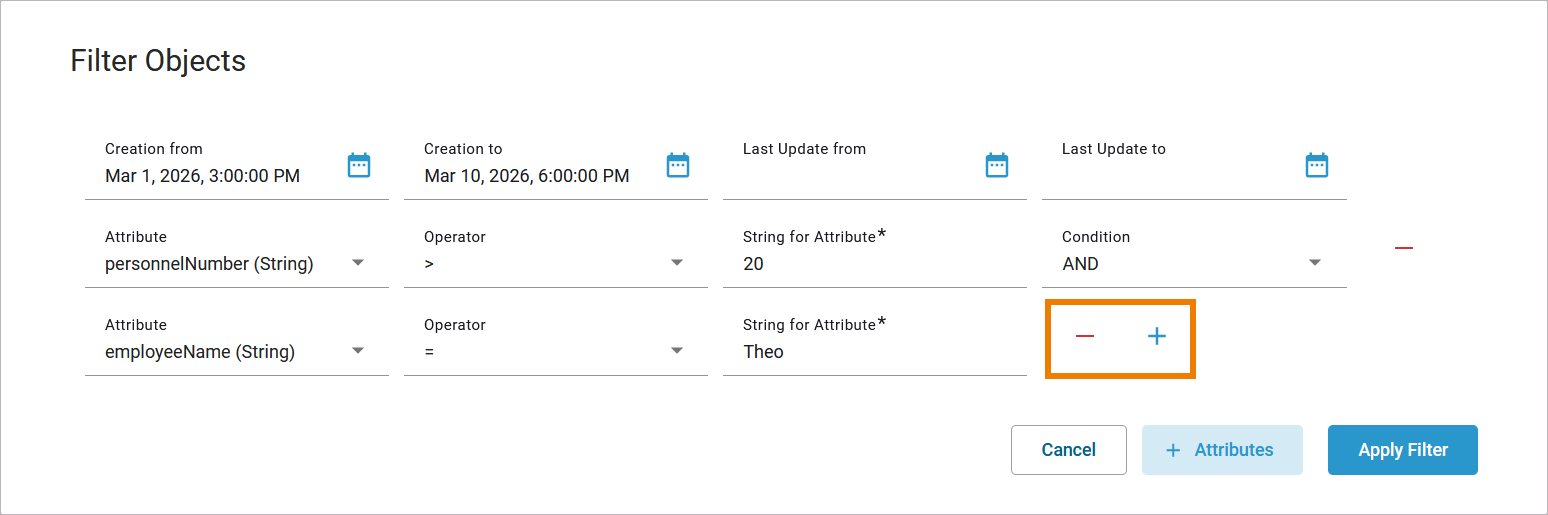
|
- |
- |
|
Apply Filter |
Click here to apply your attributes filter. |
- |
- |
An applied Attributes filter is displayed above the state filter so that you can see which filters are active at any time. You can also combine the attributes filter with the state filter:
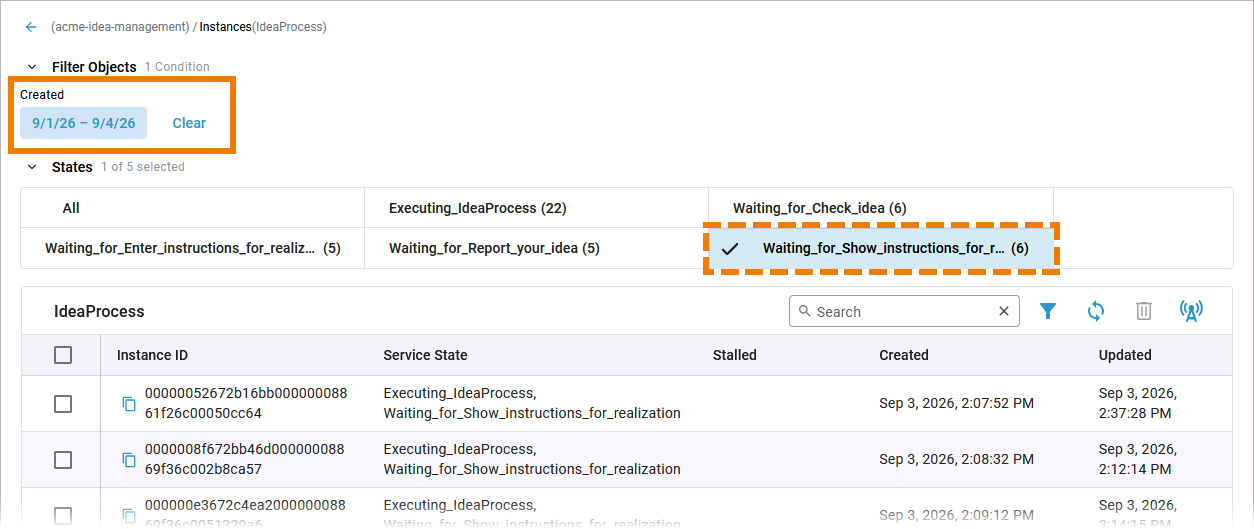
You can use the footer to toggle between pages. In the footer, you can also specify the count of rows to be displayed for the table (Rows per page):

Reloading the Persistent State Objects Table
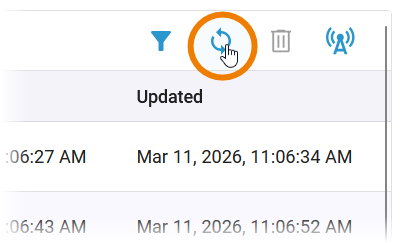
To refresh the persistent state objects table, use option Reload on top of the table:
Sending Signals
You can send a signal to all persistent state objects in a specific state or to a single object. Refer to Sending Signals to Persistent State Objects for details.
Inspecting Persistent State Object Details
If you want to inspect a single object, click on the corresponding table row. Refer to Inspecting Persistent State Object Details for further information.
Deleting Persistent State Objects
Use option Delete to remove persistent state objects. For more information on deleting single and multiple objects, refer to Deleting Persistent State Objects.