
Migrating xUML services from a Docker or Bridge setup to Kubernetes introduces several technical and organizational changes. This page gives you a compact task overview so you can plan your migration, avoid common pitfalls, and coordinate early with your DevOps team and Scheer PAS support where needed.
Use this page to prepare services and infrastructure, as a guide to what needs to be adjusted in your models, configurations, and automation processes, and as a reference for the division of responsibilities between project teams and DevOps.
Be sure to check out our migration checklist, which will help you with your planning.
General Remarks and Hints
In Kubernetes, every xUML service has a RAM limit. You can use the service details in PAS Administration to adjust the memory limit of a service (refer to Kubernetes: Adapting the Configuration of Containerized xUML Services for details).
The default setting for an xUML service is 256 MB, and the maximum RAM capacity is 4 GB. You can adjust the RAM capacity in increments of 64 MB. If a service requires more than 4 GB, our DevOps team can adjust this accordingly. In this case, please contact our support team.
The memory specification in the administration results in a fixed RAM reservation for the service. Assign only as much RAM as the service actually requires; assigning significantly more will reduce the available memory for the rest of the system!
Important to know: 50% of the allocated RAM is reserved for the container.
Check for potential differences between Windows and Linux file system operations. File system adapter parameters must be adjusted because backslashes are not supported.
Database sizes (MariaDB) are fixed in Kubernetes. If you expect that your services will require more capacity, contact our support team.
Access to MongoDB is only possible after entering credentials. These must be created and provided by the DevOps team (see below).
Required Tasks
The following tasks must be completed when migrating from Bridge or Docker to Kubernetes. Some of them are performed by the project team, others by the DevOps team.
Tasks for the Project Team
Global variables from the Bridge must be transferred manually to the Kubernetes system.
-
Clean up global variable names: identify which variables are still in use and remove obsolete ones.
-
Define new variables where useful, for example for backend configuration.
Automations that use the Bridge API must be migrated to the corresponding PAS APIs.
Tasks for the DevOps Team
For the following tasks, you need to contact the DevOps team:
-
MongoDB databases and users must be created by the DevOps team.
-
Embedded UIs must be exposed via the central Nginx proxy by the DevOps team.
-
Required firewall rules for communication with Kubernetes must be defined and implemented by the DevOps team.
For Any xUML Service (MagicDraw or Designer)
As of PAS 24.2, a MariaDB database is automatically created and configured for each service on Kubernetes. The alias must be StateDB, the database type must be MariaDB, and you must specify a value for the user.
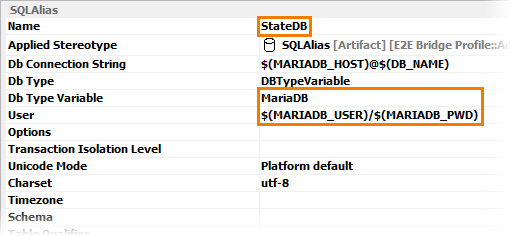
BPMN instance data is not transferred automatically. If required, you must migrate the data manually from SQLite to MariaDB.
Host names for inter-service communication (in the model or in the settings) must be adapted. For example, localhost can no longer be used. Instead, use a pattern such as $(PLATFORM_NAME)-customer-ecommerce-01 so the host name is filled automatically during deployment.
For access to local files, migrate from the FileSystem adapter to the S3 Adapter/MinIO or use an internal mount.
File shares must be manually integrated into the service. See Step 2: Mount Shares below.
User interfaces: Create a list of all UIs (including service name and SOAP UI port). The DevOps team must create a route in the proxy for each of these UIs. Currently, no working UI links are available in PAS Administration, so the list of UIs must be provided manually.
Additional Tasks for Designer-Based xUML Services
Designer services with UIs must be recompiled and redeployed.
The URLs for xUML applications will change. The API Management configuration must be adapted to the changed backend URLs.
Step-by-Step Guide
Step 1: Inventory
Collect an overview of all services that are to be migrated and clarify the following questions:
-
Are there any services that are no longer needed?
-
Are the same service versions deployed in Test and Production?
-
Does the service use a persistent state (PState) database?
-
Switch to an external PState database (MariaDB) in the MagicDraw model.
-
Check whether existing data needs to be migrated.
-
Check the coexistence scenario:
-
Are there process steps in the old service that must still be executed after the migration?
-
Are these process steps triggered externally or by another service?
-
-
-
Document dependencies between services.
-
Create migration packages and take service dependencies into account.
-
Avoid communication between the old server and Kubernetes. This increases complexity and operational effort.
-
-
Check existing firewall rules and request any additional rules required for Kubernetes communication.
Step 2: Mount Shares
Shares must be mounted once per server. It has proven useful to use the same share names across all environments.
Example:
DEV: \scheer-fs\data\dev\serviceFiles\myFile.csv
PROD: \scheer-fs\data\prod\serviceFiles\myFile.csv
-
Mount the share \scheer-fs\data\dev\serviceFiles with the name service-files.
-
Use the following path in the settings: /mnt/service-files/myFile.csv.
The same path value can be used in the settings for both DEV and PROD.
Step 3: Per-Service Migration
Deploy the service to Kubernetes.
-
Review the settings of the old service and transfer all relevant changes.
-
In general, use or create global variables where appropriate.
-
For inter-service communication (REST/SOAP), the host name localhost can no longer be used. Use the following pattern instead:
-
$(PLATFORM_NAME)-<KubernetesServiceName>, for example $(PLATFORM_NAME)-customer-ecommerce-01.
-
The internal port remains unchanged.
-
Avoid the following scenario: If the target service still runs on the old machine, its IP address must be explicitly allowed by the DevOps team.
-
If the new service must be accessible from the old server, a route must be created in API Management. Ensure that this route is secured (for example by using an IP whitelist).
-
-
File access in Kubernetes is provided via mounts.
-
Mount the corresponding share.
-
Adjust the paths in the settings.
-
-
-
If the service uses files (for example mappings, certificates, or else), copy these files from the old server and adjust the paths accordingly.
-
Start the service in Kubernetes.
-
Check the service logs for errors and warnings after deployment and initial tests.
Related Content
Related Documentation: