Showing the Workload Logs
The administration application gives you access to the logs of Kubernetes workloads.
You have two options to access the logs:
-
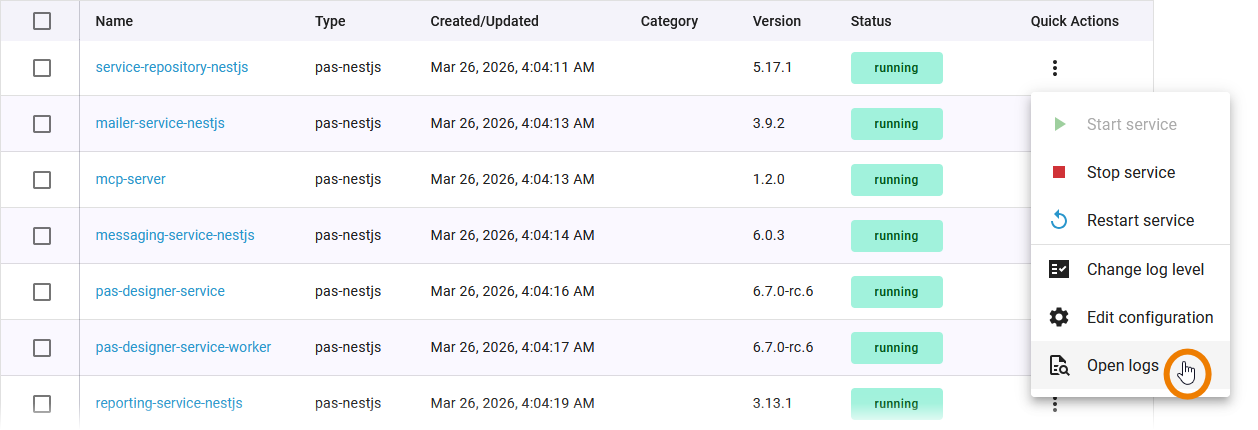
In the quick action menu of the service list, select the Open logs option. A pop-up window will then open.
-
Open the details page of the service, expand section Logs and click Open Log Analyzer:
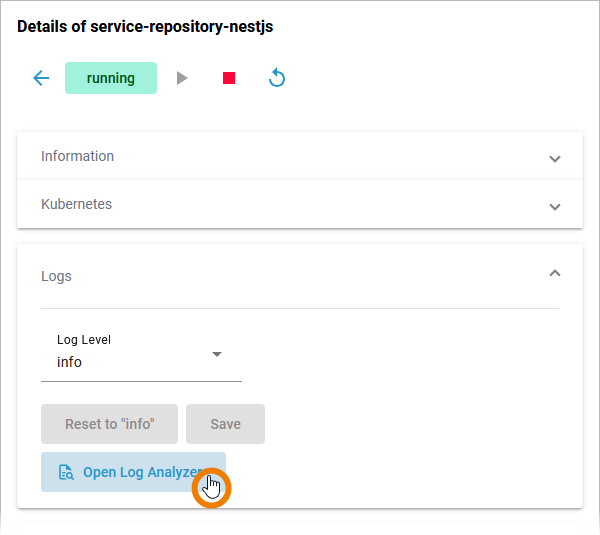
For most service types, you can only access the logs and not change them (refer to Changing the Log Level of a Workload):
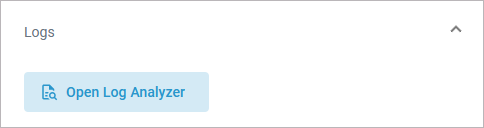
Both ways will open the logs of the corresponding Kubernetes workload in the Log Analyzer where you can view, filter and search the platform logs for all services:
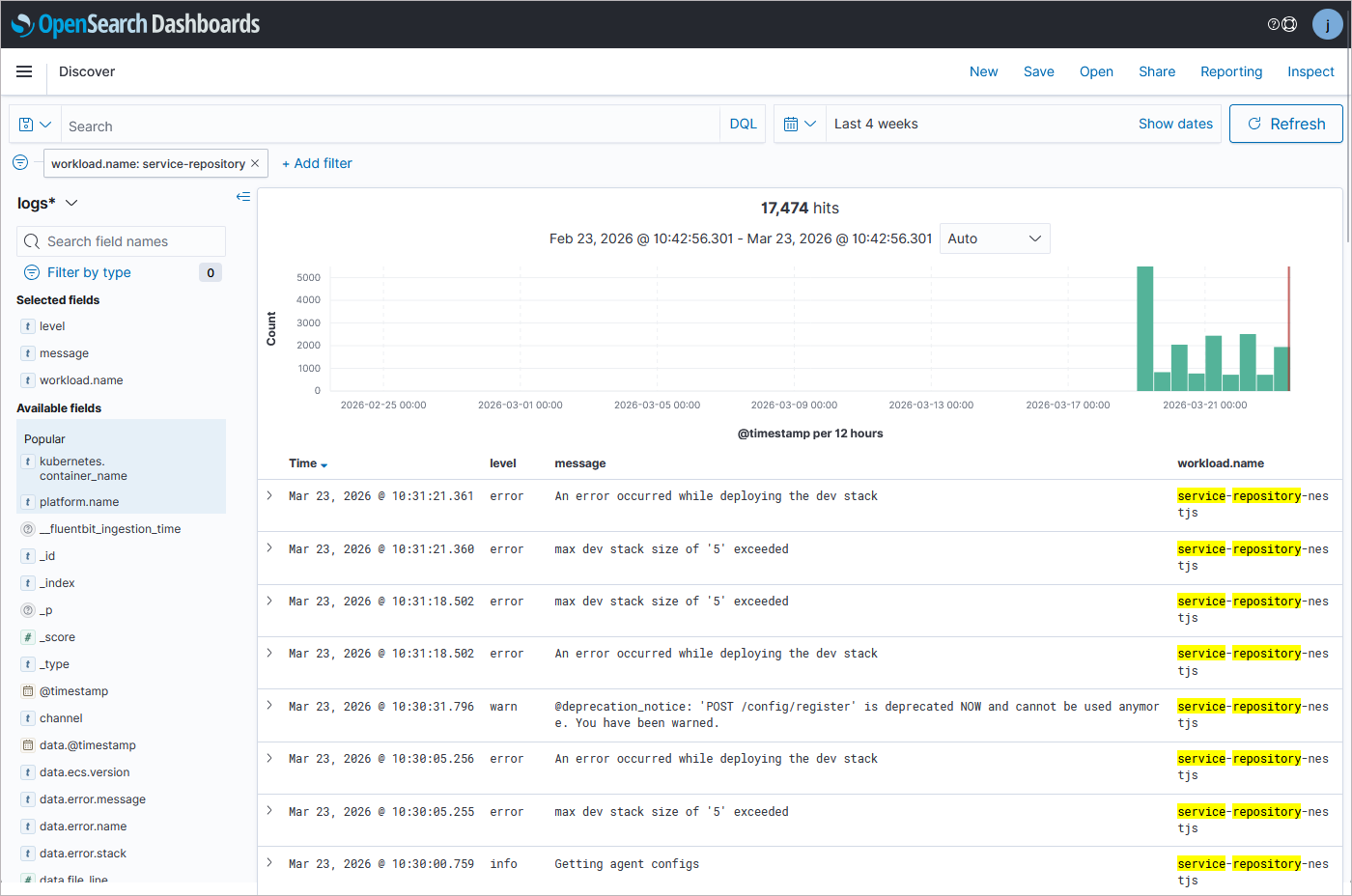
If you access the Log Analyzer for the first time on a newly installed platform, you will have to create an index pattern first. Refer to Analyzing Logs for further details.
Default Retention Time of Log Files
The following retention times are valid for log files of your PAS installation:
-
Container logs: Log files inside all containers are deleted after 7 days.
-
Log Analyzer (OpenSearch) logs:
-
Single cluster: Log files are deleted after 14 days.
-
High Availability cluster: Log files are deleted after 30 days.
-
-
Integration (Bridge) logs: The default retention time for Bridge logs is 30 days. This is configurable in the UI, refer to Node Instance Preferences.
Showing the History Log of AI Agent Services
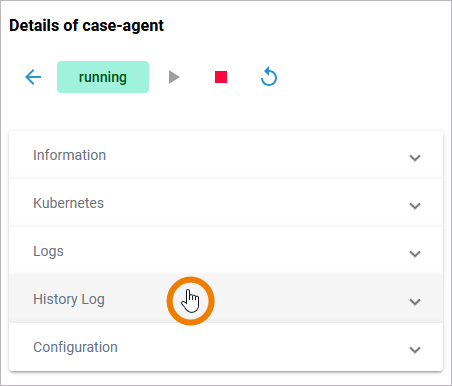
The PAS administration gives you access to the history of an AI agent service. To access the service history, open the details page of the service and go to section History Log:
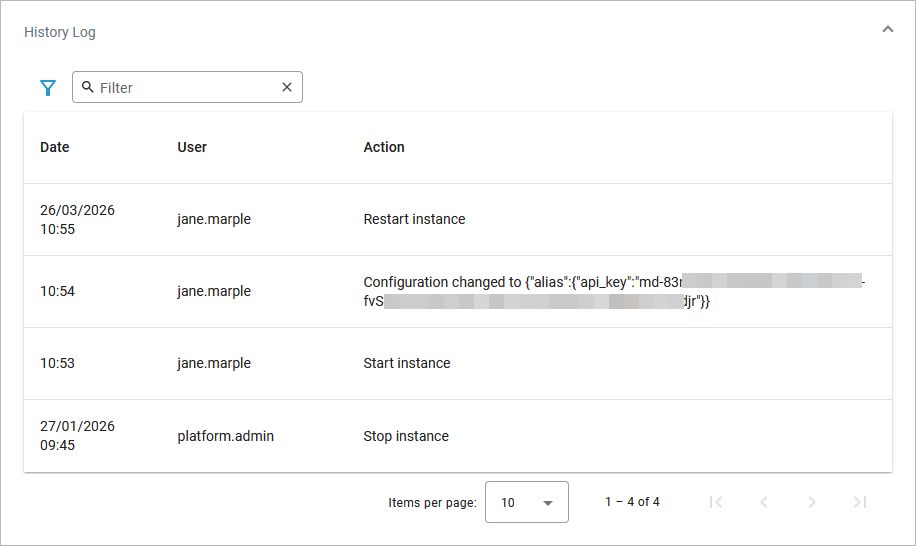
In the History Log section you can inspect the service history. The log shows all actions of the AI agent service (creation, start, stop etc.) including setting changes. The content of the history log is read-only:
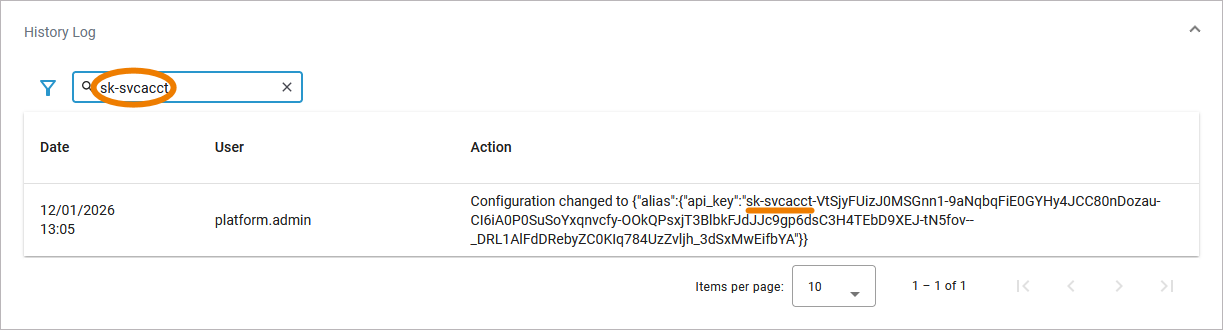
Use the filter field to search for a specific entry. The contents of the filter field are only applied to the values in the Action column:
Open the Extended filter to display the extended filter options:
-
Action
-
User
If a filter is applied, the extended filter images changes:
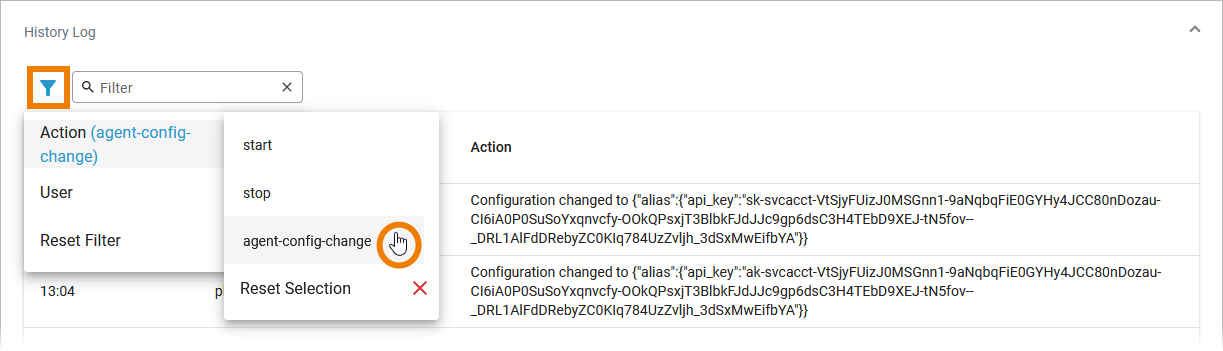
Both extended filter options are loaded dynamically:
-
Option Action only lists actions that have already been executed in the service.
-
Option Users only lists users who have already performed an action in the service.
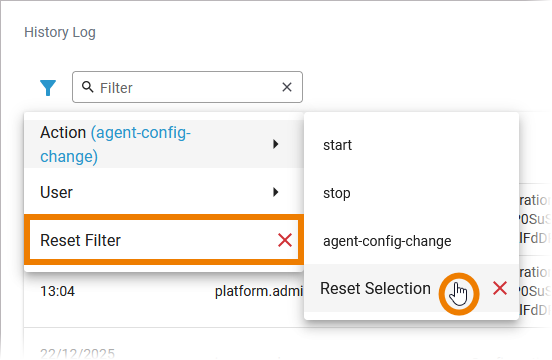
In the main filter window, you can reset all selected filters with Reset Filter. In the filter option window, you can also reset the selection: