
The Asset Drawer allows you to add different types of assets to your service.
Currently, only libraries can be uploaded to the asset repository. This will be extended to more assets in future versions.
How to Add an Asset to a Service
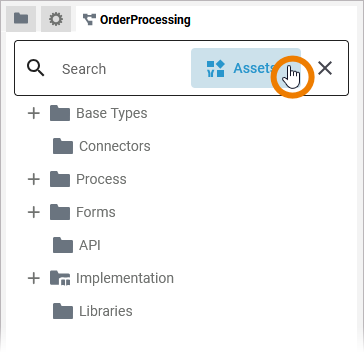
If you want to add an asset to a service, open the Asset Drawer by clicking the corresponding button in the search box of the service panel:
The Asset Drawer lists all available assets. It displays assets...
-
...that have been uploaded to the current namespace.
Only users with permission to use this namespace can use these assets. -
...that have been uploaded to namespace Shared.
All users can use these assets.
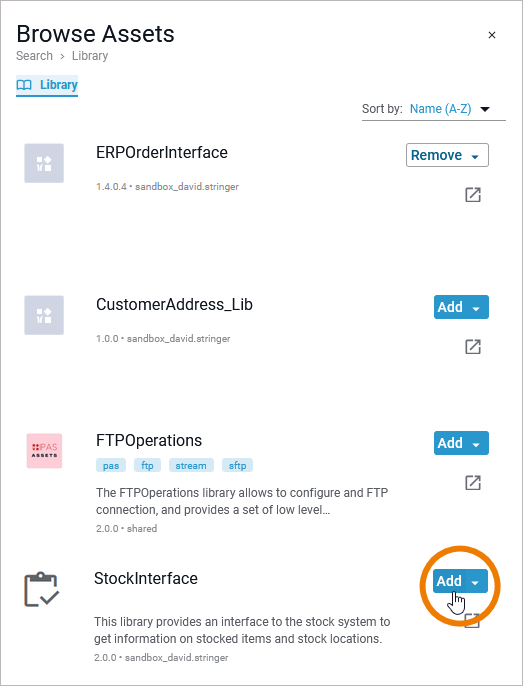
Browse the list (or use the search box in the service panel) to find the asset you want to use in your service. To add an asset to your service click the corresponding Add button:
The added asset is now displayed in the service panel and you can use it during modeling. In the asset drawer, the asset now shows option Remove:
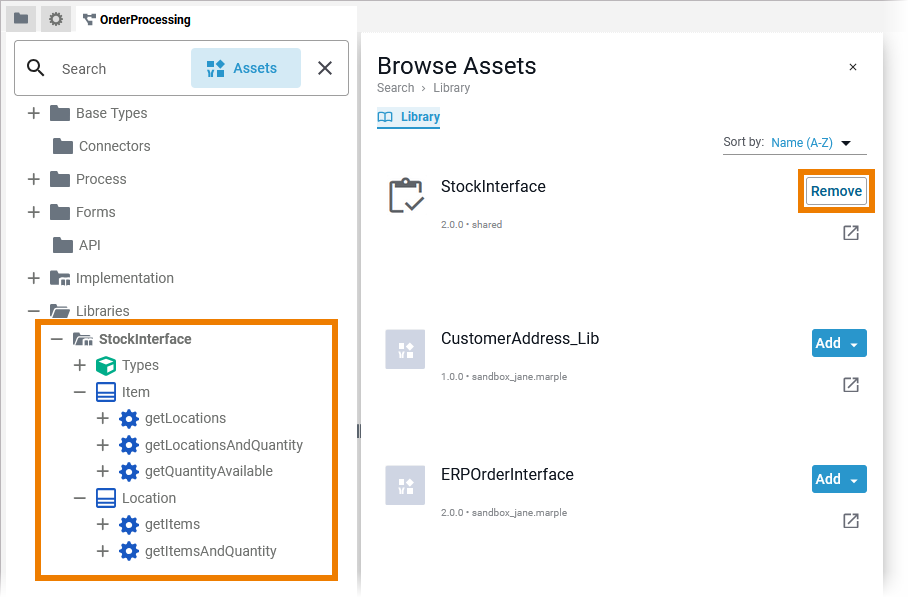
In the asset drawer, used assets are displayed first.
Related Content
Related Resources:
Discover more (not officially supported) libraries in our download portal Scheer PAS Examples and Community Assets. Here you will also find all our PAS examples available for download.