
Toolbar Overview
The Toolbar is part of the Explorer tab and provides access to common actions related to folders, models, and object definitions. It provides access to actions for creating, managing, and processing elements within the Explorer tab.
Available toolbar options are context-sensitive and are enabled or disabled depending on the currently selected database, folder, model, or object definition.
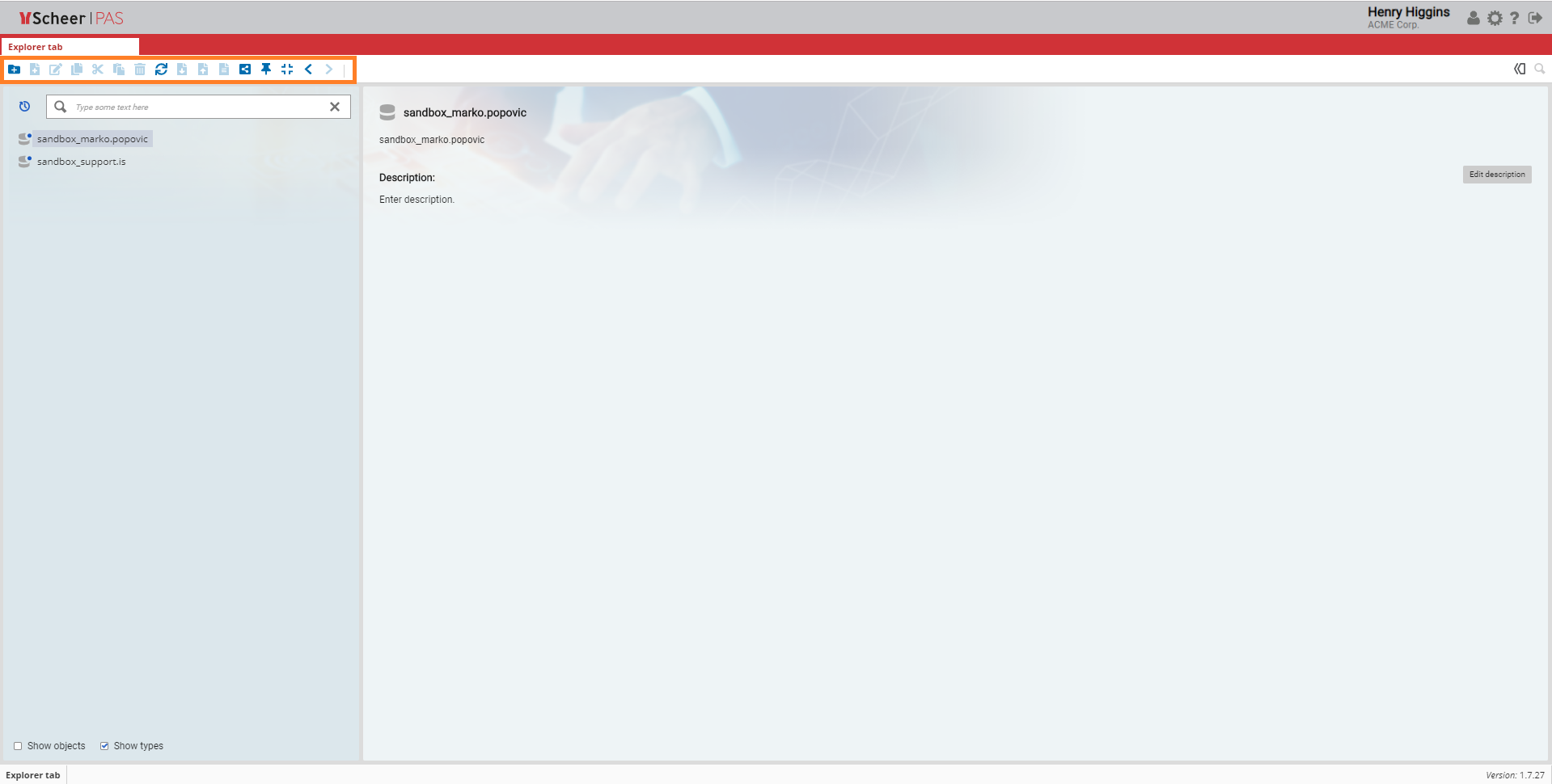
To apply the appropriate option to multiple items, hold down the Ctrl key while you press each item until all are selected, and then click the icon that you want to apply.
Toolbar Functionalities
|
Icon |
Pop-up Window |
Description |
|---|---|---|
|

|
|
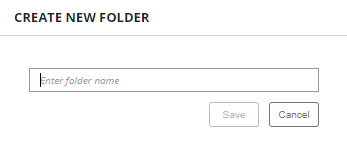
Use the New Folder icon to create a new folder in the database or in an already created folder. By clicking on this icon, the pop-up window Create New Folder allows you to name your folder. Click Save to create the folder or Cancel to abort. |
|

|
|
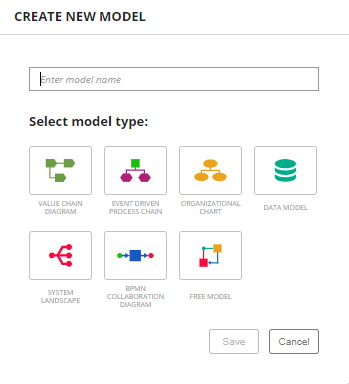
Use the New Model icon to create a new model in the selected folder. You can only create a new model in a folder, not directly in a database. By clicking on this button, a pop-up window will open: Enter a name for your model and choose a model type. Click Save to create the model in the selected folder. |
|

|
|
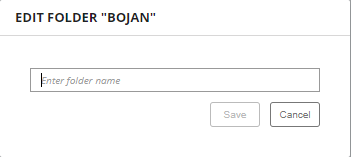
The Edit icon allows you to edit the model or folder name. Note that this option is disabled if you select a database. A pop-up window will open: Enter the new name of the model or folder and confirm with Save. |
|

|
|
Use the Copy icon to copy your model or object to another location. Note that this option is disabled if you select a folder.
|

|
|
Use the Cut item icon to move your folder, model or object to another location. |
|

|
|
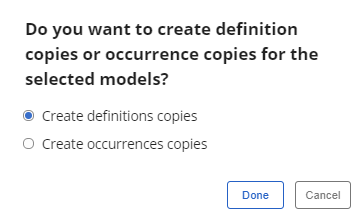
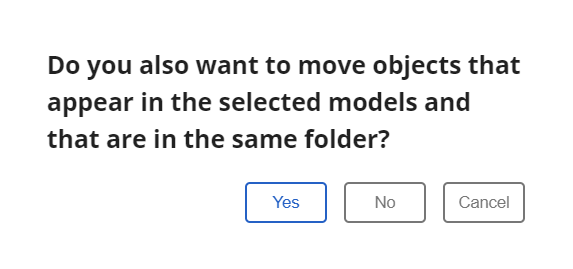
Use this icon to paste a copied or cut item to another location. The options depend on the previous action (copy or cut). Copy: You will be asked if you want to create an occurrences copy or a definition copy. Choose one of the options and click Done to proceed or click Cancel to abort. For more details about the availiable copy options visit Reusing Objects Cut: You will be asked if you want to move objects appearing in the selected models and that are in the same folder. You can choose between Yes, No or Cancel. You can copy one or more objects inside the Structure Bar and then paste them on the Canvas of the selected model.
|
|

|
|
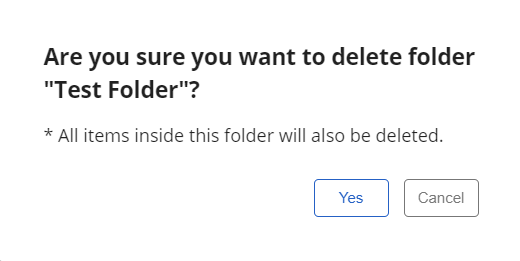
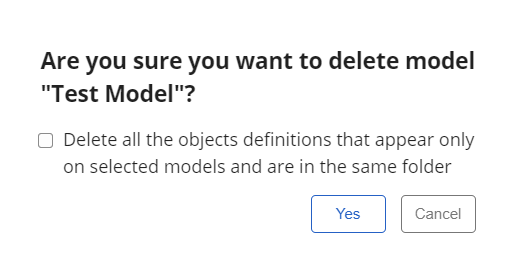
Click on the Delete icon to erase a selected folder, model or object. If you use this icon, a confirmation dialog will open. Note that all items within the selected folder will also be deleted. If you want to delete the folder including its content, click Yes. If you use this icon on models, you can choose to delete all the objects definitions that appear only on selected models and are in the same folder by checking this option within the confirmation dialog. |

|

|
Use the Refresh explorer icon to refresh your explorer. When you click the icon, a message appears on the top left corner of the screen showing the message Explorer is refreshed. |
|

|
|
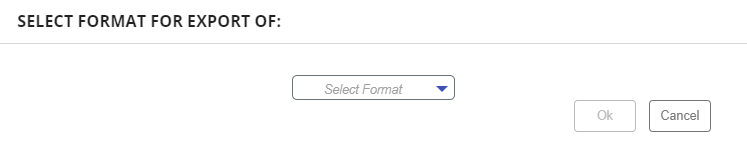
If you want to export data from a database, folder or model, use the Export option. Available export formats are JSON and XML. The multiexcerpt named got_to_export_page cannot be found because the page or blog post is restricted. |
|

|
|
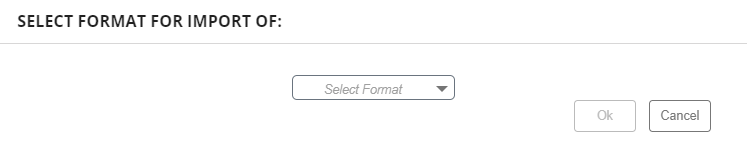
Use the Import option if you want to import data from a file to a folder or model. Available import formats are JSON, XML and ARIS. The multiexcerpt named got_to_export_page cannot be found because the page or blog post is restricted. |
|

|
|
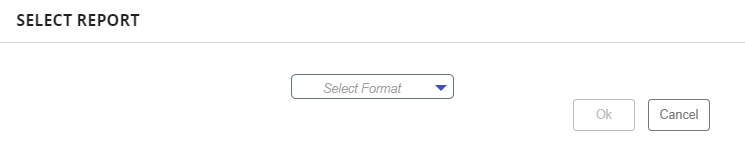
You can generate reports from the Reports page in the Administration tab. Five Standard Reports are available:
For more details visit page Standard Reports
|
|

|

|
The Share option allows you to copy a link of the chosen database, folder or model to a clipboard. When you click the icon, a message appears on the top left corner of the screen showing the message URL copied to clipboard.
|
|

|

|
The Publish to cockpit option is available for databases, folders or models. Use it to pin the selected item to a cockpit. When you click on the button, a message appears on the top left corner of the screen showing the message External link published to cockpit. |
|

|
|
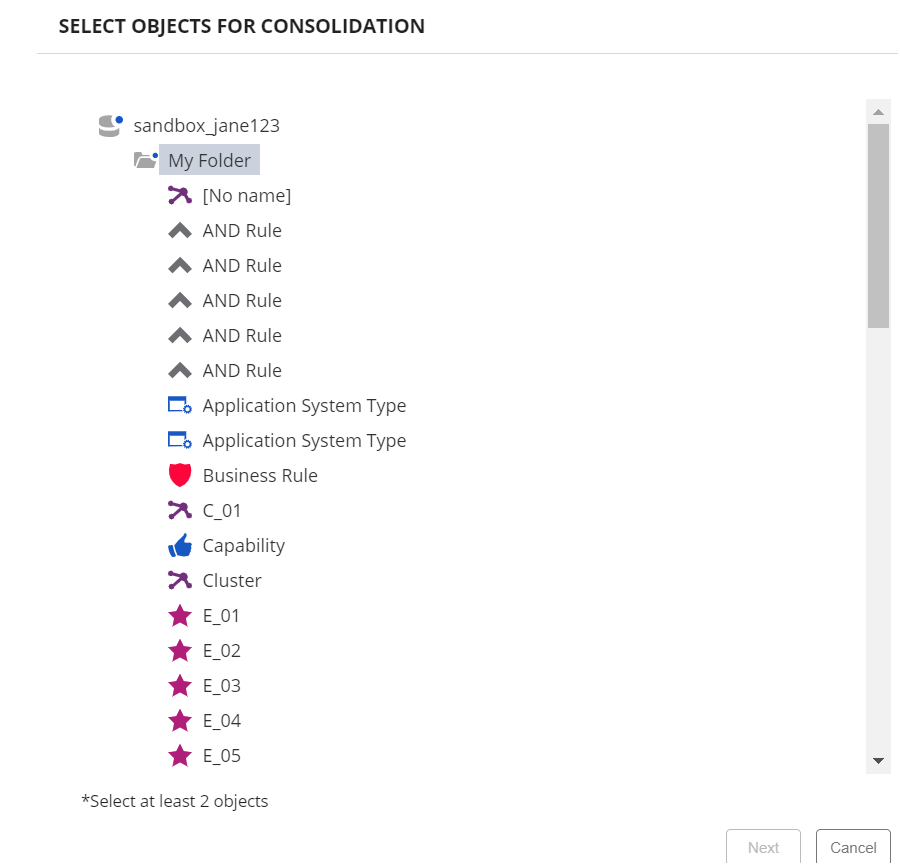
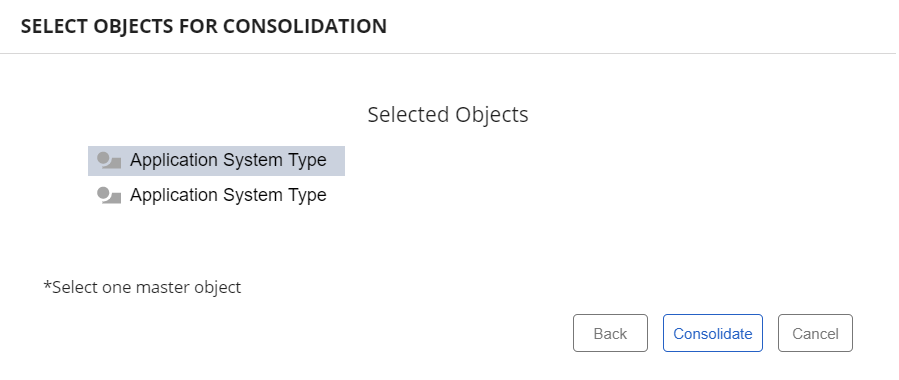
The Consolidate icon gives you the option to merge two or more objects. Select a folder and click on the consolidate button in the toolbar. The pop-up window Select Objects for Consolidation will open. Double click on at least two objects and click Next. A new pop-up window will appear where you need to select one master object. When you are ready to merge, click Consolidate to merge all selected objects. If you want to discard your choice, click Cancel. To return to the previous pop-up window, click Back. |
|

|
|
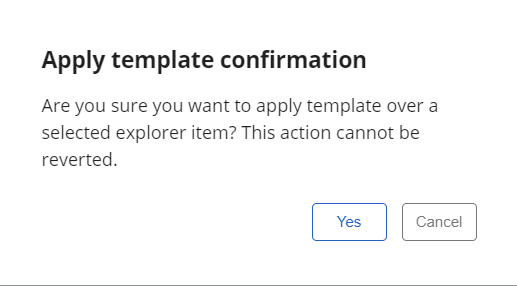
The Apply templates icon gives you the option to apply templates on all of the models in a specific folder at once. First, select the folder you want to apply the templates to, and then choose Apply templates option from the Toolbar. For more details visit pages Modeling Templates and Working with Templates on Canvas.
|

|
|
The Back/Forward icons are used for navigating through paths you have recently visited. |
|

|
|
The Toggle role level visibility icon gives you the option to show only the models that are visible to your role inside the Structure bar. For more details visit page Role Settings for models and objects.
|