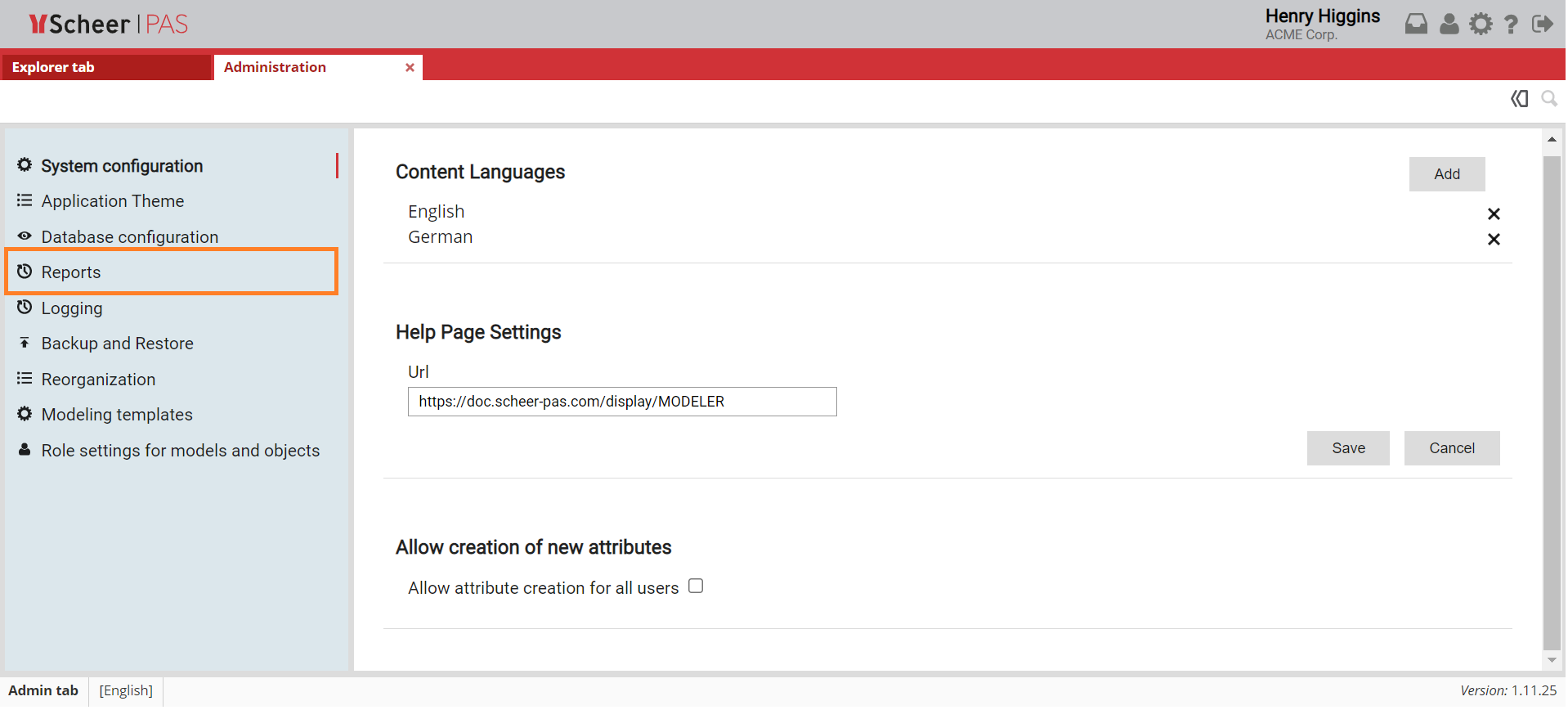
Access to Reports Page
In the Reports section, you can generate your reports.
You can add your own reports including scripts and configurations.
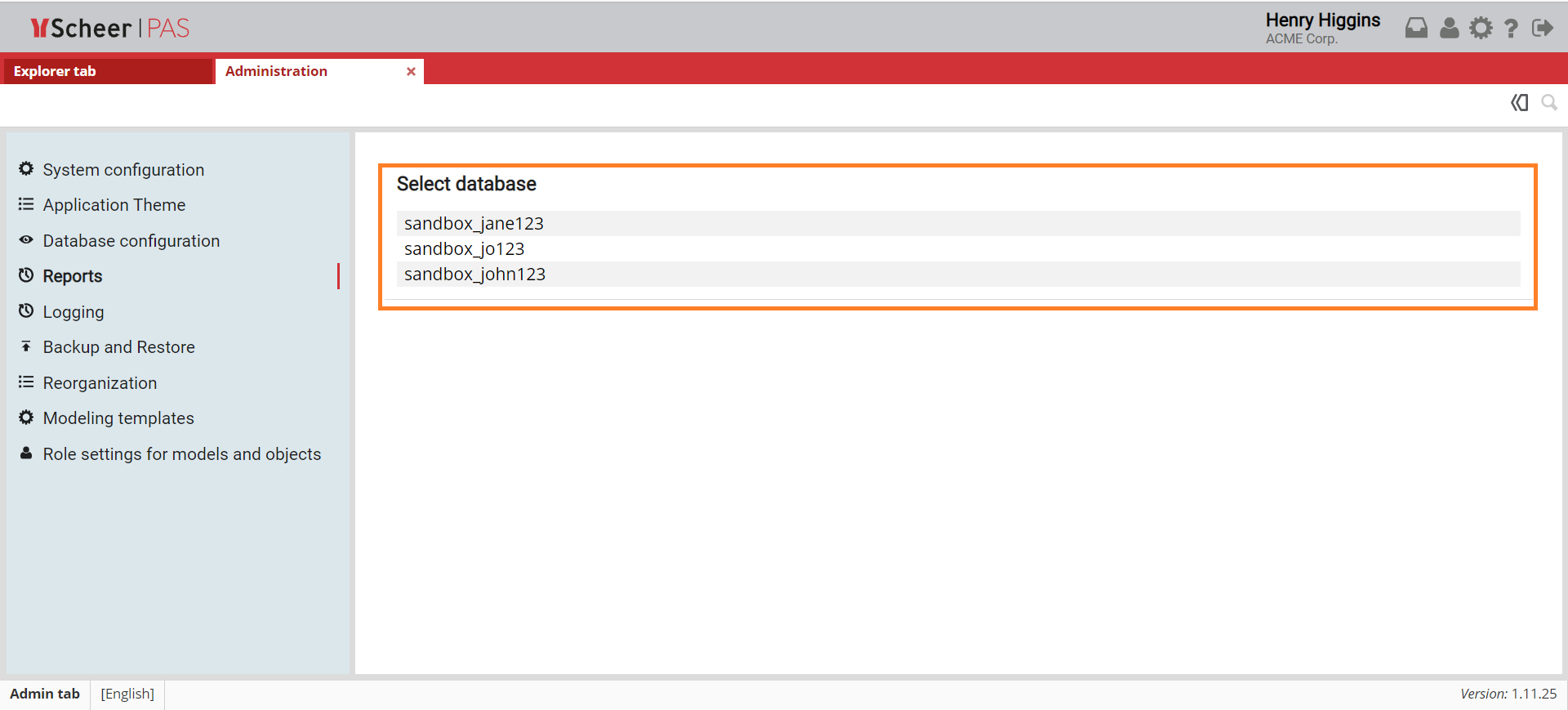
Selecting a Database
Select the menu Reports.
On the right side of the window you can select a database.
Adding a New Report Form
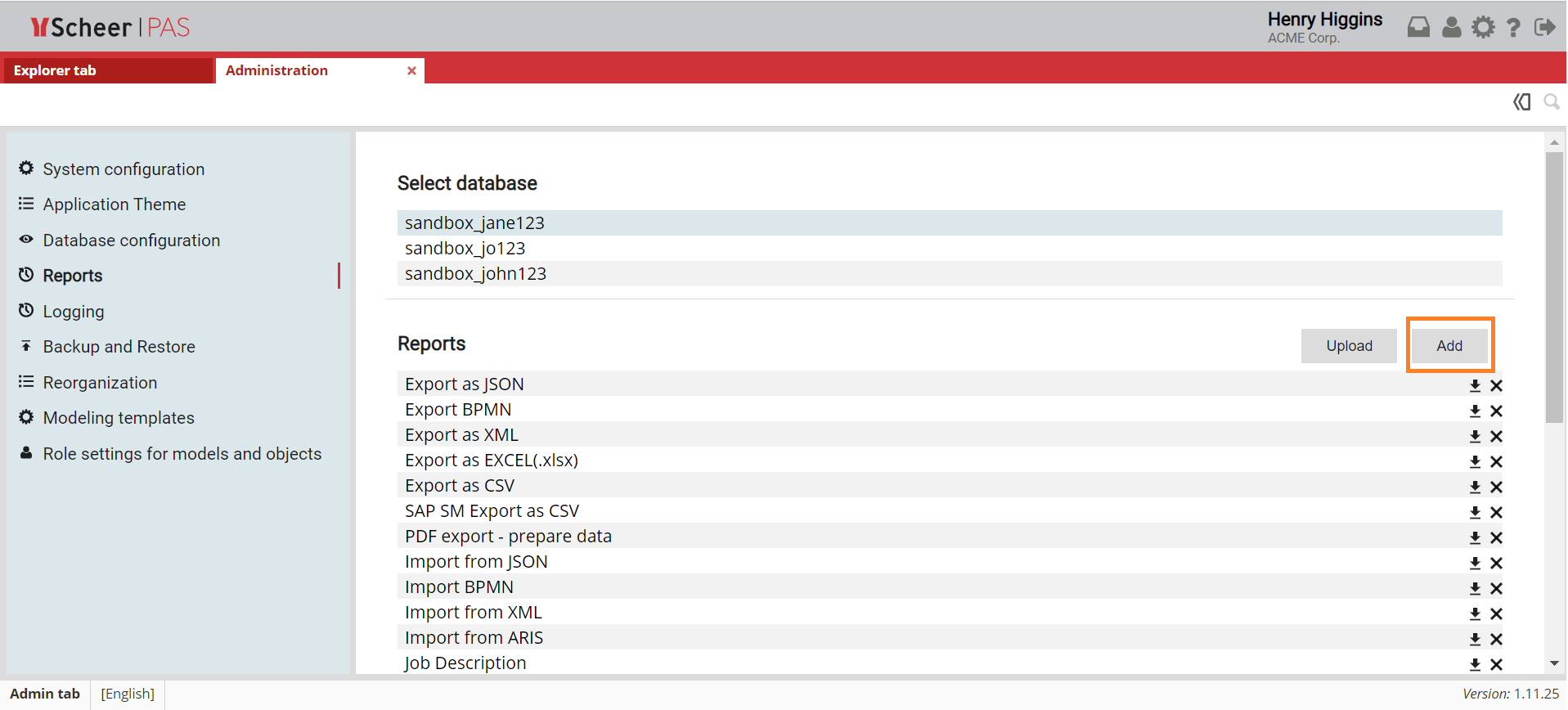
First, select the database for which you want to create a report.
Once you have selected the database, a list of all reports that exist in the selected database will be shown.
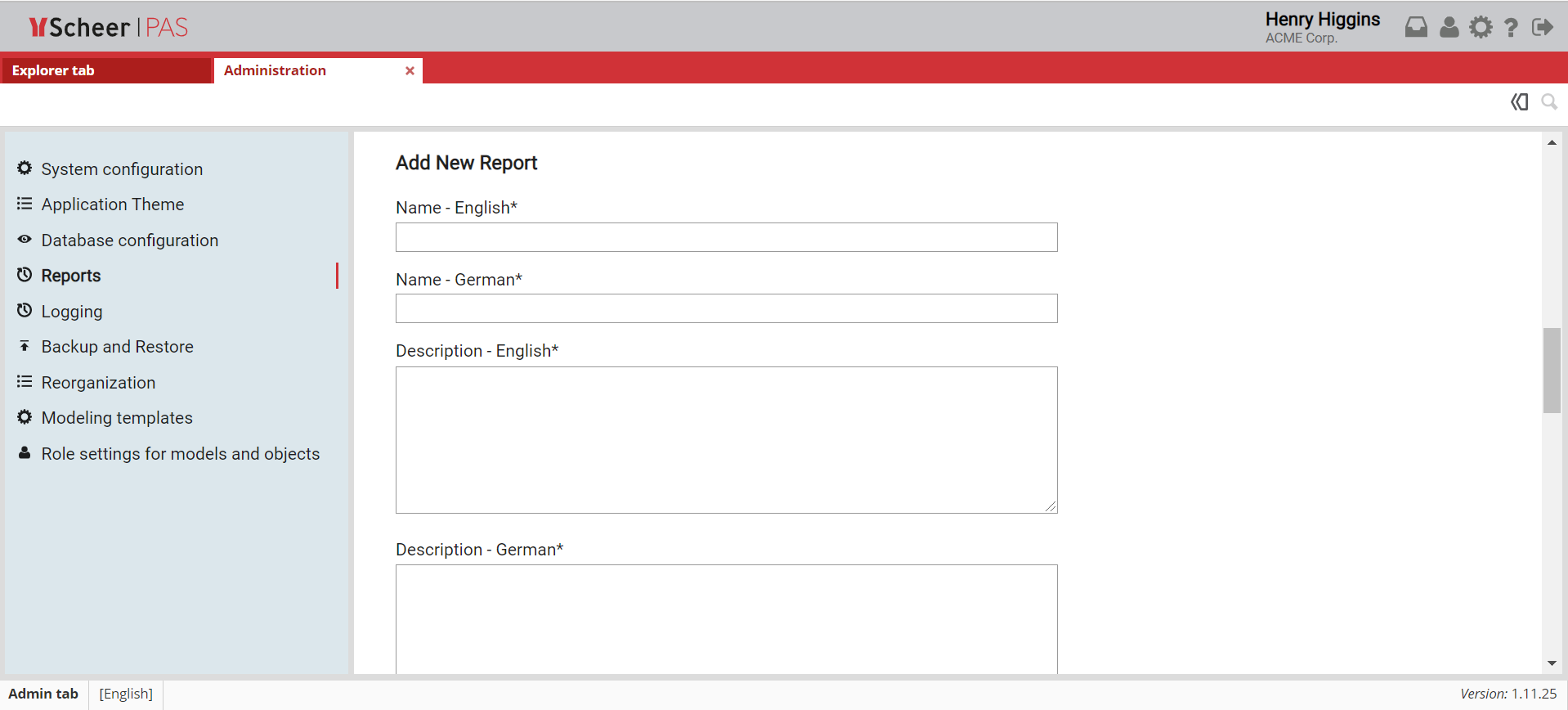
If you want to add a new report, click the Add button to open the Add New Report form.
In this form you will need to fill in all fields, since every field is required:
-
Name - English: In this field you need to name your report in English.
-
Name - German: In this field you need to name your report in German.
-
Description - English: In this field you need to describe your report in English.
-
Description - German: In this field you need to describe your report in German.
-
Script: In this field you need to add a script that will generate a report.
-
Configuration: The configuration field is predefined with a default value, but you can change it for your report.
-
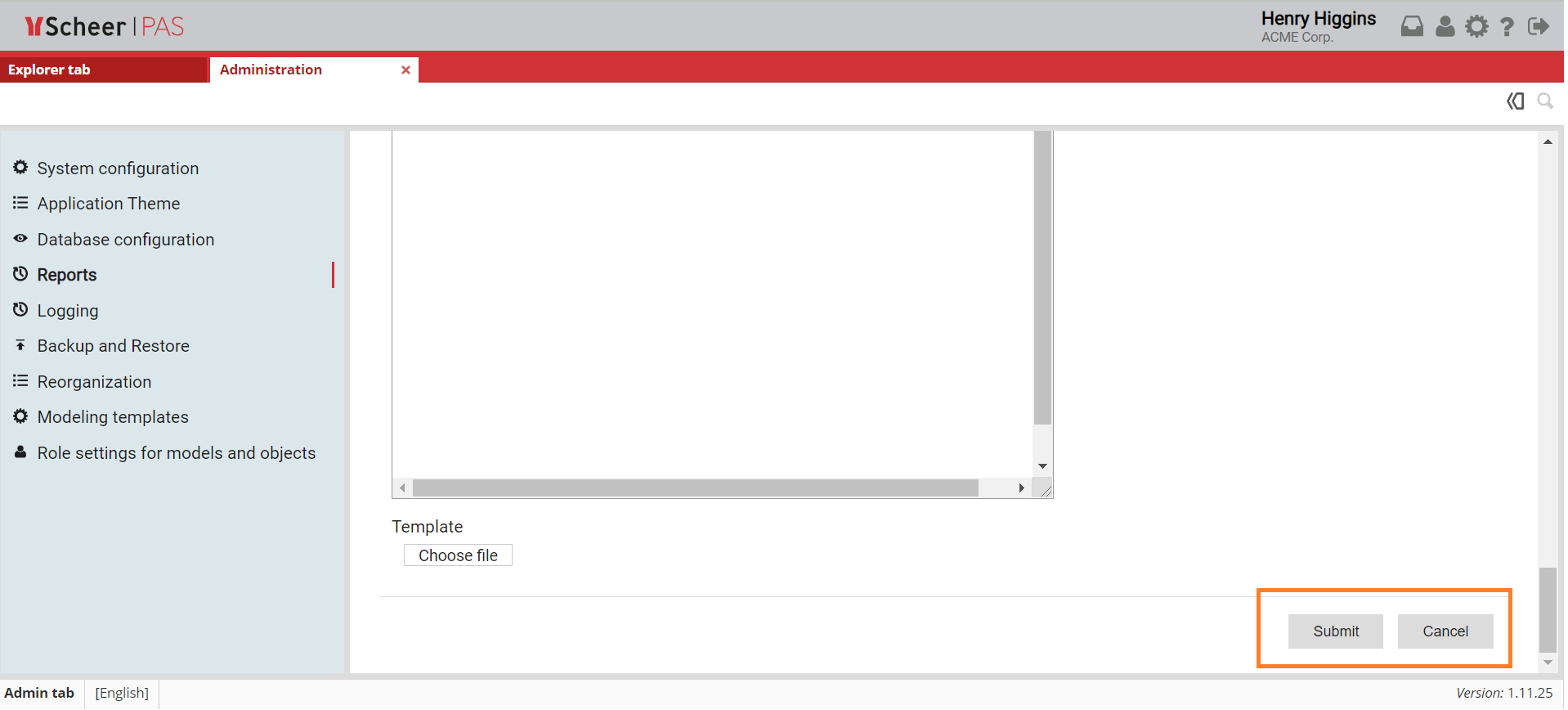
Template (optional): You can add a new template in xlsx, docx or pdf format defining the layout of your report.
Once you have filled all required fields, you can click the Submit button to save the changes.
You can discard your input by clicking Cancel.
Importing and Exporting Report Schema
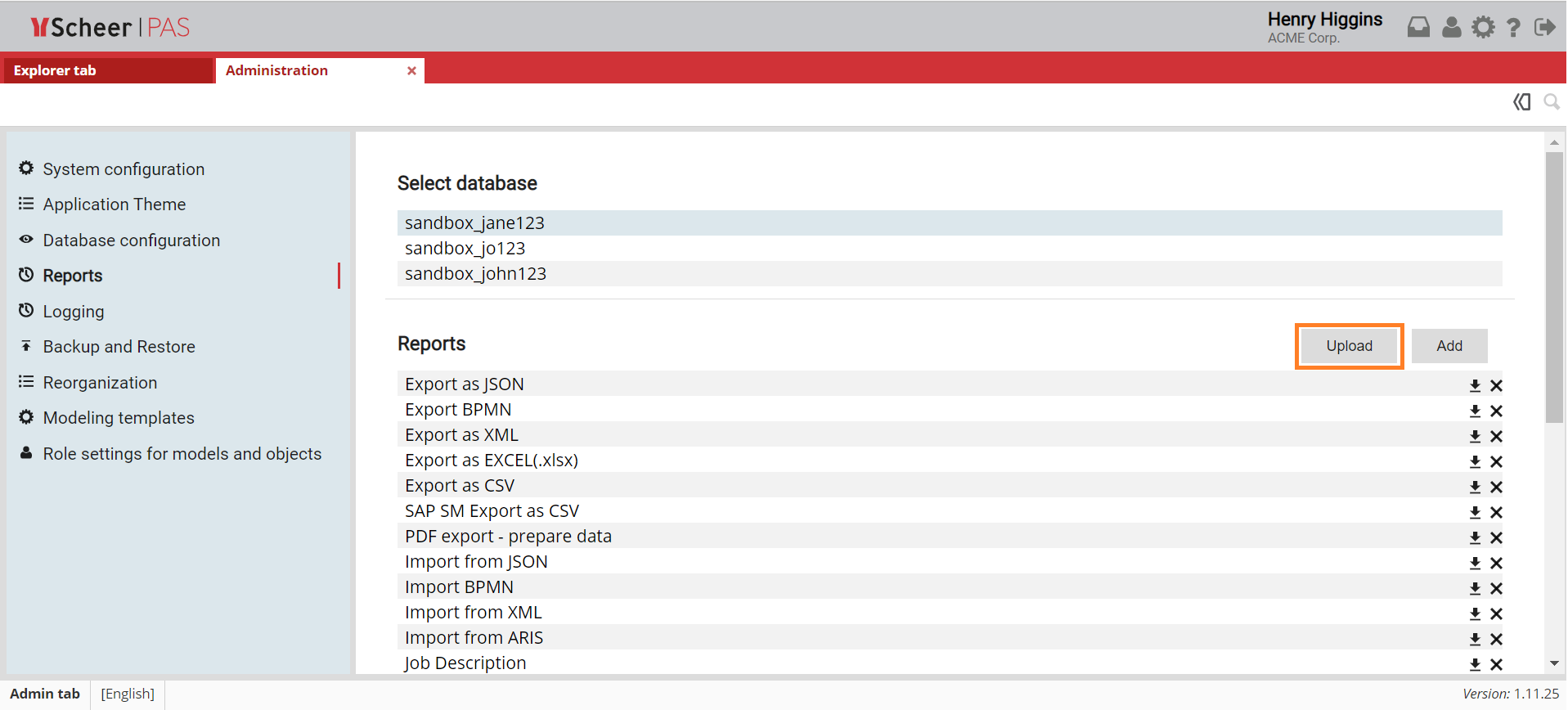
If you want to import report schema from your device, click the Upload button to open the Import Report-Schema form.
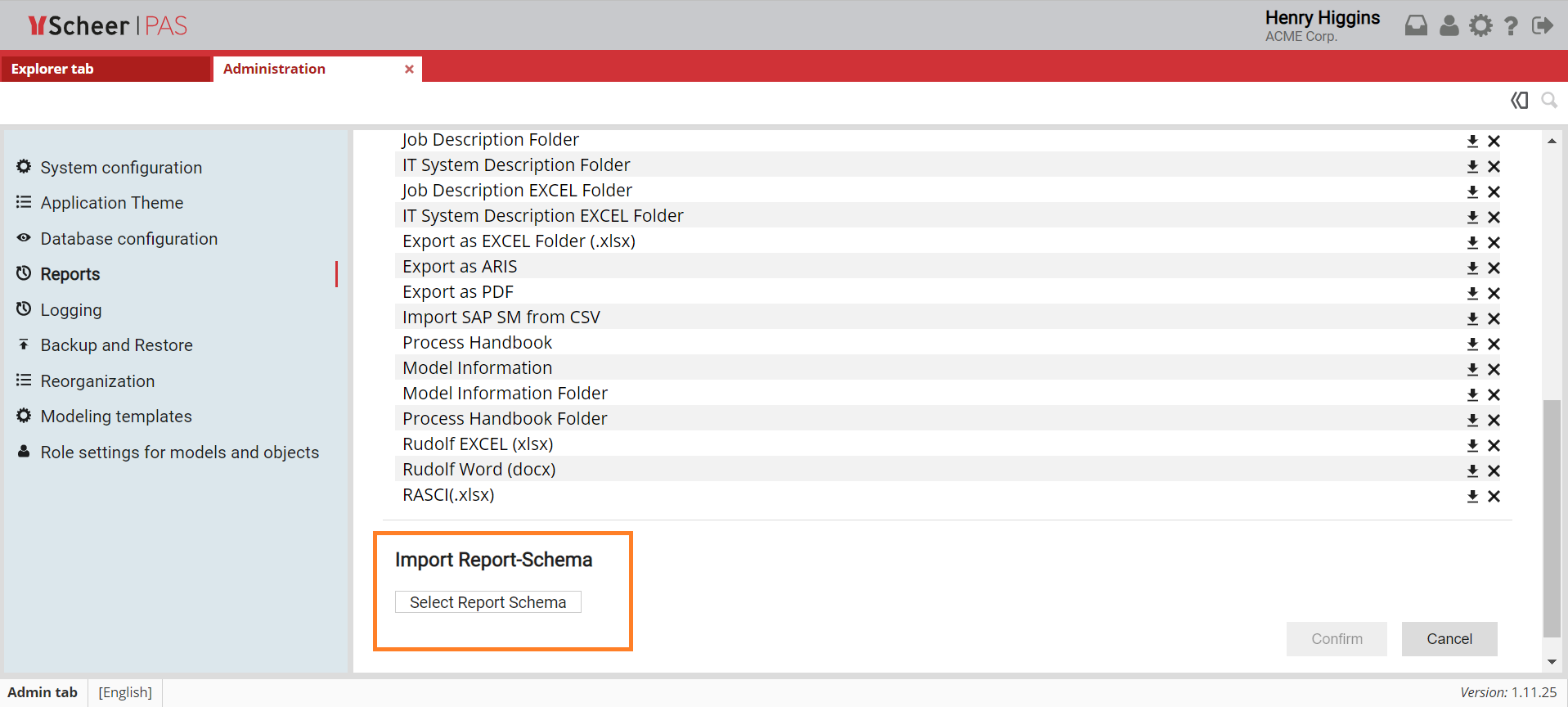
Select report schema to import and click Confirm button. The message Report-Schema imported successfully appeared in the upper right corner of the screen.
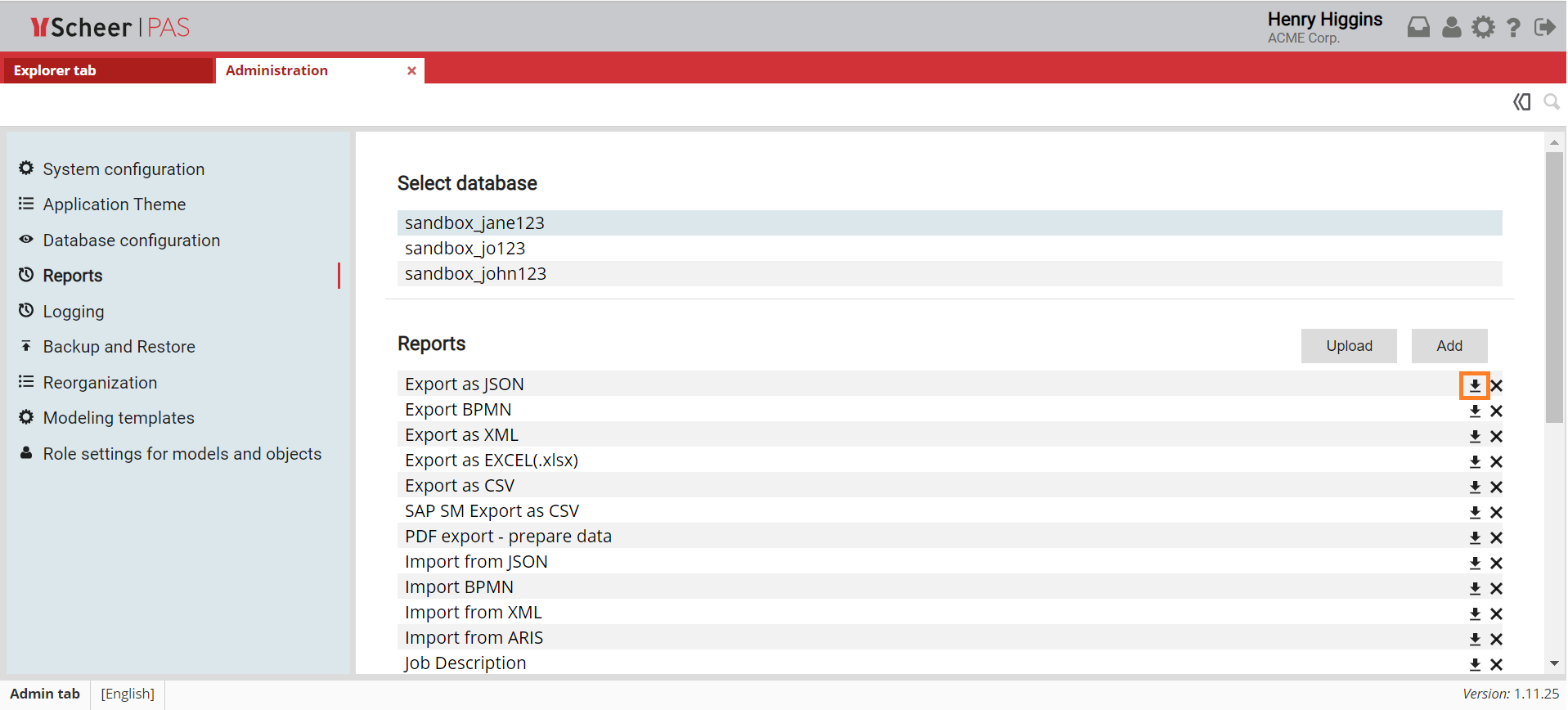
If you want to export report schema to your device, click the download button next to the selected report.
Deleting a Report
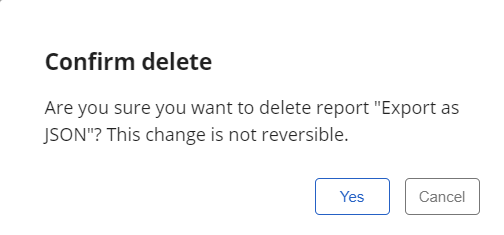
If you want to delete a report, click X on the right side of the corresponding report.
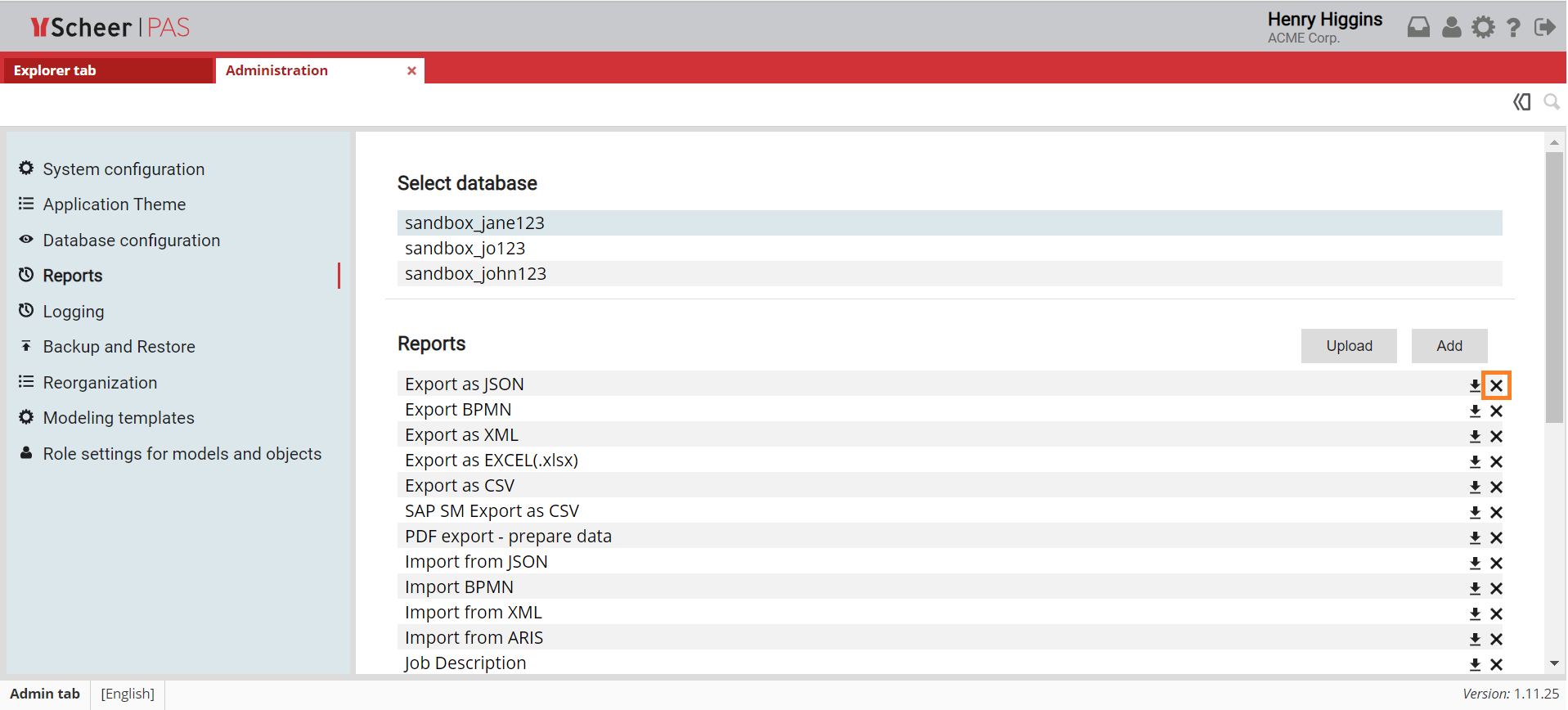
A new window opens. To delete the report, confirm your action by clicking Yes.