Search Bar
The Search Bar is a central element for locating items within the Business Modeler and is positioned above the Structure Bar. It allows users to search for text within a selected database, folder, or model.
To perform a search, a database, folder, or model must be selected in the Structure Bar before entering a search term. The search is always limited to the currently selected element and its contents. If no element is selected, the search cannot be executed and no results will be returned.
The Search Bar enables efficient navigation in large repositories by allowing users to quickly find relevant items across databases, folders, or models.
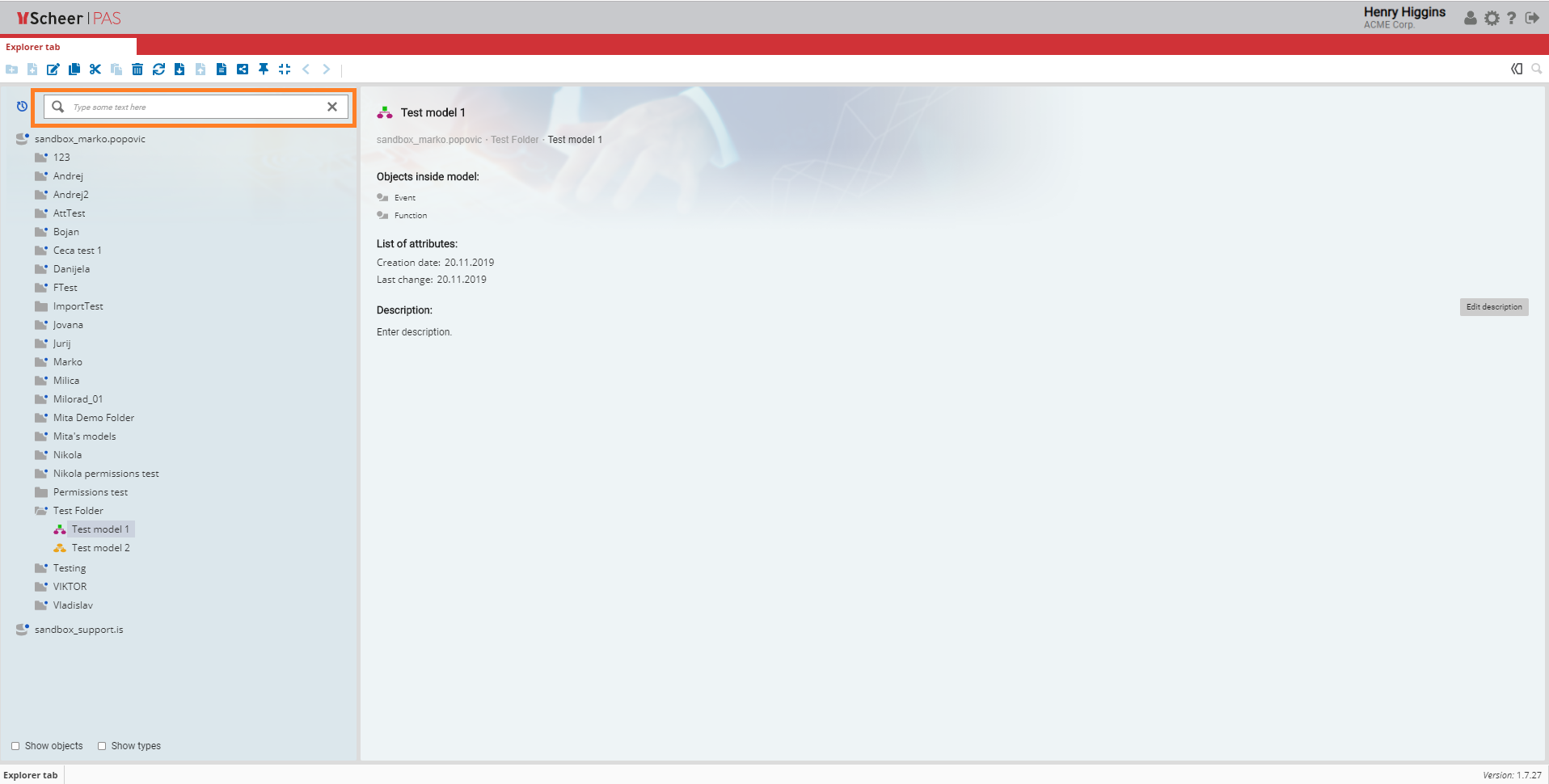
Please keep in mind, that the search is applied only to the contents of the selected element.
After you select an element, you can enter your search term.
You can search by name and by type .
When you search by name, use space bar to separate each word in the name (if the name is consisted of more than one word).
When you search by type, please do not use space bar if the type name has more than one word. For instance, instead of entering "value chain diagram", enter "valuechaindiagram".
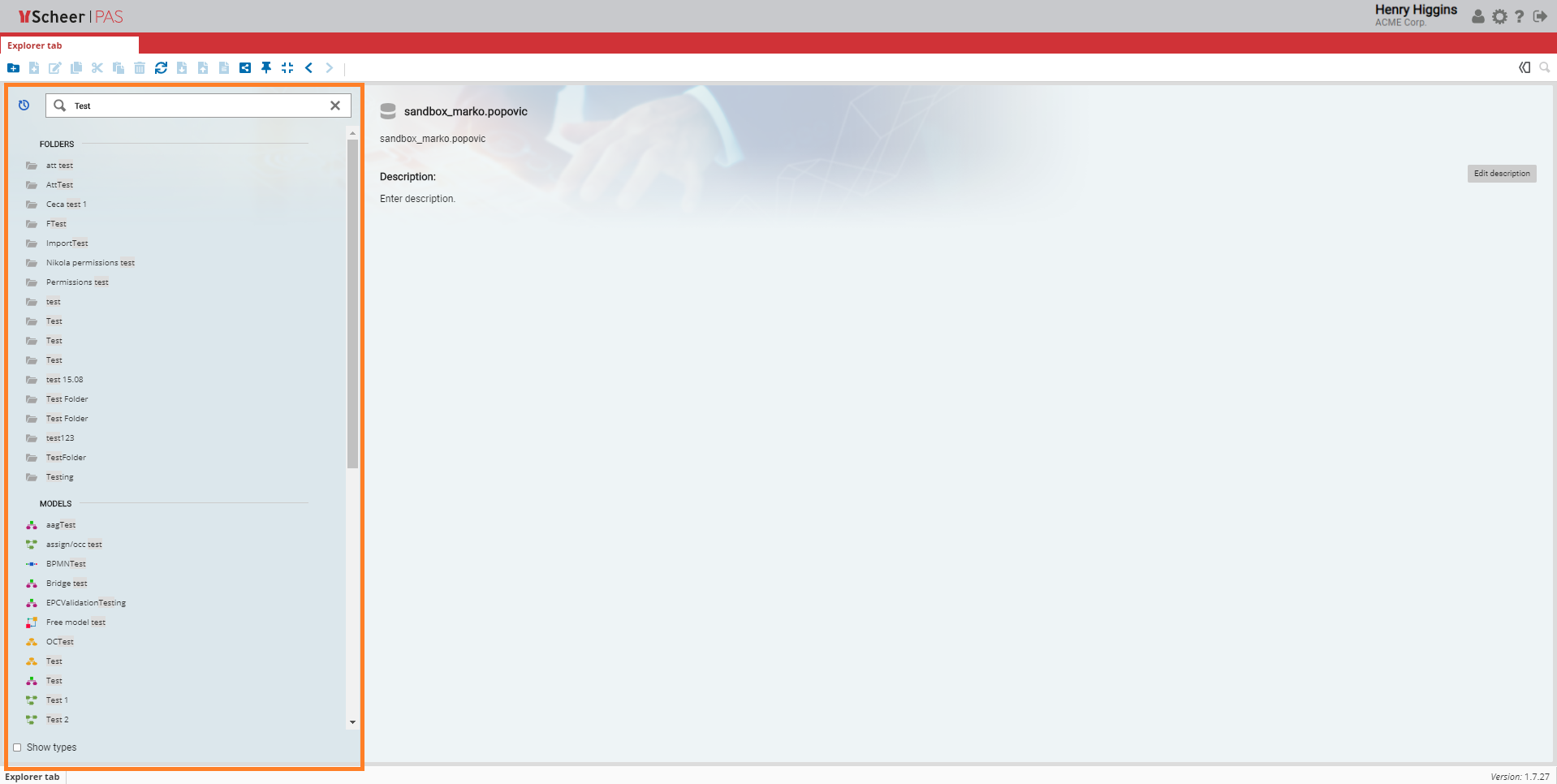
All elements containing the search term will be displayed.
The Search results are listed in separate sections for folders, models and objects.
Advanced Search
The Advanced Search feature allows users to perform more detailed and targeted searches for models and objects within the Business Modeler. Similar to the standard search, a database, folder, or model must be selected in the Structure Bar before starting an advanced search. Without a selected element, the advanced search cannot be executed.
The Advanced Search is opened by clicking the magnifying glass icon located to the right of the Search Bar. Once opened, users can define additional search criteria to refine their search results.
Advanced Search enables users to explicitly search for models or object and to restrict the search to specific model types or object types. In addition, filters can be applied using logical operators to further narrow down the search results and create more precise queries.
This functionality supports efficient navigation and analysis, especially in large databases with extensive modeling content.
Select database, folder or model in which you want to perform a search and click on icon located to the right of Search Box
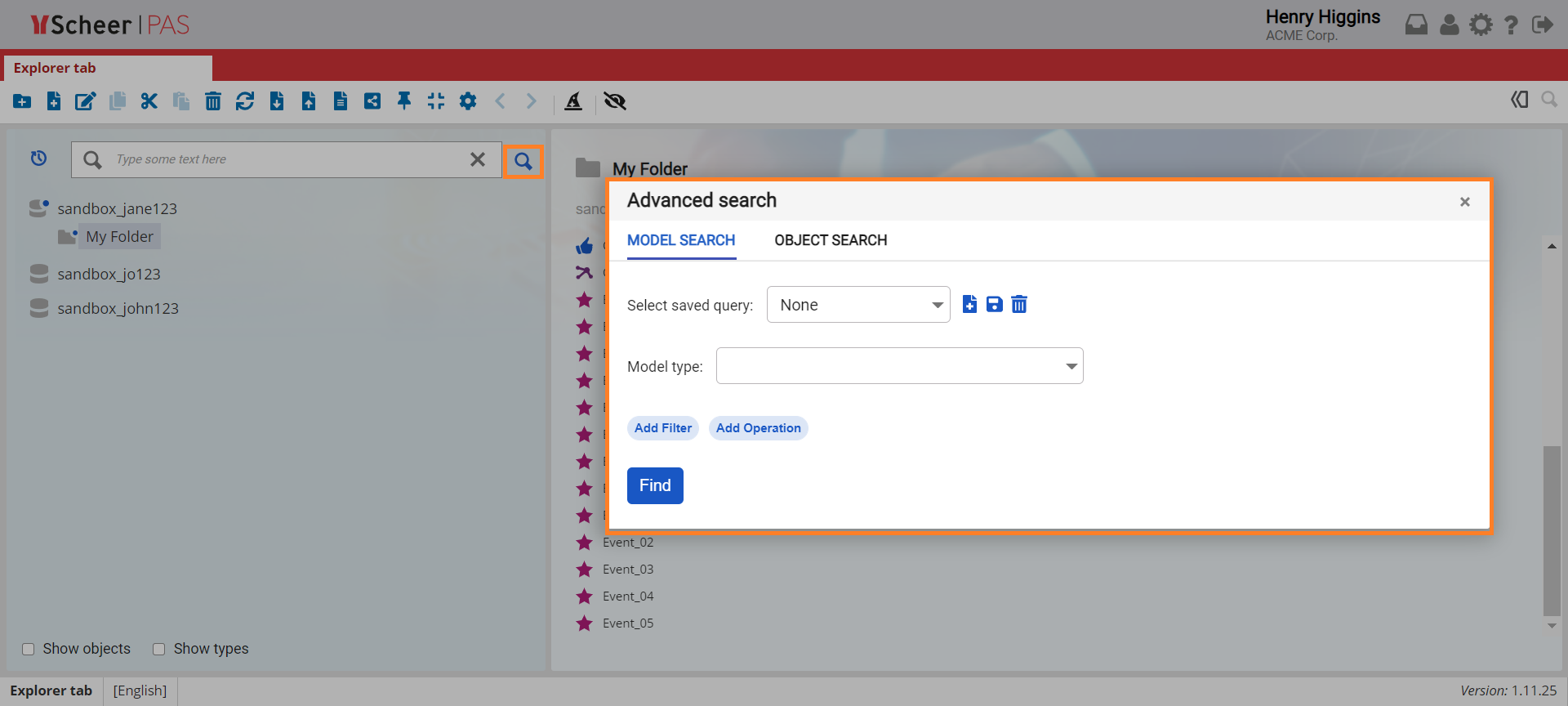
Select a model or object search.
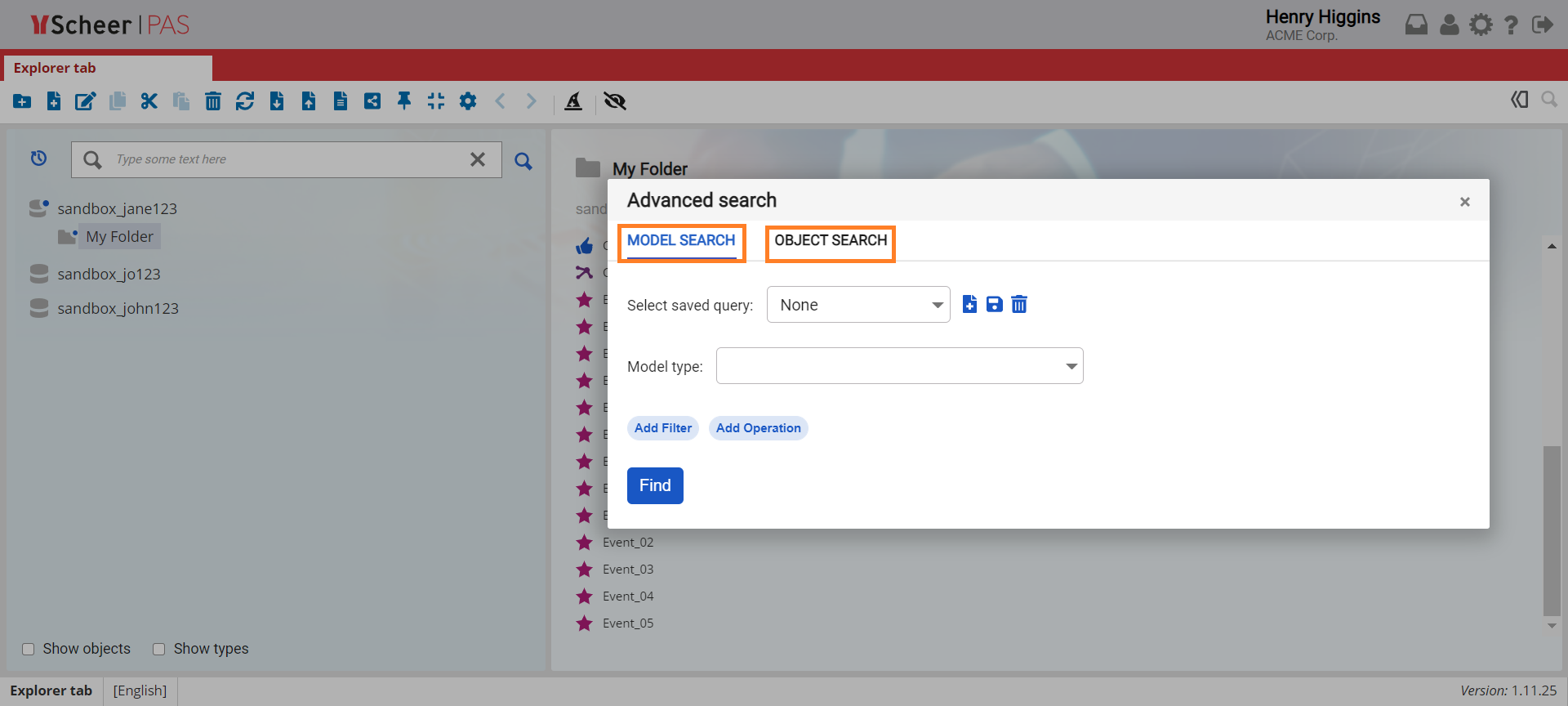
In the following text, we explain the basic functionalities of this feature on the model search, but the same can be applied accordingly to the search of the object.
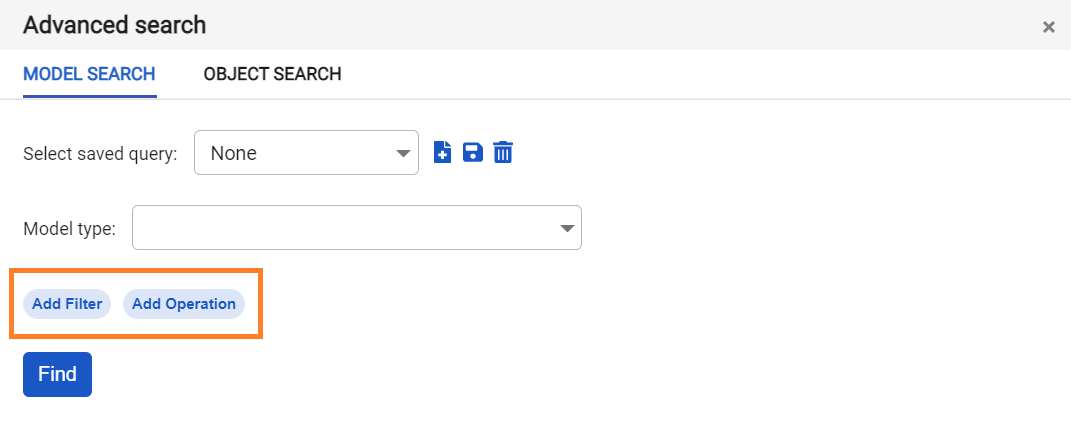
Select one or more types of models you want to search for.
Click Add filter to add additional search parameters.
Based on the type of parameter (attribute), you will need to provide a value to search against by entering text, selecting a date, or picking an item from the drop-down menu.
You can also create compound searches with multiple search parameters by adding new conditions and connecting them with operators.
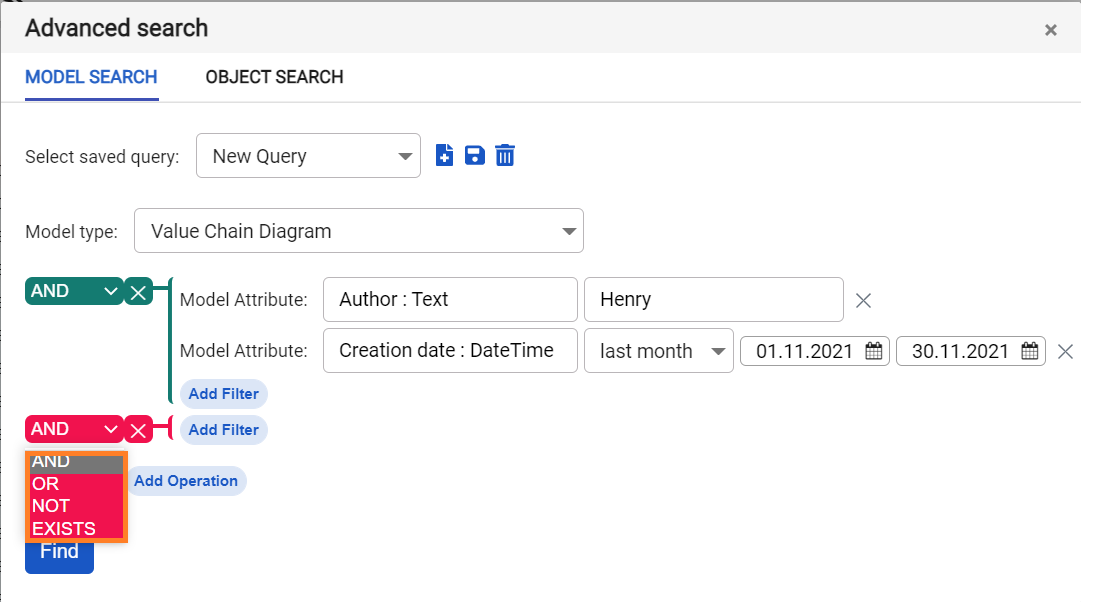
Advanced Search feature makes use of logical operators like 'AND,' 'OR,' 'EXISTS' and 'NOT' to group together multiple search queries ("conditions") and produce refined search result.
-
Selecting the AND operator: All conditions imposed by conditions linked with the AND operator need to be fulfilled by a model for it to appear as a search result;
-
Selecting the OR operator: If any of the conditions imposed by conditions linked with the OR operator are fulfilled by a model, it will appear as a search result
-
Using the NOT operator: Models outside of the conditions imposed by a condition with the NOT operator are added to the search results
-
Using the EXISTS operator: Models that contain the attributes linked with the EXISTS operator are added to the search results
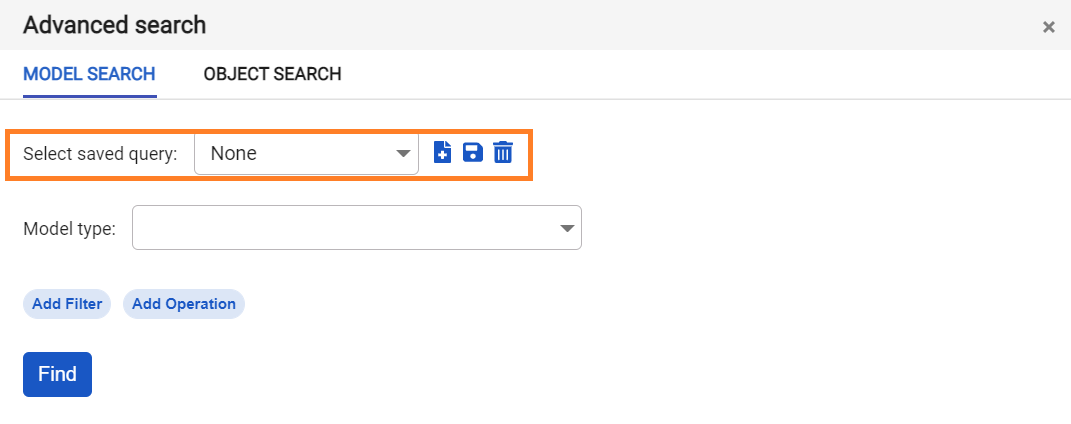
These complex queries can be saved for future reference.
If you want to save the query you've made for future use, click Add new and enter an query name.
If you want to modify the existing query, click Save after you've made the changes.
If you want to delete the existing query, click Remove.
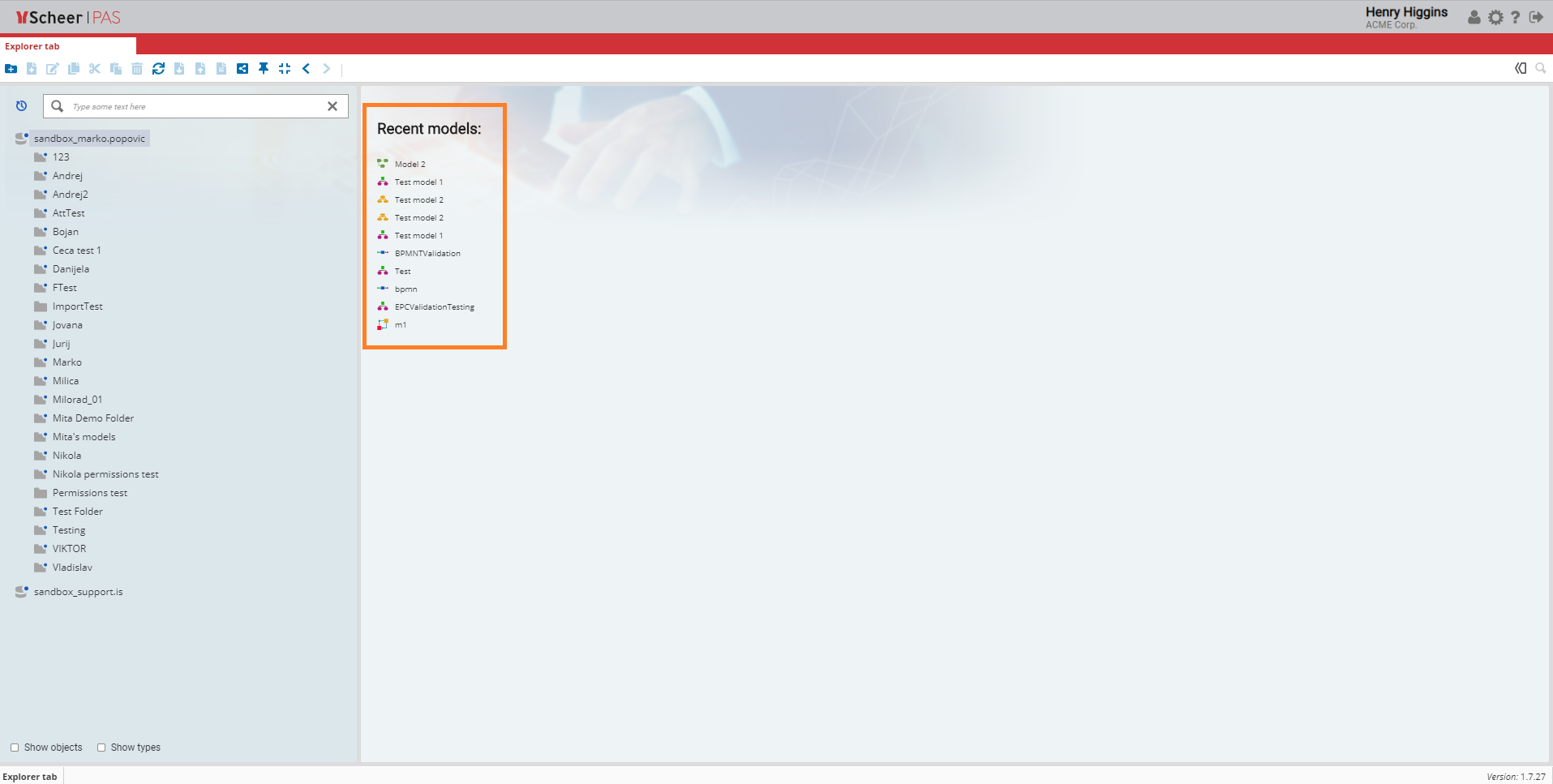
Recent Models
Use the Recent Models button to display a list of recently opened models.
The result is shown within Description Bar on the right side.
This button is convenient when a large number of folders and models has been created. Instead of collapsing every folder to find an element, just click on this button to select the last model you edited.