
Updating a deployment moves a project deployment to another version of its project. You do not need to delete the deployment and deploy the project again. The Control Hub updates all components of the project deployment and restarts them.
Prerequisites
An update always addresses the whole project deployment. A component deployment cannot be updated on its own.
Your user has the permission to change deployments on the platform that the deployment runs on. Without it, the Update option is disabled.
The deployment was made from a project version. If it was not, the deployment details page does not display the Update option.
Updating a Deployment
You can start an update of a project deployment in two places:
In the Deployments view: Open the More actions menu at the end of the project deployment's row, then select Update:
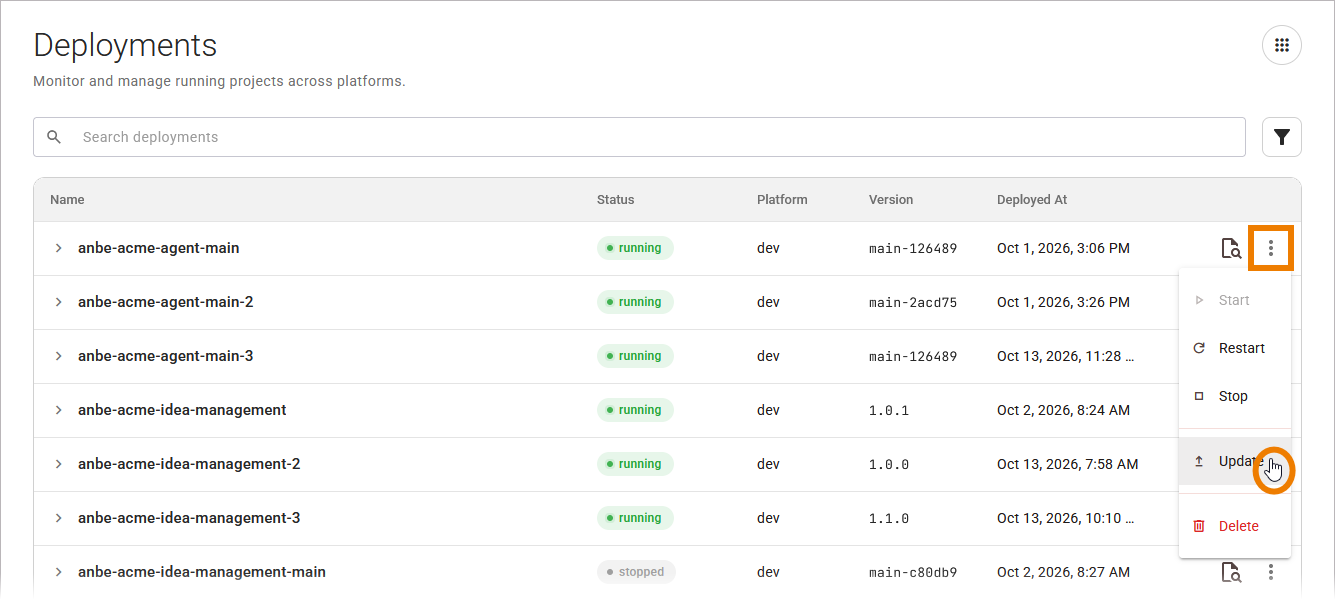
For more details about the deployments table, refer to Working With the Deployments View.
On the deployment details page: Click Update in the action row of the details section:
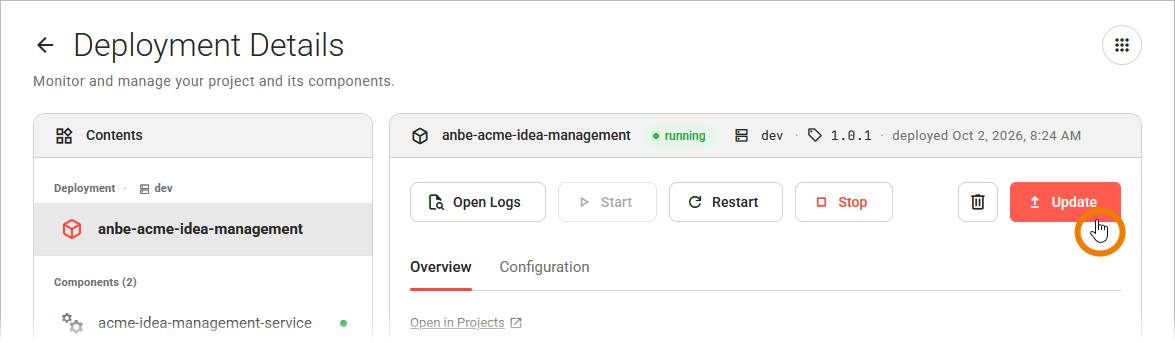
For more information on the deployment details, refer to Working With the Deployment Details Page.
Both options open the update dialog.
Selecting the Target Version
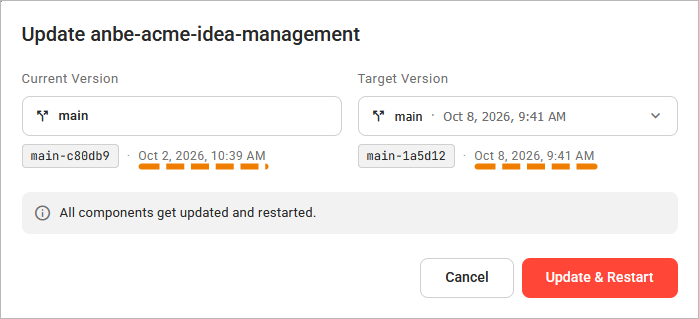
The dialog states the version that the deployment runs and offers the version to move to:
|
UI Element |
Name |
Description |
|---|---|---|
|
|
Current Version |
The version that the deployment runs. It shows the branch or tag that triggered the version, the version identifier, and when the version was built. You cannot change it. |
|
|
Target Version |
The version that the deployment is moved to. By default, the latest version is displayed. Open the version selector to select a different version. The version selector offers all versions of the project that the deployment was made from, not only the latest one. It works like the version selector in the Projects view: use the Branch and Tag switch to list the versions by the branch or by the tag that triggered them. 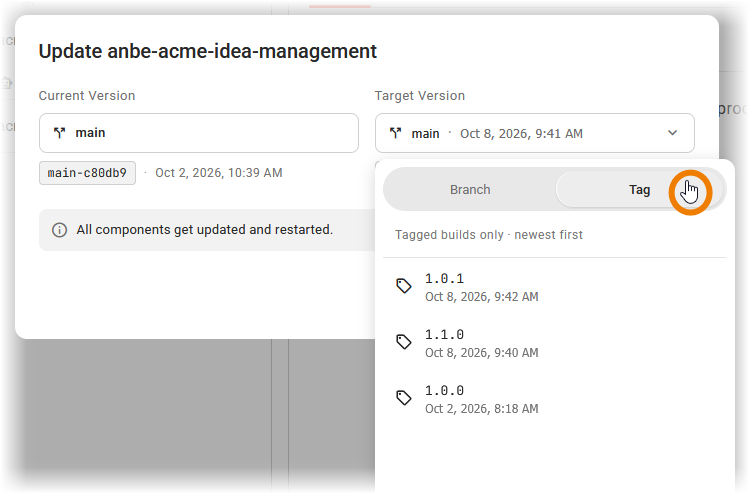
|
Updating
When you have finished your choice, click Update & Restart to start the update. While the Control Hub sends the request, the button shows the message Updating…, and you cannot change the versions or close the dialog. If you want to leave without changing anything, click Cancel.
When the Control Hub accepts the update, the following happens:
-
The dialog closes.
-
A notification states Updating <deployment name> to <version>….
-
The Deployments view and the deployment details page show the new version while the components are still starting.
The update can take several minutes and continues when you leave the page. When the update is finished, a notification states the result:
-
<deployment name> now runs <version> if the update succeeded.
-
<deployment name> could not be updated to <version> if the update failed.
If the Control Hub does not accept the update, the dialog stays open and the message below the versions states the reason. Refer to Error Handling Deployments for the error messages and how to resolve them.