
Deploying a project is only possible via the Projects view. Refer to Deploying a Project for detailed information.
The deployment details page is where you monitor and manage a project deployment and its components. You open it from the Deployments view by selecting the name of a project deployment or of one of its components.
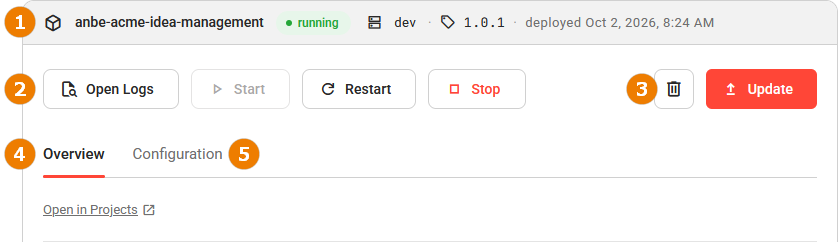
The page consists of the following parts:
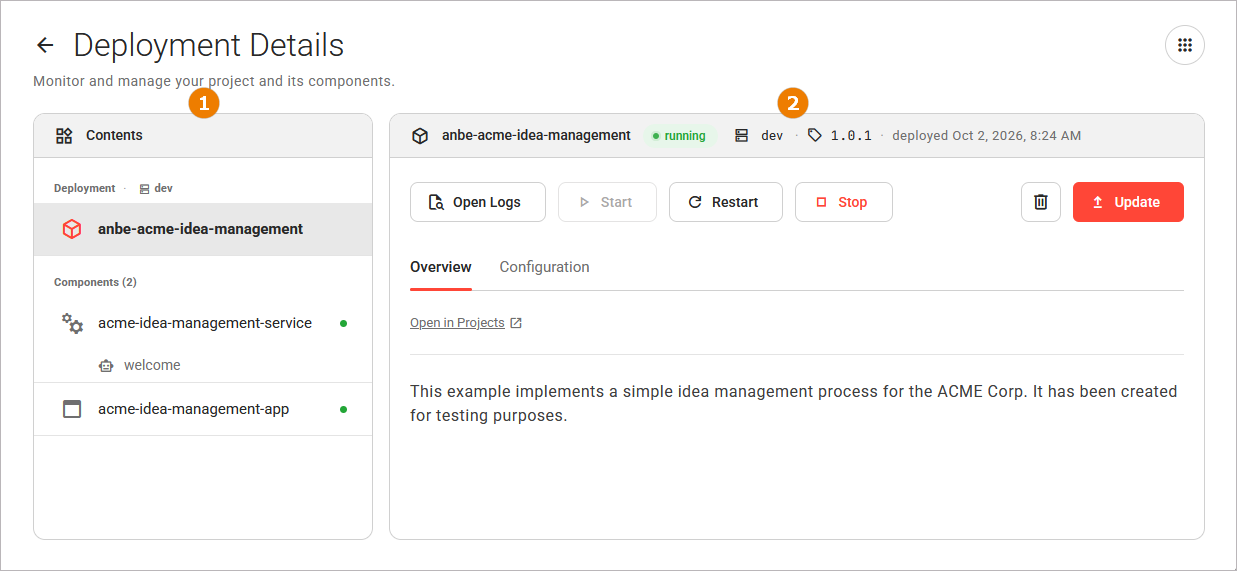
The Contents section stays on the left. The Details section on the right shows the detailed information of your selection in the Contents section.
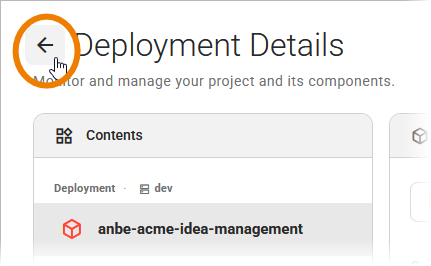
Use the back button in the navigation header to return to the view that you came from, for example the Deployments view:
The Control Hub keeps the statuses of the project deployment and its component deployments up to date while the details page is open.
The Contents Section
The Contents section on the left shows what the project deployment is made of. It lists the following groups:
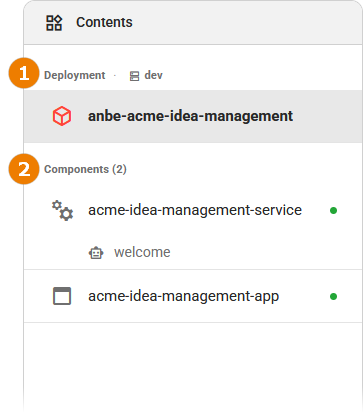
Deployment: One entry for the project deployment itself, named after the deployment.
Components: One entry for each component deployment. The number in brackets states how many component deployments the project deployment has. Each component deployment is displayed with its name, an icon for its type, and a dot indicating its status. The agents that a service provides are listed beneath that service. You cannot select an agent: an agent is a feature of a service, not a component.
Select an entry to show its detailed information in the Details section. The selected entry is highlighted:
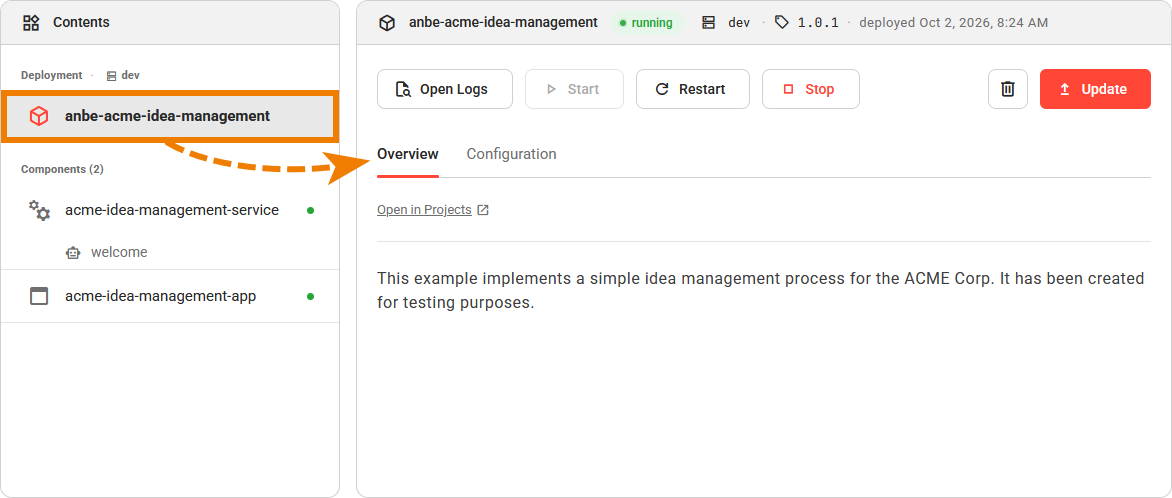
If you open the page by selecting a component deployment in the Deployments view, that component deployment is directly selected and its details shown.
Refer to Key Concepts for the component types, and to Working With the Deployments View for details on the status values.
The Control Hub keeps the statuses of the project deployment and its component deployments up to date while the details page is open.
The Details Section
The Details section on the right shows the detailed information of the selected (component) deployment.
Its header always identifies the project deployment, whichever entry is selected. It shows the following information in one line: the name of the deployment, its current status, the version that the deployment runs, and the date on which it was deployed.
Below the header, the available actions are displayed:
The actions on the left address the selected entry.
The actions on the right address the whole project deployment.
In addition, the details section contains two tabs:
|
Action |
Description |
|---|---|
|
Open Logs |
Opens the logs of the selected entry. The option is only available if logs can be opened for the selected entry. Refer to Inspecting Logs for more information. |
|
Start, Restart, Stop |
Use these options to control the lifecycle of the selected entry. Refer to Operating a Deployment for more information. |
|
Delete |
Deletes the project deployment and all of its components. Refer to Deleting a Deployment for more information. |
|
Update |
Moves the project deployment to another version of its project. Refer to Updating a Deployment for more information. |
The Overview Tab
In the Overview ( ) tab, you will find an access link that varies depending on the type of deployment you have selected:
|
Selection |
Link Target |
|---|---|
|
Project Deployment |
Projects view |
|
Service |
Swagger UI |
|
Application |
Application UI |
Beneath the link, the Overview tab displays the README of the selected deployment. For the project deployment, it is the README of the project version that the deployment was made from:
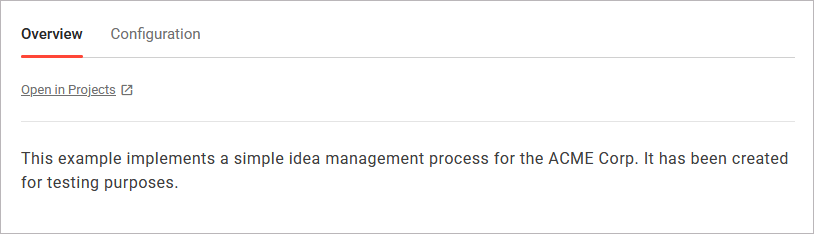
For a component deployment, it is the README that the component ships. If there is no README (content) for the selected deployment, the message No README available is displayed.
The Configuration Tab
To edit the configuration of the selected deployment, use its Configuration tab ( ). While the project deployment is selected, the tab shows the configuration of the whole project deployment. While a component deployment is selected, it shows the configuration of that component deployment.
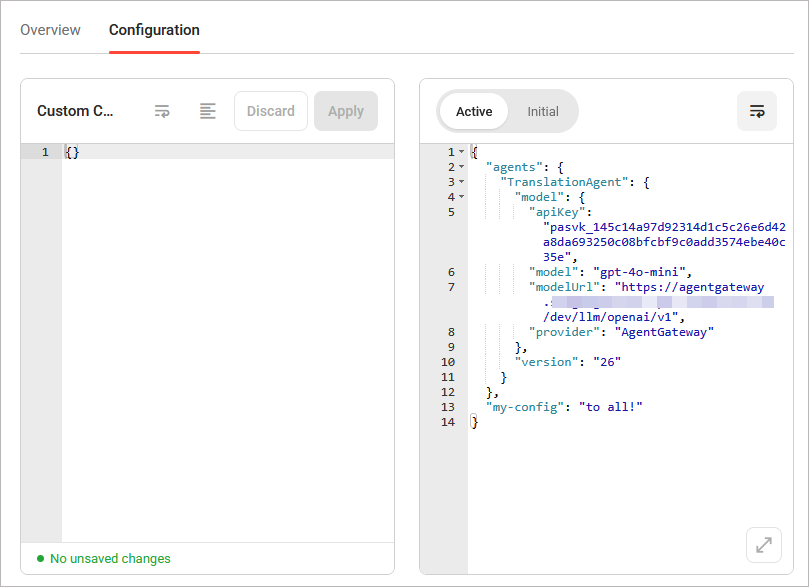
Refer to Configuring a Deployment for more information.