
When you select a project in the Projects view, its details open on the right:
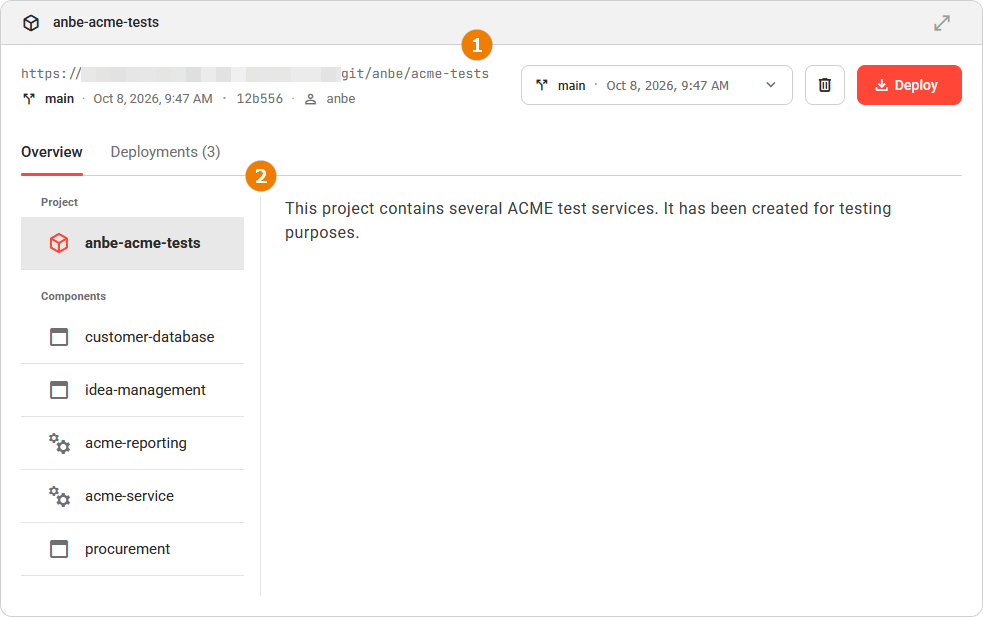
The Project Header
The header at the top of the details view identifies the project. It holds the version selector, the delete and the deploy actions:

|
UI Element |
Name |
Description |
|---|---|---|
|
|
Project Name |
Shows the name of the selected project. |
|
|
Endpoint |
Click the link to open the project source in a new browser tab. Appears only when a source is available. To see the whole URL, hover over the link. |
|
|
Version Selector |
Use the version selector to switch between project versions. The details of the selected version are displayed below. The version selected here is used if you use the Deploy button on top right. |
|
|
Delete Version |
Use this option to delete a version of this project, refer to Deleting a Project for details.
|
|
|
Deploy |
Opens the deploy dialog for the selected project and version. Refer to Deploying a Project for details. |
Selecting a Version
Each project can have several versions. Use the version selector in the header controls to determine which version the detail view shows:
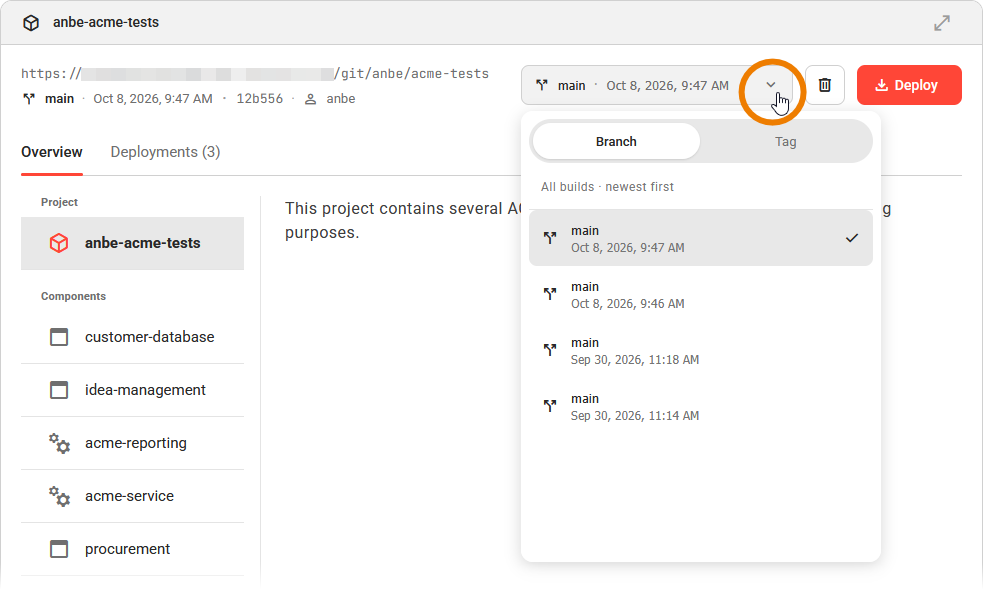
When you open a project, the selector starts on the latest version. Open the selector to see all available versions. You can choose between Branch versions and Tag versions. Use the toggle button to switch between the two:
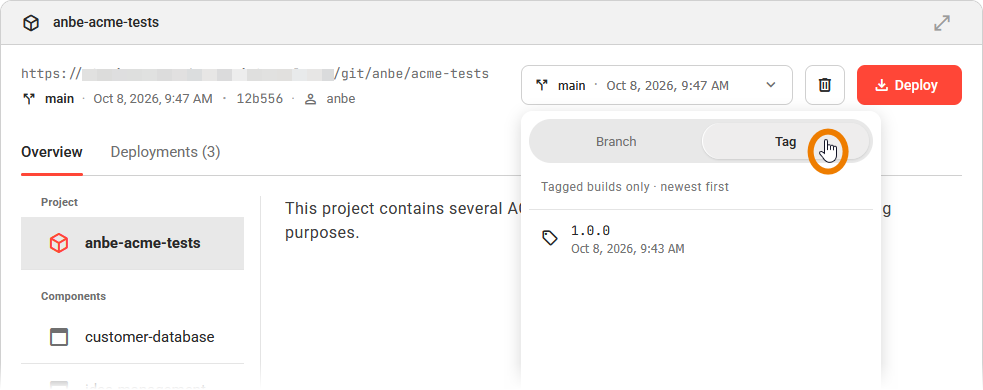
When you click on a version, the project details are updated to reflect the selected version.
The version selected here is used if you use the Deploy button on top right.
The Project Details
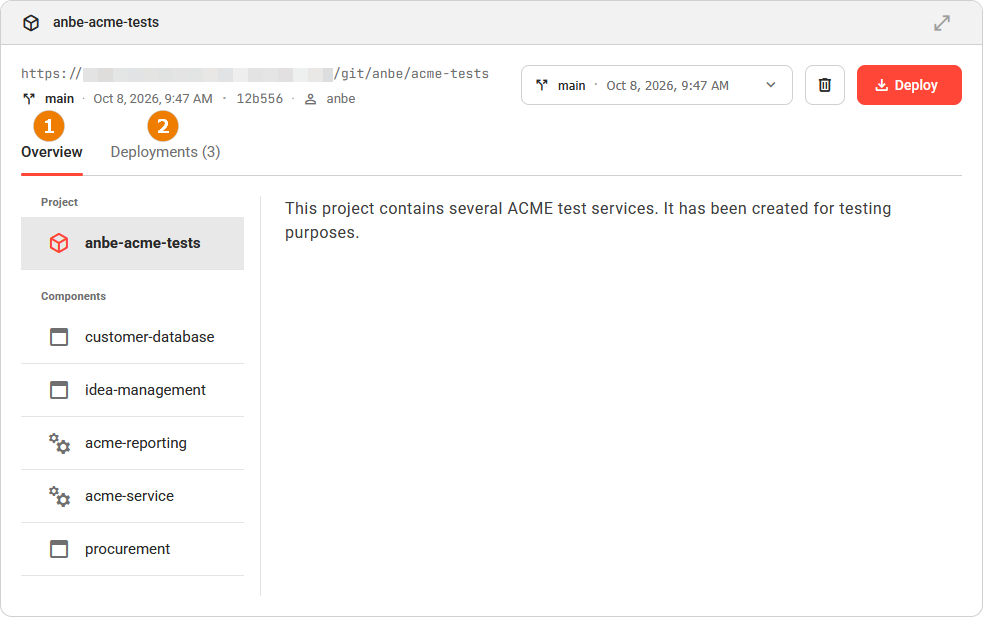
Below the header, the detail view displays two tabs. Click a tab to switch the content shown below it:
|
UI Element |
Name |
Description |
|---|---|---|
|
|
Overview |
Shows the contents of the project:
|
|
|
Deployments |
Displays the number of deployments in the tab header and lists the existing deployments of the project. |
Overview
The Overview tab lists the components of the project. Select the project or one of its components in the list to view the content of the corresponding README file on the right:
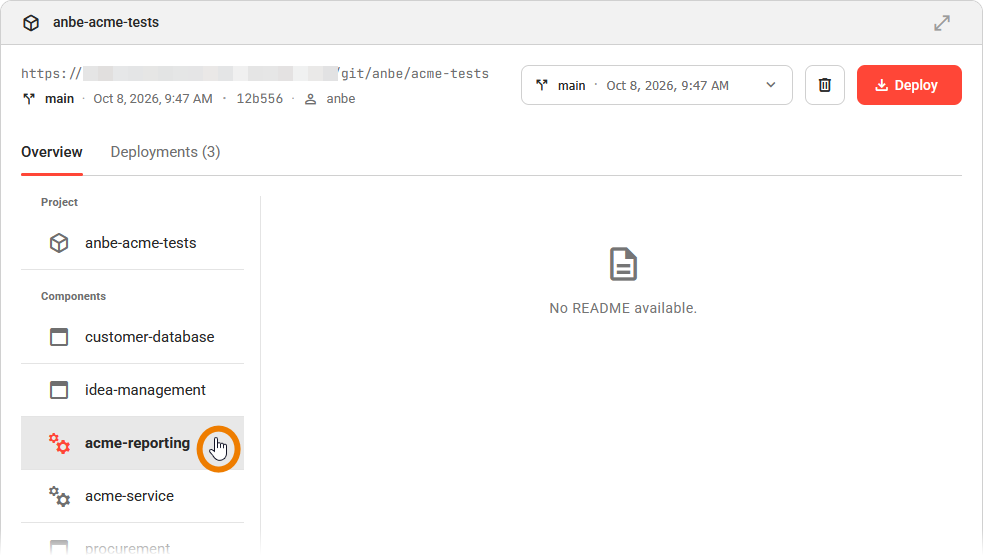
Refer to Key Concepts for an explanation of components and their types.
Deployments
The Deployments tab on the project details page lists the existing deployments of the project with their version, status, and deployment date, so you can see where it already runs before you deploy it again:
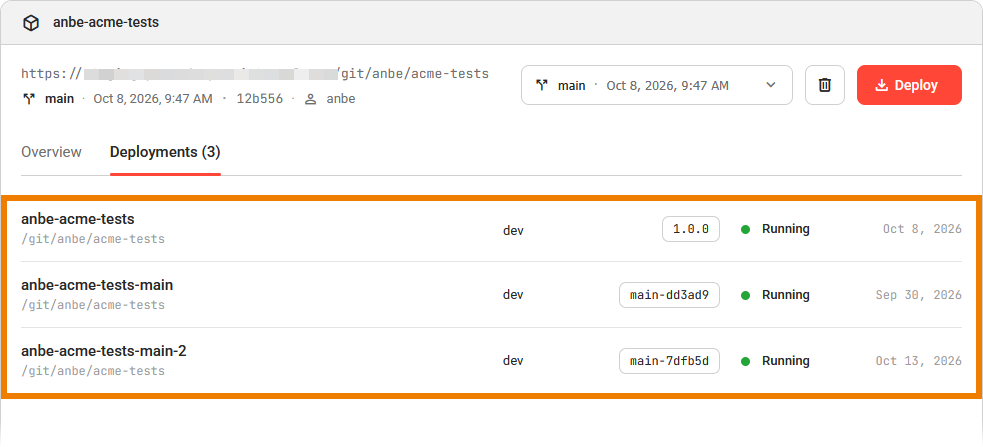
Click a deployment row to open its details page in the Deployments view. Refer to Working With the Deployment Details Page for further details.
If the project is not deployed anywhere, the tab shows No deployments yet for this project.