Scaffolding, development, testing, deployment, and operation all integrated into a single development workflow: Scheer PAS Code is the solution for turning an idea into a running service on the platform.
This guide will help you get started with PAS Code. It will assist you in installing PAS Code and setting up your first project.
Getting Started… Video Edition
If you prefer watching a video, we recommend our Getting Started with PAS Code quick start videos on our YouTube channel.
Prerequisites
Working with PAS Code assumes some knowledge of web development. Before you begin, it is helpful to be familiar with the following topics:
-
Angular
-
HTML
-
CSS
-
TypeScript
Refer to Related Content below for a list of useful links on these topics.
System Requirements
To get started with PAS Code, your development environment must meet the following requirements:
-
Node.js: LTS Version 24.7 or later (refer to Node.js homepage for downloads).
-
Code Editor: We recommend Visual Studio Code (refer to Visual Studio Code homepage for downloads).
-
Operating Systems: MacOS, Windows and Linux.
-
Terminal: Required for running PAS CLI commands.
Expert Advice
If you are an experienced developer and want to work with different versions of Node.js, we recommend using nvm. For the installation of nvm refer to github > nvm-sh/nvm.
If you use nvm, you can install the latest version of Node.js with the following command:
nvm install --lts
Getting Access to the PAS Code Packages
The PAS Code packages are hosted on our PAS package registry at https://npm.gitlab.scheer-group.com/. Before installing the PAS CLI, you need to configure the @pas scope and log in.
Configuring the Registry
In your .npmrc file, you need to set the @pas scope to point to the PAS package registry.
To do this, enter the following command in your terminal:
npm config set @pas:registry=https://npm.gitlab.scheer-group.com/
Installing the PAS CLI
Now you can install the PAS CLI. Open a terminal and run the following command:
If you're using Visual Studio Code, you can open an integrated terminal, refer to Terminal Basics in the VS Code documentation.
npm install -g @pas/cli
If you encounter any problems while executing this command (e.g. with authorization), refer to Error Handling PAS Code Installation.
After installation, you may want to update to the latest version of PAS CLI at some point. To update your PAS Code installation to the latest available version, open a terminal and run the installation command again.
Updating the PAS CLI does not update already created projects. After the update, only newly created projects will have access to the newest features.
Creating an Example PAS Code Project
To create a new PAS Code project, run the following command (where my-project is the name of your project, so exchange this with a name of your choice):
pas new my-project
Downloading and installing the packages may take some time. If you want to track the process, use the --verbose option:
pas new my-project --verbose
After scaffolding, the CLI will ask you:
? Create a project on the active platform? (Y/n)
To get a first impression of PAS Code, you do not need the platform. You will create a local project, so answer no: n.
Note for trial users: To access a full PAS Code platform for deploying services, contact customer support at support@scheer-pas.com.
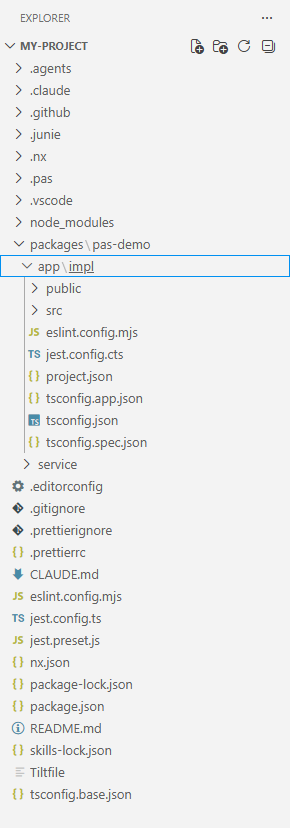
The example project is now created locally with all necessary folders and a demo application. Use the example project to make yourself familiar with the contents of a PAS Code project:
To run the demo application, you first need to start your project:
pas start
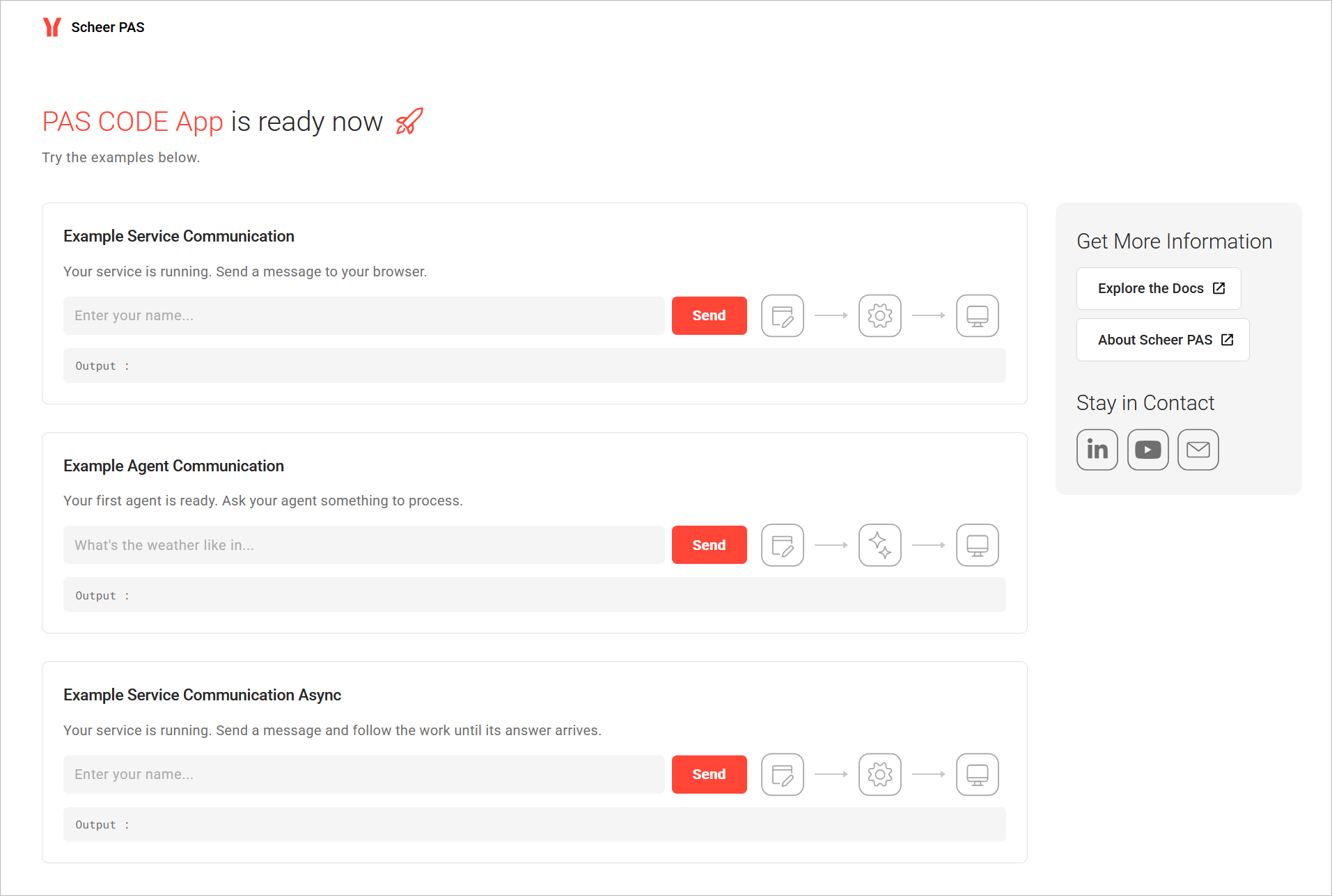
When the project has been started, you can inspect the demo application at http://localhost:4200/:
Related Content
Related Pages: