
The Agent Details
The agent details page shows one deployed agent: one agent, on one platform, through one deployment. On this page, you read what the agent does and where it runs, and you manage its model access.
To open the page, select a row in the Agents view, anywhere outside its buttons and links. The agent name is a link to the page as well, so you can also open the page in a new tab or copy its address. Refer to Working With the Agents View for details on the list of agents.
You can open the page of an agent only if you may read the platform the agent runs on. Otherwise, the Control Hub shows that something went wrong.
The page consists of the following parts:
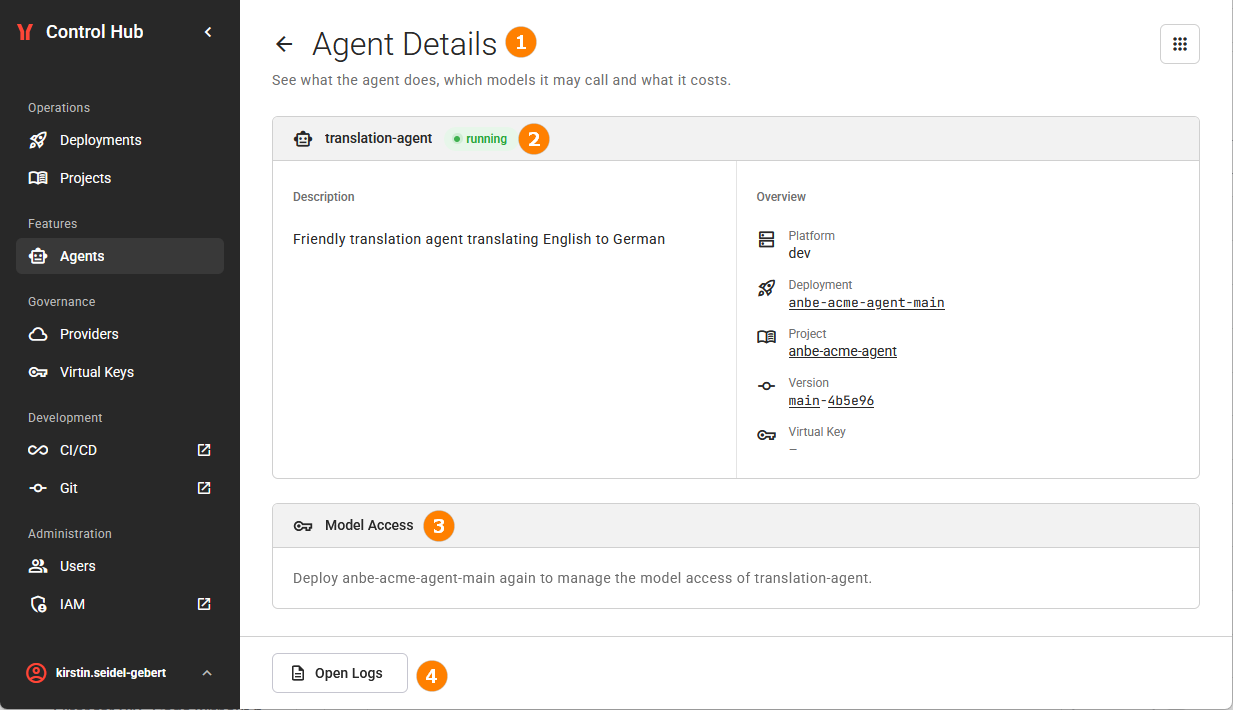
The Page Header
The page header shows the title Agent Details. Click the arrow in front of the title to go back from where you came.
The Agent Card
The heading of the agent card shows the agent name and the status of the agent. The status is the same as in the Agents view and updates while the page is open.
The card has two columns:
|
Column |
Description |
|---|---|
|
Description |
What the agent does, as the agent states it. If the agent states no description, the column reads This agent has no description. |
|
Overview |
Five values that tell you where the agent runs and where it comes from (see below). |
The Overview column shows the following values:
|
Value |
Description |
|---|---|
|
Platform |
The platform the agent runs on. |
|
Deployment |
The deployment the agent belongs to. Click the name to open the deployment details page (refer to Working With the Deployment Details Page for further details). |
|
Project |
The project the agent belongs to. Click the name to open the project in the Projects view with the version of the agent selected. |
|
Version |
The project version the agent comes from. The version identifier names the build that a version was made from. Click a part of the version identifier to open that build on the Git server in a new browser tab:
Point to a link to display the full address that it opens. The hint of the commit link names it as the commit hash. Clicking a link only opens the link. The version identifier is plain text in the following cases:
|
|
Virtual Key |
The saved virtual API Key of the agent. An agent without a virtual API Key reads none. If the Control Hub cannot read the virtual API Key, the value is –. |
The Model Access Card
The Model Access card below the agent card shows the virtual API Key of the agent and the model the agent uses. Refer to section Managing the Model Access of an Agent below for details.
The Action Bar
The action bar at the bottom of the page contains the following buttons:
|
Button |
Description |
|---|---|
|
Open Logs |
Opens the logs of the component that provides the agent in a new browser tab. Refer to Inspecting Logs for further details. |
|
Discard Changes |
Returns the Model Access card to the saved model access. The button is available only after you change something. |
|
Save Changes |
Saves the model access you selected. The button is available only after you change something. |
Managing the Model Access of an Agent
An agent calls a large language model (LLM) through the Agent Gateway of its platform. The model access of an agent defines how the agent does that:
-
Virtual Key: The virtual API Key the agent uses to call an LLM. A virtual API Key belongs to one LLM provider and permits a set of models of this provider. Several agents can use the same virtual API Key.
-
Model: The model the agent uses. If you select no model for the agent, the agent uses the default model of the provider of its virtual API Key.
The Agent Gateway rejects every call of an agent without a virtual API Key, and every call without a model if the provider has no default model. In these cases, the status of a running agent is API Key missing or Model missing (refer to Working With the Agents View for details).
On this page, you only assign a virtual API Key and a model to an agent. You add LLM providers and create virtual API Keys in the Agent Gateway section of the Control Hub. Refer to Creating a Provider and Creating a Virtual Key for details.
The model access belongs to the deployed agent. When the deployment is deployed again or updated, each agent that the component still provides keeps its model and its virtual API Key.
Changing the Model Access
You can change the model access if you are a Developer or an Administrator of the platform the agent runs on.
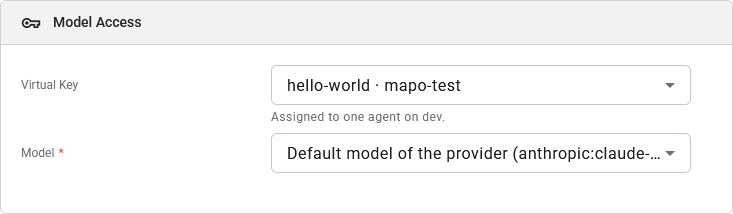
-
In field Virtual Key, select a virtual API Key. Each entry shows the name of the key and its provider, for example team-openai · openai.
-
In field Model, select the model of the agent.
-
Click Save Changes.
After the save, the page displays the message Model access of <agent> saved. The Agents view shows the change when you go back to it. Click Discard Changes instead to return to the saved model access.
If the save is refused, your selection stays, and a message tells you why. Refer to Error Handling Agents for the messages and how to resolve them.
Field “Virtual Key”
-
The first entry is No Virtual Key. Select it to remove the virtual API Key from the agent. A line below the field then tells you that the agent cannot call an LLM without a virtual API Key.
-
The other entries are the virtual API Keys of the platform of the agent, in alphabetical order.
-
With a virtual API Key selected, a line below the field states how many agents of the platform use this key.
-
If the virtual API Key of the agent no longer exists on the platform, its entry shows only the key name and is displayed in red.
Field “Model”
-
You can select a model only after you have selected a virtual API Key.
-
The first entry is the default model of the provider, for example Default model of the provider (gpt-4o-mini). If the provider has no default model, the entry is not displayed.
-
The other entries are the models that the virtual API Key permits, in alphabetical order. A virtual API Key that permits all models offers the models of its provider.
-
If you select another virtual API Key, the field changes to the default model of the provider of the new key.
-
If the provider has no default model, you must select a model. Until you do, the field reads Select a model in red, and Save Changes is not available.
Read-Only Access
If you are not a Developer or an Administrator of the platform, both fields are locked, and the card reads Read only. A developer or an administrator of <platform> can change the model access. The buttons Save Changes and Discard Changes are not displayed.
Configuration Conflict
If the configuration of the component deployment still states an API Key or a model for the agent, the card shows a warning below the fields. The warning names the value that the configuration overrides (the virtual API Key, the model, or both) and the component that runs the agent. Click Open configuration to open the configuration of the component deployment. The warning is displayed also when the fields are locked.
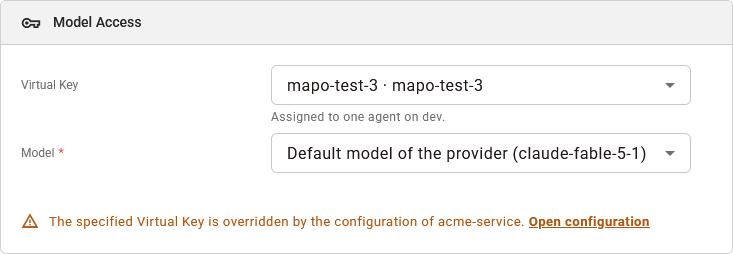
The status Config conflict shows that the configuration of the component deployment that runs the agent still states an API Key or a model for the agent, in the section model below the configuration key of the agent, for example agents.chat.model. Such a section comes from a deployment that was created with an older version, before virtual API Keys were available. Its values replace the virtual API Key and the model that you assign in the Control Hub.
Assign the API Key and the model of an agent only through its virtual API Key. To resolve the conflict, remove the section model of the agent from the configuration of the component deployment. Do the same for an agent that has no virtual API Key yet: it shows no conflict, but it uses the API Key of its configuration. Assign a virtual API Key to this agent first. Refer to Configuring a Deployment for how to change the configuration.
The Control Hub finds a conflict only if you have the right to view the deployments of the platform.
Loading and Error States
If no deployed agent matches the address, for example because the agent was removed, the page displays This agent is not deployed. If the agent cannot be read at all, the Control Hub shows that something went wrong.
If the model access cannot be read, the Model Access card shows only a line that states the cause, and you cannot change the model access. Refer to Error Handling Agents for the messages and how to resolve them.