
Virtual Key Settings
Virtual Key Fields
The New Virtual Key page and the Virtual Key Details page show the following fields. The label of a required field ends with an asterisk (*).
|
Field |
Mandatory |
Description |
|---|---|---|
|
Platform |
|
A platform on which you may create virtual API Keys. |
|
Provider |
|
An LLM provider of the selected platform. |
|
Name |
|
1 to 63 characters: lowercase letters, numbers, and hyphens. The name must not start or end with a hyphen. The name must be unique on the platform. |
|
Allowed Models |
|
The names of the models that the virtual API Key permits, as the LLM provider names them, for example |
When you leave a field that breaks its rule, the field shows the rule below it. While a field breaks its rule, you cannot create or save the virtual API Key.
Selecting the Allowed Models
Each allowed model is shown as a chip in the field Allowed Models.
-
The field proposes the models of the LLM provider and its default model. Select a model to add it.
-
To add a model that the field does not propose, enter its name, then press Enter or select Use “<name>”.
-
To remove a model, click the cross on its chip.
-
If the models of the LLM provider cannot be read, the field proposes the default model of the selected LLM provider.
If the LLM provider has a default model and you allow models without it, the page shows the following warning: Attention: This excludes the default model <model> of <provider>. You must assign one of the models permitted here to the agents that are to use this key. You can still save the virtual API Key. An agent with this key that gives no model in a call cannot call an LLM.
Model Permissions of a Virtual Key
The column Models of the Virtual Keys view shows which models a virtual API Key permits:
|
Models Shows |
The Virtual API Key Permits |
|---|---|
|
All Models |
Each model that the provider API Key can use. You get this when you leave the field Allowed Models empty. |
|
1 model or <count> models |
Only the listed models. |
|
No models |
No model. Add the models that the agents may call on the Virtual Key Details page, and save them. |
|
Misconfigured |
No model. The virtual API Key permits all models and lists other models at the same time, which only occurs after a manual change outside the Control Hub. To correct it, change its allowed models on the Virtual Key Details page and save them. |
A virtual API Key that permits all models can use each model of the provider API Key, also expensive models. If the agents must use only some models, list these models in the field Allowed Models.
Creating a Virtual Key
A virtual API Key always belongs to an LLM provider. Create the LLM provider first. Refer to Creating a Provider for details.
To create a virtual API Key, proceed as follows:
-
In the Virtual Keys view, click + New Virtual Key. The New Virtual Key page opens.
-
In section Virtual Key Details, select the Platform and the Provider, and enter the Name.
-
In section Models, add the Allowed Models, or leave the field empty to allow all models.
-
Click Create Virtual Key. The dialog Virtual Key Created opens and shows the full virtual API Key.
-
Click Copy Key to copy the key. Store the key in a safe place.
-
Click Done. The Virtual Keys view opens with the message Virtual Key <name> created.
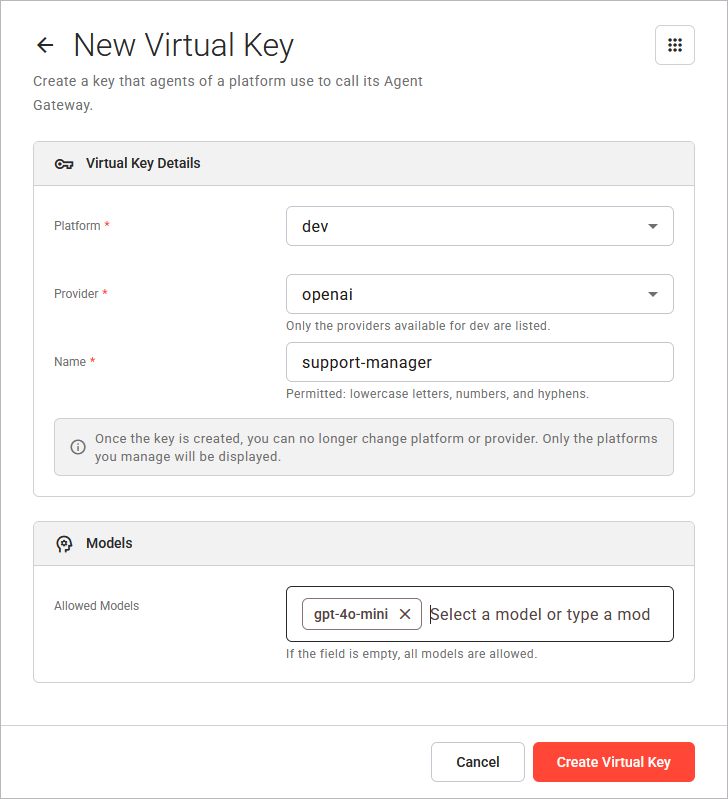
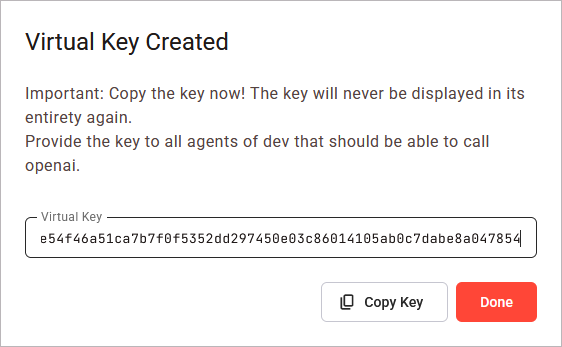
The dialog Virtual Key Created is the only place where the Control Hub shows the full virtual API Key. You need to copy it here. If you lose the key, you need to create a new one.
Note the following when you create a virtual API Key:
-
If only one platform is available, it is selected for you. If the selected platform has only one LLM provider, it is selected for you.
-
If the selected platform has no LLM provider, the field Provider shows No provider available for <platform>. Click the link New provider to open the New Provider page for that platform. The values you entered are not kept.
-
Click Cancel to return to the Virtual Keys view without creating anything.
Once the virtual API Key is created, you can no longer change its platform, its LLM provider, or its name.
To let an agent use the new virtual API Key, assign it to the agent. Refer to Working With the Agent Details for details.