Fast Drawing
Fast Draw allows the user to model quickly by avoiding frequent use of Drag & Drop functionality.

Fast Draw Table
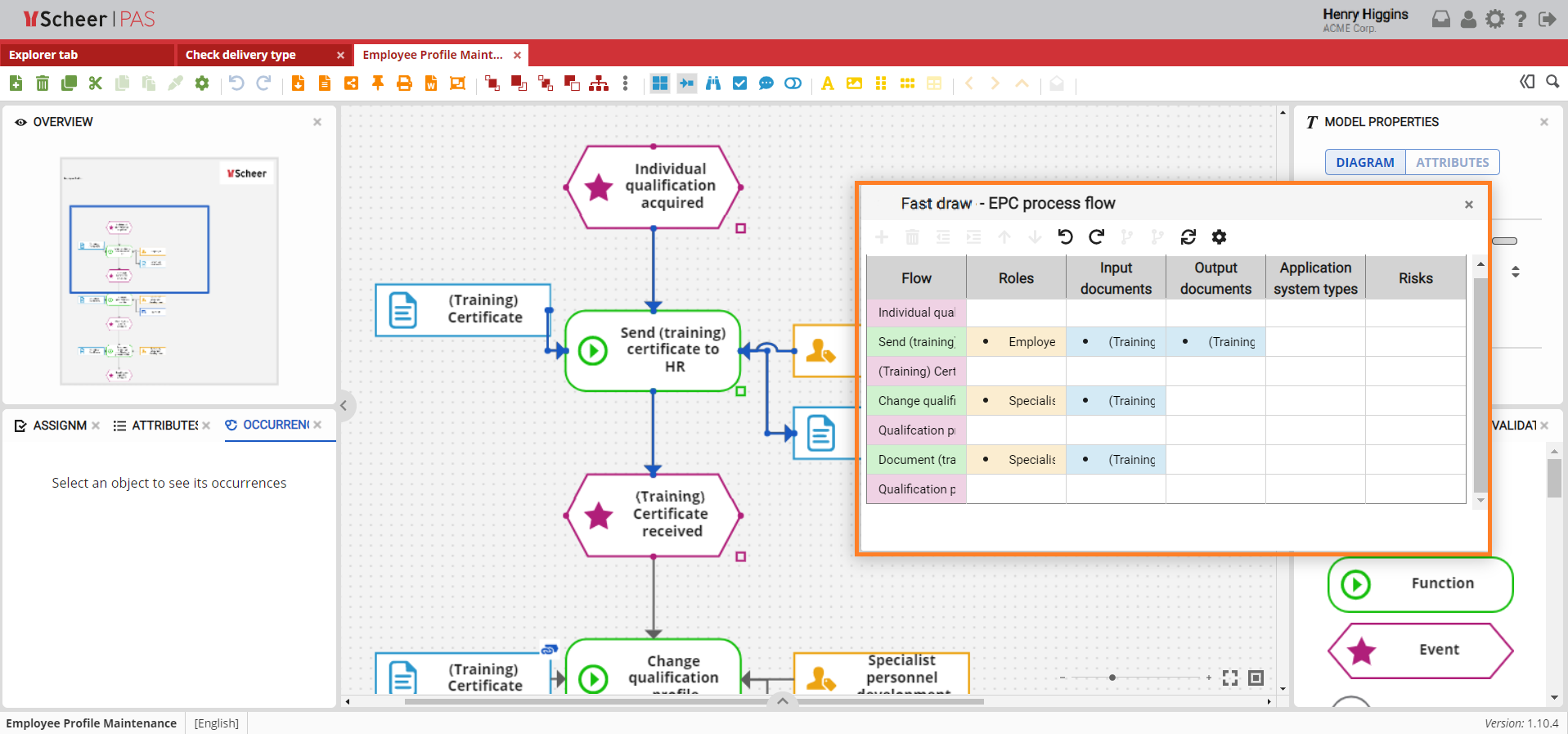
Clicking the Fast Draw button within the toolbar while selecting a part of the model opens a table for further entry of objects on the model.
The Fast Draw Table, which opens automatically, is positioned so that the model can be seen, and by adding new rows to the table, the state of the model is automatically updated.
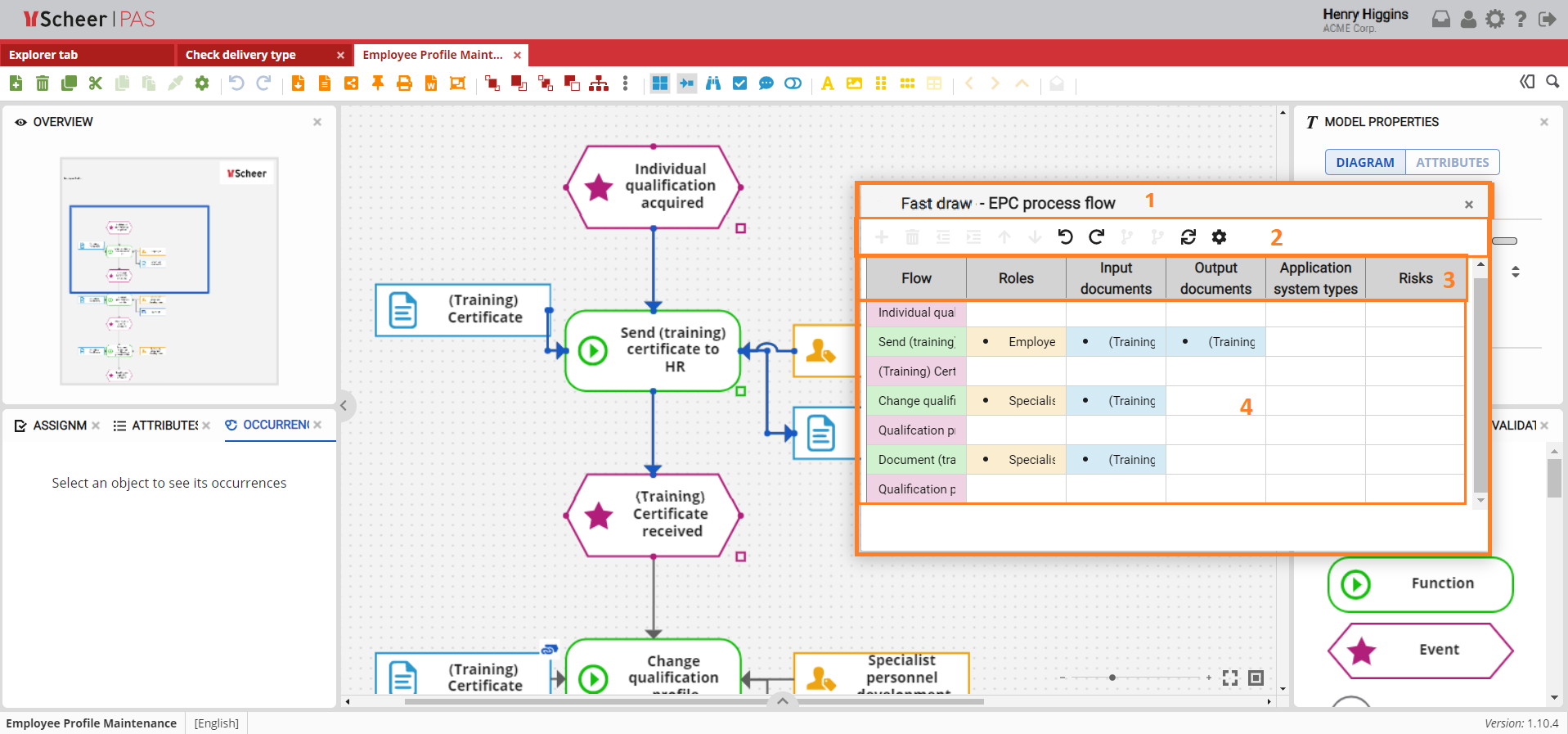
Fast Draw Table Sections
The input table consists of several units marked with numbers in the figure:
-
Model name and diagram type designation
-
Functionalities offered
-
Overview of object types within a model type
-
Rows with an overview of objects on the model
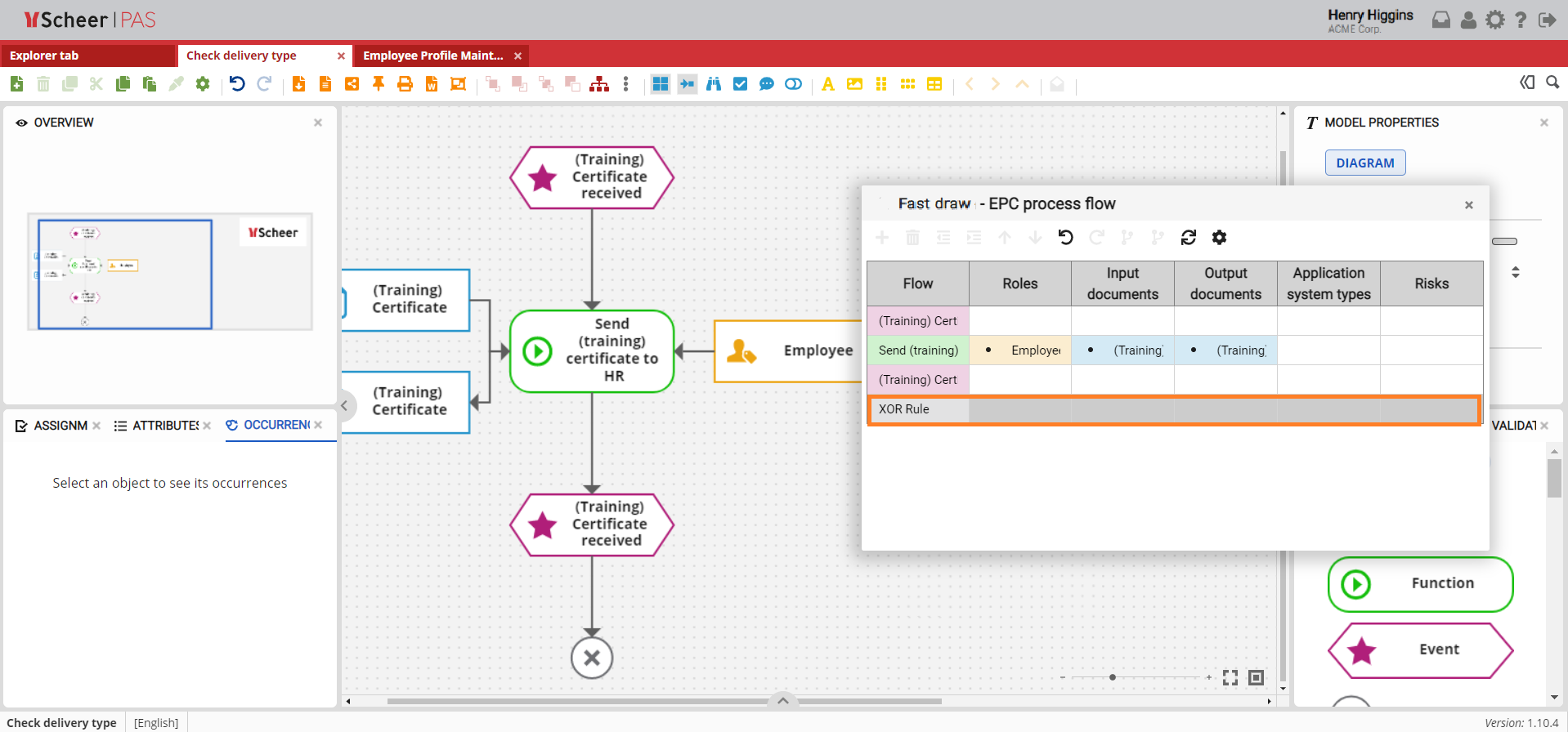
Inserting Condition into Model
The table for entering model objects can be moved using the arrows on the keyboard. It is possible to create new objects or modify existing ones by positioning them on the appropriate cell.
Conditional branches can also be added to the model. They are marked in gray color and it is not possible to add related objects to the cells of the row marked by conditional branching.