
You can create test suites and some tests manually in the Regression Test Tool. However, the actual SOAP operation calls have to be defined using the Trace Analyzer and imported afterwards. In many cases, you will already have tested the service in question, e.g. during development, and you already have tests defined in the Trace Analyzer.
This part of the documentation uses the RESTAPI_SupportManager_Example. You can use this example to try out the Analyzer regression test features, or you can use your own Designer service development project.
Click here to download the RESTAPI_SupportManager_Example sample Builder project. The ZIP file contains
-
a valid Builder project you can use right from the start
-
a service repository in folder repository for you to deploy on your test PAS installation
-
some predefined test cases that save you from creating all test cases from scratch
Deploy the Sample Service
Deploy the RESTAPI_SupportManager_Example service from the repository folder of the provided Builder project to your test PAS installation, and check if the service is up and running. Refer to Working With the Administration for more information on how to do that.
Open the Sample Project in the Analyzer
Open the Analyzer and open (or create) your Builder project as described on Creating and Managing Builder Projects.
Rework the Test Case Settings
After opening the RESTAPI_SupportManager_Example Builder project, the Analyzer displays many predefined test cases of this project in the Trace Analyzer.
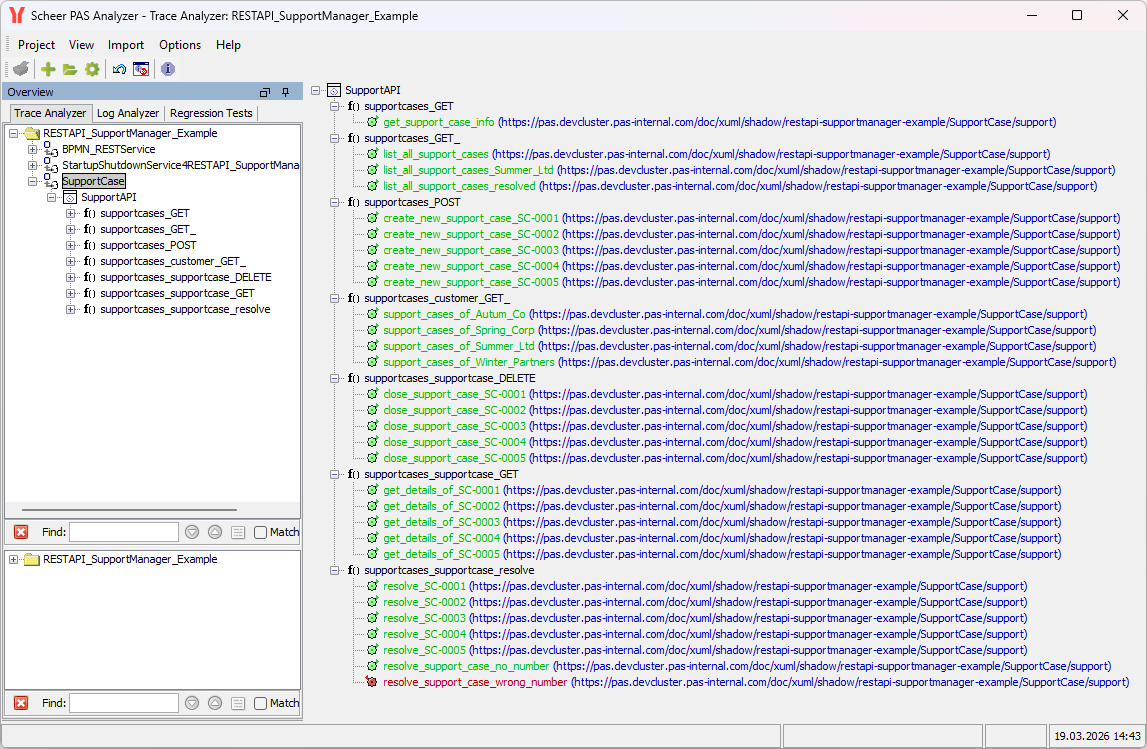
While building up a sample test scenario, we will be working on SupportCase.
For all test cases, you need to rework the following to match your PAS installation:
-
Set a custom location on the test case that matches the service you have deployed to your test PAS installation.
Refer to Modifying the Test Case General Request Settings > Service Locations for an explanation on how to do that. -
Set valid user credentials to the OAuth settings.
You can edit the Analyzer test files as described on Regression Test File and Folder Structure, and thus make a find and replace in all files on
-
enter_your_custom_location_here -
enter_your_user_here
The password is the one thing you have to set on every test case.
Disable the xUML Runtime Trace
On all test cases you want to use for regression testing tracing should be disabled as explained on Modifying the Test Case Trace Settings.
Disable Trace
Tracing information provided by the xUML Runtime contains a large amount of data, most of which is not relevant for testing purposes. It also contains date-time information and internal IDs that may change from time to time.
With tracing enabled, these all will get into the reference data and may break tests even if nothing relevant has changed.
For all sample test cases, trace already has been disabled.
Run all Test Cases
Run all test cases of the RESTAPI_SupportManager_Example in the order listed below. The results of these test case runs will be used as reference data in the Regression Test Tool.
For more information on how to run a test case with the Trace Analyzer, refer to Running a Test.
Order of Test Runs
When running the test cases, keep in mind that the test cases depend on each other, e.g., you need to create a support case before being able to query or resolve it, and so on.
For example, use the following order of test case runs:
-
supportcases_POST
-
Create all support cases SC-0001 to SC-0005.
-
-
supportcases_GET
-
Query support case info.
-
-
supportcases_customer_GET_
-
Query all support cases of Spring Corp., Summer Ltd., Autumn & Co. and Winter & Partners.
-
-
supportcases_supportcase_GET
-
Query all support case details of SC-0001 to SC-0005.
-
-
supportcases_supportcase_resolve
-
Resolve all support cases SC-0001 to SC-0005.
-
Run the additional test cases that cover error cases.
-
-
supportcases_GET_
-
List all support cases
-
List all support cases of Summer Ltd.
-
List all resolved support cases.
-
-
supportcases_supportcase_DELETE
-
Close all support cases SC-0001 to SC-0005.
-