
Run a Test Suite
Before you can have a look at the test case results, you have to run the test suite. Make sure that the RESTAPI_SupportManager_Example service is still running on your system (for more information on how to do that refer to Working With the Administration).
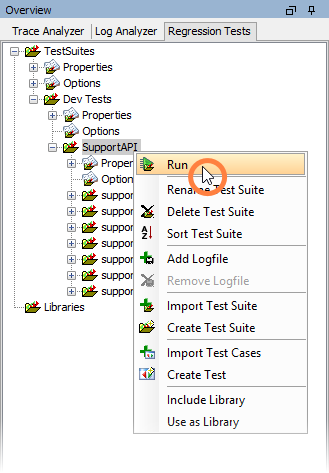
Select Run from the context menu of the test suite:
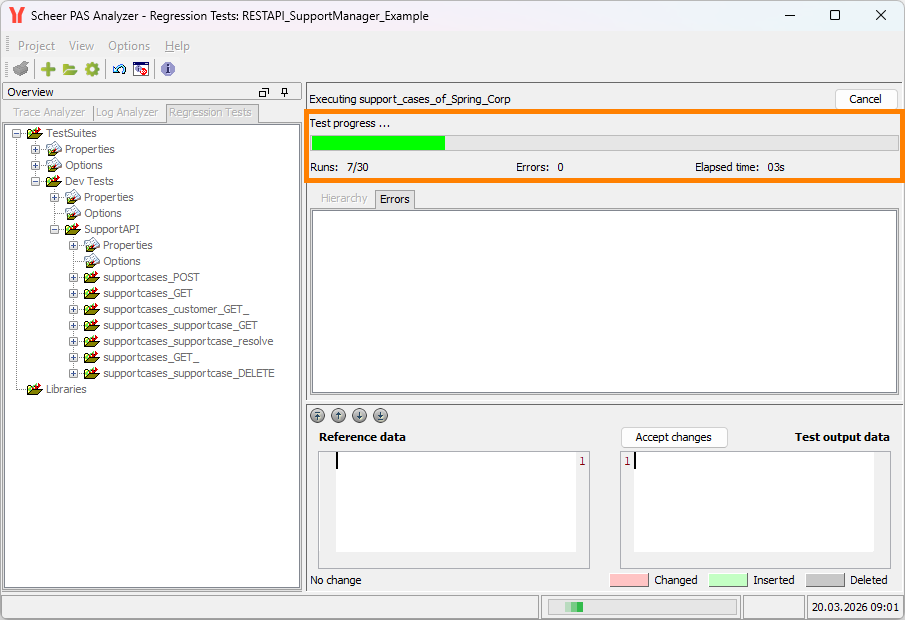
The test progress is indicated by the progress bar in the contents pane.
The results of the test case run are displayed below the progress bar in the Hierarchy tab:
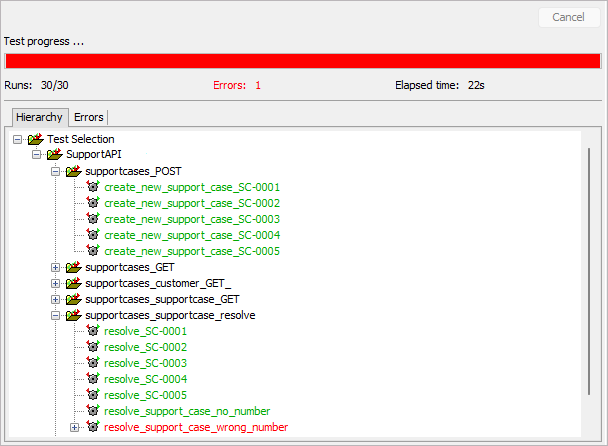
Green test case names indicate, that the test case run was successful. That means, the test case was executed and the test case results were corresponding to the reference data.
Red test case names indicate, that something went wrong during test case execution. Either the test case could not be run (e.g. because the service could not be found) or there was a mismatch between test case result and reference data. These test cases have to be carefully inspected.
The color of the progress bar also indicates the overall test case results.
🟩 As long as no errors occurred the bar stays green.
🟥 With the first error occurring the color changes to red.
Below the progress bar the number of test cases and the number of test failures is displayed.
Tracking Down the Cause of Test Case Failures
In our sample test cases, test case resolve_support_case_wrong_number did not succeed. The error message reads Assertion Failed Error [...] resolve_support_case_wrong_number\ response.log ][different] [...]. This suggests that the test case response did not correspond to the reference data.
To analyze that, click the erroneous test case resolve_support_case_wrong_number and look at the lower window part, which is divided in two sections.
The left part of the window shows the reference data, that was build up during the test case runs with the Trace Analyzer. The right part of the window shows the actual test output data.
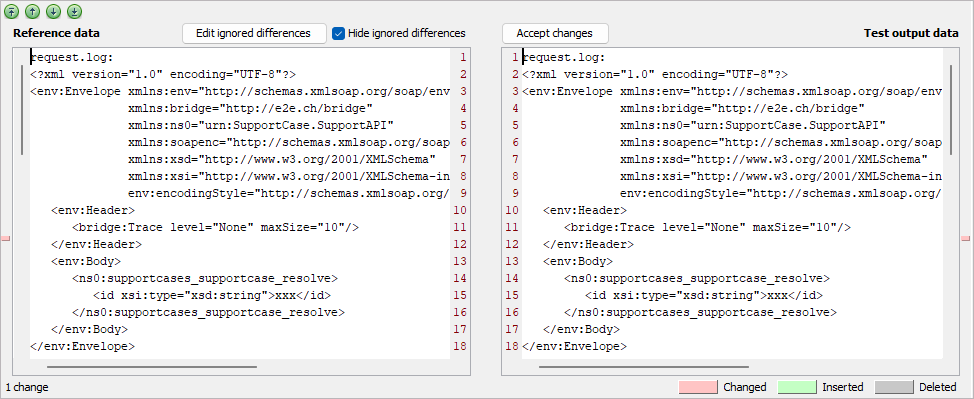
Differences between the two are marked with colors: changes are marked in red, insertions are marked in green and deletions are marked in gray.
In the lower left corner a message indicates that there is 1 change respective difference.
You can jump between changes using the arrow buttons:
|
|
Jump to the first change. |
|
|
Jump to the previous change. |
|
|
Jump to the next change. |
|
|
Jump to the last change. |


Click Next to jump to the difference:
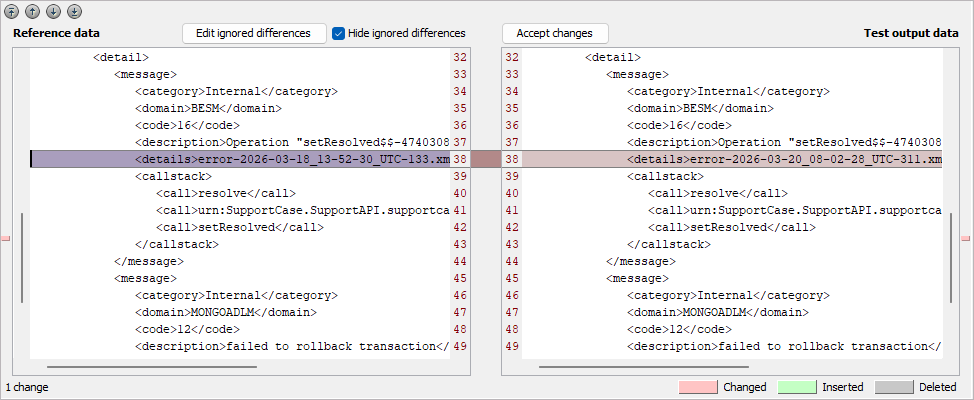
The XML element details of the error message contains a filename based on a timestamp. This name will always differ from run to run, so this difference can be ignored by the Regression Test Tool.
To ignore this difference click Edit ignored differences. In this dialog, enter XML elements or XML attributes that should be ignored when comparing the test output with the reference data:
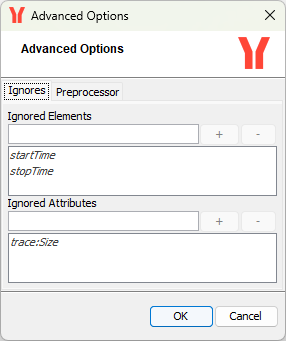
startTime, stopTime, which are marked in italics, are elements that are ignored by default.
trace:Size is an attribute that is ignored by default.
Enter details and click the plus button to add the the XML element to the list of ignored elements.
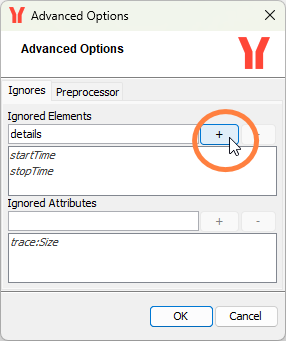
Click OK to save your changes.
Universalizing Ignored Differences
When there are several test cases that should ignore the same differences, it would be be annoying if you needed to add the same ignored differences to every single test case. For that reason, the Regression Test Tool offers the possibility to add options to a test suite. One of these can be an option concerning compare the result of a Bridge request.
On the Options node in the SupportAPI test suite, select Add options from the context menu.
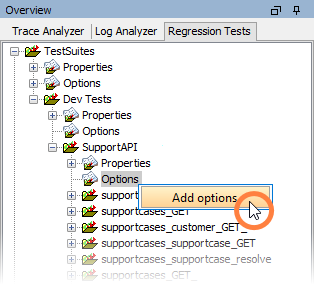
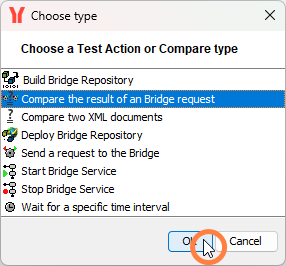
Select Compare the result of a Bridge request to add compare options and click OK:
In the Advanced options you can define ignored differences:
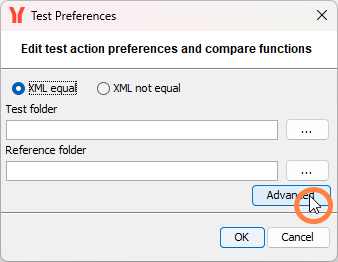
Add the same ignored differences you defined before:
Click OK to save the Advanced Options and OK again to save the Options.
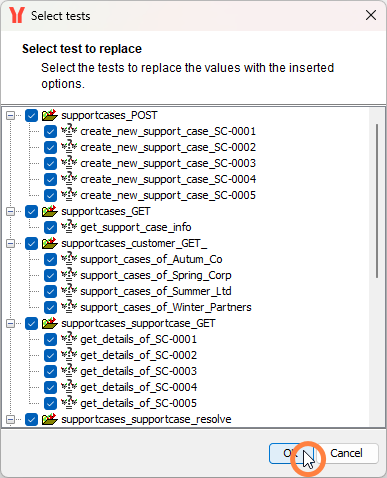
There may be tests having the same ignored differences as defined via the options (in our case this is resolve_support_case_wrong_number). You can deselect all tests where the test specific definitions should not be removed.
In our case you may just leave all tests checked. The previously defined differences to ignore you defined on resolve_support_case_wrong_number will get removed and substituted by the values from the options:
The differences to ignore on test case Create Purchase Order 1 have been removed and substituted by the ones coming from the test suite. This is indicated by the italic font:
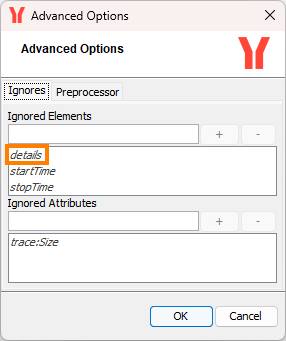
Options coming from a superior definition are marked with italic font.
Related Content
Related Documentation: