
If you want to add another test case to test suite SupportAPI, proceed as follows:
-
Create a new test case in the Trace Analyzer and run it.
-
Import the newly created test case as a regression test to the Regression Test Tool.
-
Run the test and check the test results.
Create a new Test Case in the Trace Analyzer
Switch to the Trace Analyzer and duplicate the test case close_support_case_SC-0005:
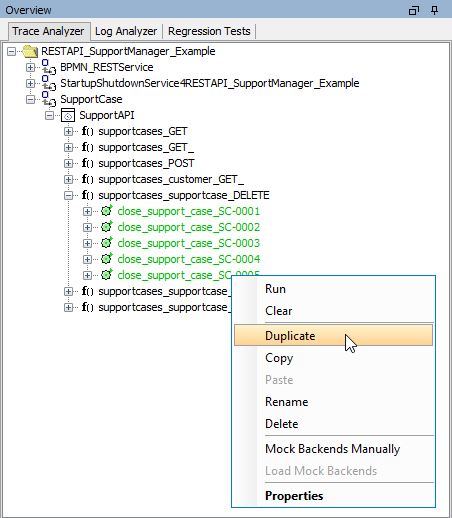
Assign the name close_support_case_SC-0006 and change the request value id to SC-0006.
Start the RESTAPI_SupportManager_Example service (if not already started), and run the test case. It will turn red and display "Not found. Could not close support case." This is correct - a support case SC-0006 wasn't created and will never been created during the tests.
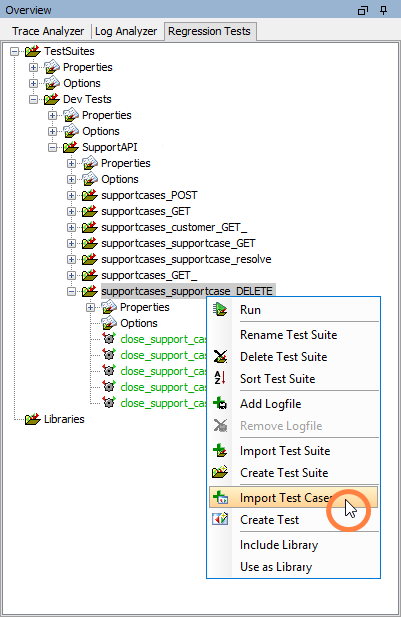
Switch back to the Regression Test Tool again. Select test suite SupportAPI/supportcases_supportcase_DELETE and select Import Testcases from the context menu:
Select the newly created test case close_support_case_SC-0006 and click Import.
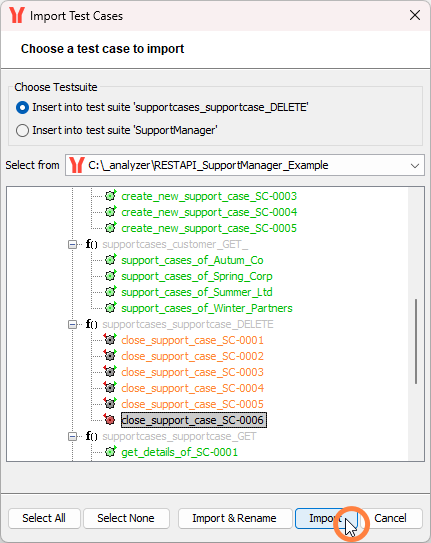
Multiple selection is possible in this dialog.
Run the test suite SupportAPI as described on Running a Test Suite and Evaluating the Test Results. The tests run all clean.
Test case close_support_case_SC-0006 is green to because it is expected to fail.