
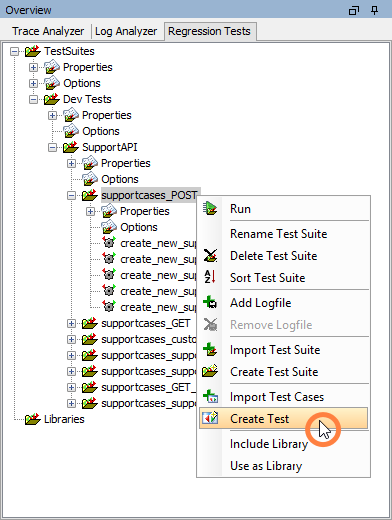
The Regression Test Tool features some additional tests that can be added manually. To create an additional test, select Create Test from the context menu of the test suite you want to add the additional test action to:
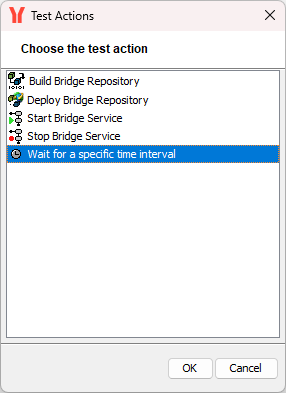
Select the type of test action you want to create and click OK. Only the Wait test is relevant for PAS installations. The other tests (build, deploy, start, stop) cannot be configured.
The newly created test action will be added below the node you selected Create Test on:
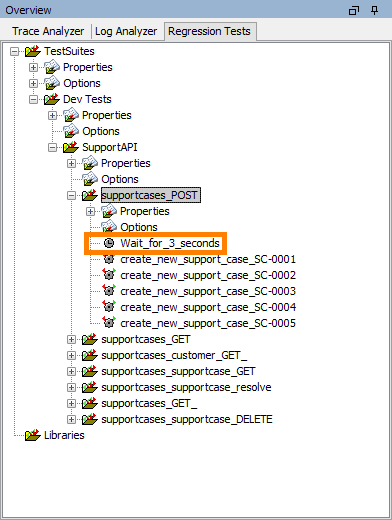
You can now drag the test action to the correct place in the test suite.
Tests can be modified by test suite options. For more information on the concepts and on how to add options, refer to Adding Options to a Test Suite.
More Tests
Apart from the standard test listed above, there are some special tests available that need to be unlocked by an Analyzer configuration change.
These tests are used during Scheer PAS Bridge development and offer additional features.
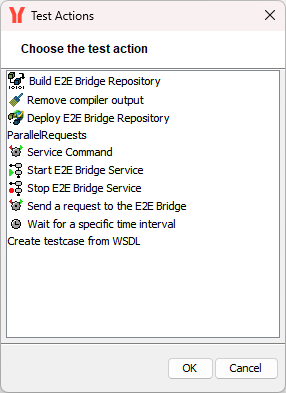
Yet, we cannot grant support nor guaranty backwards compatibility for these features:
You can unlock these tests as follows:
-
Open file .e2ebuilder/e2eanalyzer.regressiontest.properties from your user directory.
If this file is not existent yet, create it. -
Add the following settings
ignoreOptionsFlag=true ignoreCreateFlag=true -
Save the file.
-
Restart the Analyzer.