
The Deployments View
The Deployments view lists the projects and services running across your platforms. It is where you monitor and manage them.
Deploying a project is only possible via the Projects view. Refer to Deploying a Project for detailed information.
The view is the landing page of the Control Hub: it opens when you sign in, and you reach it at any time by clicking Deployments in the sidebar.
The view consists of the following parts:
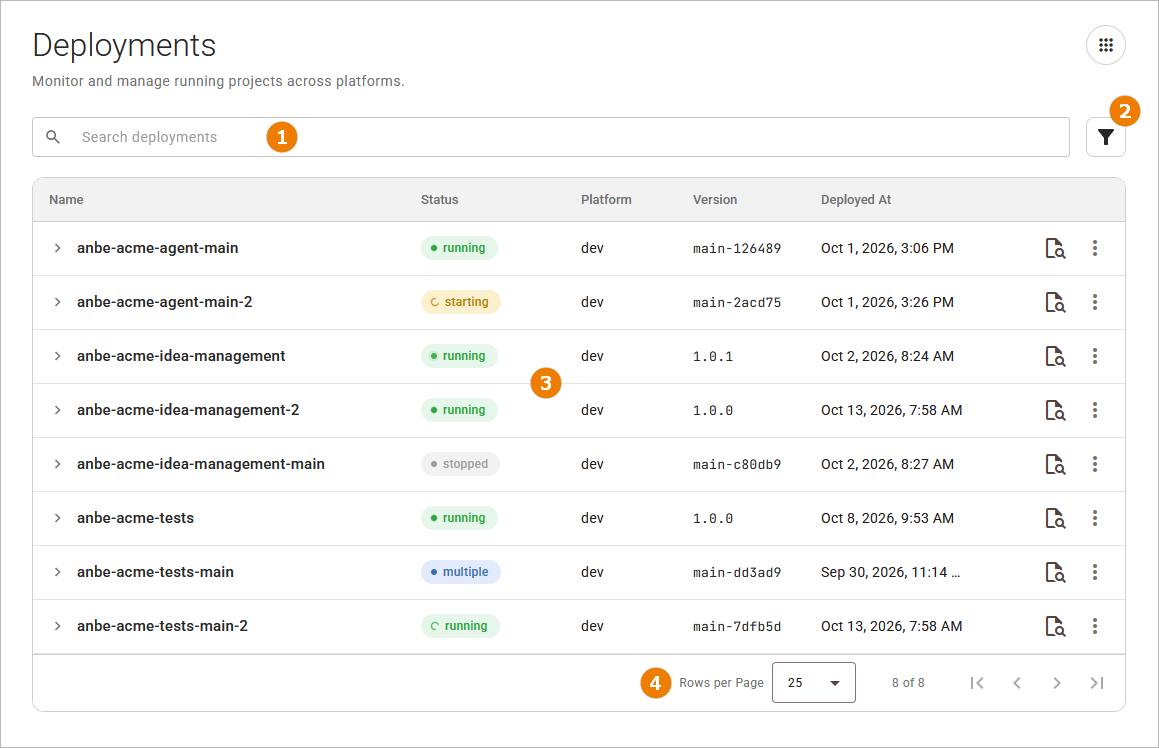
The Search Bar
The Search above the table narrows the list to the deployments that match your search term. Refer to Working With the Control Hub for details on searching, filtering, and sorting.
The Filters
Various filters are available next to the search bar. Refer to Working With the Control Hub for details on filtering, searching, and sorting.
The Deployments Table
The table lists one row per deployment. You can expand a project deployment to show its components.
Refer to Key Concepts for the definitions of project, component, deployment, and status.
The table shows the following columns:
|
Column |
Description |
|---|---|
|
Name |
The name of the project, service, or component deployment. A component deployment name carries an icon for its type. Click the name to open the detail page of the project or component deployment. |
|
Status |
The current status of the project or component deployment. |
|
Platform |
The platform this deployment runs in. |
|
Version |
The deployed version. For a component deployment, the version is displayed only when it differs from the project deployments version. |
|
Deployed at |
The date and time of the deployment. |
|
More Actions |
The last column holds the following:
For more information refer to Operating a Deployment and Deleting a Deployment. |
When no deployment matches the current search and filters, or when nothing is deployed yet, the table shows the message No deployments yet. Go to the Projects view to deploy your first project. The Projects view link opens the projects page, where you can deploy a project, refer to Deploying a Project for further information.
If the view cannot load the deployments, an error message with a recovery action will be displayed. For more information about the error messages and how to resolve them, refer to Error Handling Deployments.
The Pagination Controls
The pagination controls below the table split the list into pages. They appear when at least one entry in the content table exists. Refer to Working With the Control Hub for details.
Expanding a Project Deployment
A project deployments groups the deployments of its components. Click a project row to expand it and list the component deployments below the project:
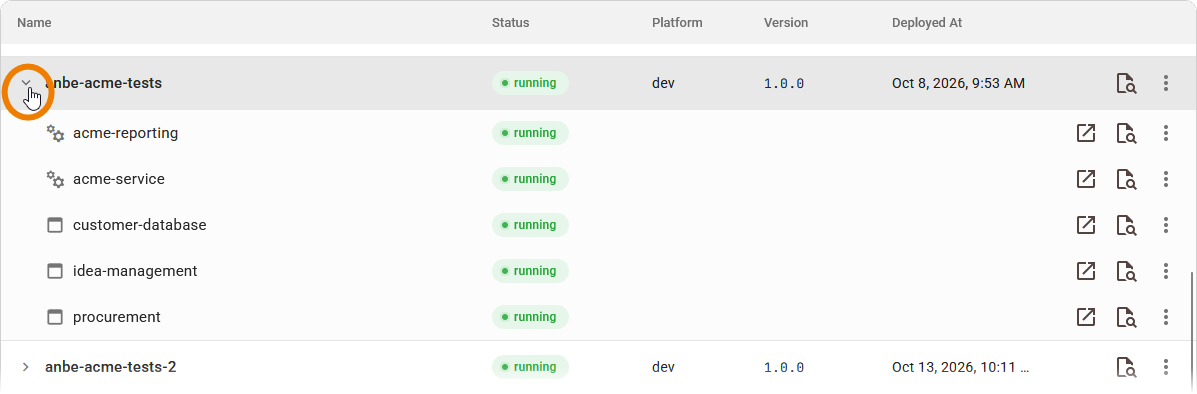
Click the row again to collapse it. A project deployment without components cannot be expanded.
The component deployments are listed in the same table as the project deployments, so they use the same columns (see above). If you use the quick actions in the last column, you can access the component endpoint or the component logs directly.
Reading Deployment Status
In the deployments table you can see the state of every deployment. The Status column shows the status of each deployment as a colored label:
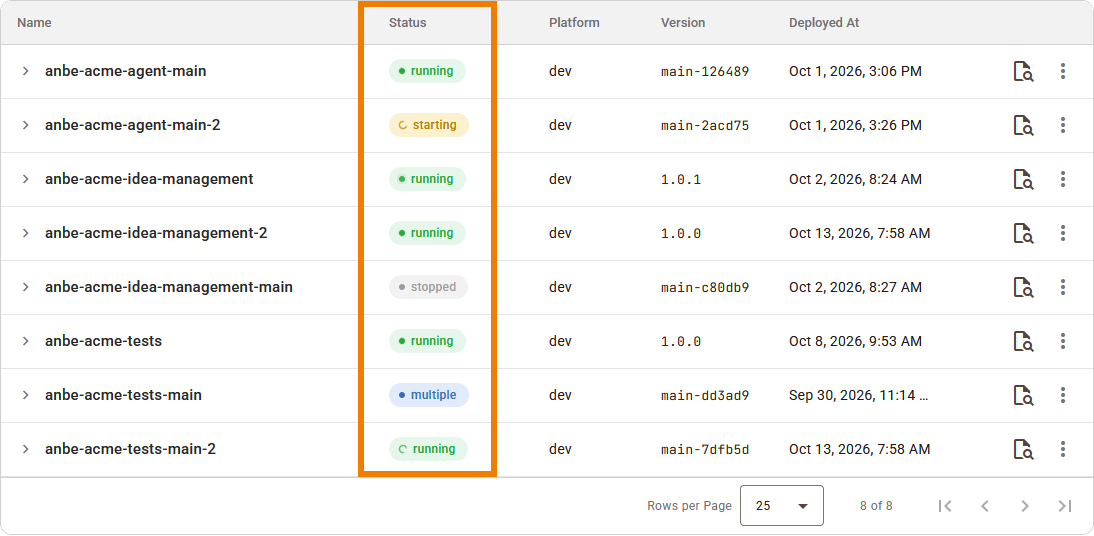
The status can be one of the following:
|
Status |
Description |
|---|---|
|
started |
All component deployments are running. |
|
starting |
The deployment is starting up. |
|
stopped |
The deployment is not running. |
|
multiple |
The component deployments are in different states, for example some started and some stopped. The multiple status applies to a project deployment as a whole. It indicates that the component deployments currently have different statuses. |
|
updating |
The deployment is being updated to another version. The platform has not finished replacing what the deployment runs. |
|
degraded |
The deployment update has stalled and will not be completed until you take action. The version to be replaced is still running. |
|
unknown |
The Control Hub cannot determine the state of the deployment. A project deployment without component deployments reports this status as well. |
|
failed |
The deployment has failed and is in an error state. |
While a project or component deployment is starting, its indicator is animated.
Opening a Project Deployment
The deployments table lets you look inside a project deployment. Click the name of the deployment in the Name column to open its details page:
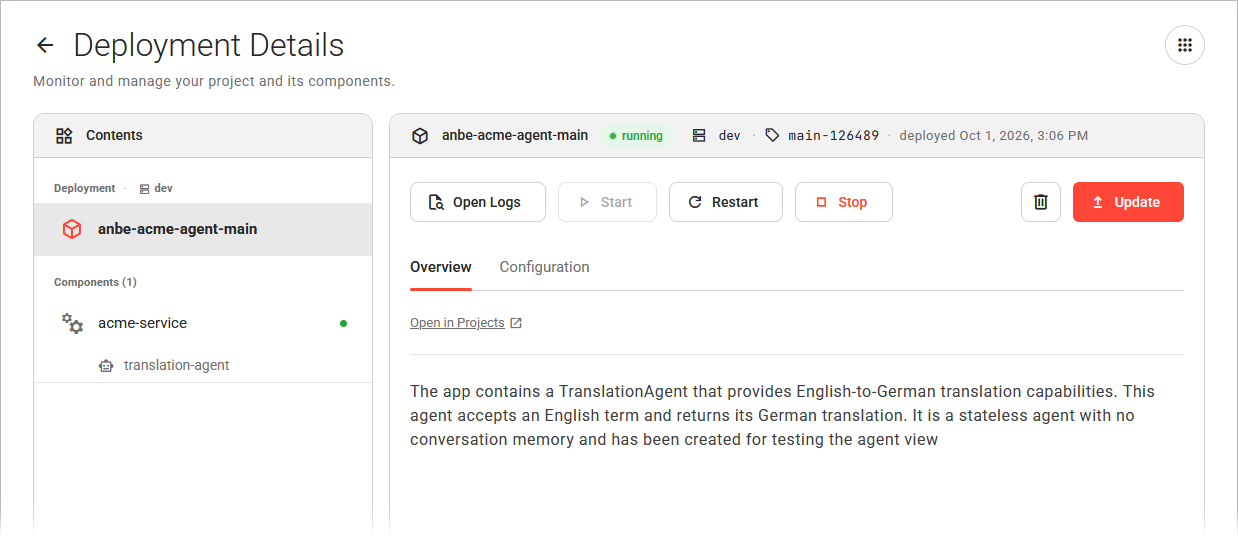
The deployment details page is where you manage the deployment and its components. Refer to Working With the Deployment Details Page for more information.