
The Agents View
The Agents view lists the agents running across your platforms. It is where you see where an agent runs, in what state it is, and how much it is used.
The Agents view lists deployed agents only. An agent that a project declares but that is not deployed anywhere is not listed.
To open the view, click Agents in the sidebar. Each row of the table is one deployed agent: one agent, running on one platform, through one named deployment. An agent that is deployed to several platforms is listed once per platform.
The Agents view is a read-only overview. You do not create, start, stop, restart, or delete an agent on its own. An agent follows the service deployment that hosts it: it runs while that deployment runs, and it stops when that deployment stops. Refer to Operating a Deployment for the lifecycle actions of a deployment, and to Deploying a Project for details on how to deploy a project.
The view consists of the following parts:
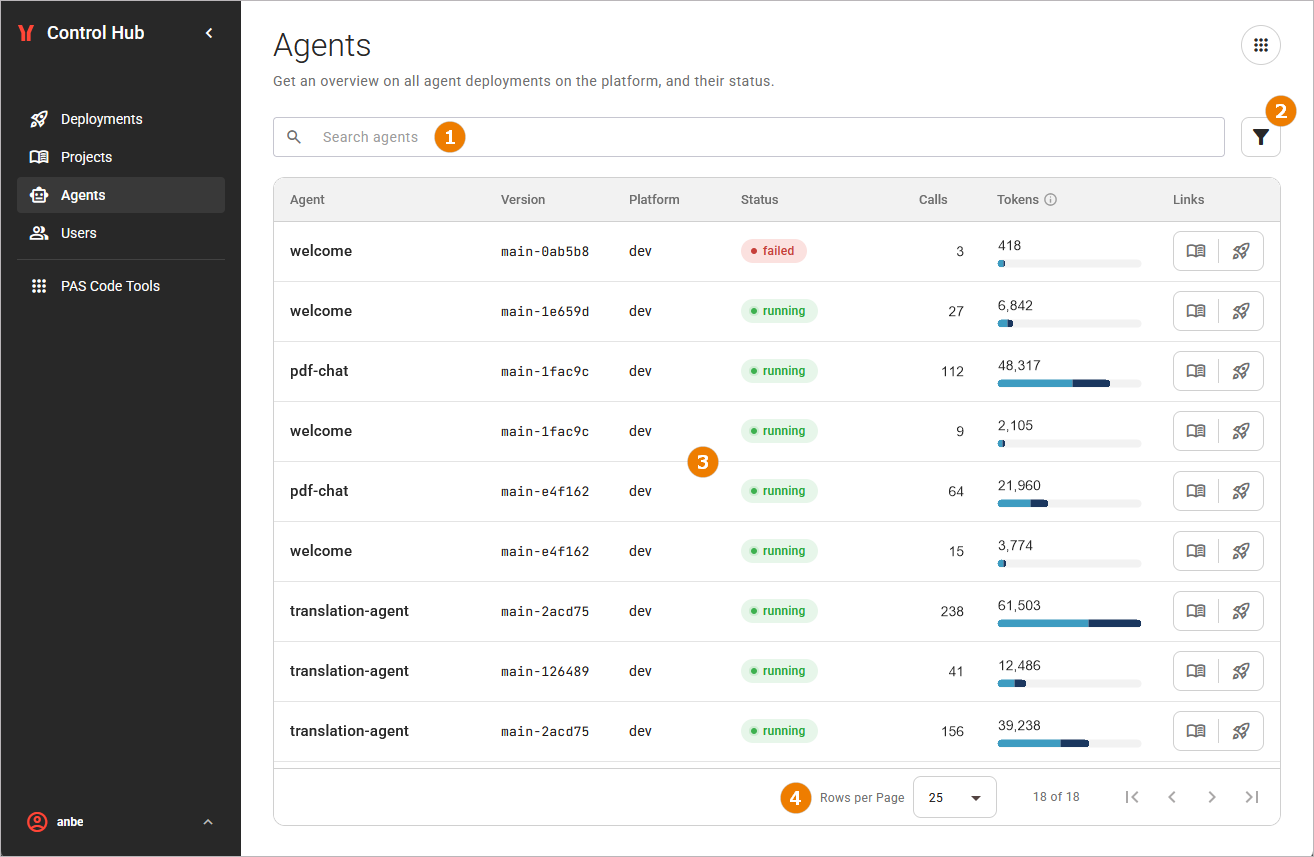
The Search Bar
The Search above the table narrows the list to the agents that match your search term. Refer to Working With the Control Hub for details on searching, filtering, and sorting.
The Filters
Various filters are available next to the search bar. Refer to Working With the Control Hub for details on filtering, searching, and sorting.
The Agents Table
The table lists one row per deployed agent.
Refer to What is an Agent? for the definitions of agent, service, and deployment.
The table shows the following columns:
|
Column |
Description |
|---|---|
|
Agent |
The name of the agent. |
|
Project |
The project the agent belongs to. Click the project name to open the project in the projects catalog (refer to Projects for further details). |
|
Version |
The project version the deployed agent comes from. |
|
Platform |
The platform the agent runs on, for example dev, stage, or prod. |
|
Status |
The current status of the agent (refer to Control Hub Status and Badge Reference for further details). |
|
Deployment |
The deployment the agent belongs to. Click the deployment name to open its detail page (refer to Working With the Deployment Details Page for further details). |
|
Calls |
The number of times the agent has been called. |
|
Tokens |
The number of tokens the agent has consumed, split into input tokens and output tokens. |
A deployed agent outlives the catalog entry it comes from. If you delete a project or one of its versions from the catalog, the deployment keeps running, and the agent keeps running with it. Such an agent is still listed in the Agents view, but its project name is displayed as plain text instead of a link, because there is no catalog entry left to open. Point to the project name to display the reason: either the project was deleted from the catalog, or the version this agent runs was deleted.
When no agents match your search, the table shows the message No agents match the current filters. Use option Clear Filters to return to the full list. When no agent has been deployed until now, the table shows the message No agents yet.
If the view cannot load the agents, an error message with a recovery action will be displayed. For more information about the error messages and how to resolve them, see Error Handling Agents.
The Pagination Controls
The pagination controls below the table split the list into pages. They appear when at least one entry in the content table exists. Refer to Working With the Control Hub for details.
Reading the Status of an Agent
The Status column displays the state of each agent as a colored label:
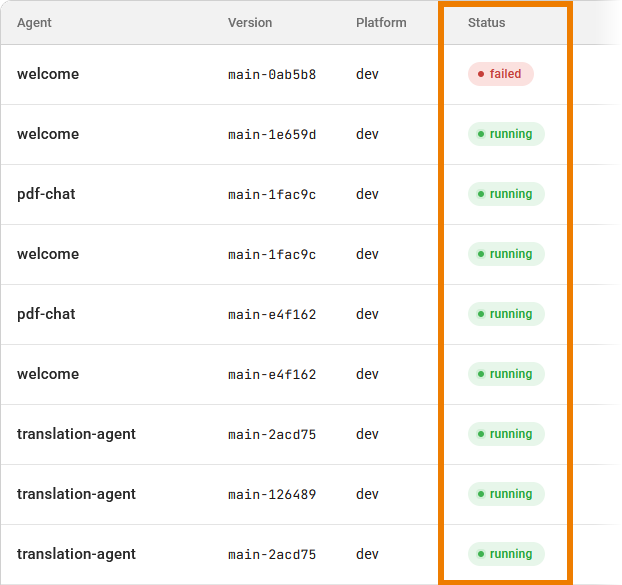
An agent reports one of the following states:
|
Status |
Description |
|---|---|
|
running |
The agent is running. |
|
starting |
The agent is starting up. |
|
stopped |
The agent is not running. |
|
failed |
The agent has failed and is in an error state. |
An agent never reports the status multiple. This status applies to a project deployment as a whole. Refer to Control Hub Status and Badge Reference for details on all status values of the Control Hub.
Inspecting the Usage of an Agent
The columns Calls and Tokens report how much an agent has been used.
The platform tracks the extent to which individual agents are used: how often they were called upon and how many input and output tokens they consumed. The figures are cumulative since the agent was first deployed. They are recorded while agents are handling calls, so there may be a slight delay compared to a call that has just been made.
The usage figures are read when you open the view, and again when you reload the page or retry after a failed load. They do not refresh while the page stays open.
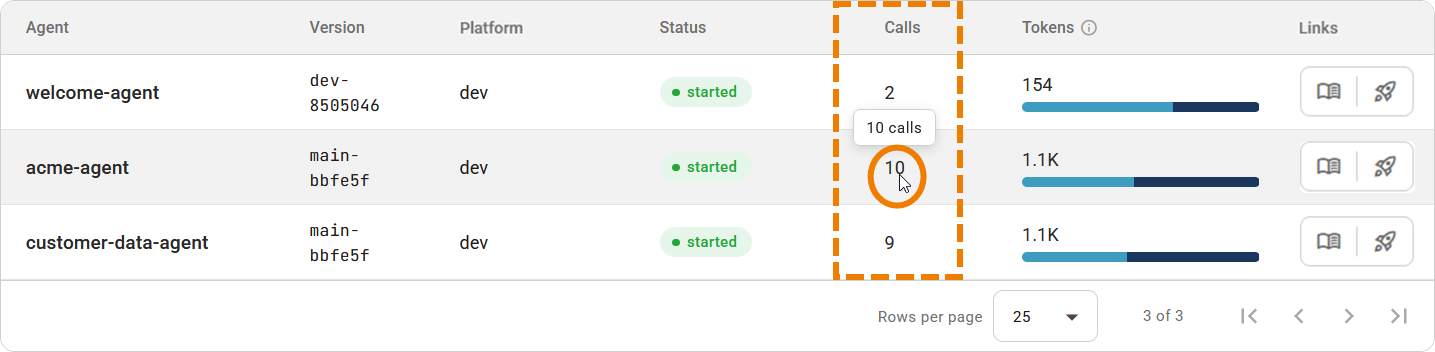
The Calls column reports how often the agent has been called. From one thousand upwards, the number is abbreviated, for example 128.9K. Point to the number to display the exact count:
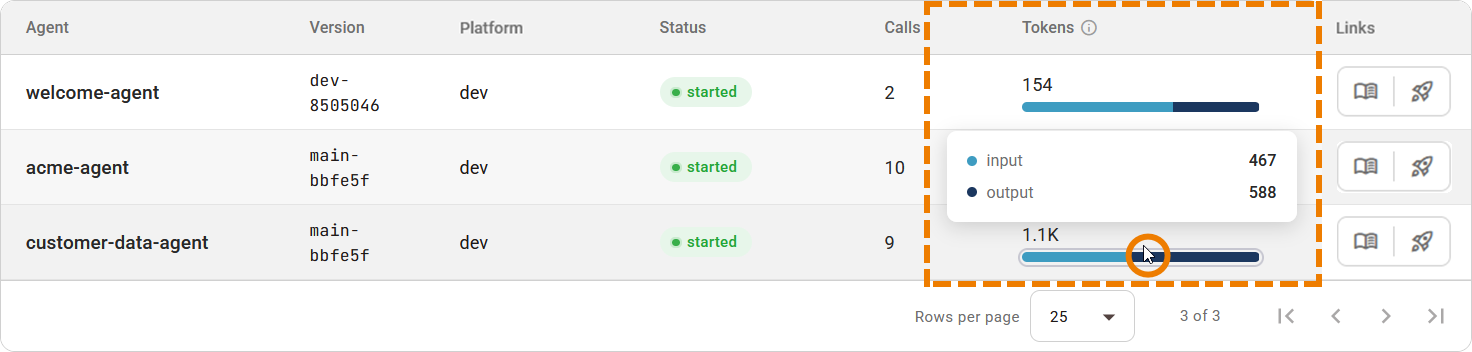
The Tokens column reports the tokens the agent has consumed. The total amount is also shown in abbreviated form. Below the total is a bar that breaks it down into input and output tokens. All bars have the same length. A bar therefore shows you how the consumption of an agent splits between input and output, not how much it has consumed. The number above the bar tells you the consumption. Point to a bar to display the exact number of input tokens and output tokens:
An agent that has never been called reports no calls and an empty bar. If the usage of an agent cannot be read, the columns Calls and Tokens display a dash. This is not the same as an agent that has never been called. The other columns of the row are not affected, so the list still shows you where the agent runs and in what state.
Accessing the Deployment or the Project of an Agent
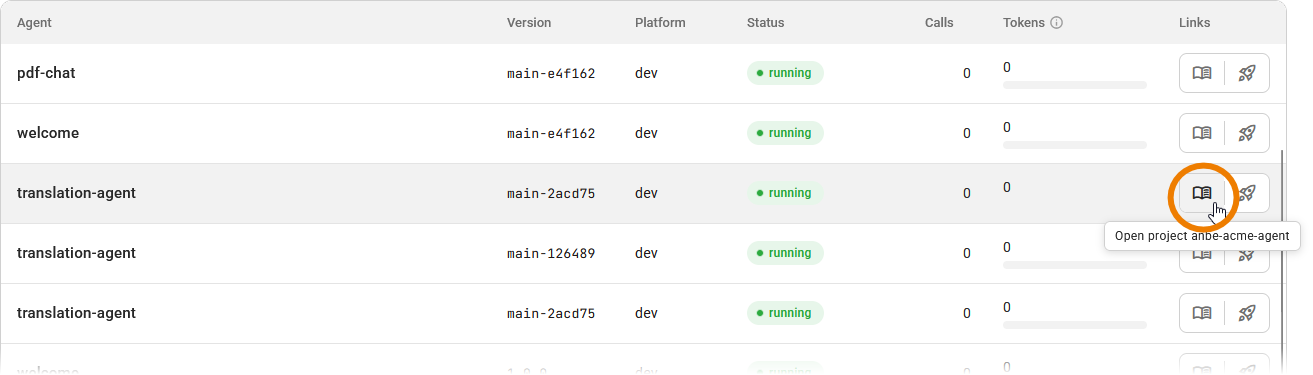
From the Agents view, you can directly go to the Project and Deployment of an agent.
To open the project in which the agent is maintained, click the project icon in the Links column:
The Projects view opens with the project name entered in the search and the version of the agent selected:
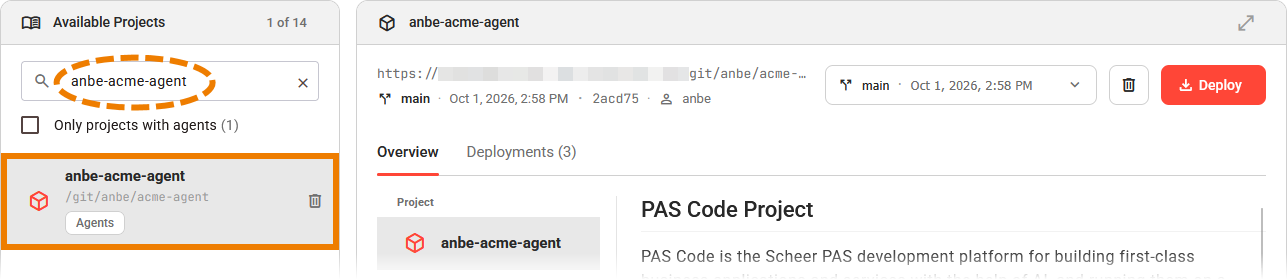
Refer to Inspecting the Project Details for further information.
To open the deployment to which this agent deployments belongs, click the deployment icon in the Links column:
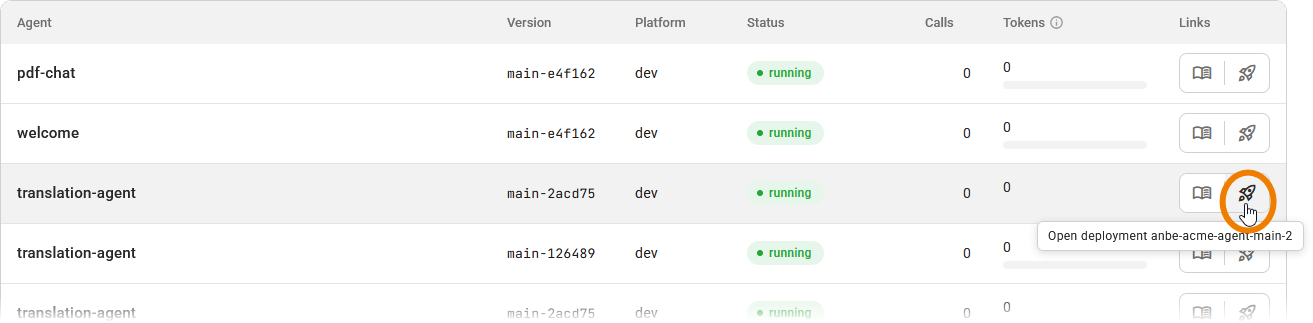
The deployment details page of this deployment opens:
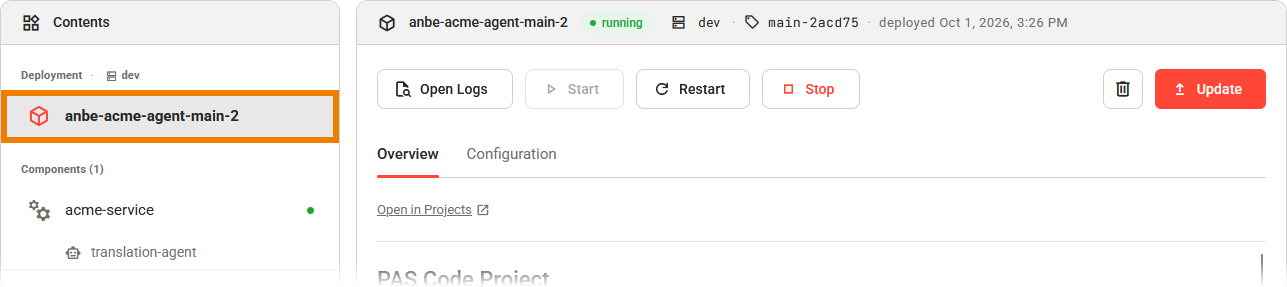
Refer to Working With the Deployment Details Page for further information.