
Working With the Virtual Key Details Page
In the Virtual Keys view, click the name of a virtual API Key to open its Virtual Key Details page. To return to the Virtual Keys view, click the arrow beside the heading.
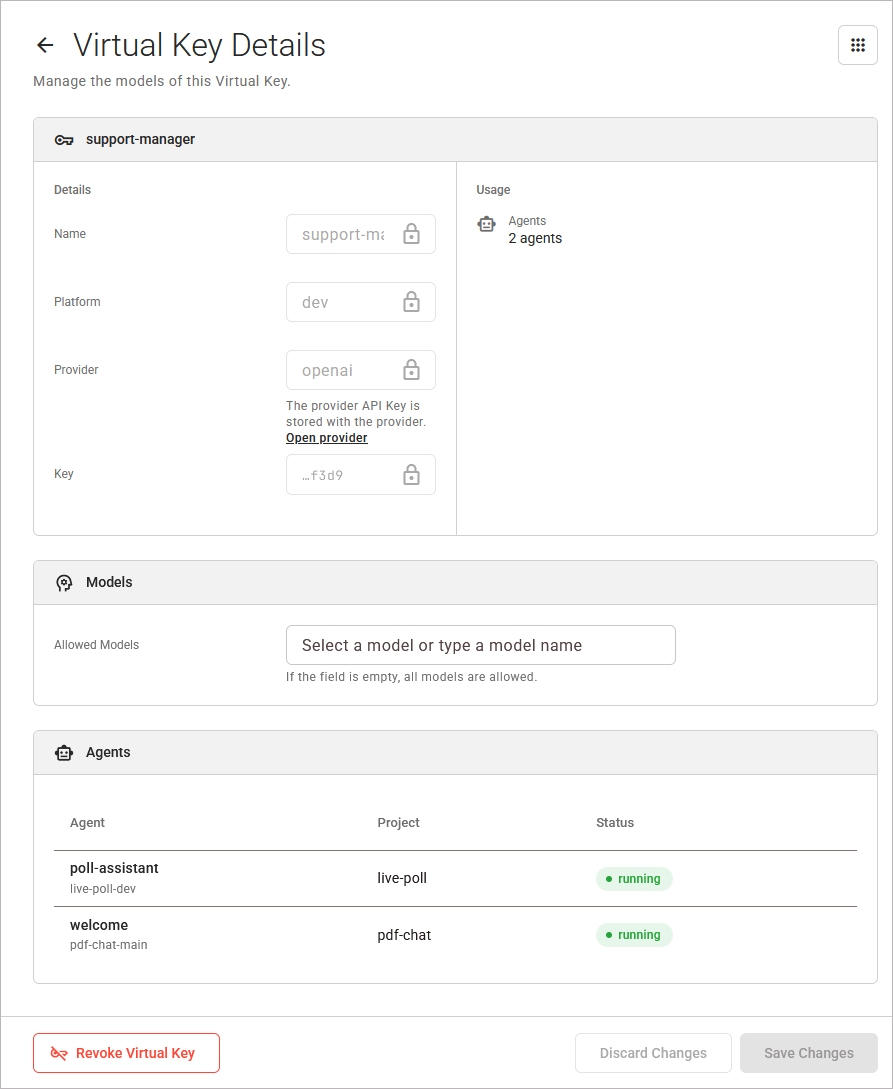
The page consists of the following sections:
|
Section |
Content |
|---|---|
|
<name of the virtual key> |
|
|
Models |
Allowed Models. Refer to Changing the Allowed Models below. |
|
Agents |
The agents that use the virtual API key. Refer to The Agents of a Virtual Key below. |
The Agents of a Virtual Key
Section Agents lists each agent that uses the virtual API Key, sorted by name. Use it to check which agents lose access before you change or revoke the virtual API Key. The table shows the following columns:
|
Column |
Description |
|---|---|
|
Agent |
The name of the agent, and the name of its deployment below it. |
|
Project |
The project of the agent. |
|
Status |
The status of the agent, as the Agents view shows it. Refer to Working With the Agents View for details. |
An agent that the Agents view does not show has a dash (–) as its project and status. If no agent uses the virtual API Key, the section shows No agent uses this Virtual Key.
Changing the Allowed Models
In section Models, change the field Allowed Models. The rules of Selecting the Allowed Models apply, refer to page Creating a Virtual Key for details. A virtual API Key that permits no model shows an empty field. Add the models that the agents may call.
At the bottom right of the page, the buttons Discard Changes and Save Changes are enabled as soon as the field differs from the saved models:
-
Discard Changes: Use this option to restore the saved models.
-
Save Changes: Use this option to save the models. The page shows the message Virtual Key <name> saved.
The agents of the virtual API Key keep it and need no new deployment. The Agent Gateway applies the new models to the next call, usually after a few seconds. A call of an agent with a model that the virtual API Key no longer permits is rejected.
Revoking a Virtual Key
After you revoke a virtual API Key, the agents that use it can no longer call LLMs until they get a different virtual API Key. This cannot be undone.
To revoke a virtual API Key, proceed as follows:
-
Open the Virtual Key Details page of the virtual API Key.
-
Click Revoke Virtual Key at the bottom left of the page. The dialog Confirm Virtual Key Revocation opens. It names the virtual API Key and its platform, and lists the agents that can no longer call LLMs, each with the name of its deployment.
-
Click Revoke in the dialog to confirm, or Cancel to abort.
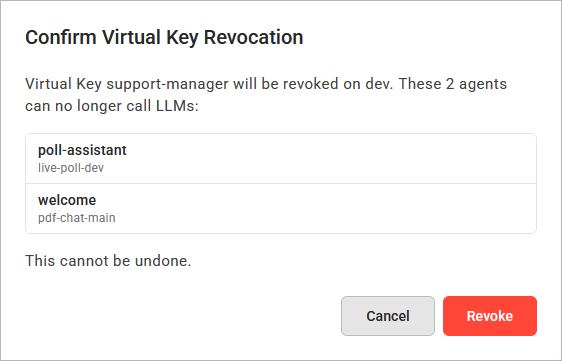
If no agent uses the virtual API Key, the dialog states that it is not used by any agent.
When the virtual API Key is revoked, the Virtual Keys view opens with the message Virtual Key <name> revoked. The agents keep the name of the revoked virtual API Key: if you create a new virtual API Key with the same name, these agents use it again.