
Provider Types and Settings
Provider Types
The Agent Gateway supports the following provider types:
|
Provider Type |
Additional Settings |
Models Found by the Connection Test |
|---|---|---|
|
OpenAI |
None |
Each model of the account, also models that cannot chat, for example embedding models. |
|
Anthropic |
None |
Each model of the account. |
|
Google Gemini |
None |
The models that support content generation. |
|
Azure OpenAI |
Endpoint, API Version, and Deployment Name. Refer to Provider-Specific Configurations below. |
No models. A successful test shows Connection works: no models found. The provider API Key cannot list the model deployments, so enter the default model yourself. |
You cannot add an LLM provider of another type, for example one that was set up outside the Control Hub.
Provider Settings
Configure the following per provider:
|
Field |
Mandatory |
Description |
|---|---|---|
|
Platform |
|
A platform on which you may add LLM providers. If only one platform is available, it is selected for you. |
|
Provider Type |
|
OpenAI, Anthropic, Google Gemini, or Azure OpenAI.
|
|
Name |
|
1 to 63 characters: lowercase letters, numbers, and hyphens. The name must not start or end with a hyphen. The name must be unique on the platform. |
|
Provider API Key |
|
The API Key of your account at the LLM provider. At least 8 characters. |
|
Default Model |
|
The name of a model as the LLM provider names it, for example |
A connection test and a default model are not necessary to create or save an LLM provider.
Provider-Specific Configurations
Some providers need additional configurations that are displayed once you have selected such a provider.
|
Provider |
Field |
Mandatory |
Description |
|---|---|---|---|
|
Azure OpenAI |
Endpoint |
|
The host of the Azure OpenAI resource, for example |
|
API Version |
|
The version of the Azure OpenAI API. 1 to 64 characters. Default: |
|
|
Deployment Name |
If API Version is given and is not v1 |
The name of the model deployment. 1 to 256 characters. |
Creating a Provider
To create an LLM provider, proceed as follows:
-
In the Providers view, click + New Provider. The New Provider page opens.
-
In section Provider Details, select the Platform and the Provider Type, and enter the Name. For Azure OpenAI, also enter the Azure OpenAI settings.
-
In section Connection, enter the Provider API Key.
-
Optional: Click Test Connection to test the provider API Key.
-
Optional: In section Models, enter or select the Default Model.
-
Click Create Provider.
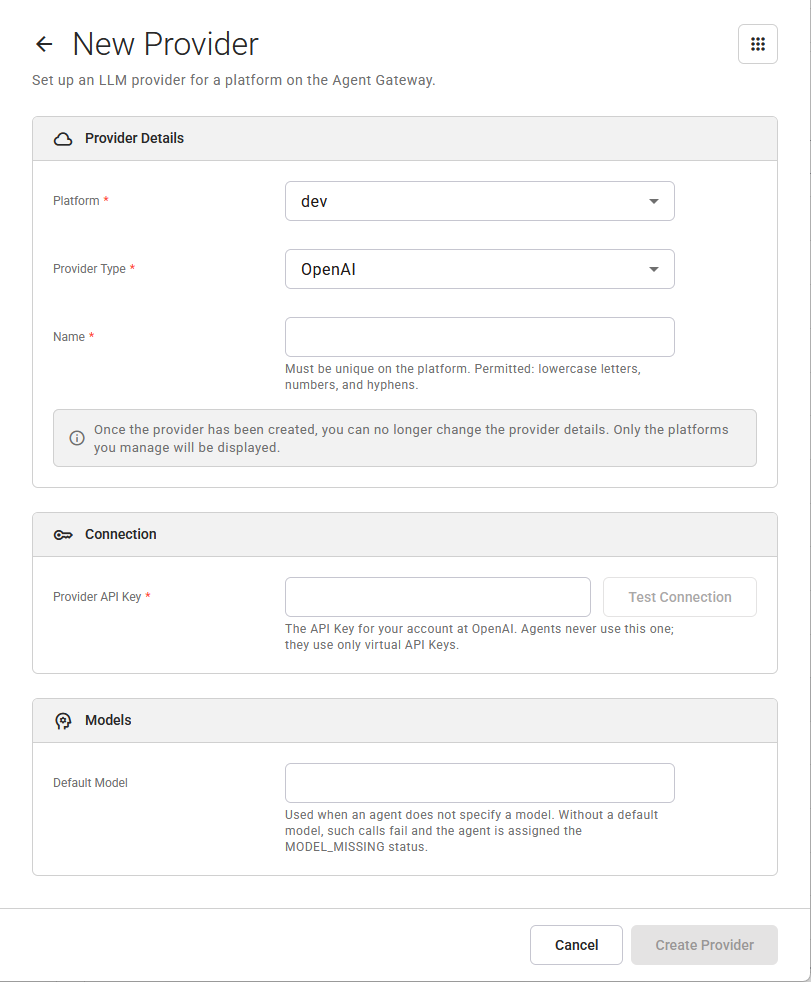
When the LLM provider is created, the Providers view opens with the message Provider <name> created. Click Cancel to return to the Providers view without creating anything.
Once the LLM provider has been created, you can no longer change its platform, its provider type, or its name.
A new LLM provider has no virtual API Keys, so the Agent Gateway rejects all calls to it until you create a virtual API Key. Refer to Creating a Virtual Key for details.
Testing the Provider API Key
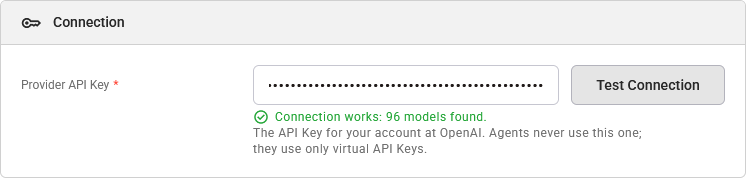
Click Test Connection on the right of the field Provider API Key to test the provider API Key before you save it. The test checks the provider API Key and settings you entered, and saves nothing.
-
Test Connection is available when Provider Type, Provider API Key, and the Azure OpenAI settings are correct.
-
If the test succeeds, the page shows the number of models below the field, for example Connection works: 9 models found.
-
If the test fails, the page marks the field and shows the cause below it. Refer to Error Handling Agent Gateway for the causes and their solutions.
-
A failed test does not prevent saving.
-
When you change Provider Type, Provider API Key, or an Azure OpenAI setting, the test result is removed. Test again for the new values.
Selecting the Default Model
The default model is the model that the Agent Gateway uses for a call that gives no model. Enter the name of a model in the field Default Model:
-
After a successful connection test, the field proposes the models of the LLM provider.
-
You can also enter a model that the LLM provider did not list.
-
For Azure OpenAI, the field proposes no models. Enter the name of the model deployment yourself.
Without a default model, a call of an agent that gives no model fails, and the agent shows the status Model missing. A virtual API Key with a list of allowed models must contain the default model if its agents give no model.
Related Content
Related Pages: