Every call of a deployed agent to a large language model (LLM) passes through the Agent Gateway of its platform. Use the Agent Gateway section of the Control Hub to decide, for the platforms you administer, which LLM providers the agents can call, with which keys, and which models they may use.
This chapter explains how to work with the Agent Gateway in the Control Hub:
How the Agent Gateway Works
The Agent Gateway separates the keys of your LLM accounts from the agents. It configures the following:
|
Term |
Description |
|---|---|
|
LLM Provider |
Connects the account of a company that supplies LLMs to the Agent Gateway of one platform. Supported provider types are OpenAI, Anthropic, Google Gemini, and Azure OpenAI. |
|
Provider API Key |
The API Key of your account at the LLM provider. The LLM provider holds it, and the Agent Gateway uses it for each call. Agents never get the provider API Key, and the Control Hub never shows more than its last four characters. |
|
Default Model |
The model of an LLM provider that the Agent Gateway uses for a call that does not specify a dedicated model. |
|
Virtual API Key |
The key that an agent uses to call LLMs through the Agent Gateway. It belongs to one LLM provider of its platform and permits all models, a list of models, or no model. |
Calling an LLM is a two-step process:
An agent sends its call with its virtual API Key to the Agent Gateway.
The Agent Gateway checks the virtual API Key and the model of the call, and then calls the LLM provider with the provider API Key.
You assign a virtual API Key and a model to an agent on the agent details page. Refer to Working With the Agent Details for more information.
Configuring the Agent Gateway
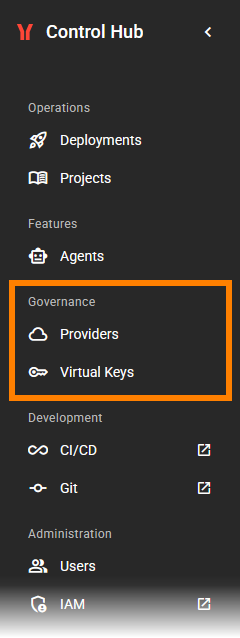
You can configure the Agent Gateway from the Governance group of the sidebar:
-
Providers
Manage the LLM providers that can be accessed via the Agent Gateway for the platforms you administer. Refer to Providers for details. -
Virtual Keys
Manage all the keys that agents can use to call LLMs through the Agent Gateway. Refer to Virtual Keys for details.
Only administrators can configure providers and virtual keys.
Giving an Agent Access to an LLM
To let an agent call an LLM through the Agent Gateway, proceed as follows:
-
Add an LLM provider to the platform of the agent, with the provider API Key of your account. Refer to Creating a Provider.
-
Create a virtual API Key for this LLM provider, and select the models the agents may use. Refer to Creating a Virtual Key.
-
Assign the virtual API Key and a model to the agent. Refer to Working With the Agent Details.
Effects of Configuration Changes on Agents
The Agent Gateway applies a change to the next call, usually after a few seconds. The agents need no new deployment. The following table shows which agents are affected by a change:
|
Change |
Effect on Agents |
|---|---|
|
Replace the provider API Key of an LLM provider |
All virtual API Keys of the LLM provider use the new key. They stay valid, and the agents keep working. |
|
Change or remove the default model of an LLM provider |
Calls that give no model use the new default model. Without a default model, these calls fail. A virtual API Key with a list of models must permit the new default model. |
|
Remove an LLM provider |
All virtual API Keys of the LLM provider are removed. Their agents can no longer call the LLM provider. |
|
Change the allowed models of a virtual API Key |
The agents keep the virtual API Key. Calls with a model that the virtual API Key no longer permits are rejected. |
|
Revoke a virtual API Key |
The agents of the virtual API Key can no longer call LLMs until they get a different virtual API Key. |
Before you remove an LLM provider or revoke a virtual API Key, open the Virtual Key Details page. Section Agents lists the agents that would lose access. See Managing a Virtual Key for more.