

In the next development step, you will define the SOAP interface of the Web service.
Defining the Port Type
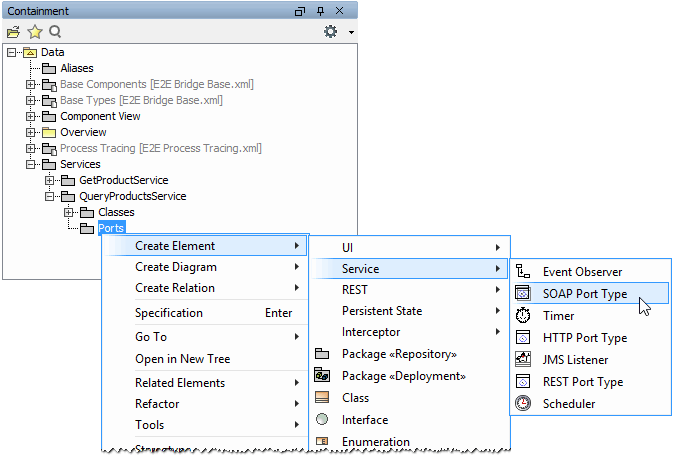
In the containment tree, collapse all open packages within the package Data / Services. Navigate to the package Data / Services / QueryProductsService / Ports, and create a new SOAP Port Type class. This can be done manually (as explained in lesson 2) or via Create Element > Service > SOAP Port Type.
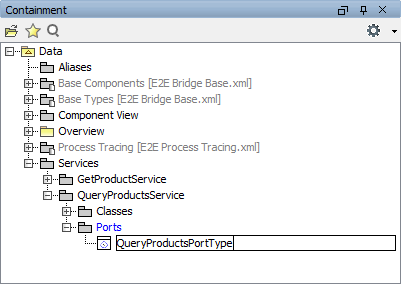
Assign the name QueryProductsPortType:
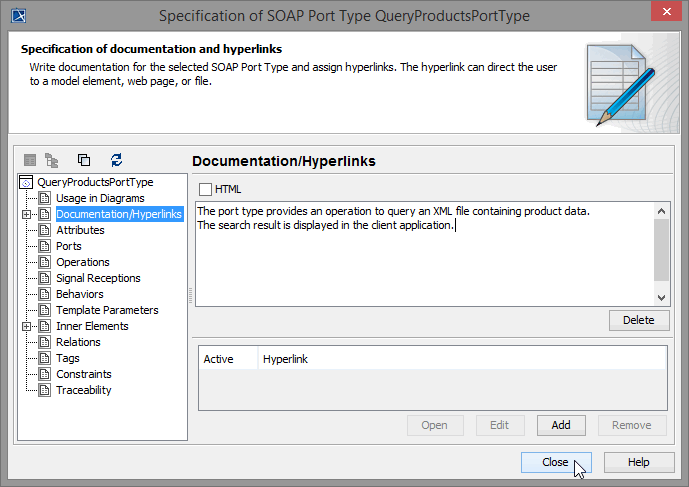
Double-click the port type and enter a description of the port type in the Documentation/Hyperlinks section:
The port type provides an operation to query an XML file containing product data. The search result is displayed in the client application.
Defining the Operation
Create an operation for the new port type:
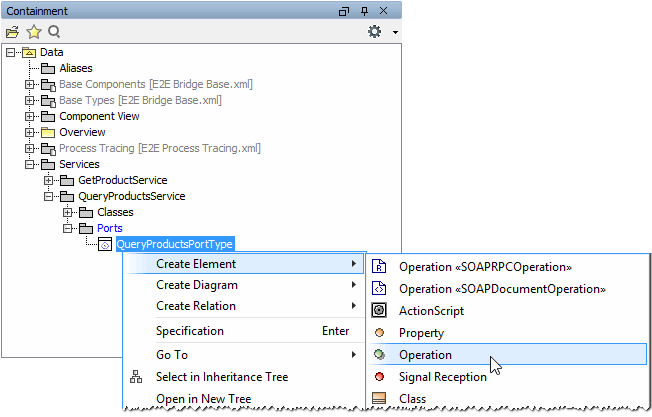
Assign the name queryProducts:
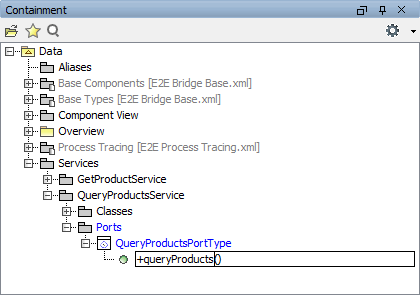
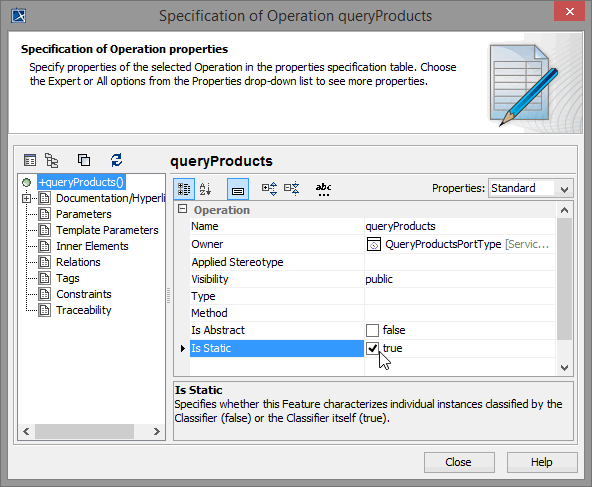
According the SOAP standard, operations of port types need to be defined as static. In the object-oriented world this means that no instance of the port type class is needed to call the operation. The operation can be called directly without instantiating the port type class.
Double-click the new operation to open the operation specification dialog. Select the checkbox Is Static to set this option to true:
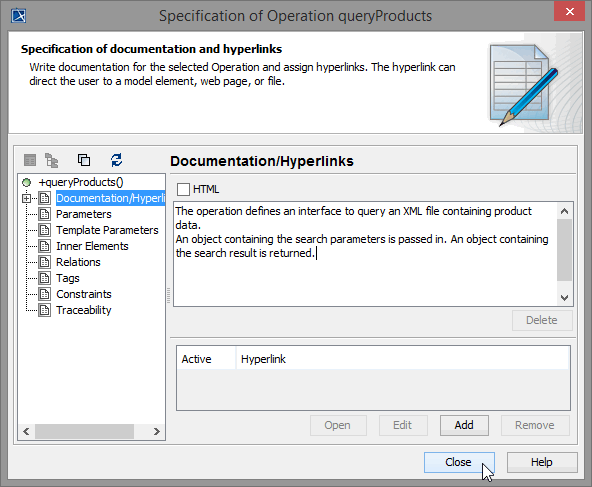
Change to the Documentation/Hyperlinks section and enter a description of the operation:
The operation defines an interface to query an XML file containing product data. An object containing the search parameters is passed in. An object containing the search result is returned.
Defining the Operation Parameters
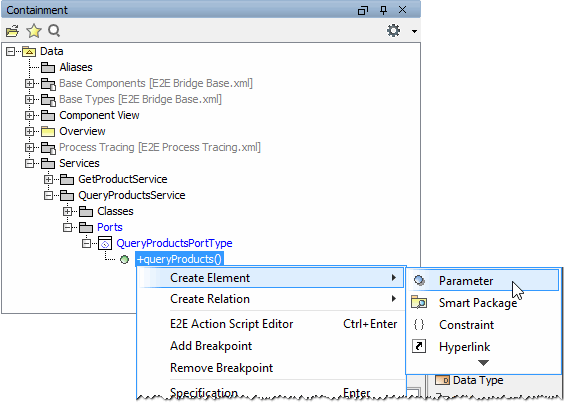
Select the operation queryProducts in the containment tree and create a new parameter:
Assign the name userInput:
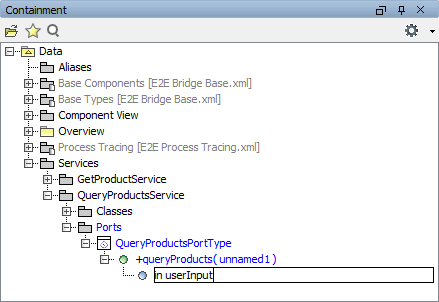
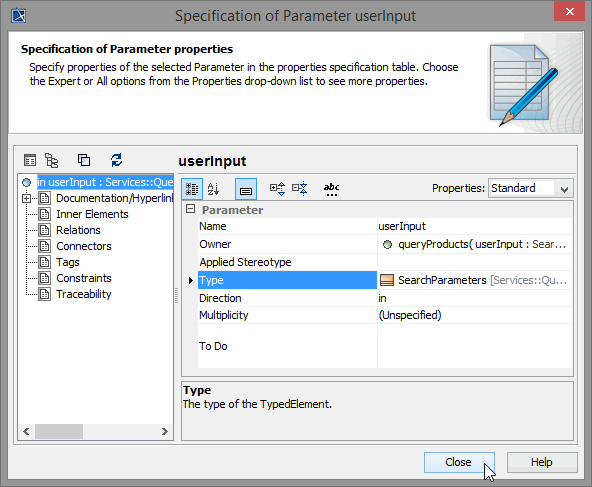
Double-click the new parameter and choose the type SearchParameters. Leave the Direction as in and close the dialog:
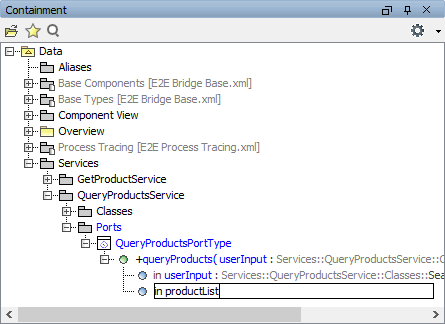
Create a second parameter and assign the name productList. In the first iteration, the output of the operation will be just a list of products. All additional calculations will be done in the second iteration. This has the effect, that in the second iteration you will have to change the operations interface:
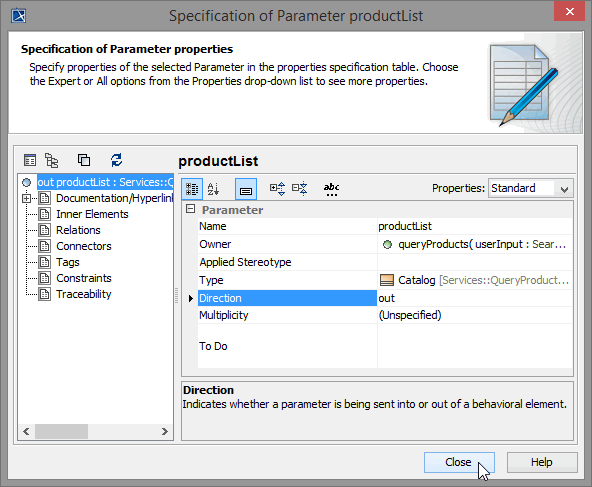
Double-click the new parameter and choose the type Catalog. Set the Direction to out and close the dialog:
Assigning a new Activity Diagram to the Operation
At this point, the interface of the Web service is nearly complete. Each operation must be assigned to an activity diagram of the UML model.
Operations of a port type represent the interfaces of a Web service. Activity diagrams implement the behavior of these operations. Each port type operation has to be assigned to the implementing activity diagram. When the operation is called, the assigned activity diagram will be executed.
The activity diagram has not been created yet. In the next step, you will directly assign a new activity diagram to the operation queryProducts.
Select the operation queryProducts in the containment tree with the right mouse button, choose Behavior Diagram > Assign…:
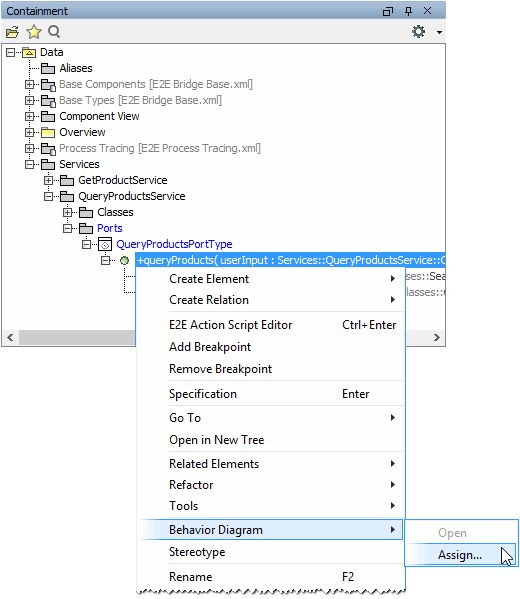
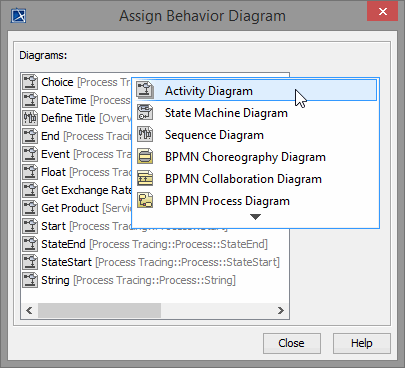
The Assign Behavior Diagram dialog displays a list of existing activity diagrams that could be assigned to the operation. As the operation gets assigned a new activity diagram click New and choose Activity Diagram from the drop down list:
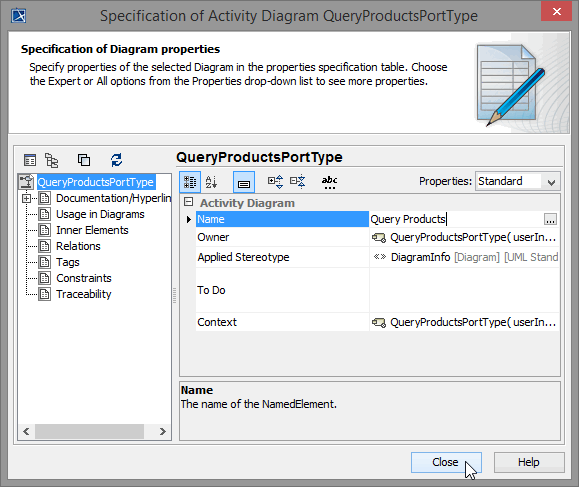
The name of the activity respectively the activity diagram should always correspond to the name of the operation it is specifying. In the dialog Specification of Activity Diagram QueryProductsPortType change the name to Query Products:
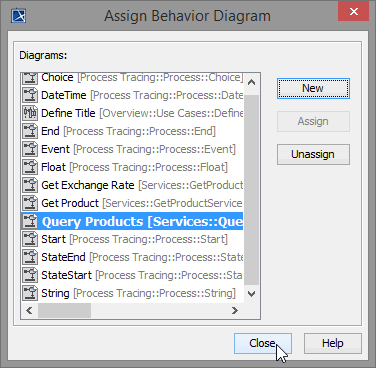
The new activity diagram now is listed in the Assign Behavior Diagram dialog and is assigned to the operation queryProducts. Click Close:
Expand the activity Query Products. The activity diagram Query Products is part of the new activity that has been created at the same time. Note, that the necessary parameter nodes have been created automatically as well:
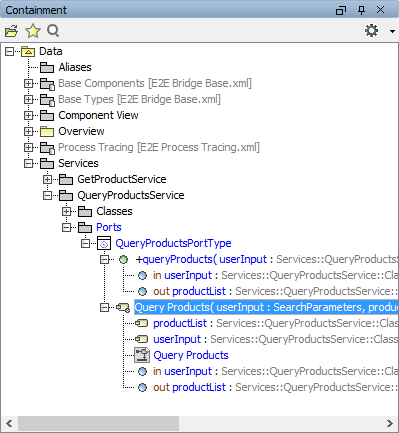
If you double-click the operation queryProducts in the containment tree, the assigned activity diagram Query Products will always open in the diagram pane.
The definition of the third SOAP interface of the Web service is complete. Save the UML model.
Assigning Activity Diagrams to Use Cases
For documentation purposes and to simplify navigation through the UML model, you can link use cases to activity diagrams.
In MagicDraw, switch to the use case diagram tab Query Products you defined earlier:
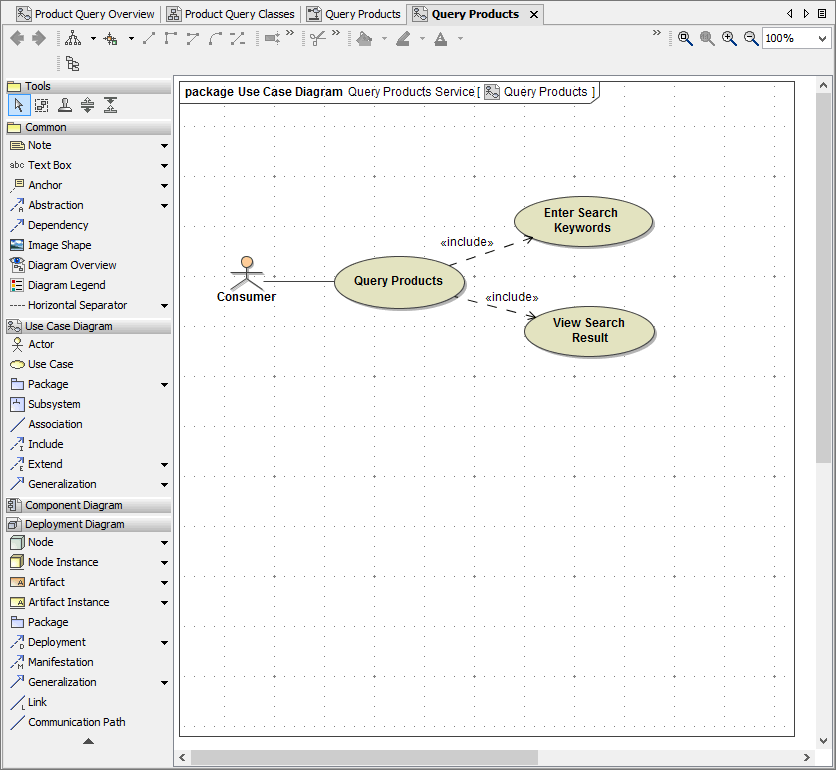
Select the activity diagram Query Products in the containment tree:
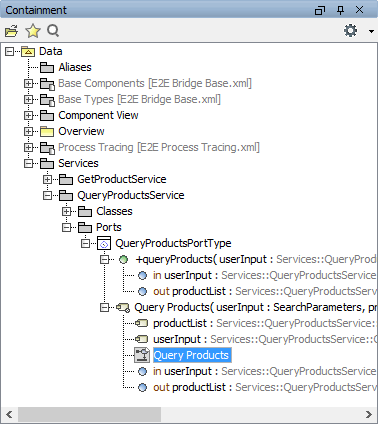
Drag the activity diagram symbol on the diagram pane and drop it onto the use case Query Products:
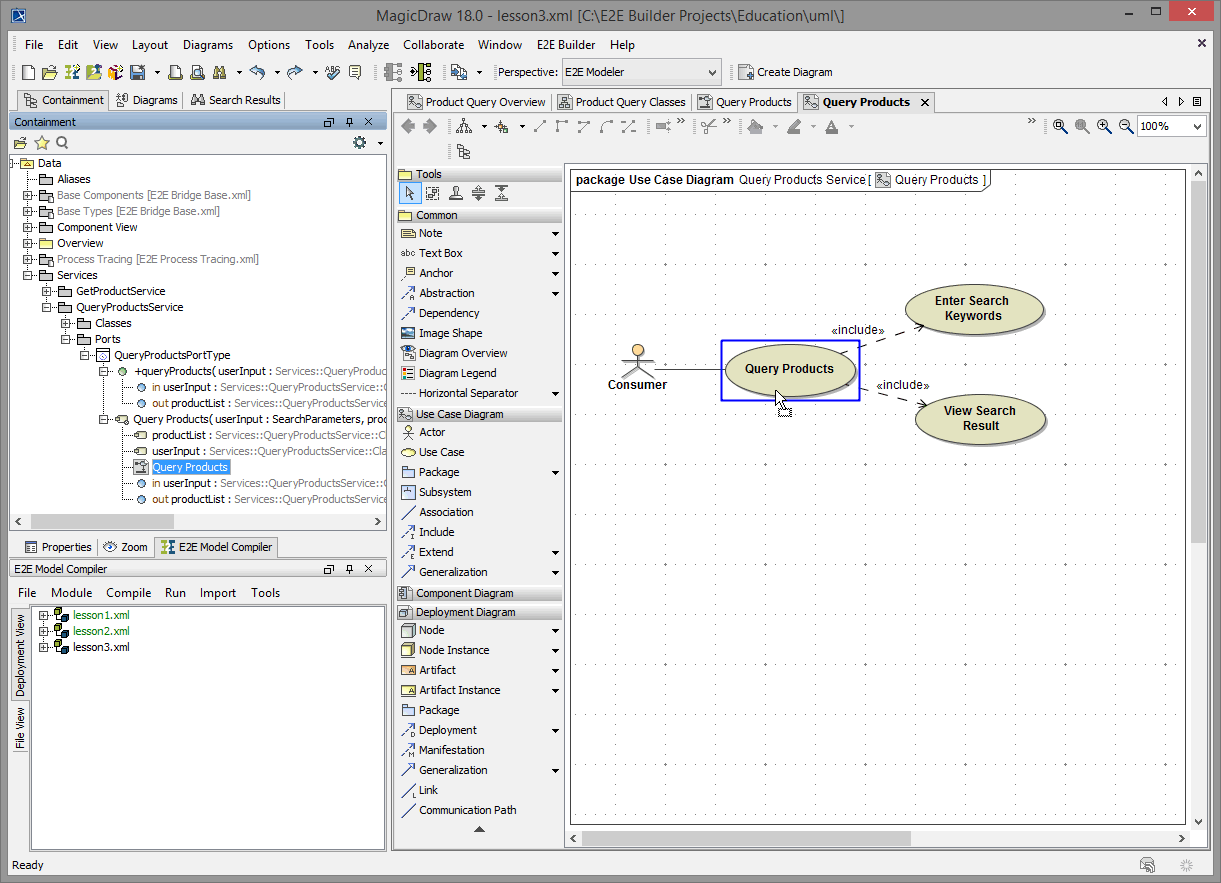
The use case Query Products has been linked to the activity diagram Query Products now. In the lower left of the use case, the activity diagram icon is shown.
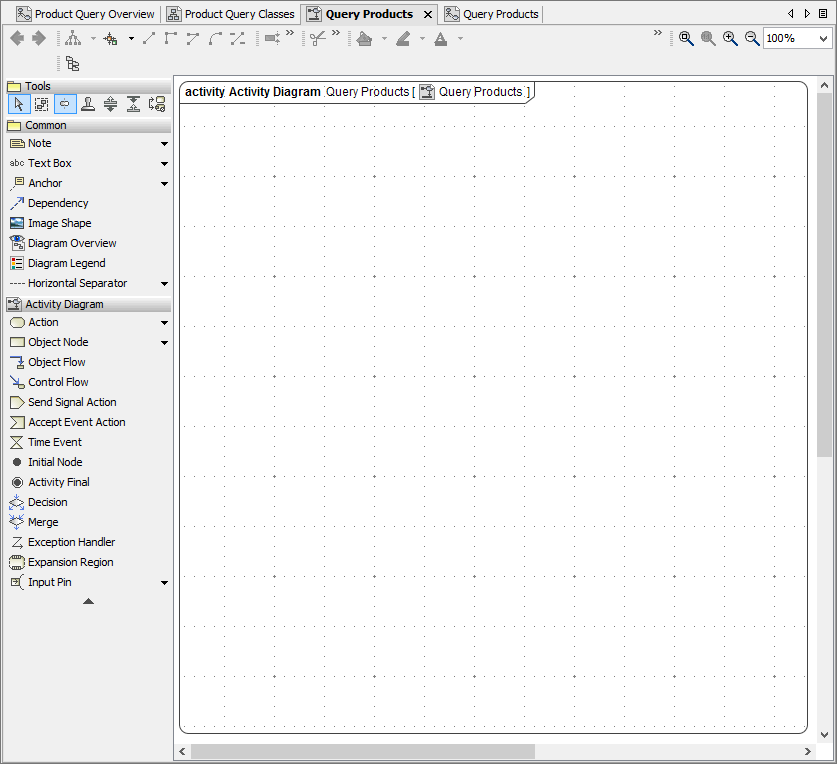
Double-click the use case Query Products to open the linked activity diagram:
Save the UML model.