

You now will extend the class diagram with the necessary properties for the exchange rate conversion and the other calculations.
Switch to the class diagram Product Query Classes, right-click into the diagram pane and choose Close All Tabs But Current:
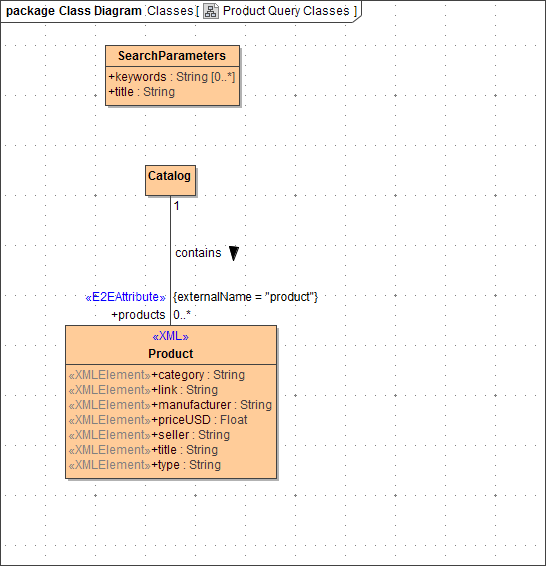
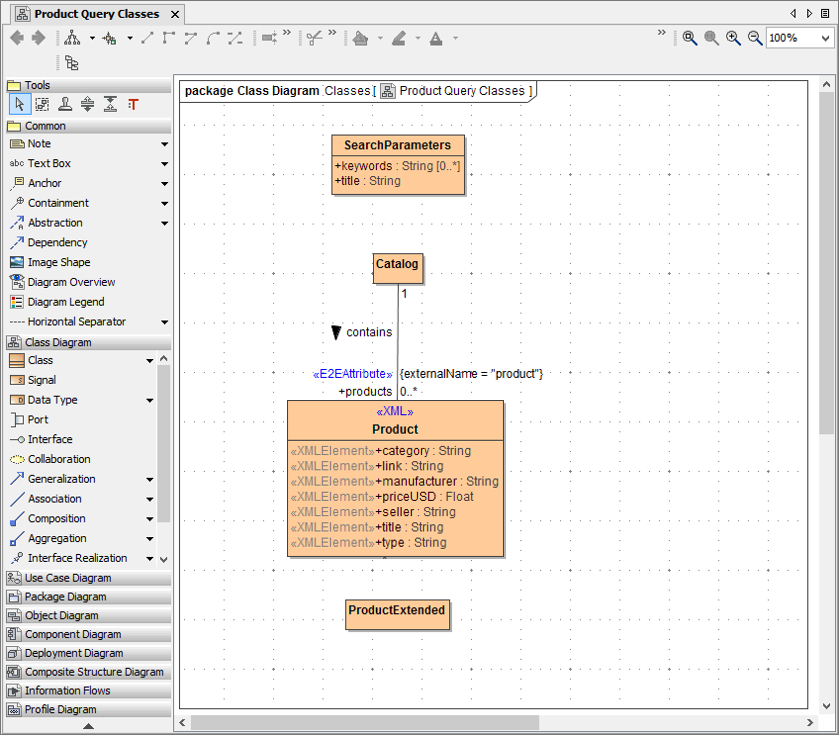
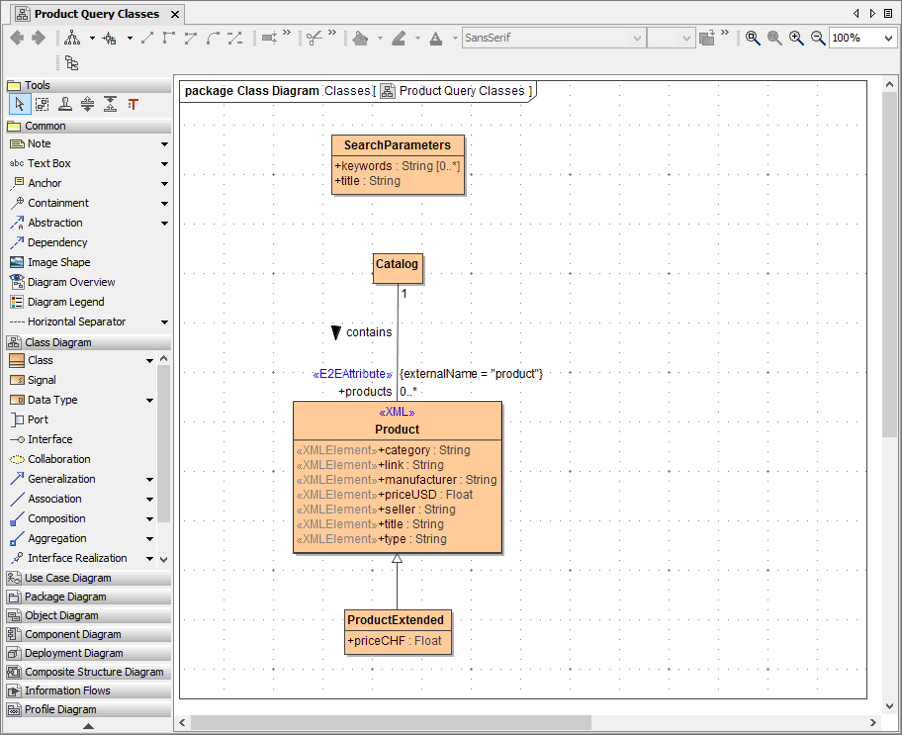
The class diagram as it is describes the structure of the XML file and provides the input parameters. It is not possible to add the additional properties directly to the class Product, because the additional properties are not part of the XML file. Therefore, you will create a new class ProductExtended that will contain all attributes of class Product and the additional attribute priceCHF as well. Pick the class icon from the diagram toolbar and draw a third class ProductExtended:
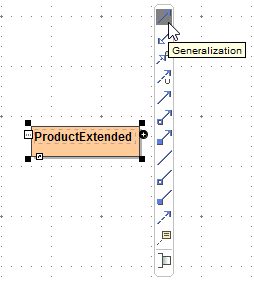
Select ProductExtended and choose Generalization from the smart manipulation tool bar:
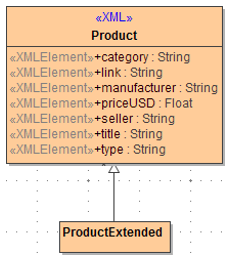
Draw a Generalization from ProductExtended to Product so that ProductExtended inherits all attributes of Product:
Double-click ProductExtended to open the Specification dialog and switch to the tab Attributes. Note the list of attributes ProductExtended inherited from Product and via Product from Catalog:
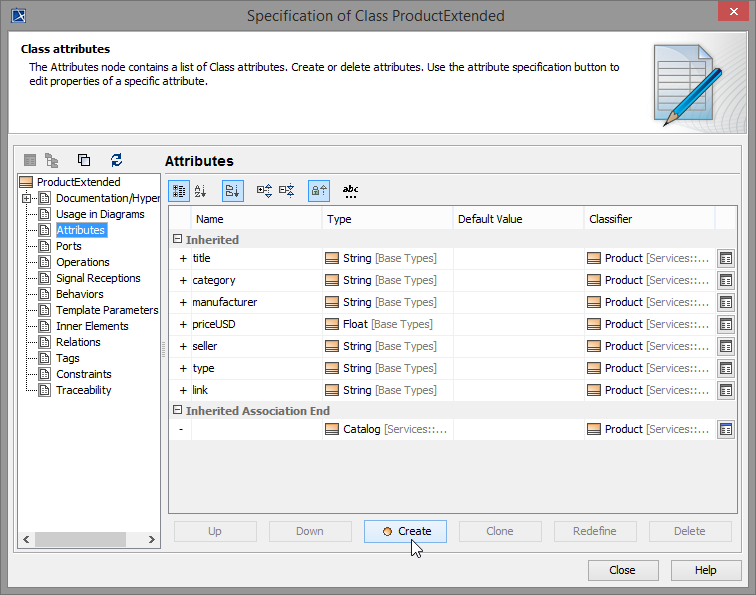
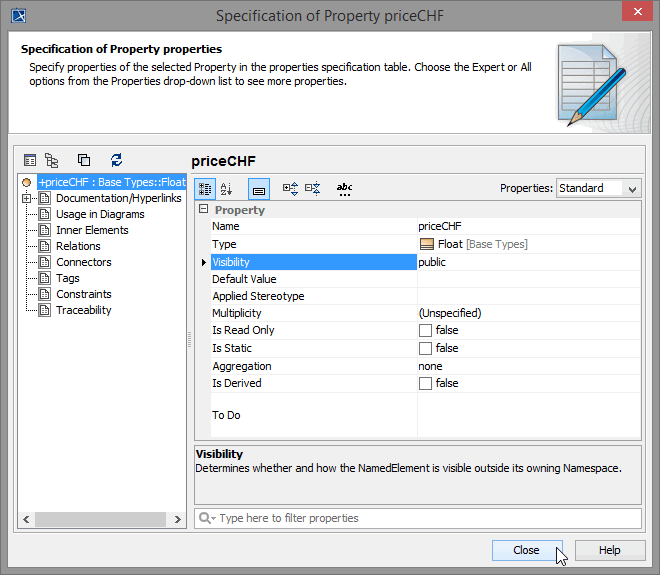
Create a new attribute priceCHF with type Float and visibility public. Click Close (or Back, if available):
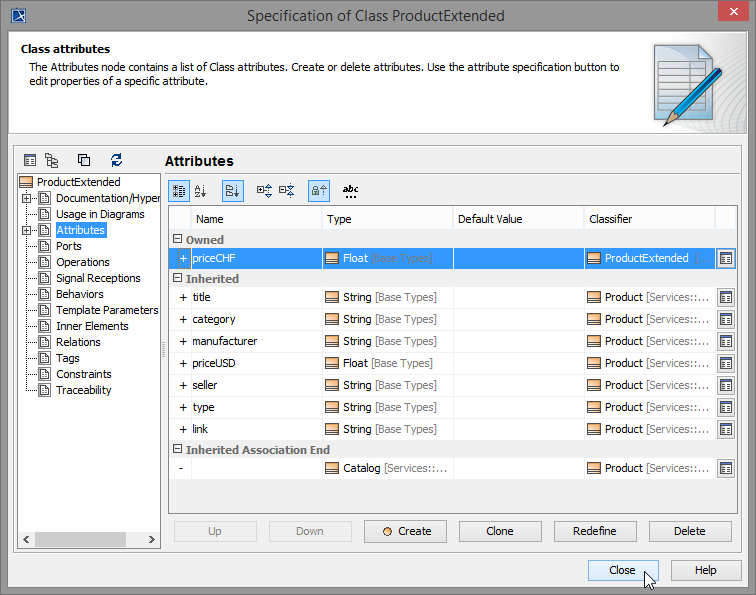
Note the new attribute priceCHF at the top of the list of all attributes of ProductExtended. Click Close:
Your class diagram now should look like the one below.
To give back some more calculated information in addition to the products, you need a fifth class. Draw another class and assign the name SearchResult:
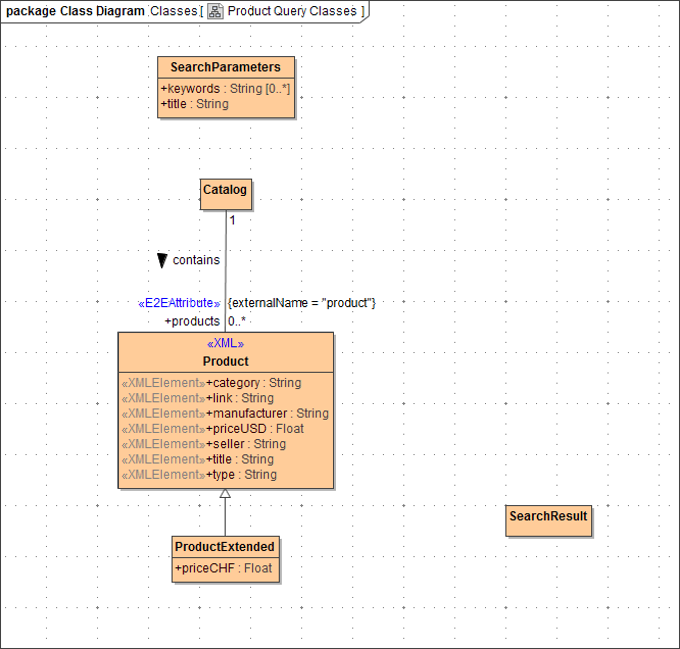
Add the following attributes to class SearchResult:
|
Attribute Name |
Attribute Type |
Visibility |
|---|---|---|
|
deliveryCharge |
Float |
public |
|
exchangeRate |
Float |
public |
|
keywords |
String |
public |
|
title |
String |
public |
|
totalAmountCHF |
Float |
public |
|
totalAmountUSD |
Float |
public |
SearchResult will be the type of the return parameter of the port type operation. That is why you will link the product information to SearchResult. Draw an association from SearchResult to ProductExtended:
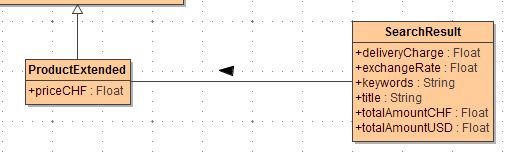
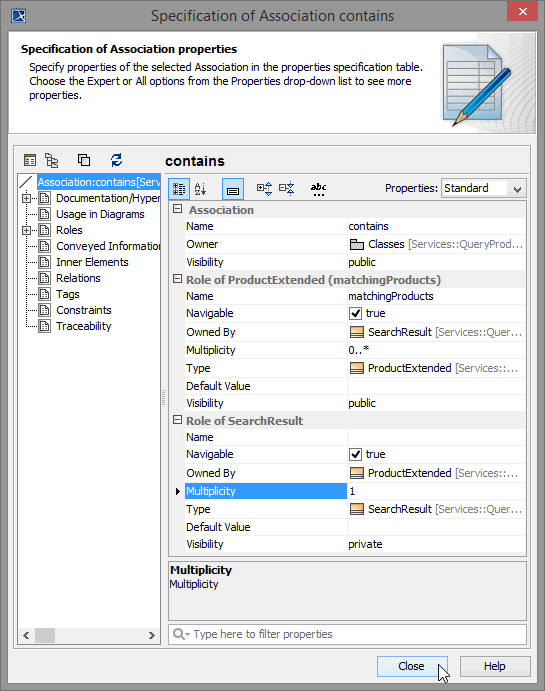
Open the Specification dialog of the association. Assign the name contains as the SearchResult contains ProductExtended. To Role of ProductExtended assign the name matchingProducts, set the multiplicity to 0..* and the visibility to public. Set the multiplicity of Role of SearchResult to 1:
Now, compare the link between SearchResult and ProductsExtended with the link between Catalog and Product.
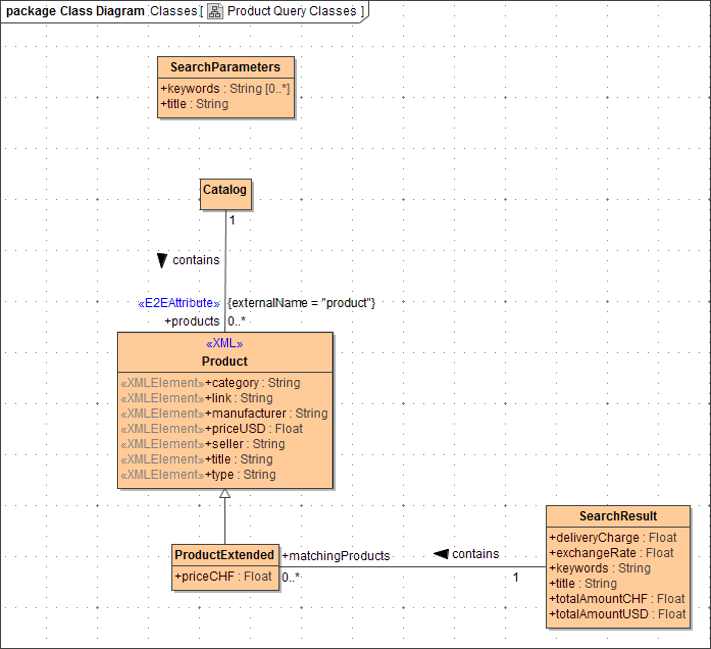
The SearchResult contains zero to infinite matchingProducts and some additional information. Association end matchingProducts constitutes an attribute of class SearchResult. It is an array that contains elements of type ProductExtended. Save the UML model.