

The use case diagram Product Query Overview is displayed.
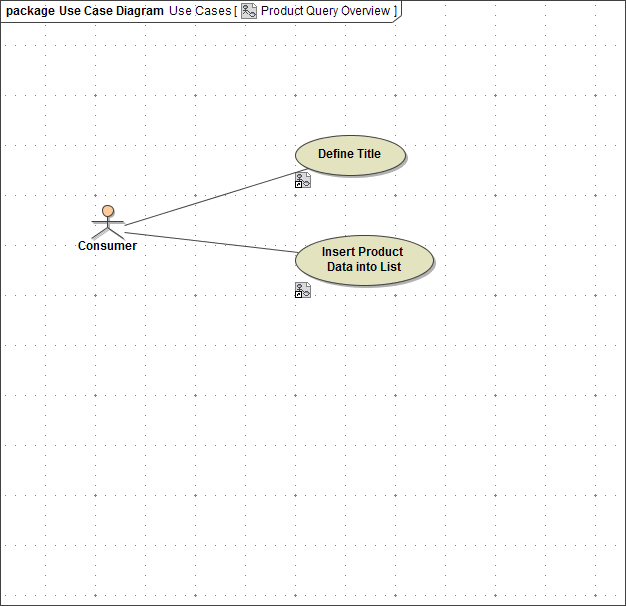
Change the name of the second use case from Insert Product Data into List to Query Products, because now you are going to design a query of an XML file containing product records. Select the use case Insert Product Data into List:
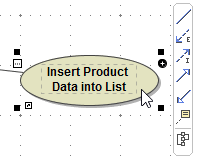
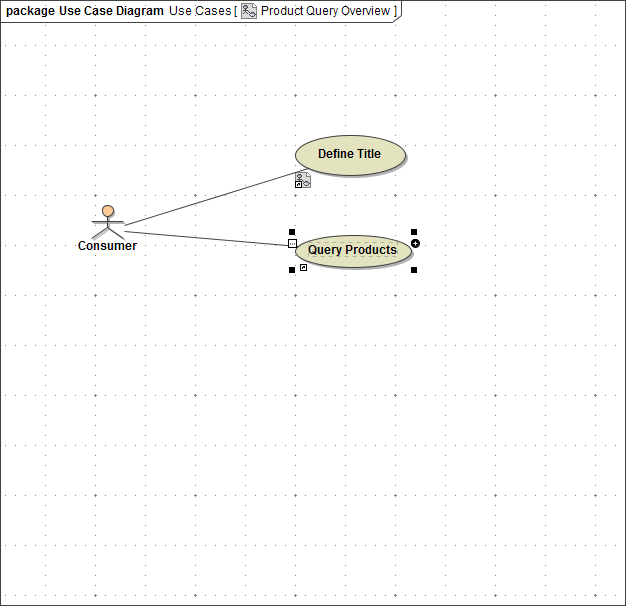
Click the name of the use case and start typing the new name Query Products. To finish, press Enter:
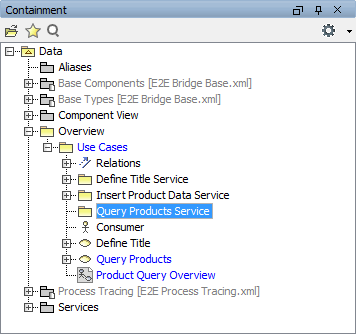
Create a new package Query Products Service in the package Data / Overview / Use Cases:
Create a new use case diagram in the new package:
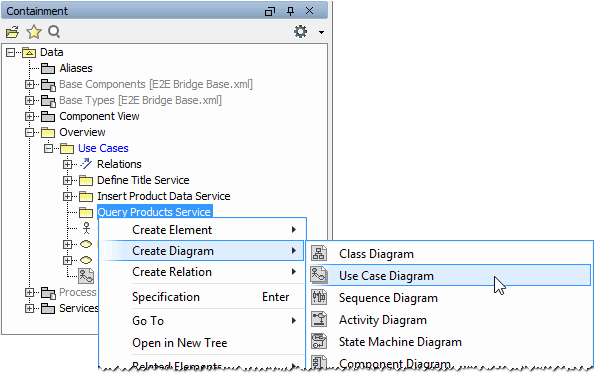
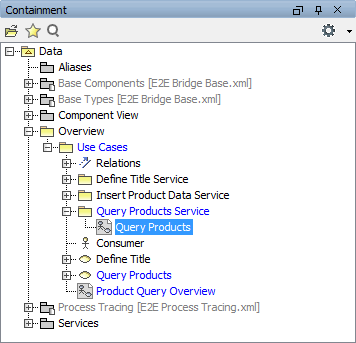
Assign the name Query Products to the use case diagram:
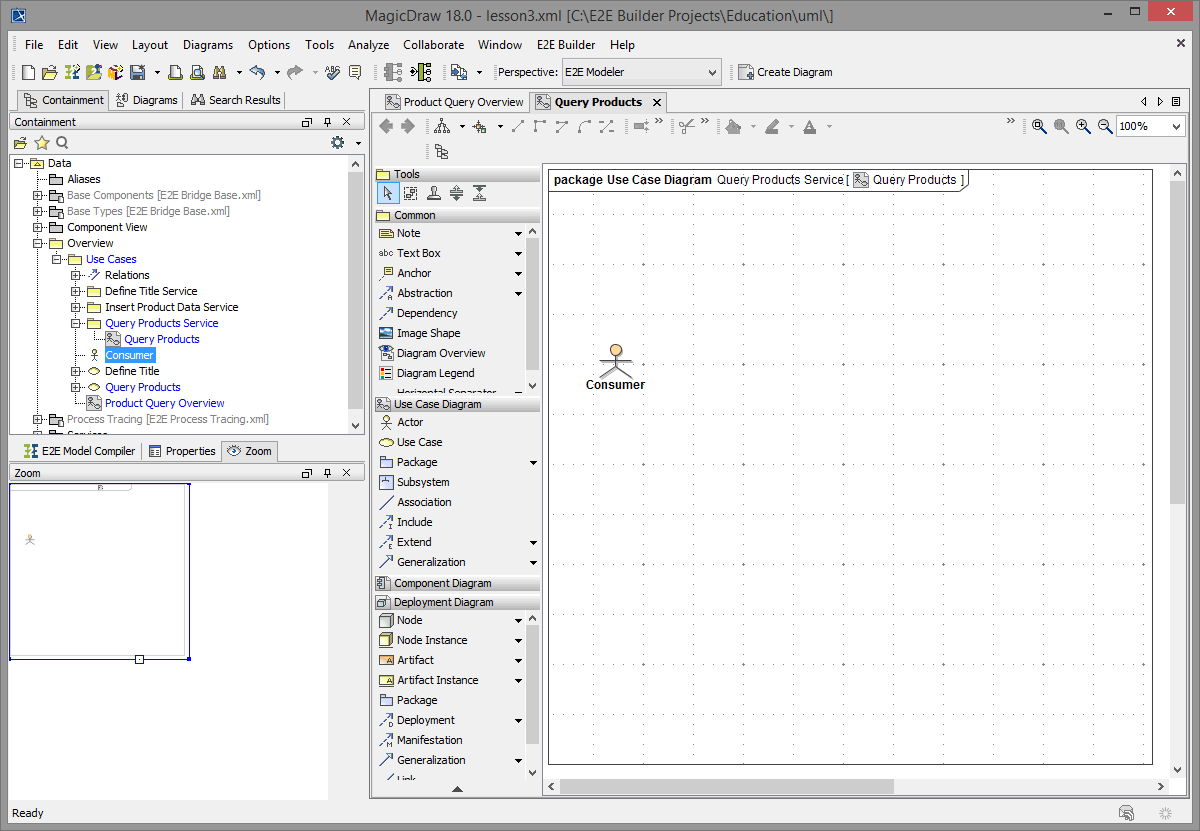
Reuse the actor Consumer in the package Data / Overview / Use Cases and drag and drop it onto the new use case diagram Query Products:
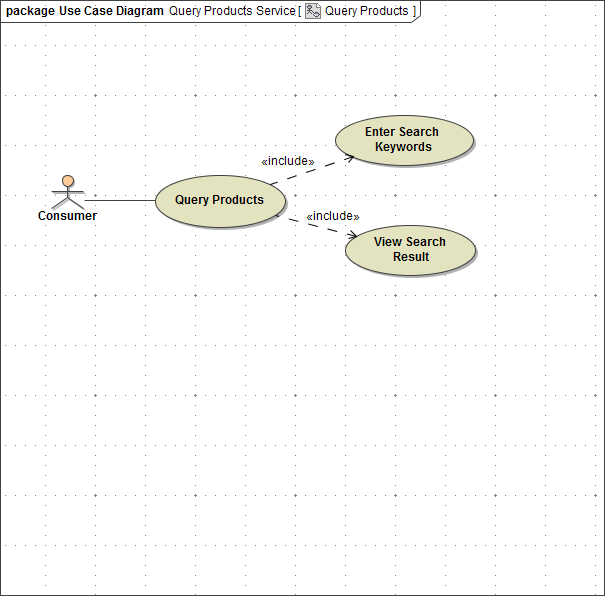
Complete the use case diagram by selecting the appropriate icons from the middle bar. Create the main use case Query Products first and draw an association between this use case and the actor Consumer. Include the other use cases in the main use case:
-
Enter Search Keywords
-
View Search Result
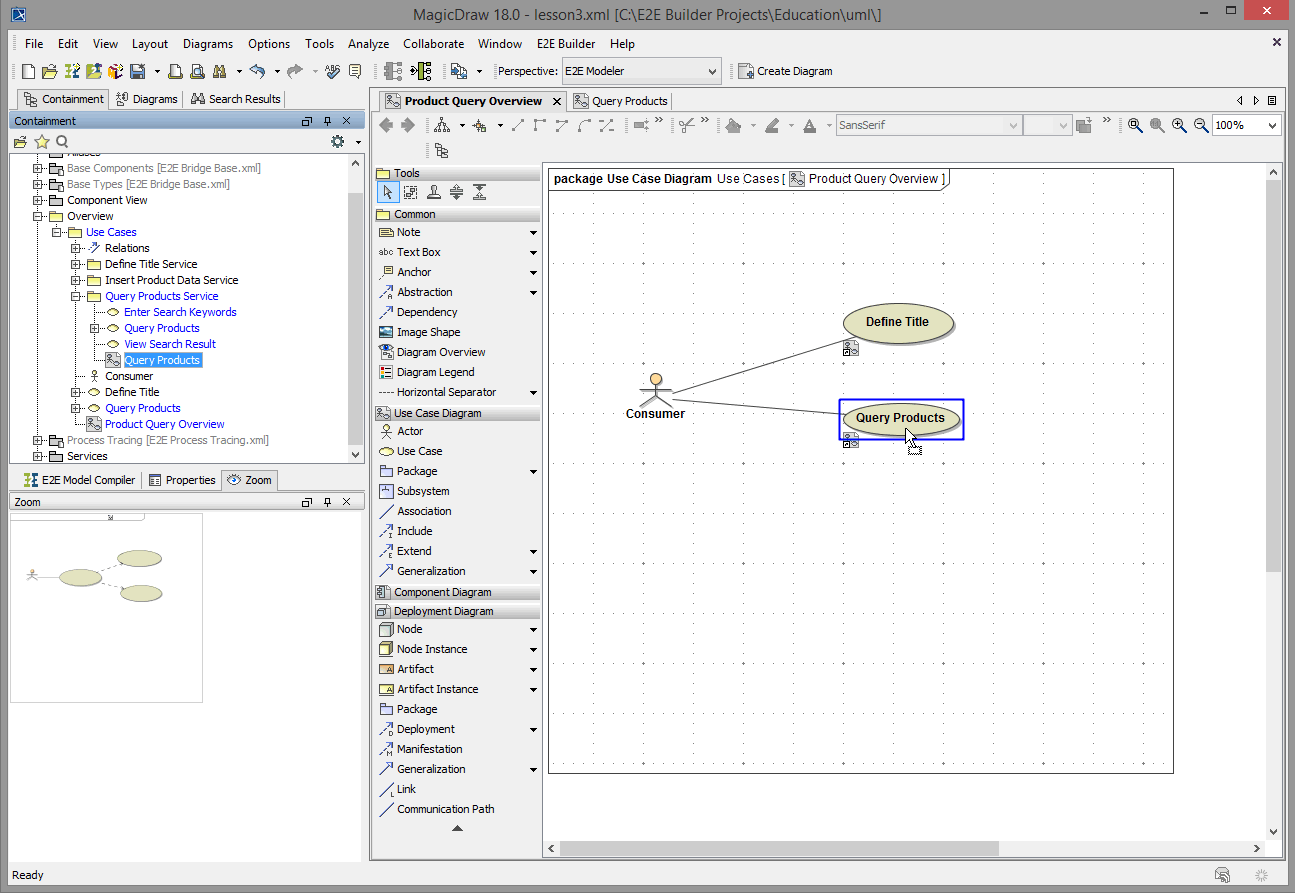
Switch to the diagram tab Product Query Overview. Expand the package Query Products Service in the containment tree and define a hyperlink on use case Query Products. Link the created use case diagram by dragging and dropping the use case diagram Query Products as shown in the picture below.
In case a context menu appears, select Assign hyperlink.
Now, delete the package Insert Product Data Service as it is not used anymore.
Save the UML model.