

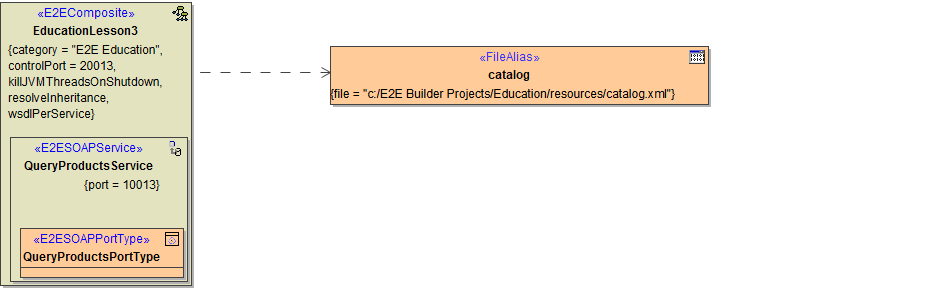
In the picture below, the component diagram, which results from the first iteration, is displayed. You now are going to insert a SOAP Adapter to access the Exchange Rate Converter.
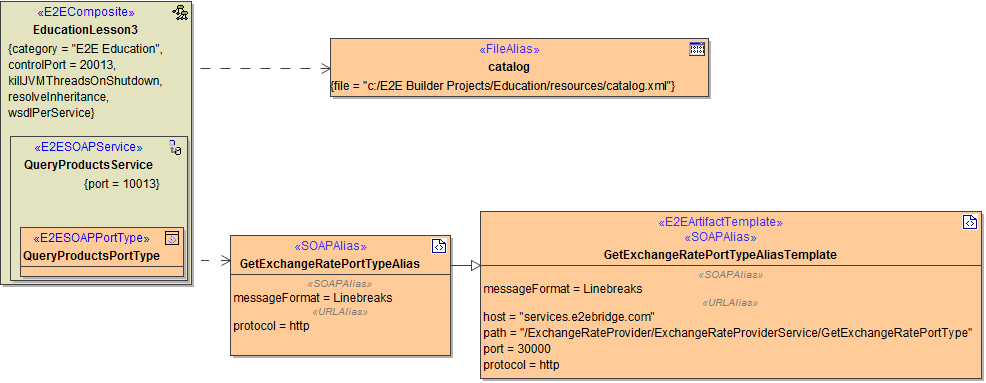
After adding the SOAP Alias, the component diagram will look like shown in the following picture:
Reworking and Extending the Component Diagram
The existing configuration you created in the first iteration of lesson 3, will now be extended to be able to access the ExchangeRateProvider service. To do this, you have to add a <<SOAPAlias>> artifact to the component diagram. Open the component diagram EducationComponents. All elements you need for accessing the ExchangeRateProvider service have been provided during the import of the service's WSDL - including the SOAP alias. Now you have to add the alias to the component diagram.
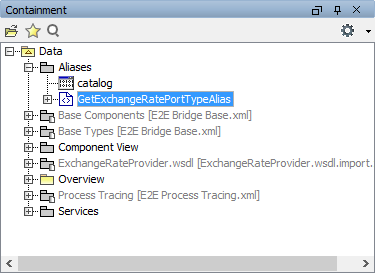
Expand the package Data > Aliases and select GetExchangeRatePortTypeAlias:
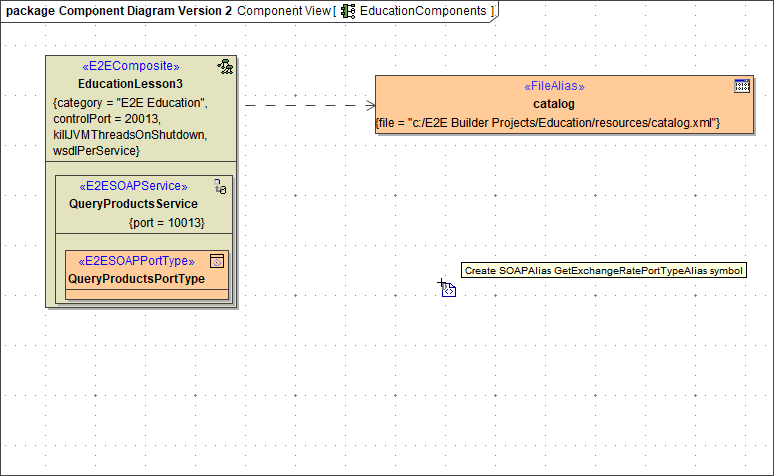
Drag and drop the alias on the diagram pane:
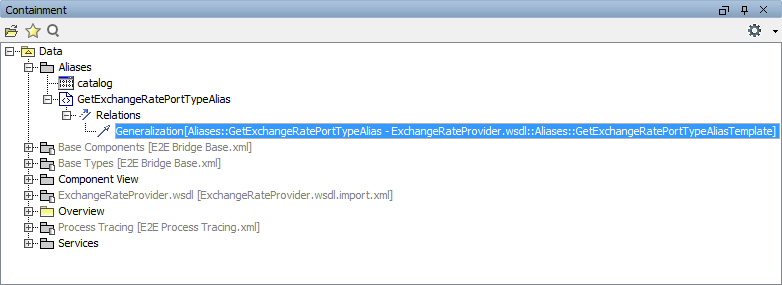
If you expand the alias in the containment tree, you see that it is related to the GetExchangeRatePortTypeAliasTemplate of of the imported service:
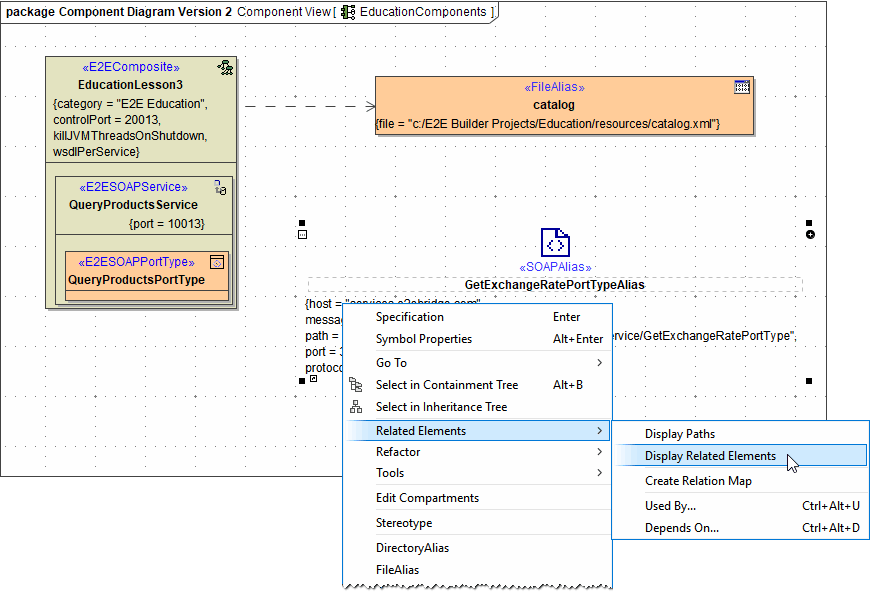
To display this relation on the diagram pane, right-click the <<SOAPAlias>> and choose Related Elements > Display Related Elements from the context menu:
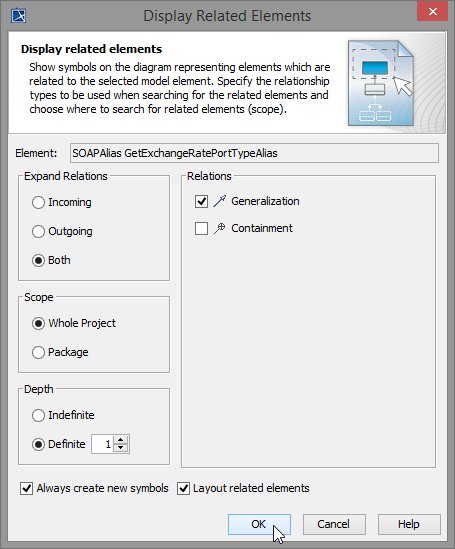
Keep the default settings in dialog Display Related Elements and click OK:
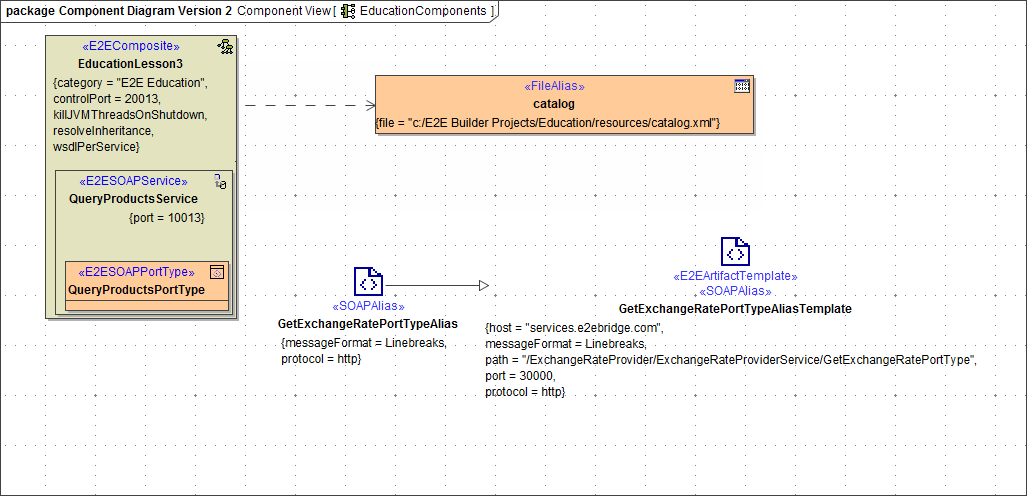
On the diagram pane, the connection between the <<SOAPAlias>> and the <<E2EArtifactTemplate>><<SOAPAlias>> GetExchangeRatePortTypeAliasTemplate is now displayed. Through their relation, the information displayed in the <<E2EArtifactTemplate>> such as host, path and port can be used by the <<SOAPAlias>>:
Finally, you just have to connect the <<SOAPAlias>> to the <<E2EComposite>> EducationLesson3 by a dependency. Select the dependency icon from the diagram toolbar and ...
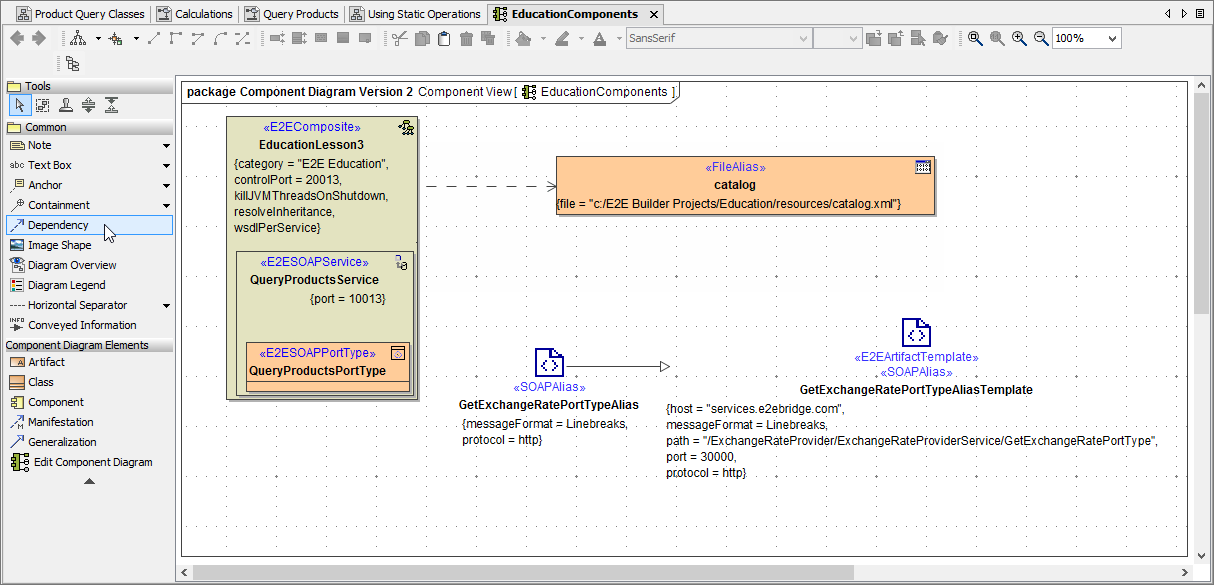
... draw a dependency from EducationLesson3 to the alias:
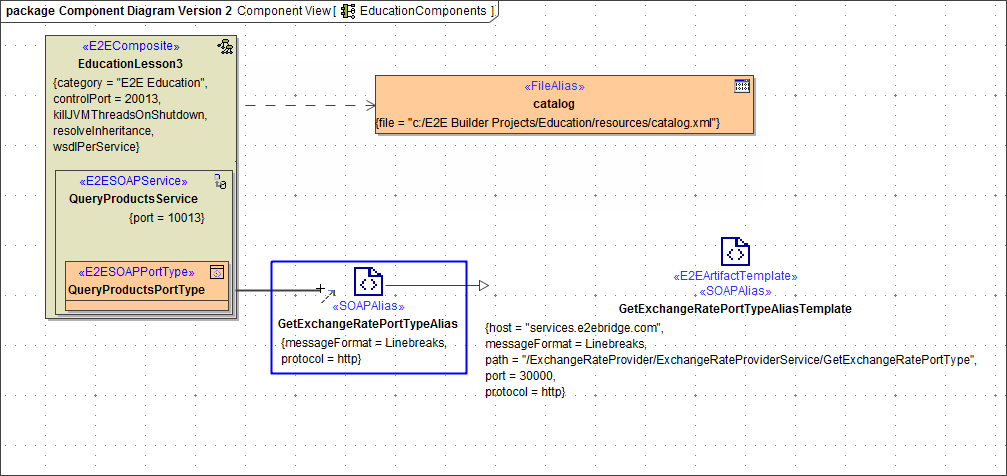
The component diagram is finished:
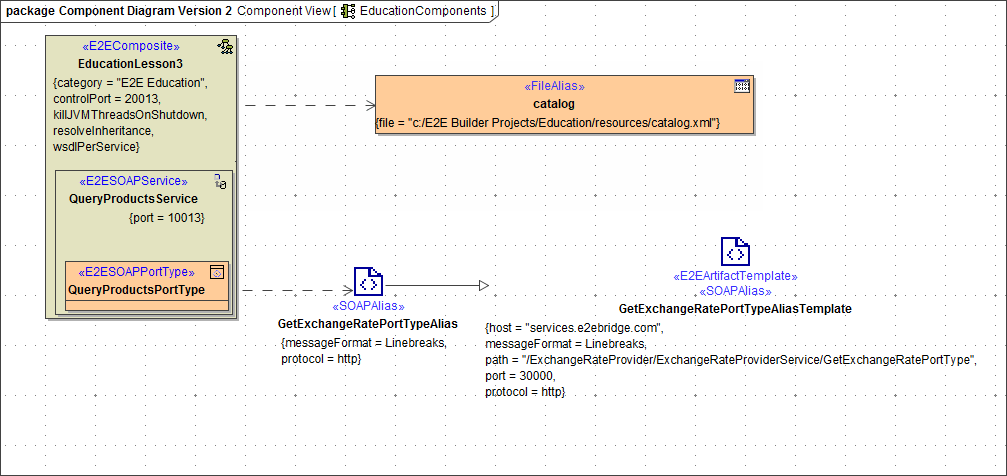
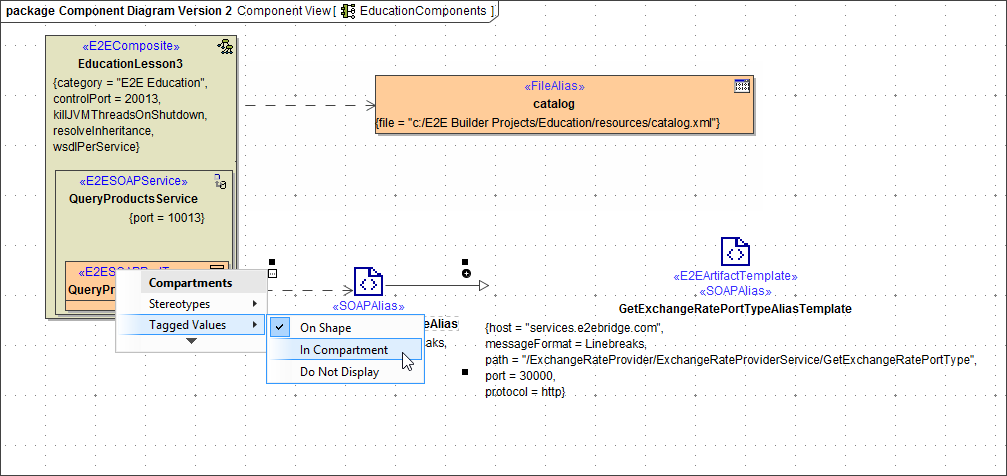
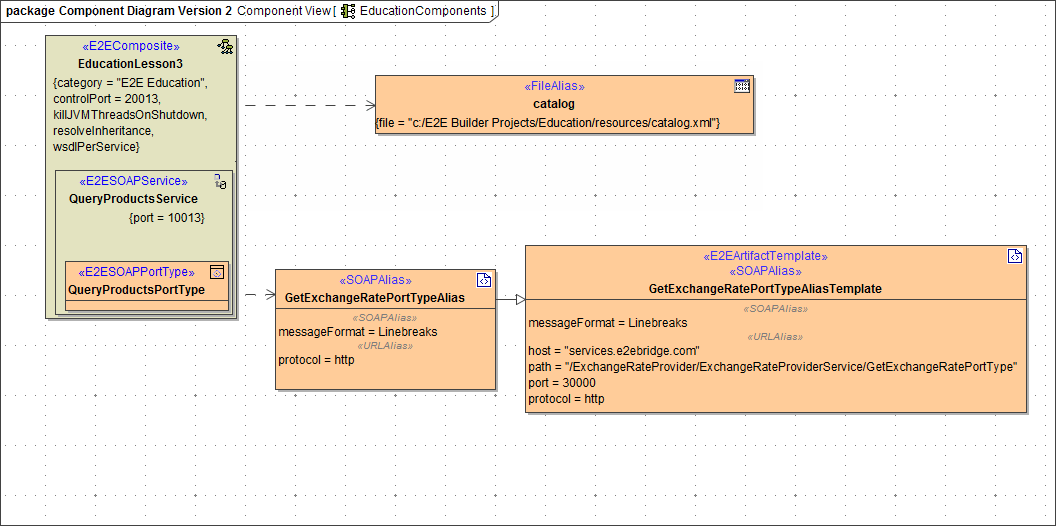
Note the difference between the <<FileAlias>> and the <<SOAPAlias>> artifact. MagicDraw elements can be displayed with different presentation options. If you want to match the presentation of the <<SOAPAlias>> artifact to the one of the <<FileAlias>>, select the <<SOAPAlias>> artifact and click on the 
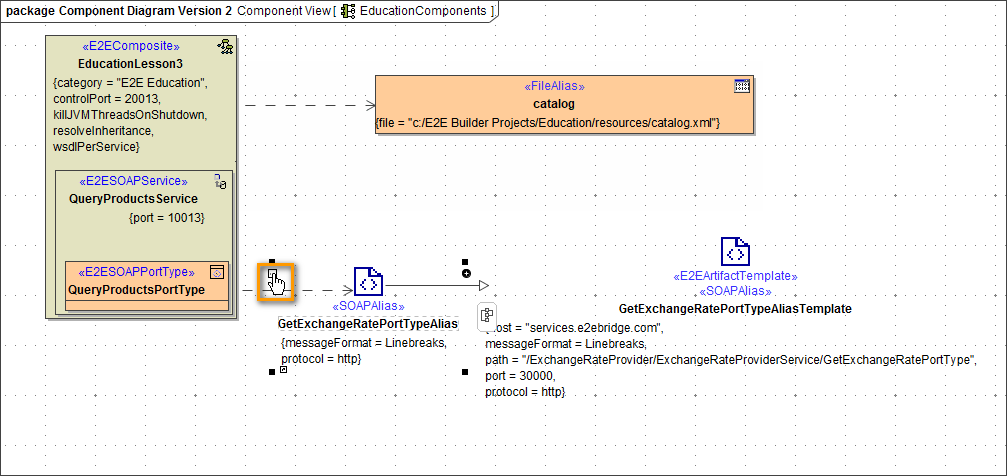
In the context menu Tagged Values choose In Compartment. Assign the same to the <<E2EArtifactTemplate>>. If you prefer the presentation of the <<SOAPAlias>>, apply On Shape to the <<FileAlias>> artifact:
Now, the xUML service EducationLesson3 can be compiled.