
The Scheer PAS Administration allows you to manage the services running on the platform.
Follow Our Example User Story
David wants to check the details of his containerized service in the administration. He also wants to decrease the order limit that has been set during the service implementation.
To access the details of the containerized service, click the Administration in the deployment controls:

The administration opens in a new tab. The general information about your running service is displayed:
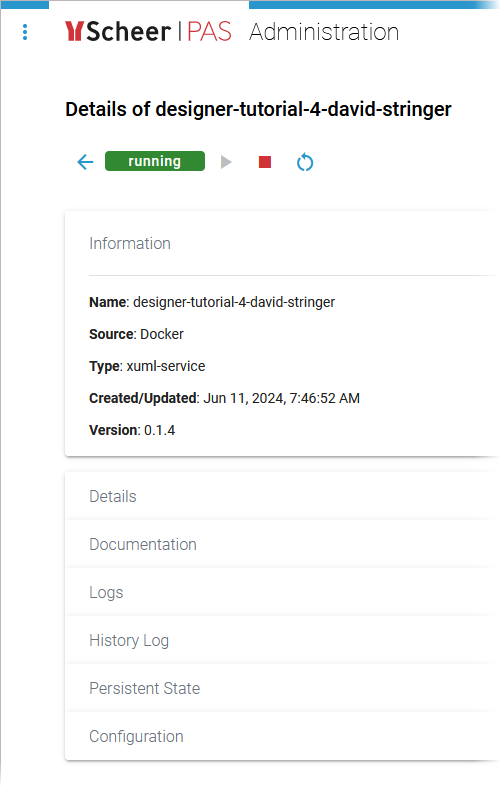
Check Tab Documentation
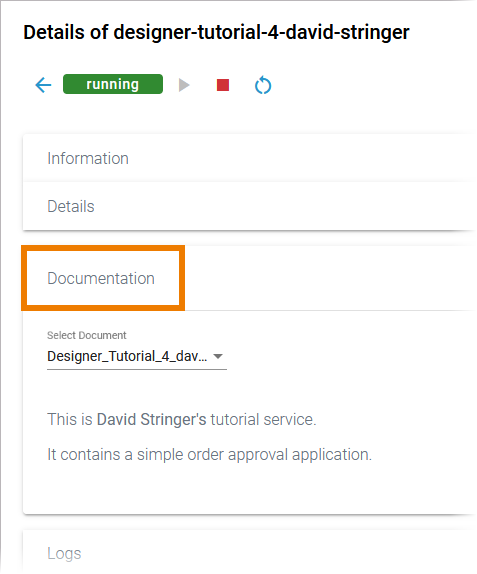
In the Documentation section, all service-related documentation is accessible: the service description as well as the library documentation.
Expand section Documentation. Check if it displays your service description:
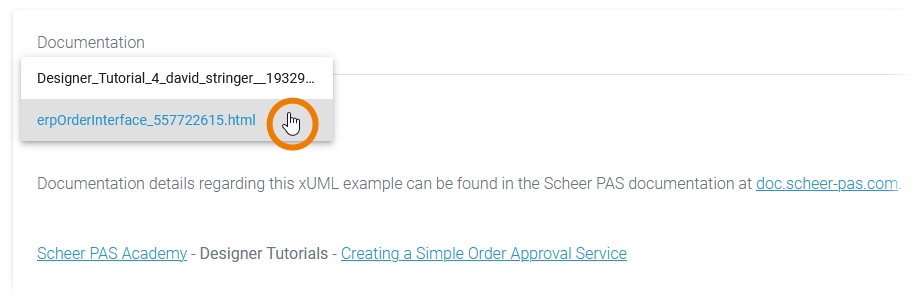
In tutorial 2, you have imported the library ERPOrderInterface to your service. This library is also documented. Use the drop-down list to select and display the library documentation:
Decrease the Order Limit
Follow Our Example User Story
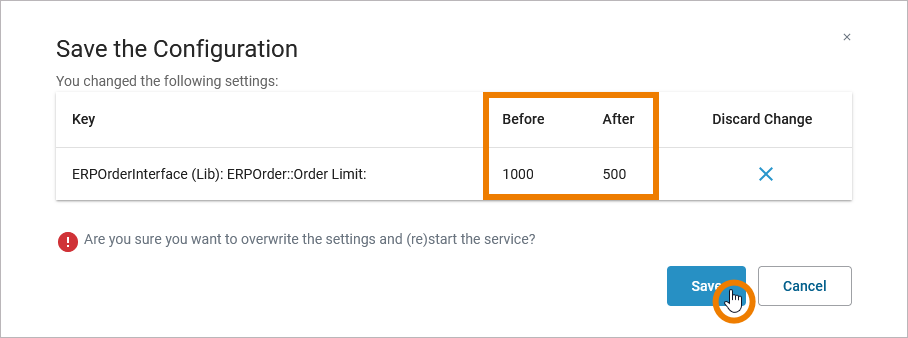
David has set an order limit of 1.000 during service implementation by using the elements from library ERPOrderInterface. He now wants to decrease the limit to 500.
On top of the service details, some quick action icons are displayed. They allow you to stop, start or restart the service. Stop the service:

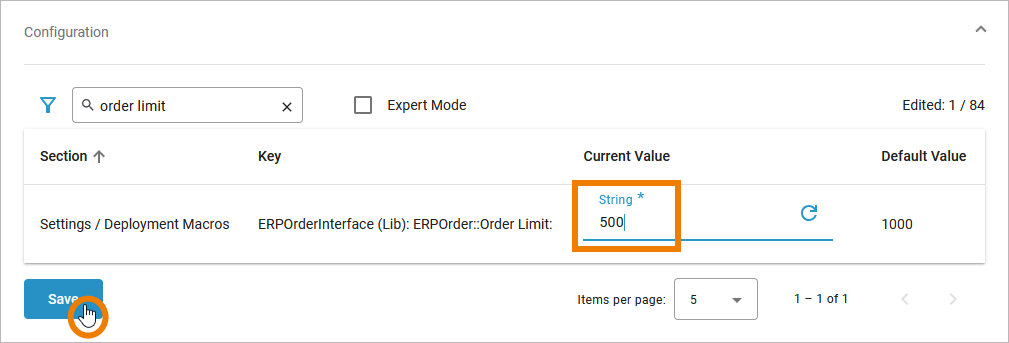
Now expand section Configuration and use the filter to search for order limit:
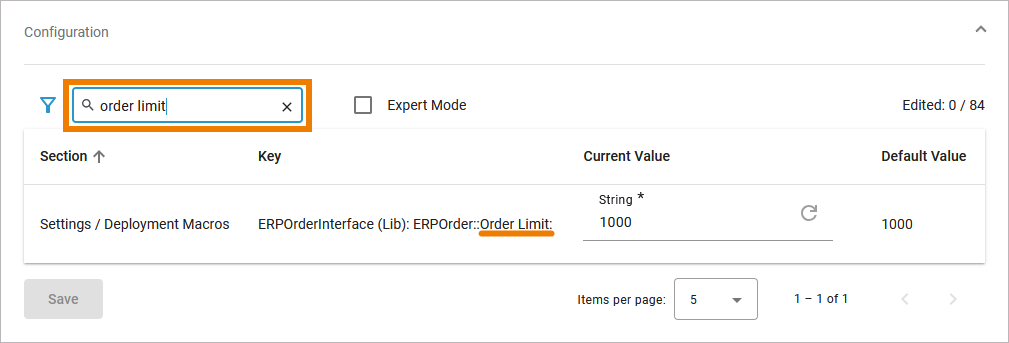
Change the limit to 500 and save your change:
Confirm your change in the pop-up window:
The service is restarted automatically and the configuration change is applied. Close the administration and switch back to the the Designer.
Curious about more details?
In this step learned how to manage your running service within the PAS Administration.
-
For detailed information about the options in the Administration, refer to Controlling Containerized xUML Services (Docker) or Controlling Containerized xUML Services (Kubernetes) in the Administration Guide - depending on your PAS setup.